
How to create and configure apps
Add apps from the catalog of more than 700 services, or your own, and set up their name, logo, notifications, profile, hibernation and more.
An app in Rambox is a web service (Gmail, Slack, WhatsApp, Notion…) that runs in its own space inside Rambox, with its own icon in the sidebar, its own notifications and its own settings. Rambox has a catalog of more than 700 ready-made apps, and you can add any other website as a custom app.
Every app lives inside a workspace. If you don't have a workspace yet, create one first: How to create and configure workspaces.
Add an app
- Open the workspace you want to add the app to.
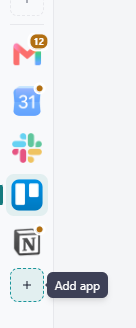
- In the sidebar, click the + button with the tooltip Add app. It sits below the list of apps (or next to the Apps header when the sidebar is expanded).
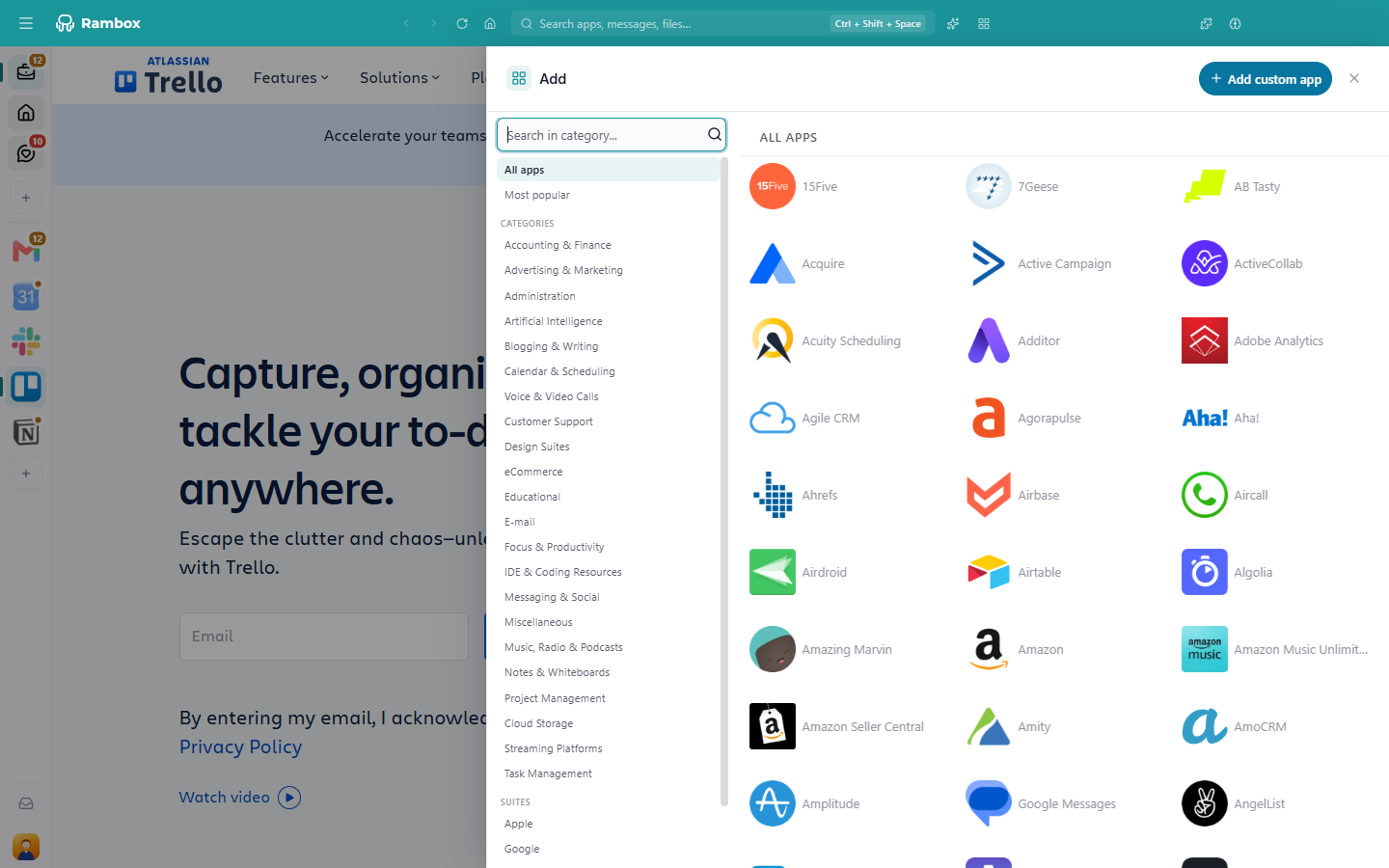
- The Add panel opens with the app catalog.
- Find the app you want (see below) and click it.
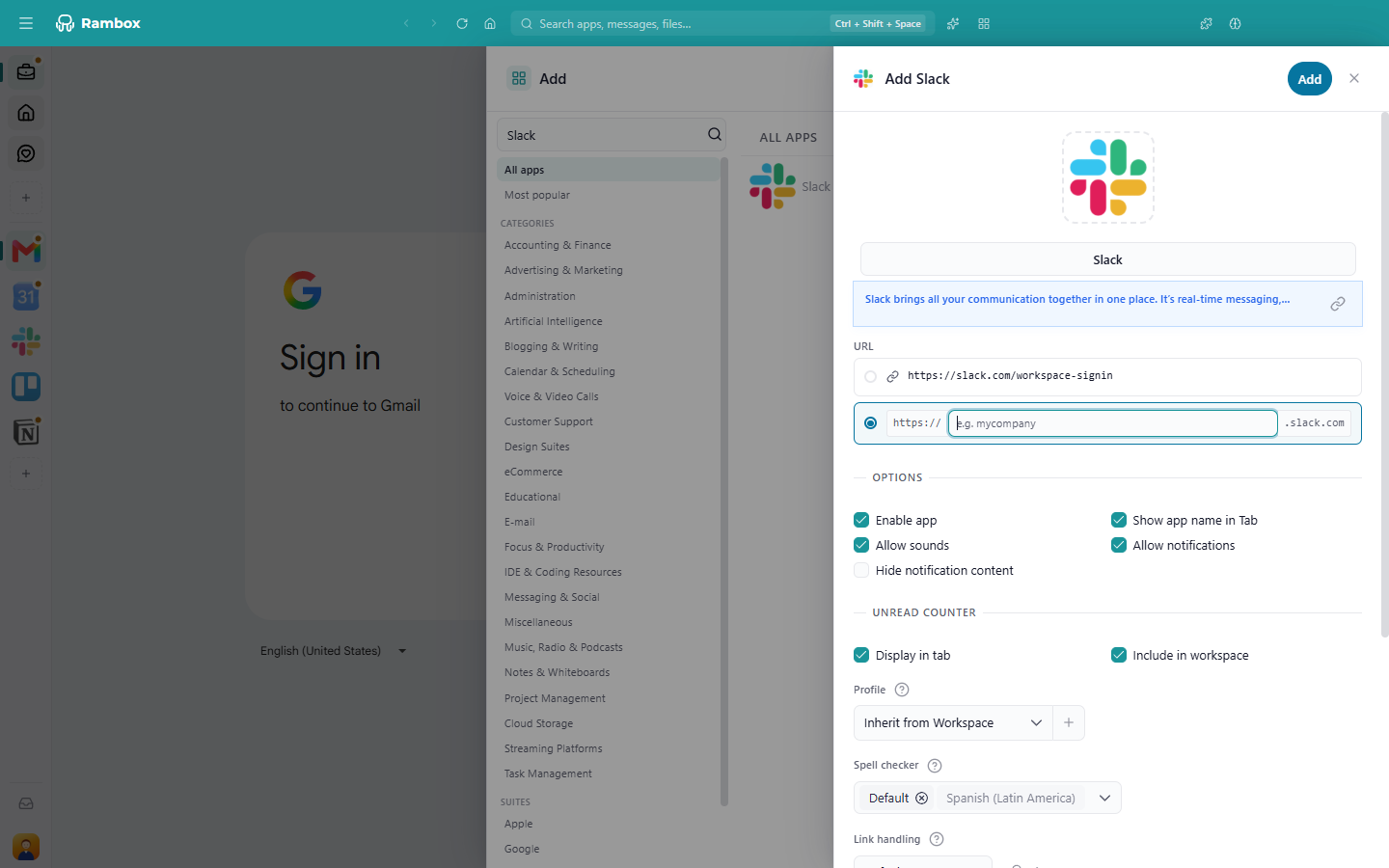
- The app's settings open, titled Add followed by the app name. Fill in anything required (some apps need an address) and adjust the options if you want.
- Click Add.
The app appears in the sidebar and starts loading. Sign in to the service as you would in a browser.
You can also open the catalog from the Command Center: open it, type Add App and press Enter.
Tiles workspaces
In a Tiles workspace the sidebar's + is hidden. Add apps with the + inside an empty tile instead. See Tiles: workspace layout.
Find an app in the catalog
- Search: type in Search in category.... If exactly one app matches, pressing Enter picks it. Press Esc once to clear the search and again to close the panel.
- Browse: use the menu on the left: All apps, Most popular, Categories (email, messaging, project management…) and Suites (apps grouped by company, like Google or Microsoft).
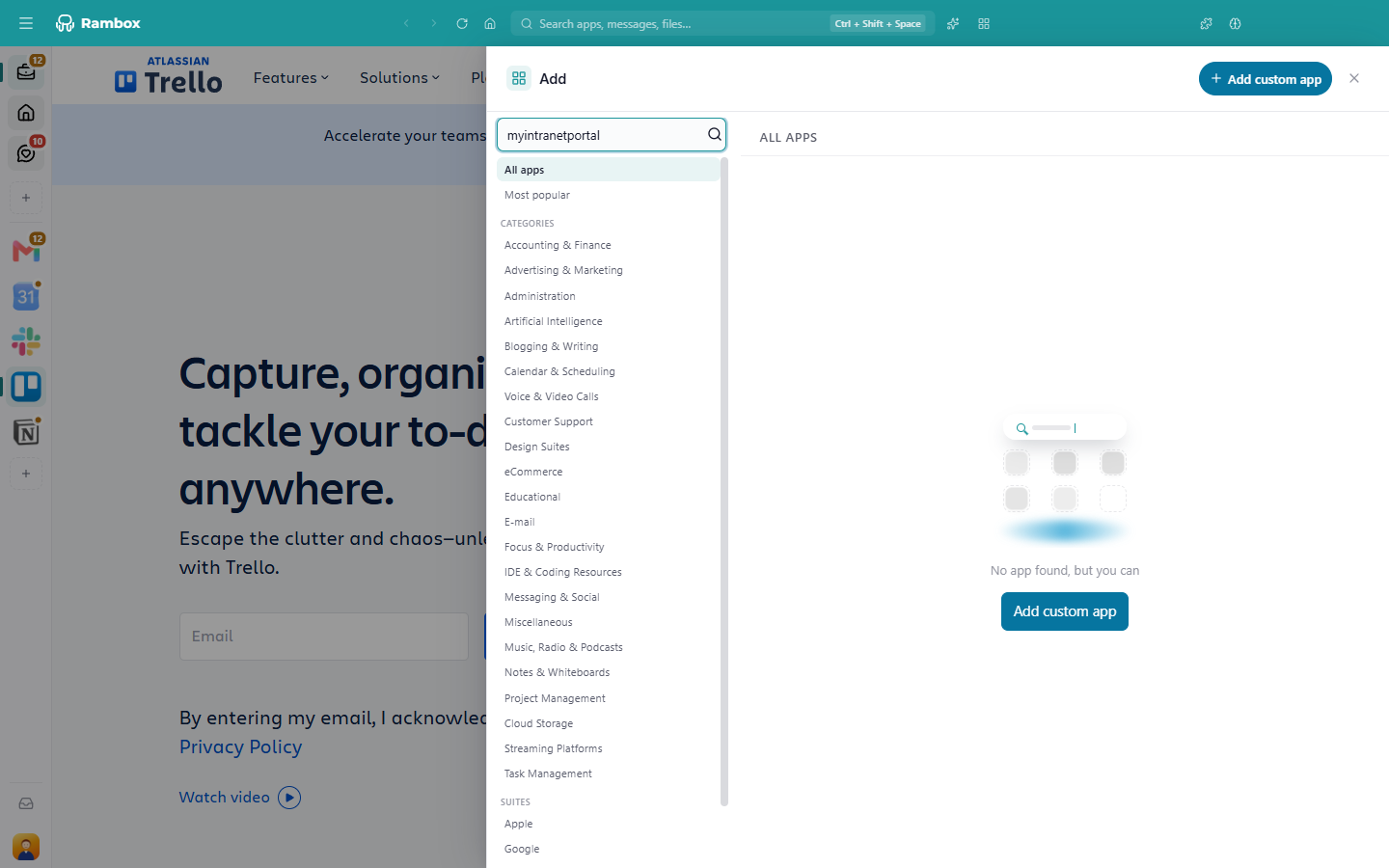
- Not there? If the search finds nothing, Rambox shows No app found, but you can and an Add custom app button. You can also click Add custom app at the top right at any time. See Adding custom apps.
More than one account of the same service
To add a second Gmail or a second WhatsApp, simply add the same app again from the catalog. Each copy is a separate app. To keep each copy signed in to a different account, give them different profiles (see Profile below). The full guide is in How can I open multiple accounts for the same app?
Basic plan
On Basic you can add up to 2 copies of the same service, and each copy automatically gets its own session. When you reach the limit, Rambox shows You have reached the limit of … instances of your free account. Pro has no limit. How to become Pro
App settings
You see these settings when you add an app, and later whenever you edit it (right-click the app in the sidebar and click the gear icon; see How to configure or edit an existing app). Most fields have a small help icon next to them with a short explanation.
Logo
Click the app's logo at the top of the panel (a camera appears when you move the pointer over it) and choose any image from your computer. Rambox crops it to a centered square and resizes it, so any picture works; there's no size or format to follow. See How to change the icon image.
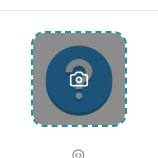
For custom apps, there's also a magnifier button, Get app logo, that fetches the website's icon from the URL you entered. It's greyed out until the URL is valid. If it works you see Logo successfully retrieved; otherwise We couldn't get a logo from the URL, and you can upload an image instead.
Name
The name shown in the sidebar and in tooltips. By default it's the service's name. Click the name at the top of the panel to edit it, for example to tell two accounts apart ("Gmail – Work", "Gmail – Personal").
Description
For catalog apps, a blue box describes the service and has a link button (tooltip Visit website) that opens the service's website.
URL
What you see depends on the app:
- Apps with a fixed address (like WhatsApp) have no URL field: there's nothing to fill in.
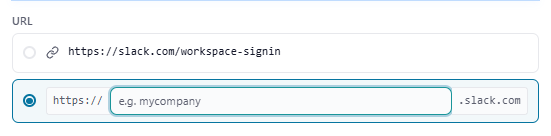
- Apps whose address depends on you (for example your company's Slack workspace, or a service you host yourself) show one or more options to choose from, with a box to type your part of the address, such as
mycompany. Pick the one that applies and complete it. - Custom apps have a free URL field, like
https://example.com.
Options
| Option | What it does | Default |
|---|---|---|
| Enable app | When off, the app doesn't load, uses no memory and sends nothing. Its icon is dimmed, and opening it shows This app is disabled. Do you want to enable it? with an Enable button. | On |
| Show app name in Tab | Shows the app's name under its icon. Only has an effect when the sidebar is at the top or bottom of the window. | On |
| Allow sounds | When off, the app is muted. | On |
| Allow notifications | When off, the app shows no notifications. | On |
| Hide notification content | Notifications say "You have a new notification" instead of showing the message. | Follows Settings → Apps → Default app settings (off unless you changed it) |
Sounds and notifications also depend on the workspace: both the app and its workspace must allow them.
Unread counter
| Option | What it does | Default |
|---|---|---|
| Display in tab | Shows the unread badge on the app's icon. | On |
| Include in workspace | Adds this app's unread count to its workspace's badge. | On |
Profile (Pro)
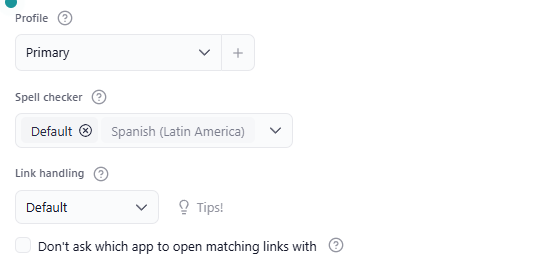
The profile is the browser session the app signs in with. Apps on the same profile share their sign-in (sign in to Google once and Gmail, Calendar and Drive are all signed in); apps on different profiles are kept apart.
- Inherit from Workspace (default for new apps): uses the profile set on the app's workspace.
- Primary: the main shared session.
- Private: a session only for this app.
- Incognito: nothing is saved; extensions and proxy settings aren't available.
- Your custom profiles.
Click + next to the field to open the Profiles panel. Changing the profile of an existing app reloads it (Rambox asks first). Learn more in Profiles and session management.
Pro feature
Choosing a profile is available on the Pro plan and during the free trial. On Basic the field is locked, and every app gets its own isolated session automatically. How to become Pro
Spell checker (Pro)
Choose the languages the spell checker uses while you type in this app. You can select more than one. Default uses the languages set in Settings → Apps → Default app settings; languages already covered by it are greyed out with Included with Default languages. Apps on the same shared profile also share this setting. See How to configure the spell checker.
Link handling
Decides where links you click inside this app open:
- Default: uses the option set in Settings → Apps → Default app settings → Link handling (which is Block all pop-ups unless you changed it).
- Block all pop-ups: links that try to open a new window are stopped, and Rambox shows a message that lets you open them anyway.
- Open all in pop-ups: opens them in a separate Rambox window.
- Open all in default browser: opens them in your usual web browser.
- Open all in tabs: opens them in tabs inside the app (not available for apps in a Tiles workspace). See Tabs inside an app.
The Tips! button shows mouse and keyboard tricks to open a single link differently. Everything is explained in Link handling.
Don't ask which app to open matching links with (off by default): when a link you click here matches one of your rules in Default apps for links, open it directly in that app without asking. See Default apps for links.
Unified Search (Pro)
Only shown when editing an app whose service supports it (Gmail, Slack, Notion and others). It lets you search that service from the Command Center without opening it. Click Connect followed by the app's name to set it up. See Unified Search.
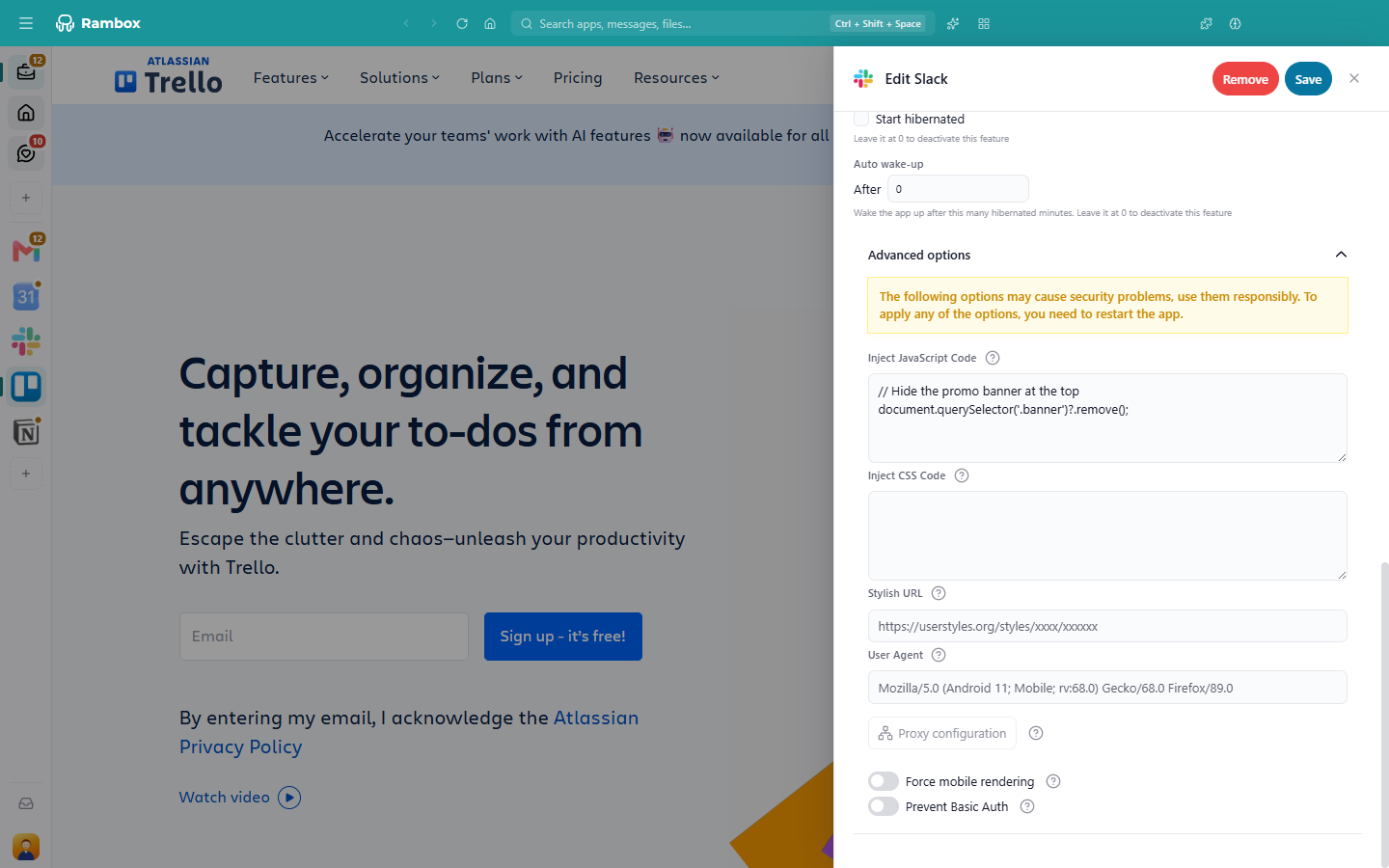
Hibernate
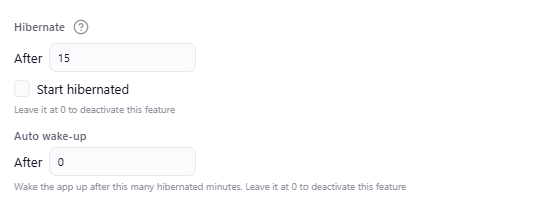
Hibernation puts an app to sleep after it has been unused for a while, freeing the memory it uses. A hibernated app can't deliver notifications until it wakes up.
- After [n]: how many minutes the app can sit idle before it hibernates. Leave it at 0 to never hibernate. Most apps start at 15 minutes; email and messaging apps start at 0 so you don't miss messages, and some apps come with their own value.
- Start hibernated: the app starts asleep when Rambox opens, and only loads when you open it.
An app that is playing audio doesn't hibernate.
Auto wake-up
- After [n]: wakes a hibernated app automatically after it has slept this many minutes, so it can catch up on messages. Leave it at 0 (default) to turn this off.
More about both in How to hibernate apps.
Advanced options (Pro)
A collapsible section for special cases. Rambox warns: "The following options may cause security problems, use them responsibly. To apply any of the options, you need to restart the app."
- Inject JavaScript Code: code Rambox runs inside the app every time it loads, to add behaviour the service doesn't offer. See How to inject JavaScript and CSS code.
- Inject CSS Code: styles Rambox applies to the app, to restyle or hide parts of it.
- Stylish URL: the address of a ready-made style from a user styles site. See How to customize apps using Stylish.
- User Agent: the browser the app is told it's running in. Change it only if a service refuses to load or shows the wrong version of its site.
- Proxy configuration: send this app's traffic through a proxy. Proxies belong to the profile, so every app on the same profile shares them. Not available for Incognito apps. (A global proxy for all of Rambox is free, in Settings → Advanced.)
- Force mobile rendering: load the mobile version of the service, which is lighter and fits narrow tiles better (only where the service has one).
- Allow geolocation: let the app ask for your location.
- Prevent Basic Auth: hide the browser's own username/password dialog for this app, when it gets in the way of the app's sign-in screen.
Pro feature
Advanced options are available on the Pro plan and during the free trial. How to become Pro
Saving changes that reload the app
When you edit an existing app, changes to the URL, the profile, hibernation, mobile rendering, Stylish, the injected code or Basic Auth need the app to reload. Rambox asks: To apply the new settings we have to reload the app. Continue?
Tips
- Reorder apps by dragging their icons in the sidebar (hold for a moment before dragging). See Tabs reordering.
- Move an app to another workspace by dragging it onto that workspace. See How to move apps to a workspace.
- Several Gmail accounts on one profile? Open the account you want, right-click inside the app and choose Set current URL as app's default. The app will open on that page from now on.
- When Rambox starts, apps load one by one in sidebar order. See Why is my app waiting for its turn?