
How to inject JavaScript and CSS code
Run your own JavaScript and CSS in any app to change how it behaves or how it looks.
Pro feature
Injecting code is available on the Pro plan and during the free trial. On Basic the Advanced options section is visible but its fields are disabled. How to become Pro
Sometimes an app doesn't offer a setting for what you want: hiding a banner you never use, making the text bigger, or reloading the page every few minutes so it doesn't disconnect. With code injection, Rambox runs your own code inside the app every time it loads:
- Inject CSS Code changes how the app looks: colors, sizes, hiding parts of the page.
- Inject JavaScript Code changes how the app behaves: running actions automatically, adding small features.
This is an advanced feature. You don't need to be a developer to paste a snippet someone shared with you, but only use code you understand or trust.
Use code you trust
The code runs inside the app with full access to the page, including your messages and anything you type. Never paste code from a source you don't trust. As Rambox itself warns, these options may cause security problems, use them responsibly.
Add your code
- Right-click the app in the sidebar and click the gear icon (Settings).
- Scroll down and open Advanced options.
- Paste your JavaScript into Inject JavaScript Code, or your CSS into Inject CSS Code. You can use both.
- Click Save.
- Rambox needs to reload the app to apply the code. Confirm the Warning dialog (To apply the new settings we have to reload the app. Continue?).
From then on, your code runs every time the app loads or reloads.
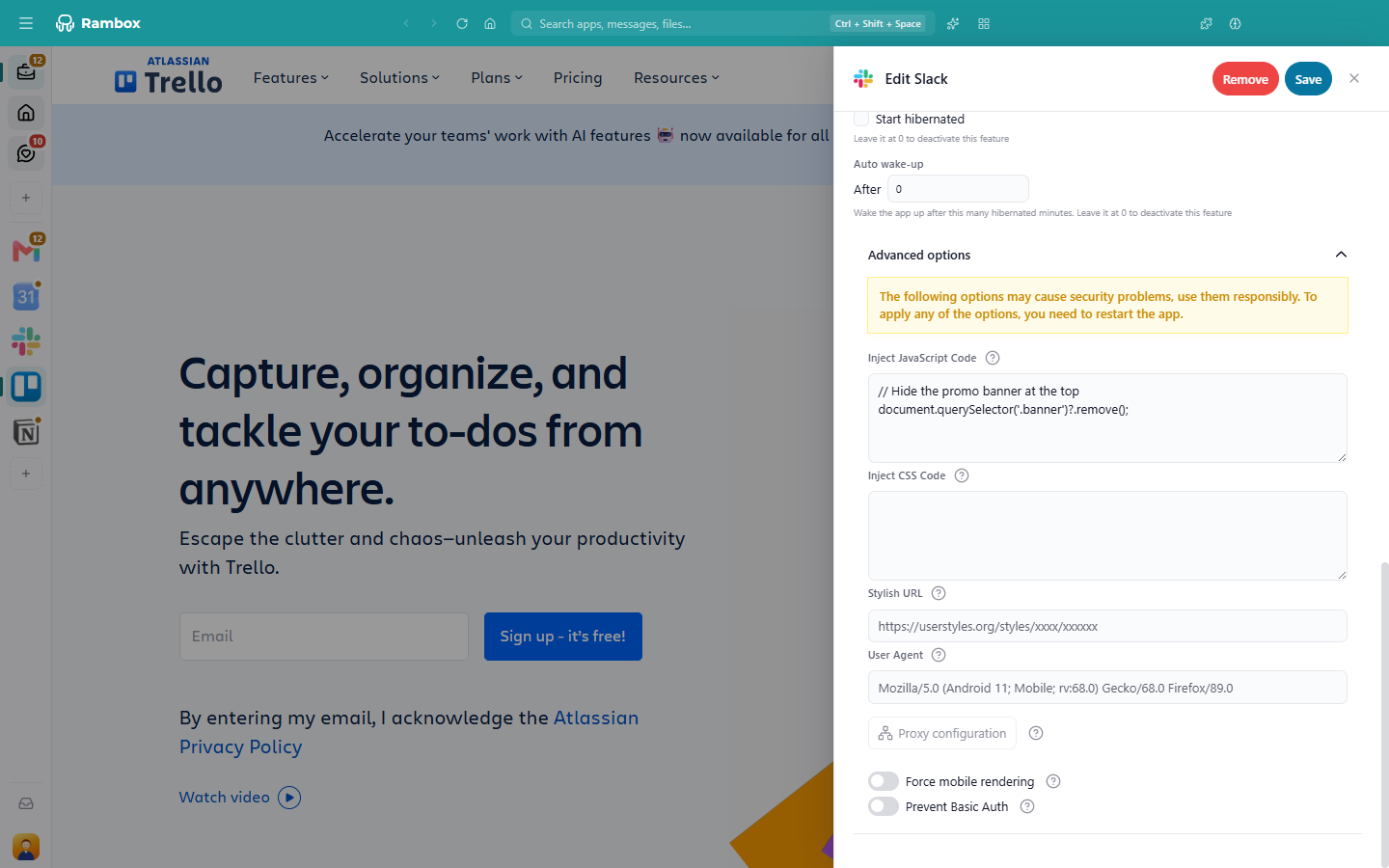
To stop using the code, empty the field and click Save again.
Examples
Reload the app every 10 minutes
Some apps disconnect after a while without activity. This JavaScript reloads the page every 10 minutes (600,000 milliseconds):
setInterval(() => location.reload(), 600000);Make the text bigger
This CSS makes all the text in the app slightly larger:
body {
	font-size: 110% !important;
}
Hide something you don't need
To hide a part of the page, you need its CSS selector (you can find it with the app's Developer Tools). For example, to hide an element with the class promo-banner:
.promo-banner {
	display: none !important;
}
Use !important when the app's own styles win over yours.

Tips
- Test your code with Developer Tools. Open the app's Developer Tools and use the Console to try your JavaScript, or the Elements panel to find selectors and test CSS, before saving it in Rambox.
- Your JavaScript runs in its own scope. Variables you declare don't leak into the page. If you need something to be reachable from the page or from the console, attach it to
window(for examplewindow.myValue = 1;). - Websites change. If the app updates its design, a selector you rely on may stop matching, and your CSS or JavaScript may stop working. Check the selectors again with Developer Tools.
- Want a ready-made theme? You can also apply a user style from a URL with Stylish URL. See How to customize apps using Stylish.
If you move to the Basic plan
Your code stays saved in the app's settings, but Rambox stops running it while you're on Basic. It runs again when you upgrade.