
Extensions: How to add and configure them
Add password managers, ad blockers, grammar checkers and other Chrome extensions to your apps in Rambox.
Pro feature
Extensions are available on the Pro plan and during the free trial. On Basic you can see the Extensions panel, but the switches are disabled. How to become Pro
Extensions add extra features to the apps you use in Rambox, just like Chrome extensions do in your browser: fill in your passwords, block ads, check your grammar while you write, translate a page, and more.
Rambox offers a selected and tested group of Chrome extensions. You can't install any extension from the Chrome Web Store: Rambox is built on Electron, which supports only part of what Chrome extensions can do, so each extension in the list has been checked to work.
Which extensions are available
The list includes, among others:
- Password managers: 1Password, Bitwarden, Dashlane, Keeper, LastPass, NordPass, RoboForm, SafeInCloud.
- Writing: Grammarly.
- Ad blocking: uBlock.
- Translation: Google Translate.
- Dark themes for any app: Dark Mode, Dark Reader.
- Gmail add-ons: Boomerang, DragApp, GMass, Streak.
- Other productivity tools: Google Docs Offline, Everhour, HubSpot Sales, Microsoft Single Sign On, Facebook Screen Sharing.
The list can grow or change without updating Rambox, and the extensions themselves update automatically when a newer tested version is published. If there's an extension you'd like us to add, contact us. We prioritize extensions that help with productivity and that many people ask for.
Extensions belong to profiles, not to apps
In Rambox, an extension is turned on for a profile (the session an app signs in with), not for a single app. Every app that uses that profile gets the extension. For example, if your Gmail and Google Drive apps share the same profile, enabling Grammarly for that profile enables it in both.
The title of the Extensions drawer always tells you which profile (or which app, when it has a session of its own) you're changing. Learn more about profiles in Profiles.
Incognito profiles
Extensions can't be used in apps that use the Incognito profile. The Extensions panel shows Extensions are not allowed in "Incognito" profiles.
Add an extension
- Open the app where you want to use the extension.
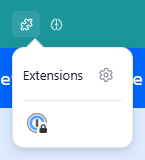
- Click the Extensions button (the puzzle piece) in the title bar.
- In the small panel that opens, click the gear icon (Manage extensions).
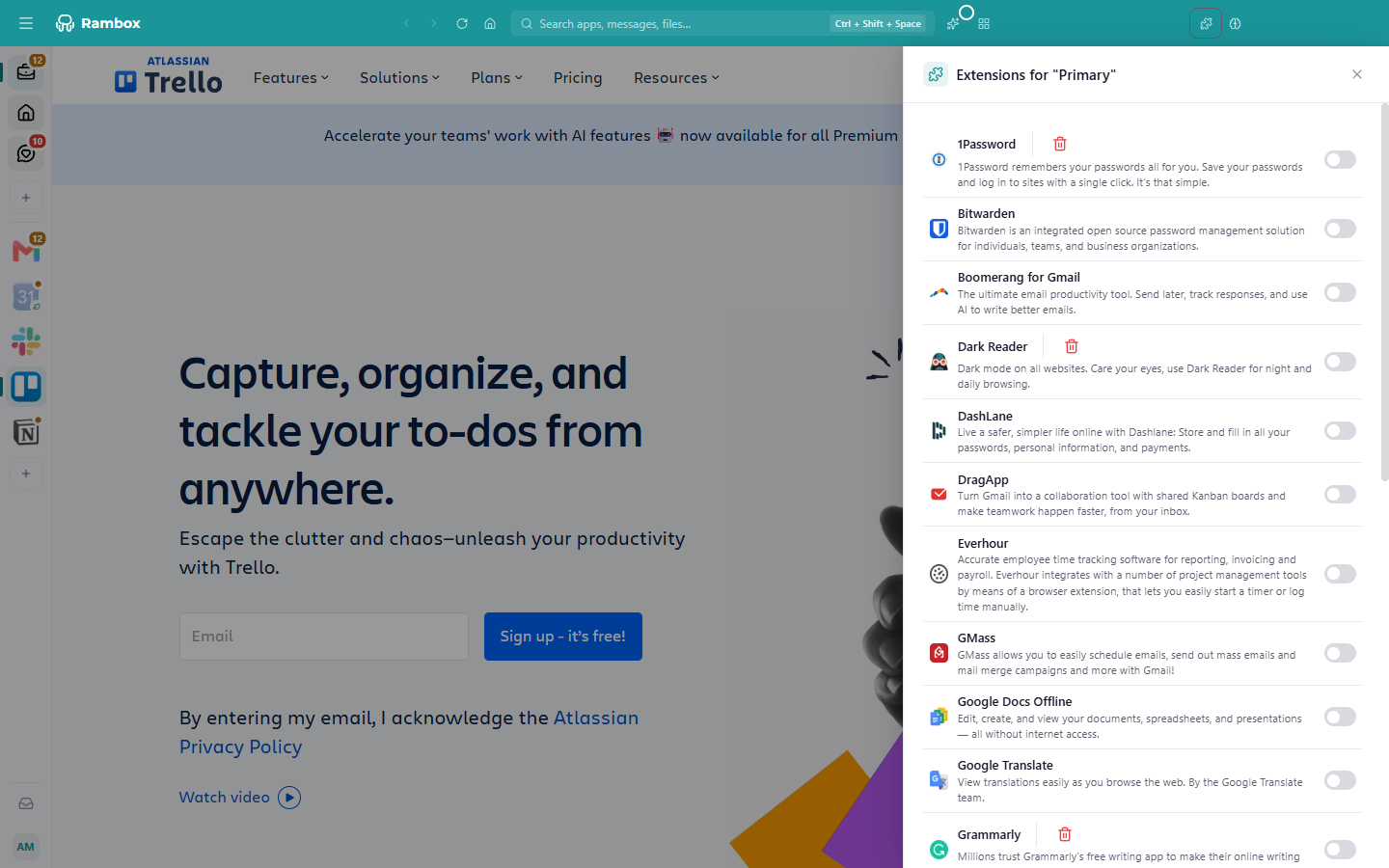
- A drawer opens on the right, titled Extensions for "{name}", where the name is the profile (or the app, if it has its own session). It lists every available extension with a short description.
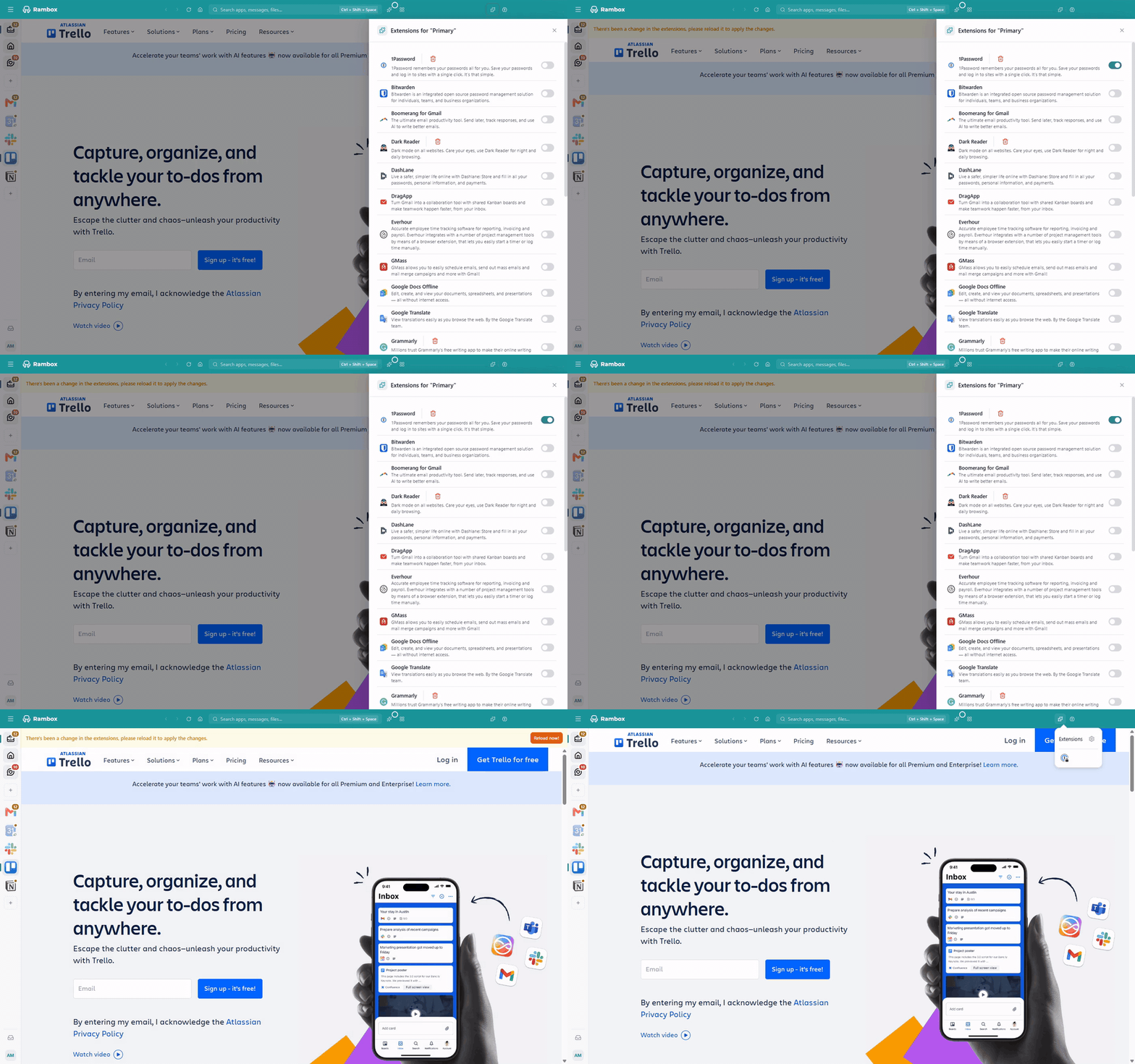
- Turn on the switch next to the extension you want. If it isn't installed yet, Rambox downloads it first (Installing extension. Please wait...) and then confirms {name} successfully installed.
- The apps that use that profile show a bar at the top: There's been a change in the extensions, please reload it to apply the changes. Click Reload now! to start using the extension.
Finish setting up the extension
Some extensions need one more step before they work. For example, a password manager asks you to sign in to your vault, and Grammarly may ask you to sign in or accept its terms. When that happens, the extension opens its own window: follow its instructions.
Because each profile is separate, you'll need to do this once for each profile where you enable the extension.
Use an extension
Click the Extensions button (the puzzle piece) in the title bar while you're in the app. The panel shows the buttons of the extensions enabled for that app's profile. Click one to open the extension's own menu, just as you would in Chrome.
Some extensions also add options to the menu you get when you right-click inside an app, under Extensions.
If the panel shows one of these messages instead:
- No extensions installed: no extension is enabled for this app's profile yet. Click the gear icon to add one.
- Wake up the app to see the extensions: the app is hibernated. Open it and click Wake up!.
- Enable the app/workspace to see the extensions: the app, or its workspace, is disabled.
Turn off or uninstall an extension
- To turn it off for a profile, open the drawer (puzzle piece → gear) and turn the switch off. Then reload the apps of that profile. The extension stays installed, ready for other profiles.
- To remove it from Rambox completely, click the trash icon (Uninstall) next to it. Rambox warns you if other profiles are using it ({profile} is using this extension. Do you still want to uninstall it from Rambox?). Confirm to uninstall it from every profile.
On the Basic plan
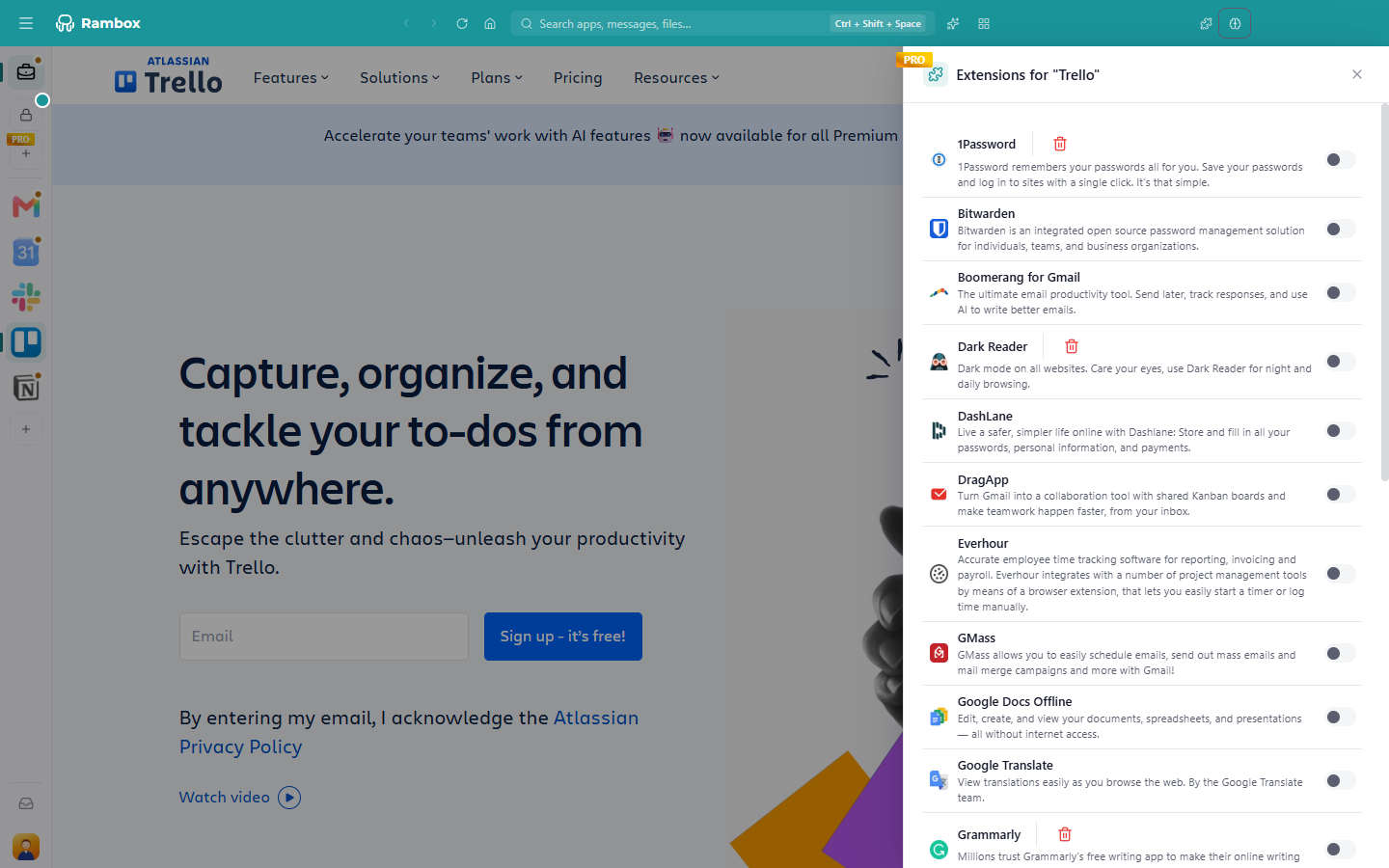
On Basic, the drawer is visible but the switches are disabled (hovering them shows Upgrade to Pro plan!), and the right-click menu shows Extensions (Pro plan). If you move from Pro to Basic, the extensions you had enabled stop loading. They come back if you upgrade again.
Known limitations
- Not every Chrome feature is supported. Some parts of the extension system don't exist in Electron, so an extension may behave slightly differently than in Chrome.
- Linux. On Linux, some newer extensions may not fully work, because parts of the system they rely on aren't available there.
If an extension isn't working, check Extensions issues. If the problem persists, contact us.
Using Rambox 2?
In Rambox 2 you opened the extension manager with the + icon. In Rambox 3 the puzzle button is in the title bar, and you manage extensions with the gear icon.