
Your profile and account settings
Edit your name and photo, change your password, manage how you sign in and control your privacy from My account in the Rambox Console.
In Rambox 3, your account lives in the Rambox Console, a web page at console.rambox.app. That is where you edit your name and photo, change your password, see your devices, manage your plan and contact support. The desktop app opens it for you, already signed in.
Open your profile
From the Rambox app:
Click your profile picture at the bottom of the sidebar.
Click Profile.
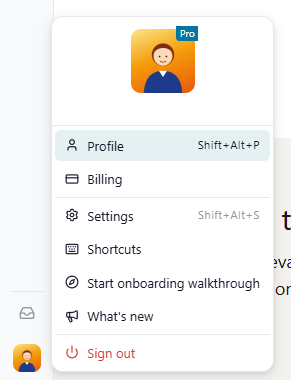
Your default browser opens the Console on your profile, and you are signed in automatically. You can also use the shortcut Alt+Shift+P (macOS: ⌘+⌥+P).
From any browser: go to console.rambox.app and sign in with your Rambox account.
INFO
The automatic sign-in link that the app opens works only once and only for a short time. If you see a sign-in page instead, just sign in normally.
What you find in My account
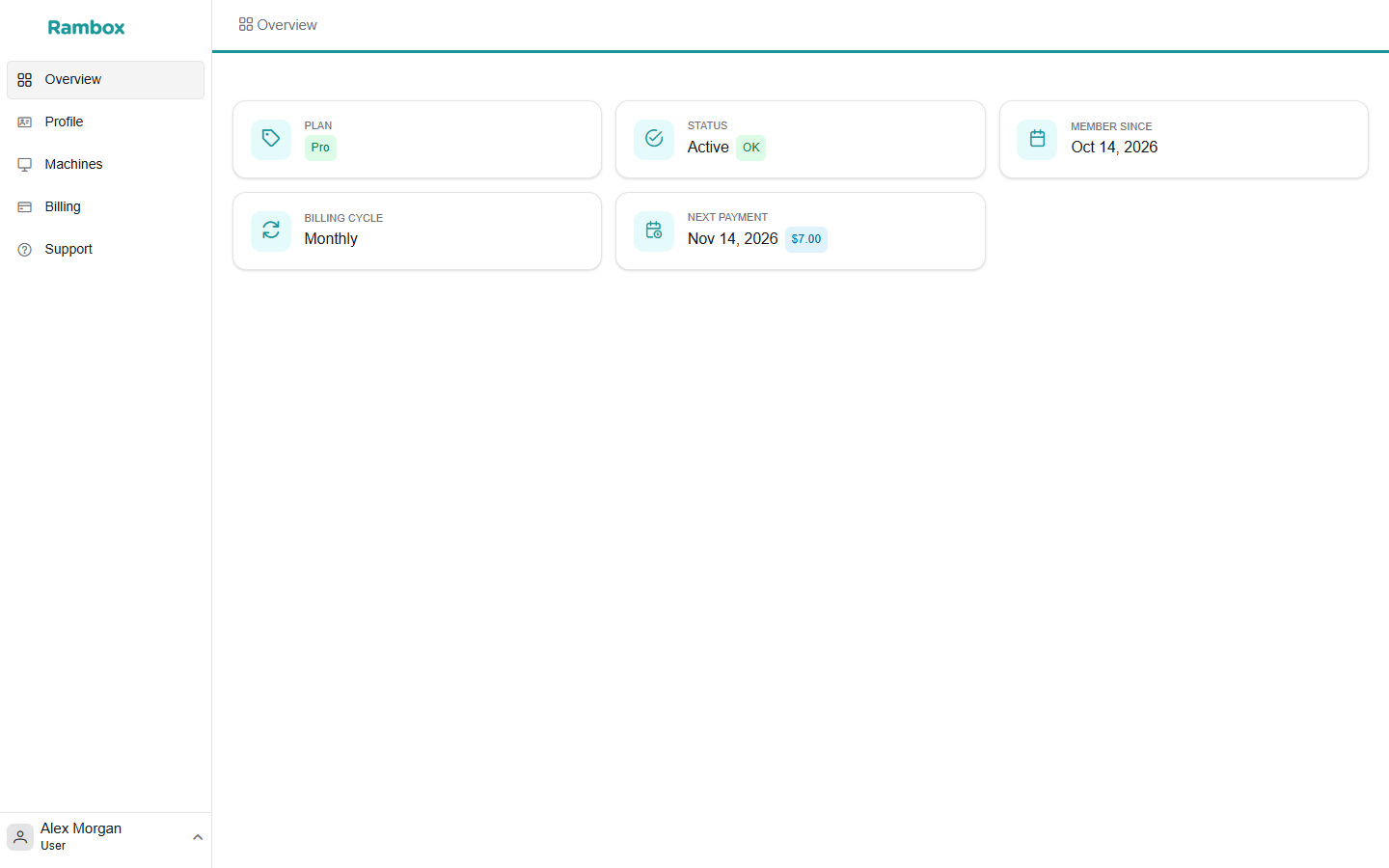
For a personal account, the Console sidebar shows Overview, Profile, Machines, Billing and Support.
- Overview — a summary of your account: your Plan, its Status, Member since, your Billing cycle and your Next payment (or the date your subscription ends).
- Profile — your personal details, sign-in options, privacy and account removal. Described below.
- Machines — the computers where you use Rambox. See Active devices: how do they work?
- Billing — your plan, payment methods and invoices. See Billing: plan, payments and invoices.
- Support — your support tickets. See Request support.
Edit your personal details
- Open Profile.
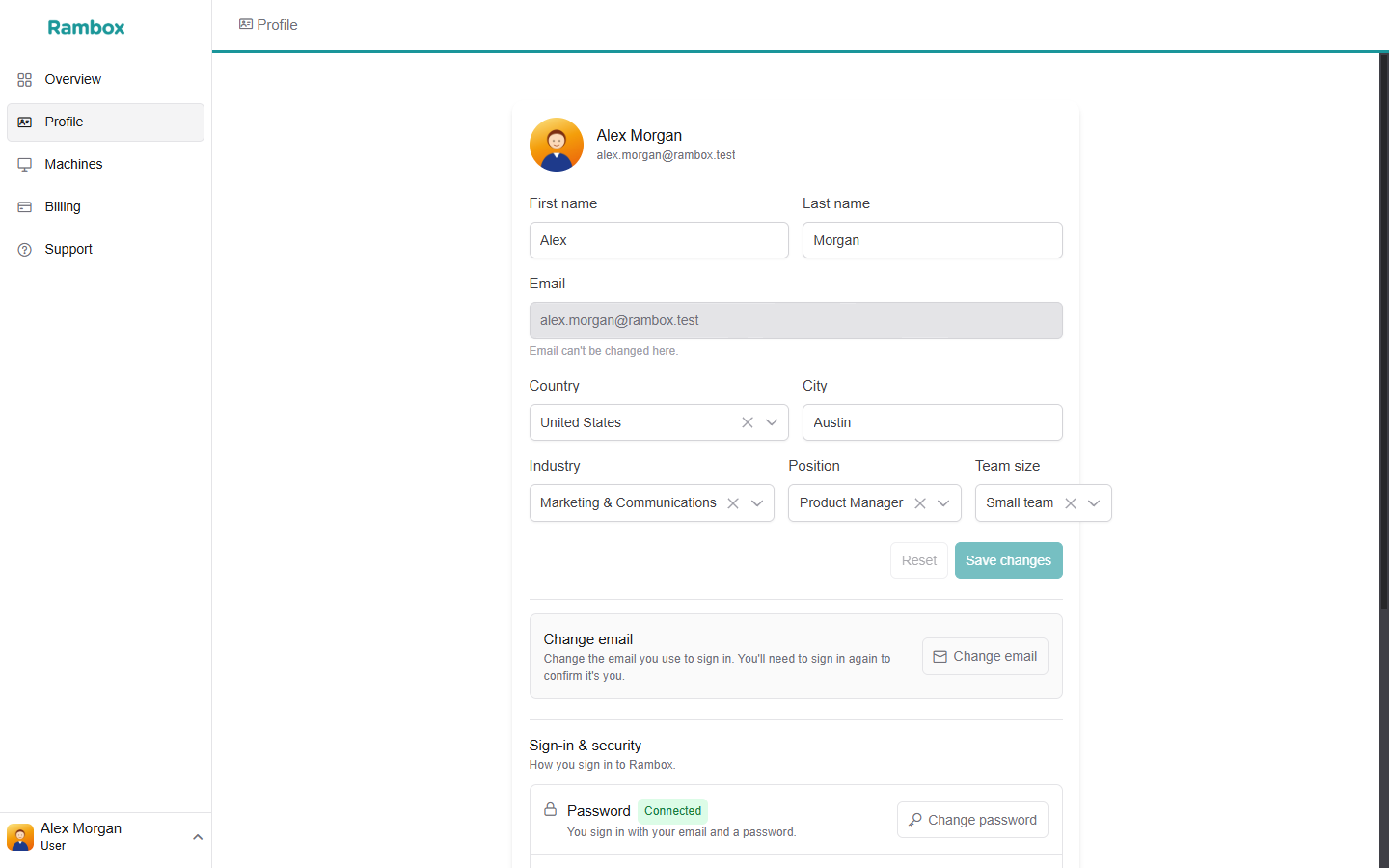
- Change any of these fields: First name, Last name, Country, City, Industry, Position and Team size.
- Click Save changes. You will see the message "Profile updated".
To discard your edits before saving, click Reset.
The Email field can't be edited here. To use a different email address, see How to change my email for Rambox.
Change your profile photo
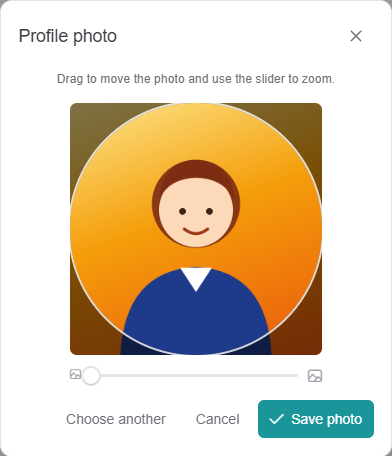
- On Profile, click your profile picture (Change profile photo).
- Choose an image from your computer. JPG, PNG, WebP and GIF images up to 15 MB work.
- Drag the photo to position it and use the Zoom slider to frame it.
- Click Save photo.
Sign-in & security
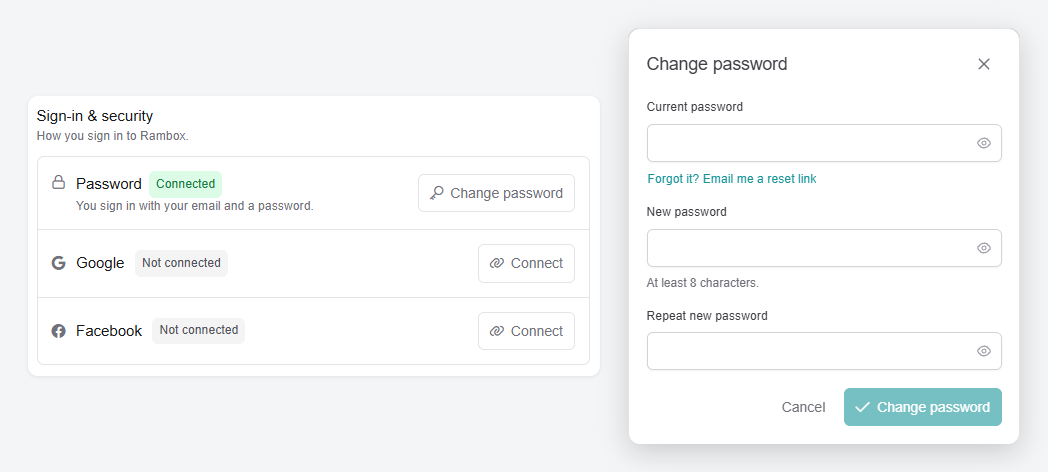
The Sign-in & security section on Profile shows how you sign in to Rambox.
Change your password
- Next to Password, click Change password.
- Enter your Current password.
- Type the New password (at least 8 characters) and repeat it in Repeat new password.
- Click Change password.
You will see "Password changed". Your other computers may ask you to sign in again.
If you don't remember your current password, click Forgot it? Email me a reset link in the same dialog. You can also follow How to reset my Rambox password.
If you don't have a password yet
If you always sign in with Google or Facebook, you may not have a password. The section then says "You don't have a password yet. We'll email you a link to create one." Click Email me a link and follow the link in the email.
Connect or disconnect a sign-in method
Below the password you see the other ways you can sign in (for example Google). Click Connect to add one, or Disconnect to remove it. You can't disconnect the only method you have left, because you would have no way to sign in.
Privacy & data
At the bottom of Profile, open the Privacy & data section.
- Product usage data — lets Rambox see which features you use so they can be improved. When you turn it off, the Rambox apps stop collecting usage data for your account, on every computer. Account, license and billing records are still kept, because they are needed to run the service.
Change your email or delete your account
- Change email — available for personal accounts. See How to change my email for Rambox.
- Delete account — removes your account and all its data for good. Read How to remove your account first: it also ends any paid subscription immediately.
Sign out
- In the Console: click your avatar and choose Sign out. The same menu lets you switch between Dark theme and Light theme.
- In the Rambox app: click your profile picture at the bottom of the sidebar, choose Sign out and confirm.