
Install Rambox on Windows
Download the Rambox 3 installer for Windows, install it step by step and sign in for the first time.
Rambox for Windows comes as a regular installer (an .exe file). It takes about a minute to install, and once it's done Rambox keeps itself up to date automatically.
REQUIREMENTS
Windows 10 or Windows 11, 64-bit.
Download the installer
- Go to rambox.app/download.
- The page detects your system and recommends the Windows download. Click Download for Windows.
- Save the file. It's named something like
Rambox-3.1.1-win-x64.exe(the numbers are the version).
Install Rambox
Open the file you downloaded (double-click it, or click it in your browser's downloads list).
If Windows asks whether you want to allow the app to make changes to your device, check that the publisher is Rambox LLC and click Yes.
Read the License Agreement and click I Agree.
Choose who can use Rambox on this computer: every user of the computer, or only you. If you're not sure, pick only you — it doesn't need administrator rights.
Choose the folder where Rambox will be installed, or keep the suggested one, and click Install.
Wait for the progress bar to finish.
Click Finish. Rambox opens by itself.
First launch: sign in
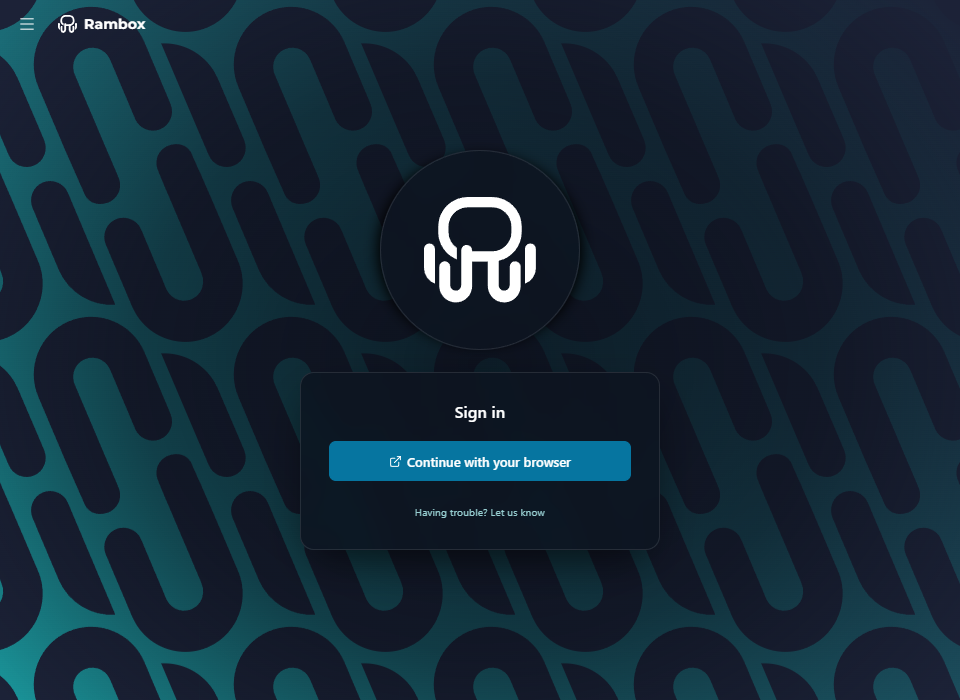
The first time Rambox opens, you see the Sign in screen.
- Click Continue with your browser. Your default web browser opens the Rambox sign-in page.
- Sign in (or create a free account) in the browser.
- When the browser asks whether to open Rambox, accept. You're taken back to the app, already signed in.
The whole sign-in process, including what to do if the browser doesn't bring you back, is explained in Signing in to Rambox.
If this is a new account, a short setup wizard helps you add your first apps. See First-run setup.
After installing
- Updates are automatic. Rambox checks for new versions when it starts and every few hours, downloads them in the background and asks you to restart when they're ready. See About Rambox (version & updates).
- Starting with Windows. By default Rambox opens automatically when you sign in to Windows. You can change that in Settings → Startup & window → Open Rambox automatically on system startup. See General settings.
- The app menu. On Windows, the classic menus (File, View, Tools, Help…) are behind the Menu button (☰) at the top-left corner of the window. See Getting around Rambox.
Upgrading from Rambox 2?
Install Rambox 3 the same way, over your current version. You'll be asked to sign in again, and your account is moved to the new format. Read Upgrading from Rambox 2 before you start.