
AI Assistant
Open Claude, ChatGPT, Copilot or Gemini in a side panel and ask about the apps you have open, using your own AI account.
The AI Assistant is a side panel where you can chat with an AI service while you work in your other apps. You can ask it about what's on screen: summarize a long email thread, explain a document, or correct a message before you send it. Rambox adds the content of the app you're looking at to your question, so you don't have to copy and paste.
The AI Assistant is available on every plan.
Rambox has no built-in AI
The panel opens the AI service you pick (Claude, ChatGPT, Copilot or Gemini) like any other app, signed in with your own account on that service. Nothing is sent to the AI until you send a message. Whatever limits or plans your AI account has still apply.
Open the AI Assistant
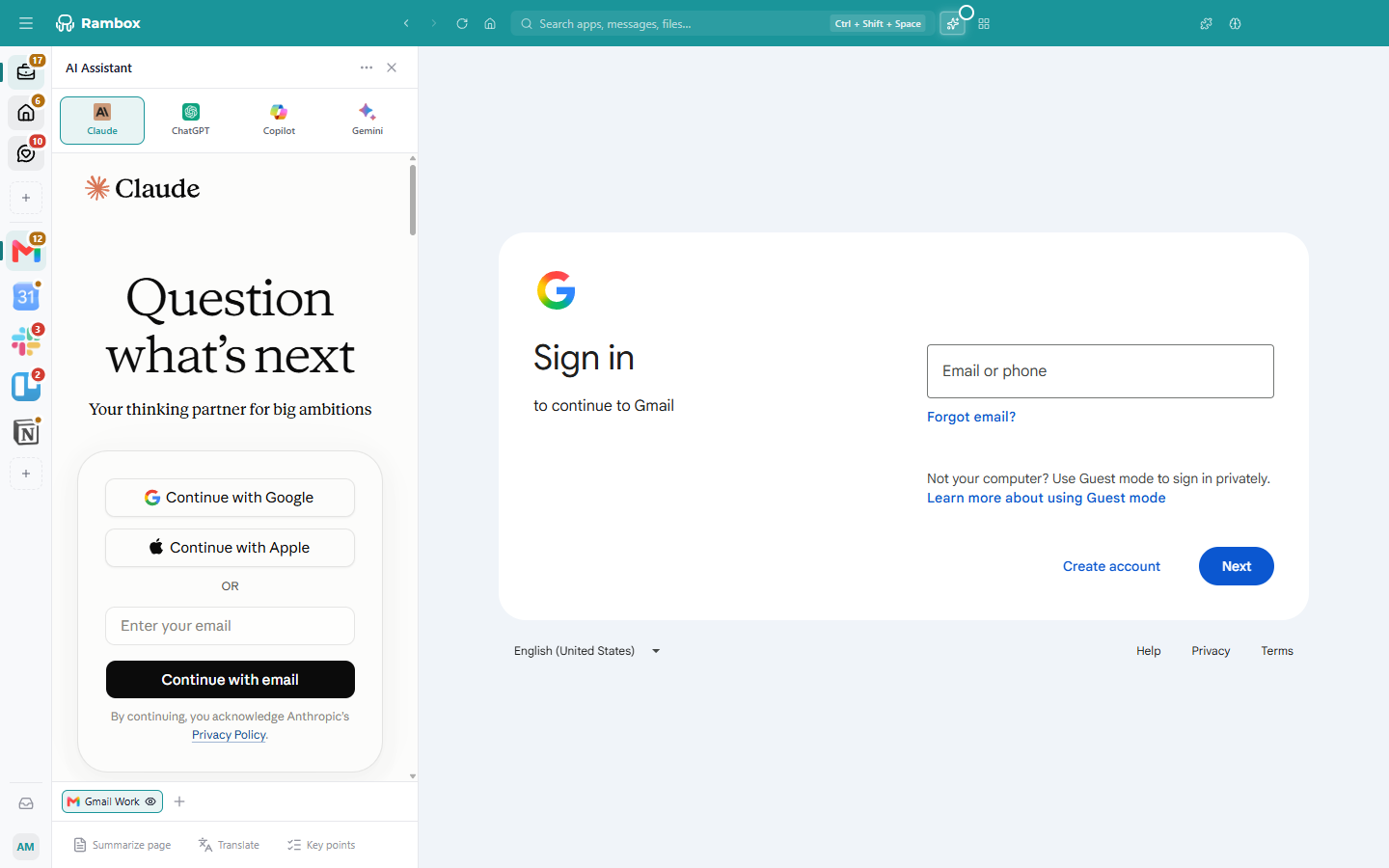
Click the AI Assistant button (the sparkles icon) in the title bar. Click it again to close the panel. You can drag the panel's edge to make it wider or narrower.
If you don't see the button, the assistant is turned off. Turn it on in Settings → General → AI assistant, then click Save.
Choose an AI service
The panel has a tab for each service: Claude (the default), ChatGPT, Copilot and Gemini. Click a tab to switch.
The first time you use a service, sign in to it inside the panel, just as you would in a browser. You only need to sign in once per service.
The first time: how it works
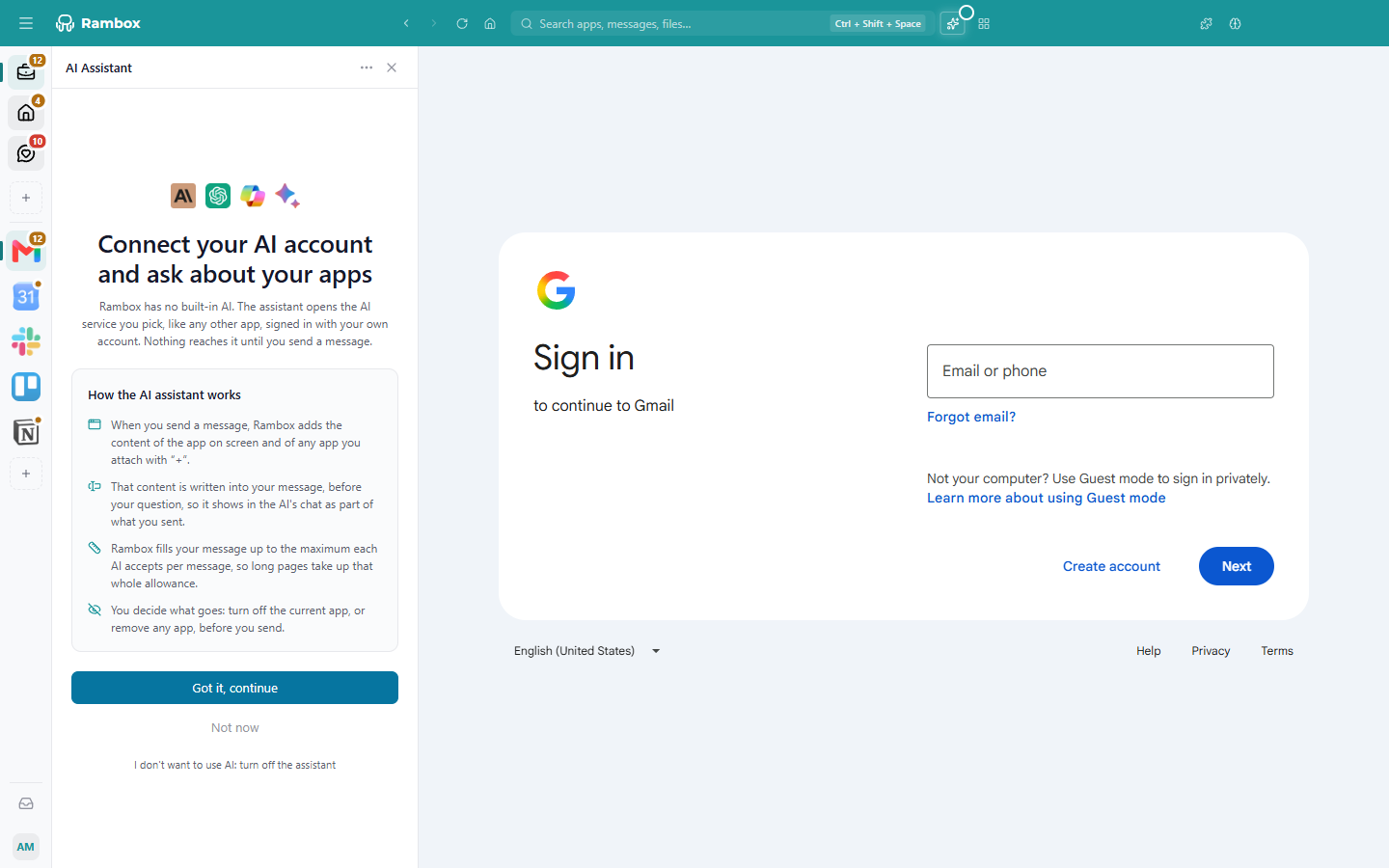
The first time you open the panel, Rambox explains what the assistant does before anything happens:
- When you send a message, Rambox adds the content of the app on screen, and of any other app you attach with +.
- That content is written into your message, before your question, so it shows in the AI's chat as part of what you sent.
- Rambox fills your message up to the maximum each AI accepts per message, so long pages can use that whole allowance.
- You decide what goes: you can leave the current app out, or remove any app, before you send.
Click Got it, continue to start, or Not now to close the panel. If you'd rather not use AI at all, click I don't want to use AI: turn off the assistant (see Turn off the AI Assistant).
Rambox remembers your choice on this computer for your account. If you sign out, you'll see this screen again.
Ask about your apps
- Open the app you want to ask about (for example, a long email or a chat).
- Open the AI Assistant.
- Under the panel you'll see a row of chips. The first one is the app on screen: while it's highlighted, The AI will read this app. Click it to leave that app out; click again to include it.
- To add more apps, click + (Add another app), search for the app and pick it. Remove an attached app with its x.
- Type your question in the AI service's own message box and send it as usual.
Rambox rewrites the message you send: first a short instruction, then the content of each selected app, then your question. While it gathers the content, the row shows Reading apps….
Messages you may see
- Couldn't read {apps}, so it wasn't included. It may be hibernated or still loading. Rambox couldn't get the content of that app. Wake it up or wait until it finishes loading, then try again.
- Part of the apps' content was left out to fit what {ai} accepts in one message. The content was longer than what the AI accepts in one message, so the end was cut. Attach fewer apps, or ask about a shorter page.
- Sign in to {ai} in the assistant panel to send your question. You aren't signed in to that AI service yet. Sign in inside the panel.
- Couldn't send the message to the AI. The page may still be loading. Wait a few seconds and send again.
How much content fits
Each AI service accepts a different amount of text in one message. Rambox fills up to these limits:
| Service | Approximate maximum per message |
|---|---|
| Claude | 14,150 characters |
| ChatGPT | 9,350 characters |
| Gemini | 8,000 characters |
| Copilot | 3,260 characters |
Quick actions for the page on screen
The panel offers one-click actions for the app you're looking at:
- Summarize page: a short summary of the page.
- Translate: translates the page into the language Rambox is set to (Settings → General → Language).
- Key points: the main points of the page as a short list.
Ask about selected text
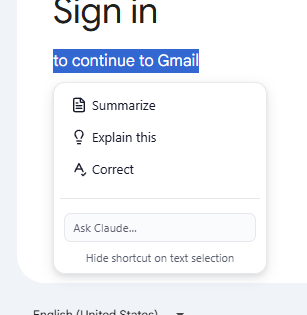
Select some text in any app and a small menu appears next to it with:
- Summarize
- Explain this
- Correct (fixes spelling and grammar and returns just the corrected text)
- Ask {ai}…, a box where you type your own question about the selection
The answer appears in the AI Assistant panel.
You can also right-click inside any app and use Ask {ai} (for example Ask Claude), with Summarize, Explain this and Correct for selected text, or Summarize page.
Hide the selection menu
If the menu that appears when you select text gets in the way, open the AI Assistant panel, click More options (⋯) and choose Hide shortcut on text selection. Choose Show shortcut on text selection to bring it back. The right-click Ask {ai} entries stay available.
Other options in the ⋯ menu
- Reload {ai}: reloads the AI service's page, useful if it stops responding.
Turn off the AI Assistant
If you don't want to use AI in Rambox:
- Open Settings (click your avatar at the bottom of the sidebar, then Settings).
- In General, switch off AI assistant.
- Click Save.
This hides everything AI-related: the title-bar button, the panel, the menu that appears when you select text, and the Ask {ai} entries in the right-click menu. Turn the same switch back on to restore them.
You can also turn it off from the first-time screen with I don't want to use AI: turn off the assistant.
Good to know
- One sign-in for all your AI services. The panel keeps its own session, separate from your apps. Signing in to ChatGPT in the panel doesn't sign you in to a ChatGPT app you added to a workspace, and the other way around.
- Hibernated apps can't be read. Wake an app up before asking about it.
- Your AI provider's rules apply. What happens to your messages after you send them depends on the AI service and your account settings there.