
How to Hibernate?
Put apps to sleep when you're not using them to free up memory, and choose how and when they wake up.
Hibernation puts an app to sleep after it has been idle for a while. A hibernated app uses almost no memory or processor. When you need it again, you wake it up and it picks up on the same page where it was.
It's a great way to keep Rambox light when you have many apps, especially ones you only check now and then.
WARNING
Don't hibernate email or messaging apps you rely on for notifications. While an app is asleep, it can't check for new messages, so you won't get its notifications or unread counts.
Set up hibernation for an app
- Right-click the app in the sidebar.
- Click the gear icon (Settings).
- Scroll down to the Hibernate section.
- Set the options you want (see below).
- Click Save.
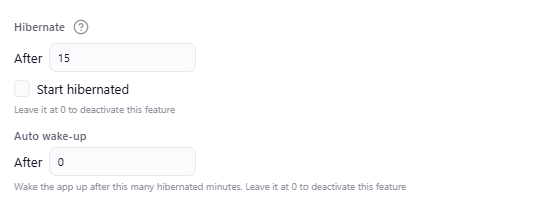
Hibernate: After [n]
The number is in minutes: the app goes to sleep after this many minutes without being used. Set it to 0 to never hibernate the app.
- Default: 15 minutes for most apps.
- Email and messaging apps start at 0 (never), so they keep delivering notifications. Some apps in the catalog come with their own value.
Start hibernated
Tick this to keep the app asleep when Rambox starts. It only loads when you open it. Handy for apps you rarely use.
Auto wake-up: After [n]
Wakes the app up automatically after it has been asleep for this many minutes, so it can catch up on new messages. Leave it at 0 to turn this off (the default).
What a hibernated app looks like
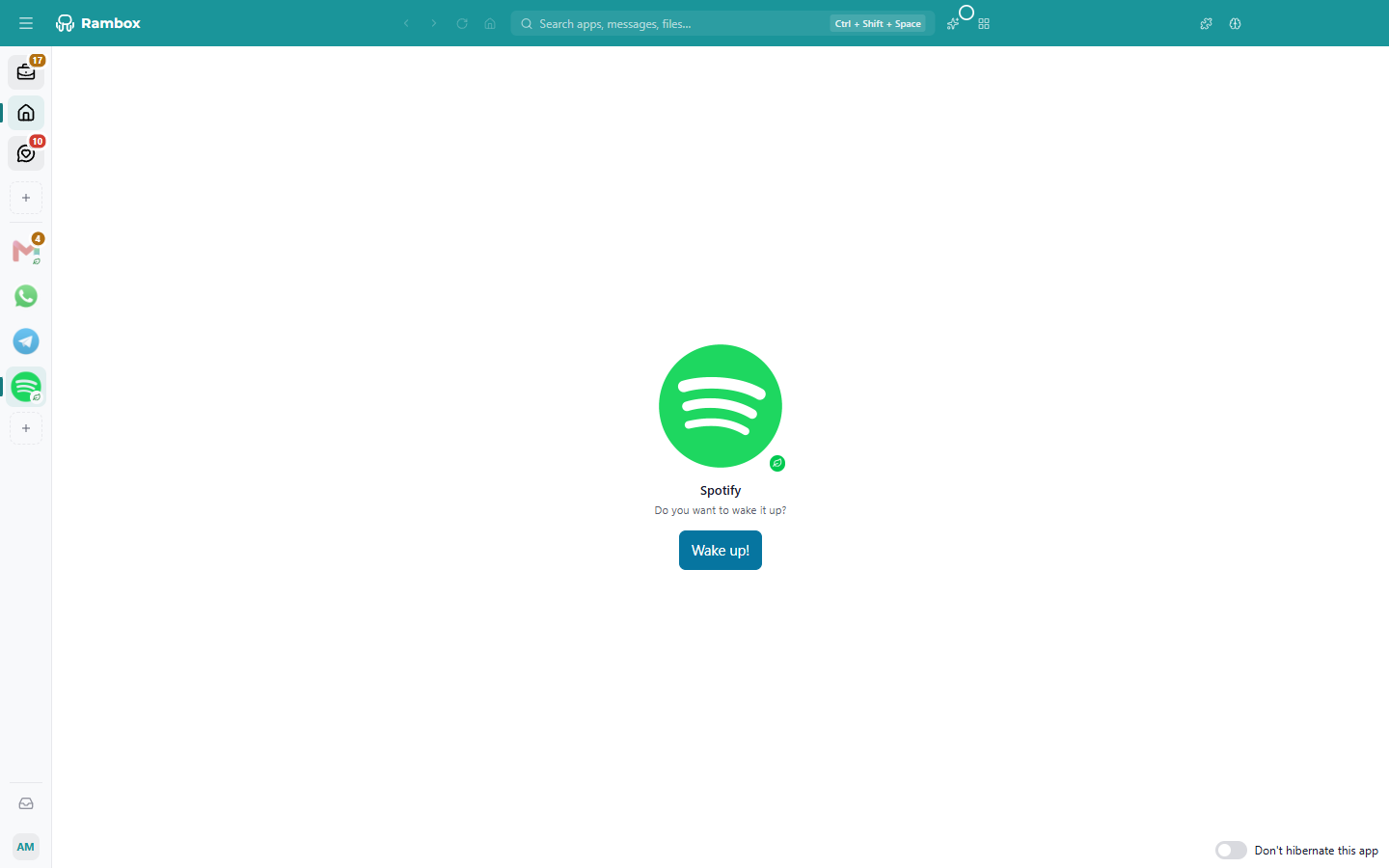
- In the sidebar, its icon is dimmed and shows a small green leaf. Hovering over it shows "{app name} · is hibernated". See Dot and leaf indicators.
- When you open it, you see Do you want to wake it up? with a Wake up! button.
- At the bottom right of that screen, the Don't hibernate this app switch stops this app from hibernating again.
Wake apps up automatically when you open them
By default, a hibernated app waits for you to click Wake up!. If you'd rather have apps wake up as soon as you open them:
- Open Settings (click your avatar at the bottom of the sidebar, then Settings).
- Go to the Apps tab.
- In Wake up hibernated apps, choose Automatically when you open them.
- Click Save.
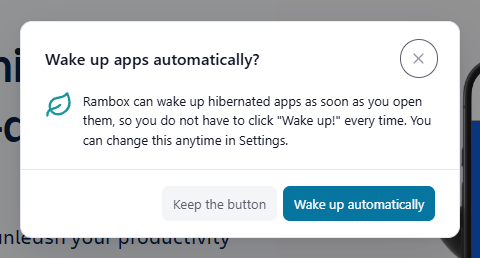
The first time you click Wake up!, Rambox also asks Wake up apps automatically?. Choose Wake up automatically or Keep the button. You can change your mind later in Settings.
Hibernate an app right now
To put an app to sleep immediately, use the Apps manager:
- Press Alt+Shift+Del (on Mac laptops without a Del key, Fn+Backspace works as Del), or open it from the menu: View → Apps manager. On Windows and Linux, the menu is under the Menu button at the top-left of the window; on macOS it's in the menu bar.
- Select the app.
- Click Hibernate app.
Rambox can also suggest hibernating an app that uses an unusual amount of processor or memory, with a notification that includes a Hibernate button. See Apps manager and alerts.
Good to know
- Apps playing audio don't hibernate. If an app is playing music or a call, Rambox waits until it stops.
- Tabs inside an app can hibernate too. If an app opens links in tabs, idle tabs go to sleep and keep their place. See Tabs inside an app.
- Hibernation isn't the same as disabling. A disabled app doesn't load at all until you enable it again. Hibernation is temporary and automatic.