
Default apps for links
Open links in the Rambox app that handles them, like a Google Drive link from Slack in your Drive app, and set rules to do it automatically.
You probably have apps in Rambox that link to each other all day: a Google Doc shared in Slack, a Jira ticket mentioned in Teams, a Notion page sent by email. Instead of opening those links in your web browser, Rambox can open them in the app you already have, where you're already signed in.
This works on every plan.
How it works
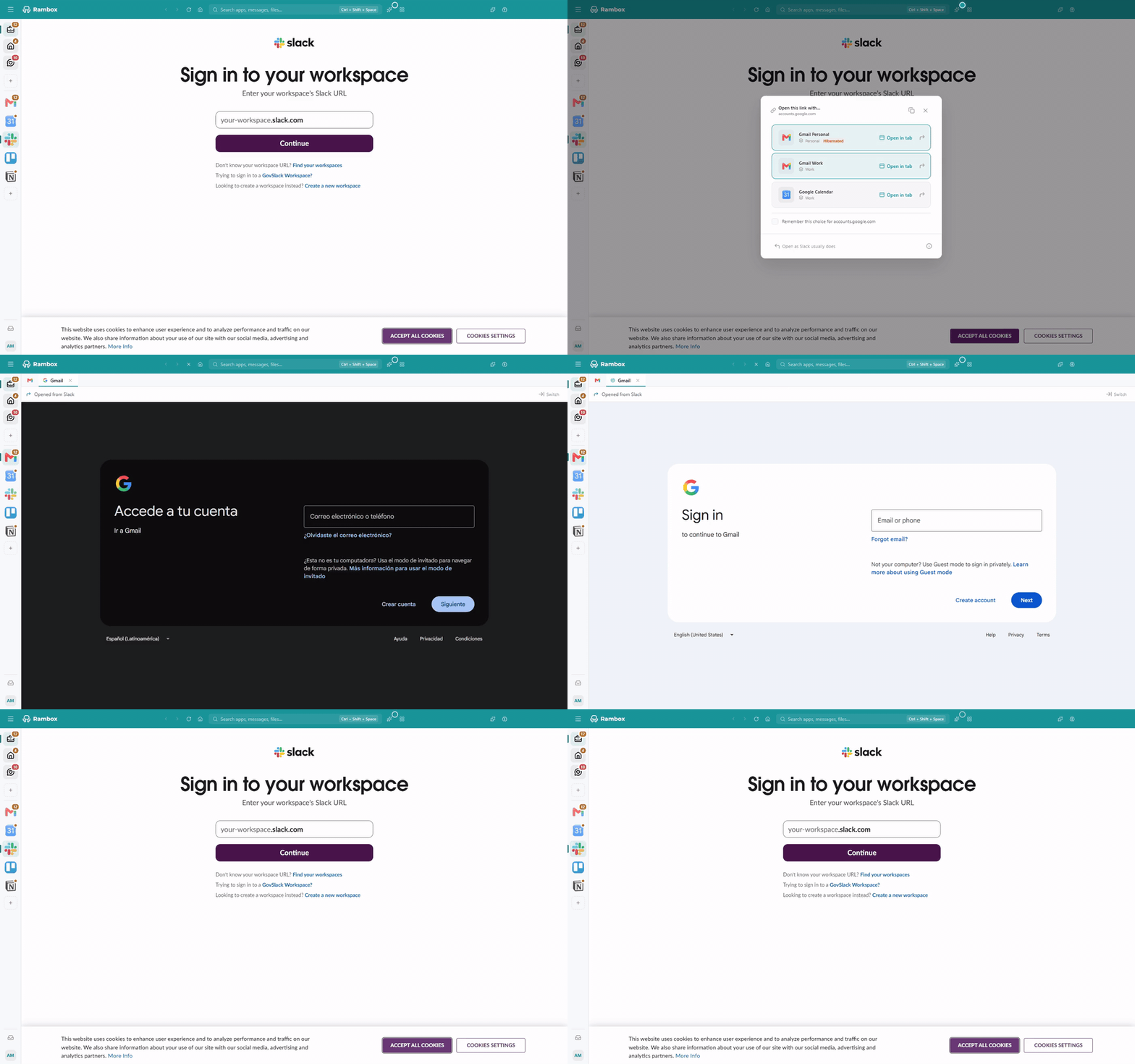
When you click a link inside an app and that link belongs to a service you have in Rambox, a window called Open this link with… appears. For example: you click a Google Drive link in Slack, and you have Google Drive in Rambox.
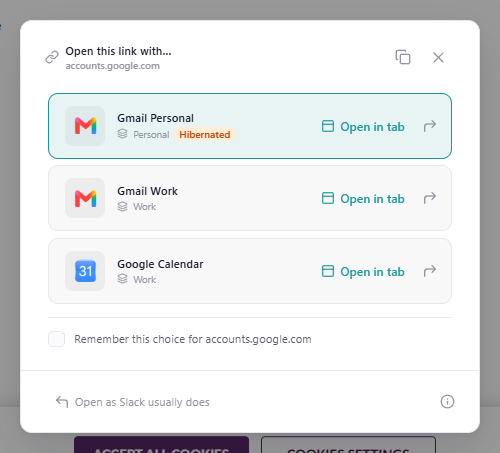
In the window you'll see:
- The link's address (the site name) at the top, with a button to copy the full link.
- One card for each app that can open it, with the app's name and its workspace. A Hibernated or Disabled tag tells you the app is asleep or turned off. You can still pick it (see "Good to know" below).
- Remember this choice for followed by the site name: tick it to save your pick as a rule (see below).
- At the bottom, Open as followed by the app's name (for example Open as Slack usually does): ignores the suggestion and opens the link the way the app you clicked in normally would, following its link handling setting.
Choose how the app opens it
- Click the card (Open in tab): Rambox switches to that app and opens the link in a new tab inside it, so the app's main page stays where it was. See Tabs inside an app.
- Click the arrow icon on the right of the card (Load it in the app's main view instead): the app's main page goes to the link.
Tip: the first card is selected when the window opens, so pressing Enter opens the link in a tab of the first app.
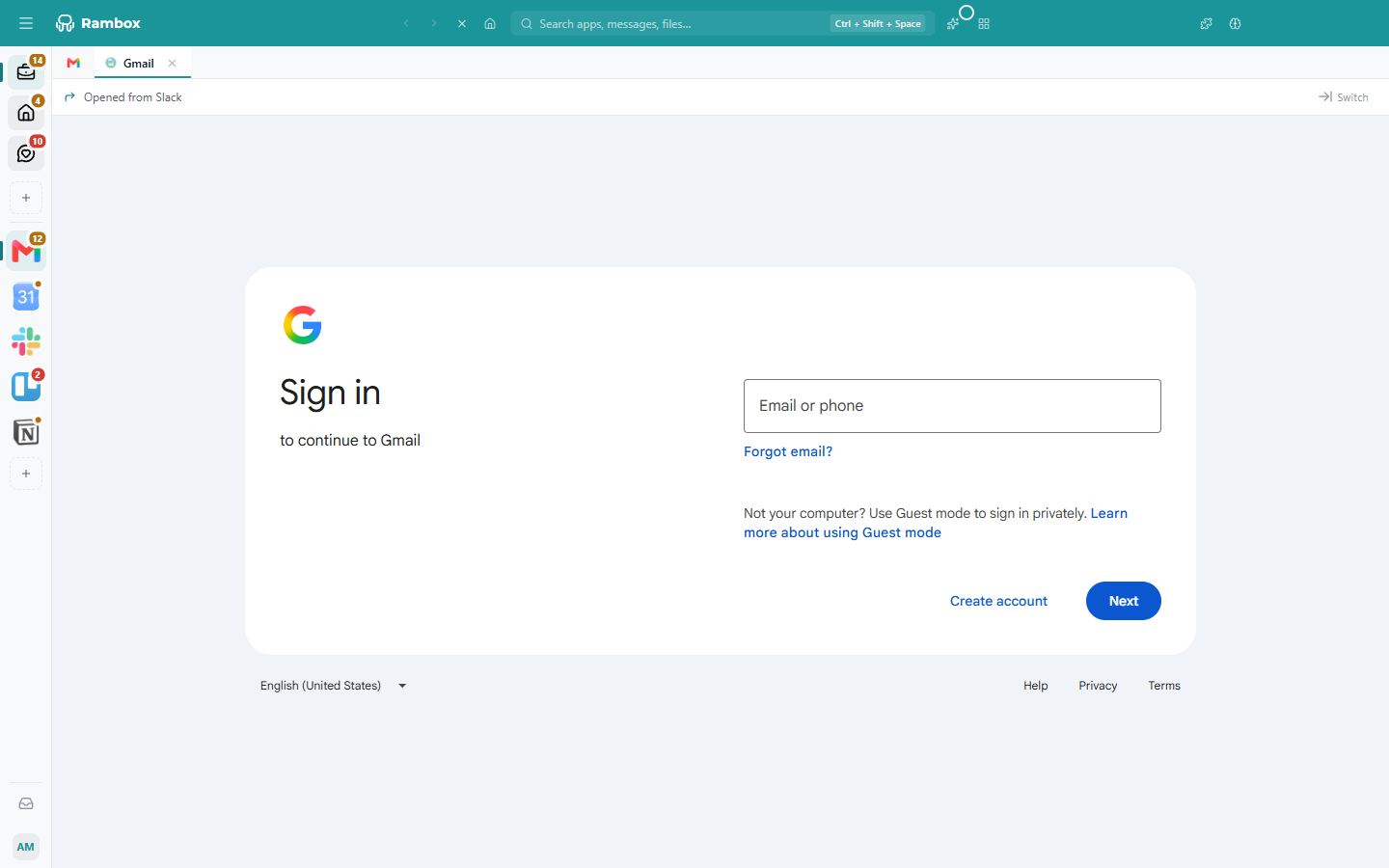
A tab opened this way shows a bar at the top, Opened from followed by the original app's name, with a Switch button to jump straight back to where you clicked the link.
Rules: send links to an app automatically
A rule tells Rambox which app should open links to a certain address. Rules are saved to your account, so they work on all your computers.
Create a rule from the window
In Open this link with…, tick Remember this choice for followed by the site name, then pick the app (card or arrow). Rambox saves a rule for that site with the app and the way you chose (tab or main view).
Manage rules in Settings
- Open Settings (profile menu → Settings, or Alt+Shift+S; macOS: ⌘+,).
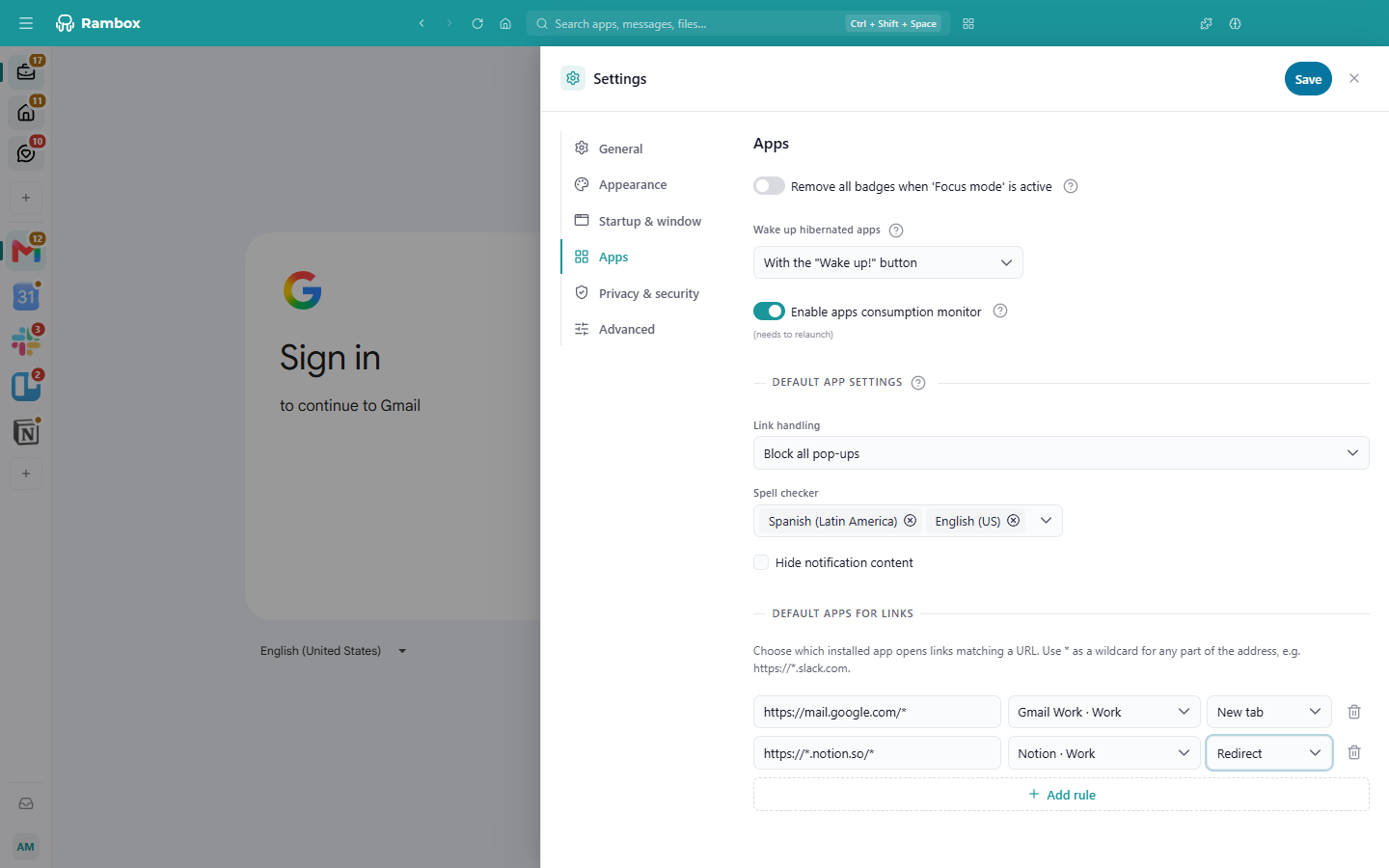
- Go to the Apps tab and scroll to Default apps for links.
- Click Add rule and fill in:
- URL: the address to match. Use
*as a wildcard for any part of it, for examplehttps://*.slack.commatches every Slack workspace. - Select app: the app that should open it. Each app is listed with its workspace.
- The method: New tab (opens in a tab inside the app) or Redirect (loads it in the app's main view).
- Click Save at the top of Settings.
To delete a rule, click the trash icon on its row and save. If you have no rules yet, the section says You haven't set any default app for links yet.
If a pattern can never match a link, Rambox warns: This pattern will never match a link. Include the domain, e.g. https://*.slack.com. Rules match on the site (the domain), so always include it.
Skip the window entirely
By default, the Open this link with… window still appears even when you have a rule, so you can confirm each time. To open matching links directly:
- Open the settings of the app where you click the links (for example Slack, not Drive).
- Under Link handling, tick Don't ask which app to open matching links with.
- Click Save.
From now on, links clicked in that app that match one of your rules open straight in the rule's app, without asking.
INFO
The setting is on the app where you click the link, not on the app that opens it. Tick it in every app you want to skip the window for.
Good to know
- Only apps that can open the link are offered. Rambox matches the link to the services in your sidebar. A rule only applies when its app is one of those; it can't send a Gmail link to WhatsApp, for example.
- The app you clicked in is never offered, since the link would already open there.
- Keyboard tricks skip the window. Middle-click or Ctrl+click (macOS: ⌘+click) still opens the link in your browser in the background, and Ctrl+Shift+click (macOS: ⌘+Shift+click) still shows the regular chooser. See Link handling.
- Asleep or turned-off apps. Opening a link in a tab doesn't change the app: the tab opens even if the app stays hibernated or disabled. Opening it in the main view (the arrow, or a Redirect rule) wakes a hibernated app, and turns a disabled app back on (it stays on afterwards).