
How to configure the spell checker
Choose the spell checker languages for all your apps or for each one, switch them from the right-click menu, or turn spell checking off.
Pro feature
The spell checker is available on the Pro plan and during the free trial. On Basic the spell checker options are visible but disabled, and set to None. How to become Pro
Rambox's spell checker underlines misspelled words while you type in your apps and suggests corrections. You can check in more than one language at the same time, and use different languages in different apps: for example, English and Spanish in Gmail, but only English in Slack.
There are three places to set it up:
- Default languages for all your apps, in Settings.
- Per-app languages, in each app's settings.
- Quick changes from the right-click menu inside an app.
Set your default languages
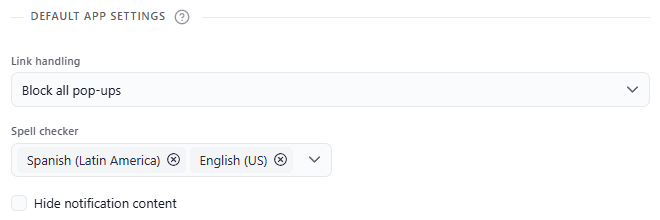
The default languages apply to every app set to Default, which is what new apps use.
- Click your avatar at the bottom of the sidebar and choose Settings (or press Alt+Shift+S, macOS: ⌘+,).
- Go to the Apps tab.
- Under Default app settings, open Spell checker and pick one or more languages. Each one appears as a chip; click its x to remove it.
- Click Save. Rambox asks you to restart to apply the change: click Restart now, or Later to apply it the next time you open Rambox.
The first time you run Rambox, the default is your system's language (or the closest one available).
To turn spell checking off by default, choose None. While None is selected, the other languages can't be picked.
Set languages for one app
- Right-click the app in the sidebar and click the gear icon (Settings).
- Find Spell checker.
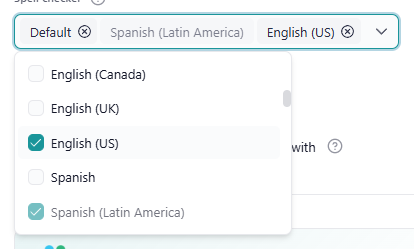
- Choose the languages for this app. You can select more than one.
- Default uses your default languages from Settings. Those languages appear greyed out and already ticked in the list, because they're already covered.
- Add other languages on top of the default ones, or remove Default and choose exactly the languages you want for this app.
- None turns the spell checker off for this app.
- Click Save.
Apps that share a profile share the spell checker
If the app uses a shared profile (for example, your Gmail and Google Drive apps sign in with the same profile), the spell checker setting belongs to that profile. Changing it in one app changes it in every app of that profile. Rambox warns you: This is a shared session, changing the spellchecker will affect other apps using the same profile. Do you want to continue? Learn more in Profiles.
Change languages from the right-click menu
While you're typing in an app:
- Right-click inside the app.
- Open Spellcheck.
- Pick a language, Default, or None.
Your default languages appear with - Default next to their name. You can't change the default languages from this menu; use Settings for that.
Fix a misspelled word
Right-click a word underlined in red. At the top of the menu you'll see:
- Suggestions: click one to replace the word. If Rambox has none, you'll see No Guesses Found.
- Add word to dictionary: stop marking this word as a mistake.
On macOS
On macOS, Rambox uses the Mac's own spell checker, which detects the language you're typing in automatically. The language choices in Rambox may have no effect there; to change which languages it checks, use your Mac's keyboard and text input settings.
On the Basic plan
On Basic, the Spell checker fields show None, are disabled, and carry a PRO ribbon (hovering shows Upgrade to Pro plan!). The right-click menu shows Spellcheck (Pro plan).