
Unified Search
Connect your apps' accounts and search your emails, files, messages and tasks from the Command Center, without opening each app.
Pro feature
Unified Search is available on the Pro plan and during the free trial. On Basic you can see the option in each app's settings, but you can't connect new services. How to become Pro
Unified Search lets you look for something across your apps at once. Connect an app (for example Gmail, Slack or Notion) once, and from then on its emails, files, messages or tasks show up when you search in the Command Center, next to the rest of your apps.
You don't need to open the app or remember where you saw something: type a word, and Rambox asks each connected service for matches.
Which apps can you connect
Unified Search works with these services:
| Service | What you can search |
|---|---|
| Gmail | Emails |
| Google Drive | Files |
| Google Docs | Documents |
| Google Sheets | Spreadsheets |
| Google Calendar | Events |
| Outlook | Emails |
| OneDrive | Files |
| Microsoft Teams | Chat messages |
| Outlook calendar | Events |
| Slack | Messages, files and people |
| GitHub | Issues, pull requests, code and people |
| Notion | Pages and databases |
| Asana | Tasks, projects and people |
| Trello | Cards, boards and members |
| Jira | Issues across the Jira sites you choose |
| Discord | Your Discord servers |
| The chats of the WhatsApp account signed in to that app |
Each app is connected on its own. For example, if you have both Gmail and Google Drive in Rambox, connect each of them.
When an app supports Unified Search, its settings show a Unified Search section. If you don't see that section for an app, it isn't supported yet.
Connect an app
- In the sidebar, right-click the app you want to connect.
- Click the gear icon (Settings) to open the app's settings.
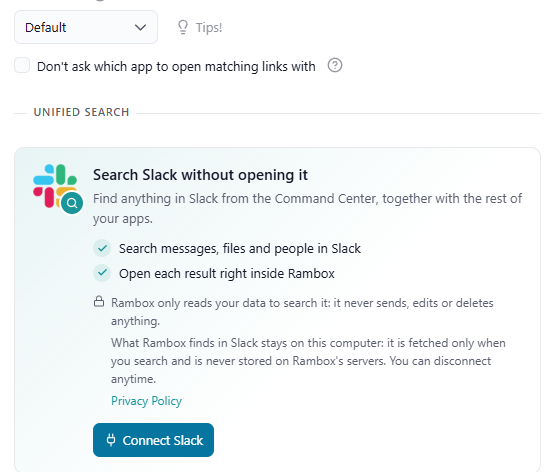
- Scroll to the Unified Search section. It reads Search {app} without opening it.
- Click Connect {app} (for example, Connect Gmail).
- The service's own sign-in page opens in a tab inside that app, with its address bar visible so you can check you are on the real site. Sign in if asked, and approve the access Rambox requests.
- When it's done, the tab shows {app} and Rambox are connected. You can close that tab.
Back in the app's settings, the section now shows Connected as {account} and the shortcut you can use to search.
You can also start from the Command Center: apps that support Unified Search but aren't connected show a Connect search button next to their name.
WhatsApp works differently
WhatsApp has no sign-in step. Rambox searches the chats of the WhatsApp Web session that's already open in that app, so the app must be signed in to WhatsApp.
Jira: choose your sites
If your Jira account has access to several sites, the Jira app's Unified Search section has a Manage sites button. Use it to pick which Jira sites are included when you search from Rambox.
Search
- Open the Command Center with Ctrl+Shift+Space (macOS: ⌘+Shift+Space), or click the search box in the title bar.
- Type at least two characters.
- Results from your connected services appear under External search. Each one shows the service it comes from, the workspace of the app and how recent it is.
- Click a result, or select it with the arrow keys and press Enter, to open it right inside Rambox.
To look in a single service, click its chip under the search box. Click All to search everything again.
You can also click Try it now in the app's Unified Search section to jump straight into the Command Center.
Your data and privacy
- Read-only. Rambox only reads your data to search it. It never sends, edits or deletes anything in your accounts.
- Stays on your computer. Results are fetched only when you search and are never stored on Rambox's servers.
- You stay in control. You can disconnect any app at any time.
Disconnect an app
- Right-click the app in the sidebar and click the gear icon (Settings).
- In the Unified Search section, click Disconnect.
- Confirm in the Disconnect {app}? dialog.
The app stops showing up in your searches. You can connect it again whenever you like.
Unified Search on the Basic plan
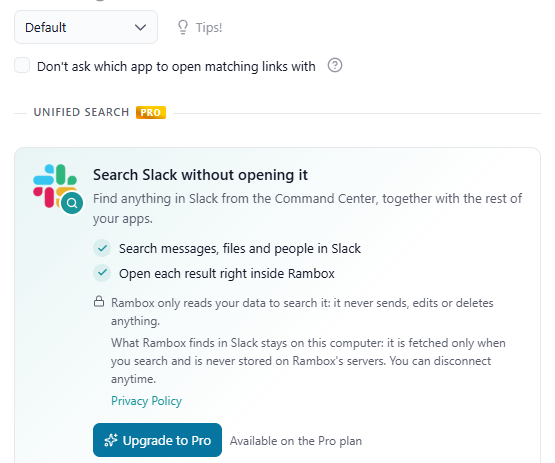
- On Basic the Unified Search section is still visible, with a PRO ribbon on its title, but instead of Connect it shows an Upgrade to Pro button and Available on the Pro plan.
- If you connected apps during your trial or while you were Pro, those connections are kept but not searched. When you upgrade again, searching resumes without connecting again.
- Disconnect always works, on any plan.
Troubleshooting
- "Could not start the connection": try again in a moment. Make sure the app itself loads and that you're online.
- "Another application on your computer is using port {port}, which Rambox needs to complete the connection. Close it and try again.": some other program on your computer is using the port Rambox needs for the sign-in step. Close that program (or restart your computer) and click Connect again.
- "Connection error — try again": the connection was interrupted. Click Connect again.
- No results: check that you typed at least two characters, that the right service chip (or All) is selected, and that the app shows Connected as… in its settings.