
Profiles and session management
Use profiles to share one sign-in across several apps, keep accounts apart, browse incognito, and set a proxy per profile.
Each app in Rambox signs in to its service through a session, just like a browser window keeps you signed in to websites. A profile is a named session that you can give to one or more apps:
- Apps that share a profile share their sign-in. Sign in to Google once and Gmail, Calendar and Drive on that profile are all signed in.
- Apps on different profiles are kept apart. That's how you use a work and a personal Google account side by side, or two WhatsApp numbers.
Pro feature
Choosing profiles, creating your own and shared sign-ins are available on the Pro plan and during the free trial. On Basic every app automatically gets its own separate session, so you can still use two accounts of the same service, but you sign in to each app on its own. How to become Pro
The built-in profiles
| Profile | What it does |
|---|---|
| Primary | Your main shared session. Every app on Primary shares the same sign-ins. |
| Private | A session just for that app, kept apart from everything else. Ideal for a second account of a service. |
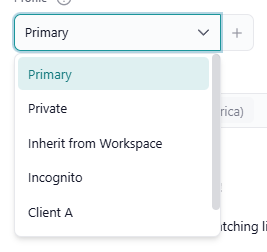
| Inherit from Workspace | The app uses whatever profile its workspace has. This is the default for new apps. |
| Incognito | Nothing is saved to disk: after you restart Rambox, you have to sign in again. Extensions and proxy settings aren't available. |
Besides these, you can create custom profiles with any name, like "Work" or "Personal". If you used the first-run setup and chose to give an office suite its own session, Rambox already created a profile such as "Google Workspace Profile" for you.
Choose an app's profile
- Right-click the app in the sidebar and click the gear icon (Settings). (Or set it while adding the app.)
- Open the Profile field and pick a profile.
- Click Save.
Changing the profile of an existing app reloads it, so Rambox asks first: To apply the new settings we have to reload the app. Continue? After the change, the app uses the other session, so you may need to sign in.
Choose a workspace's profile
A workspace has a profile too, and it's the starting point for its apps: every app you add to the workspace is set to Inherit from Workspace, so it uses this profile. You can still give any single app a different one.
- Right-click the workspace and click the gear icon (Settings).
- Pick a profile in Profile: Primary (default), Private, Incognito or a custom profile.
- Click Save.
If you choose Private for a workspace, each app in it that inherits from the workspace gets its own separate session.
Example
Create a "Work" workspace with a "Work" profile and add Gmail, Google Calendar and Google Drive to it. Sign in to Gmail with your work account, and Calendar and Drive are signed in too. Your "Personal" workspace, on a "Personal" profile, stays signed in to your personal account.
Signing in and out follows across apps
When apps share a profile and you sign in or out in one of them, the other apps on that profile follow, so they don't end up half signed in. (On Basic this never happens, because each app has its own session.)
The Profiles panel
The Profiles panel is where you create, rename and remove custom profiles. To open it, click the + button next to the Profile field in any app's or workspace's settings.
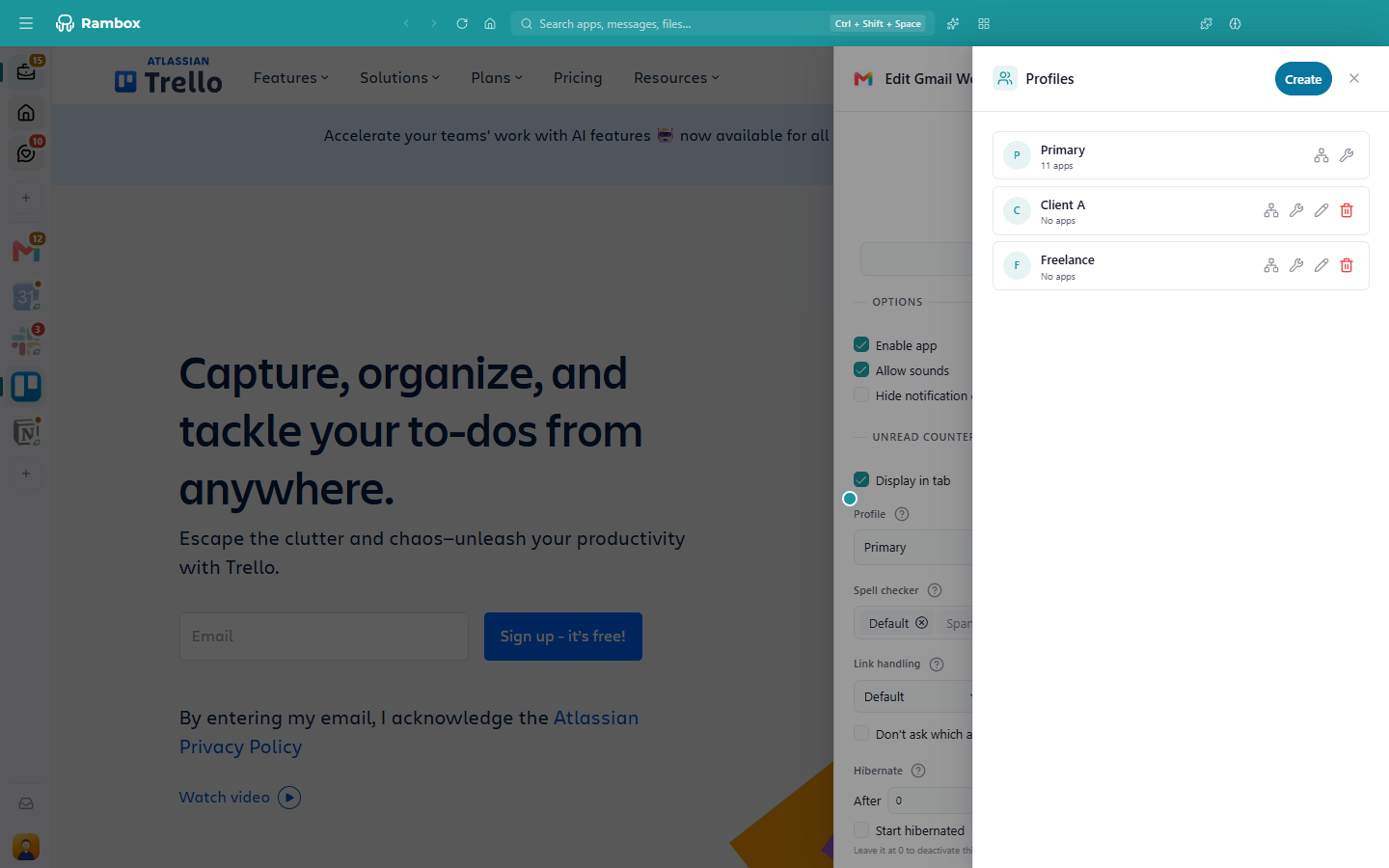
Each profile is a card with its name and how many apps use it ("No apps", "1 app", "3 apps"…). Primary is always there; custom profiles have a couple of extra actions.
Create a profile
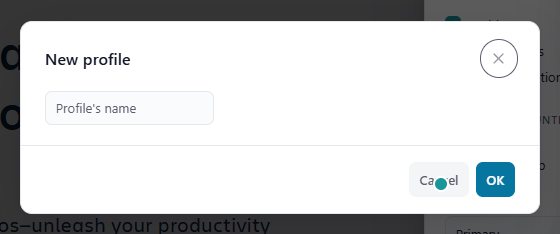
- In the Profiles panel, click Create.
- In New profile, type a name in Profile's name.
- Confirm. The new profile appears as a card and in every Profile field.
Rename a profile
Click the pencil icon (Edit) on a custom profile, change the name in Edit profile and confirm.
Remove a profile
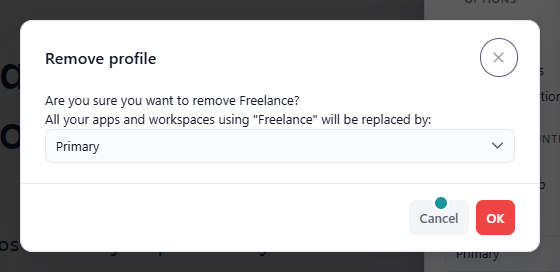
- Click the trash icon (Remove) on a custom profile.
- Rambox asks Are you sure you want to remove followed by the profile name, and shows "All your apps and workspaces using … will be replaced by:" with a list.
- Pick the profile those apps and workspaces should move to, and confirm.
Primary can't be renamed or removed.
Maintenance
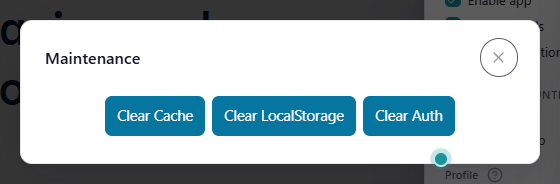
The wrench icon (Maintenance) opens cleaning tools for that profile's session:
- Clear Cache: deletes the stored copies of pages and images. Useful when apps look outdated or broken.
- Clear LocalStorage: deletes the data websites store in the session.
- Clear Auth: deletes the saved authentication data.
These affect every app on that profile. Clearing storage or authentication data can sign you out of those apps.
For cleaning all of Rambox at once, see Clear cache and local storage.
Proxy per profile
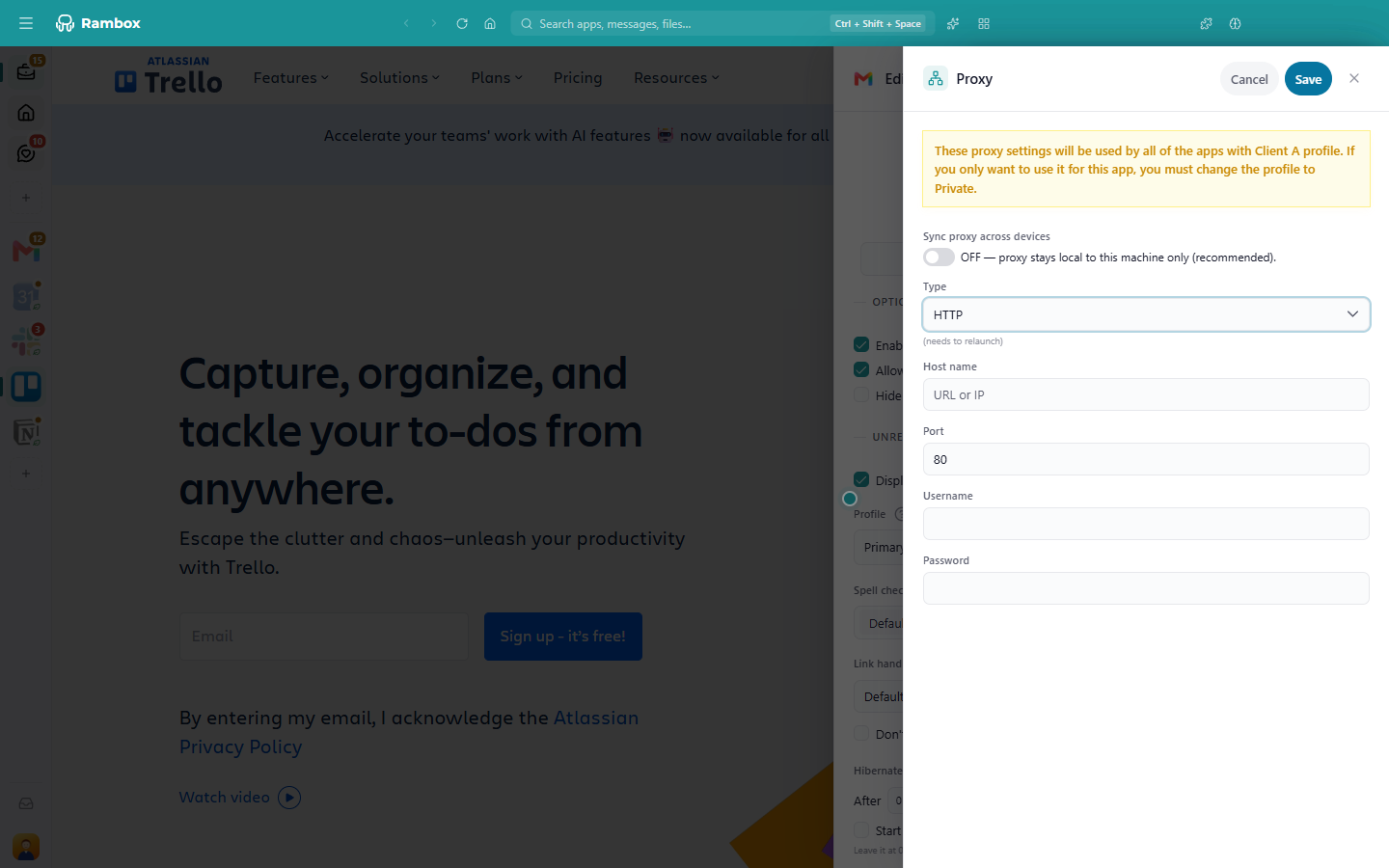
The network icon (Proxy) opens a Proxy panel on the side that sets a proxy server for every app on that profile. You can also reach the same setting from an app's settings: Advanced options → Proxy configuration.
- Type: Use system proxy settings, Auto detect, No Proxy, HTTP, HTTPs, Socks4 or Socks5. For the last four, fill in Host name and Port, and Username / Password if the proxy needs them.
- Sync proxy across devices: off by default, which keeps the proxy only on this computer. Turn it on to use the same proxy wherever you use Rambox.
- When you save, Rambox tests the proxy and tells you if it worked (Proxy configuration successful!) or not.
Remember that the proxy belongs to the profile: if you set it from an app on a shared profile, Rambox warns you that every app on that profile will use it. To proxy just one app, give that app the Private profile first.
INFO
A single proxy for all of Rambox is free on every plan, in Settings → Advanced → Proxy. The per-profile and per-app proxy is a Pro feature.
Several accounts on one profile
Some services, like Gmail, let you sign in to several accounts in the same session and switch between them. If you prefer that to separate profiles:
- In the app, switch to the account you want.
- Right-click inside the app's page and choose Set current URL as app's default.
The app now always opens on that account. Add the same app again and repeat for another account.
Good to know
- On Basic, the Profile field is locked and the Profiles panel's Create and Maintenance buttons are disabled. Every app has its own session, so two copies of the same service can still use different accounts. See How can I open multiple accounts for the same app?
- Moving an app to another workspace keeps its session: an app set to Inherit from Workspace keeps the profile it had, so you stay signed in.
- Coming from Rambox 2? Messaging apps such as WhatsApp no longer start as Private automatically; new apps start as Inherit from Workspace. Choose Private yourself if you want an app fully isolated.
- Custom app keeps signing you out? See Your custom app doesn't retain login credentials.