
Work hours
Only get sounds and notifications from a workspace during the hours you choose, so work apps stay quiet in the evening.
Work hours let a workspace stay quiet outside the hours you choose. For example, set your "Work" workspace to 09:00–18:00 and Slack, Teams and your work email stop pinging you once the day is over, while your personal apps keep working as usual. The apps keep running in the background, so nothing is lost: you just aren't interrupted.
Work hours are set per workspace and apply to every app inside it. Apps don't have their own work hours. The feature is available on every plan.
Set work hours for a workspace
- Right-click the workspace in the sidebar and click the gear icon (Settings). If you are creating a new workspace, you'll find the same field in the New workspace panel.
- Find Work hours.
- Click Start time, choose the time the workday starts, and click Select.
- Click End time, choose the time it ends, and click Select.
- Click Save (or Add for a new workspace).

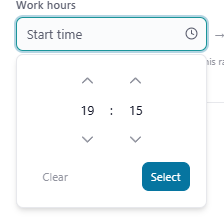
Good to know about the time pickers:
- Times use the 24-hour format and move in 15-minute steps.
- The End time must be later than the Start time. If it isn't, Rambox shows End time must be after start time and won't save.
- Ranges that cross midnight (for example 22:00–06:00) are not supported.
- The range applies every day, based on your computer's clock. There is no option to pick specific days of the week.
Turn work hours off
Open the workspace settings, click each time picker and use Clear, so both fields are blank. Then click Save. With the fields blank, the workspace never goes quiet because of the time.
What happens outside work hours
While the clock is outside the range:
- No notifications and no sounds from the workspace's apps.
- The workspace badge in the sidebar is hidden, so you aren't tempted to check. The apps themselves still show their own unread counts when you open the workspace.
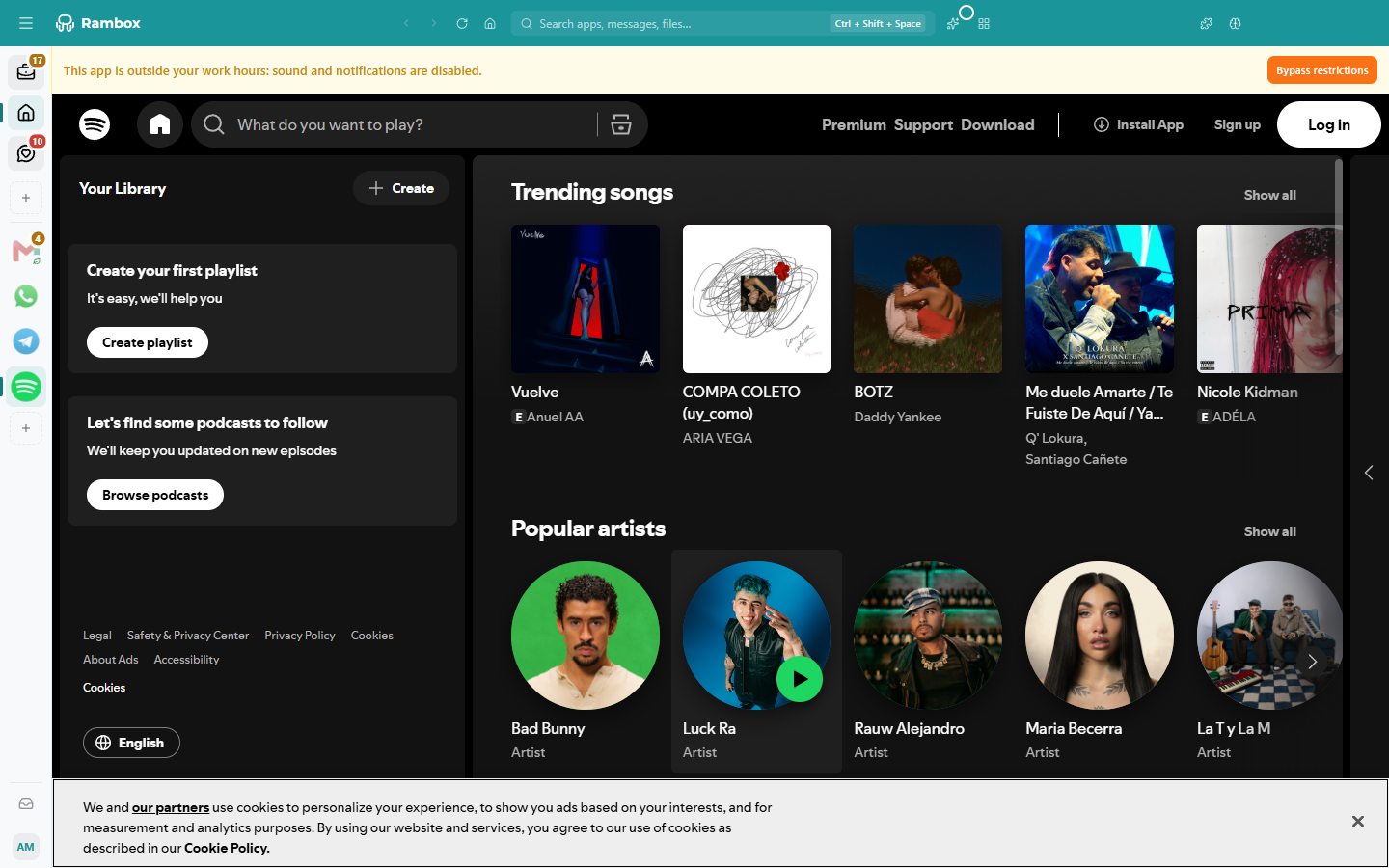
- When you open one of those apps, a banner at the top says This app is outside your work hours: sound and notifications are disabled.
When the next work period starts, everything goes back to normal on its own.
Let one app through for now
Sometimes you need one app to ring after hours (say, you're waiting for an important message). In that app, click Bypass restrictions in the banner. Sounds and notifications for that app come back temporarily, and the banner says Restrictions bypassed: sound and notifications are temporarily enabled.
Click Restore restrictions to make it quiet again. The other apps in the workspace are not affected.
INFO
The banner and the Bypass restrictions button only show when the app itself has sounds or notifications turned on. If you have muted the app on purpose, work hours have nothing to block.
Work hours and Focus mode
Work hours and Focus mode both silence apps, but they work differently:
- Work hours are automatic, per workspace, and follow the clock every day.
- Focus mode is something you start yourself and silences all apps at once, for a session. See Focus mode, Pomodoro and ambient sounds.
Coming from Rambox 2?
- In Rambox 2, the unread counters stayed visible outside work hours. In Rambox 3, the workspace badge is hidden until the work period starts again.
- If you had nested workspaces with different work hours, each workspace received the hours that all its old parent workspaces had in common when it moved to the top level. Check your workspaces after upgrading. See Upgrading from Rambox 2.