
Signing in to Rambox
Rambox 3 signs you in through your web browser. Learn how it works, what to do if you get stuck, how to sign in to a company account and how to sign out.
In Rambox 3 you don't type your password inside the app. Instead, Rambox opens the sign-in page in your usual web browser, and once you've signed in there, the browser sends you back to the app. This lets you use the sign-in methods you already trust (Google, Microsoft, Facebook, your company's single sign-on, or email and password) and keeps your password out of the desktop app.
Sign in step by step
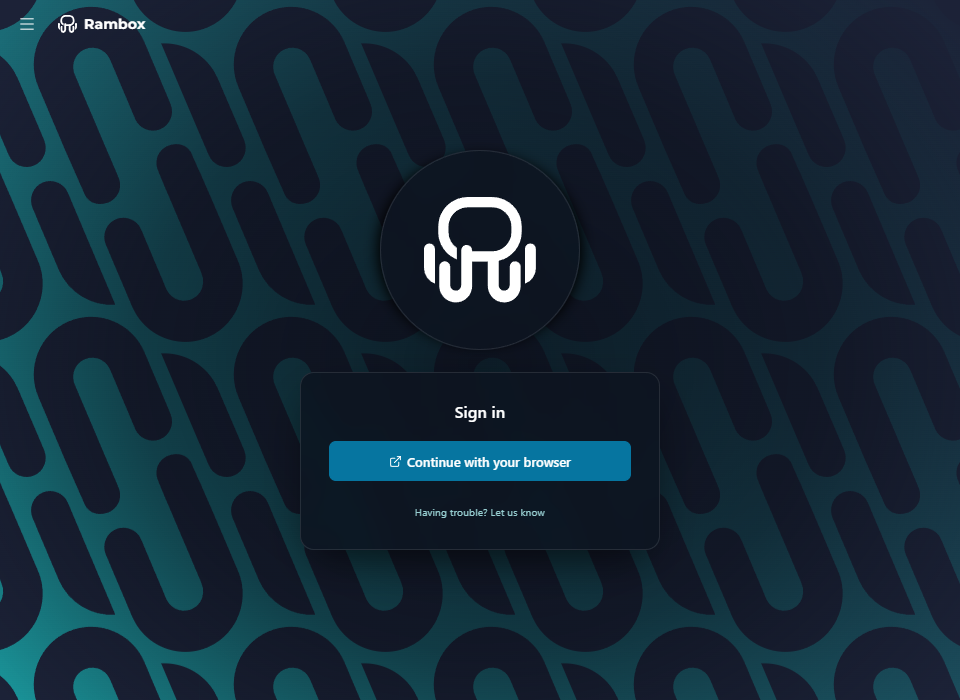
Open Rambox. If you're not signed in, you see the Sign in screen.
Click Continue with your browser.
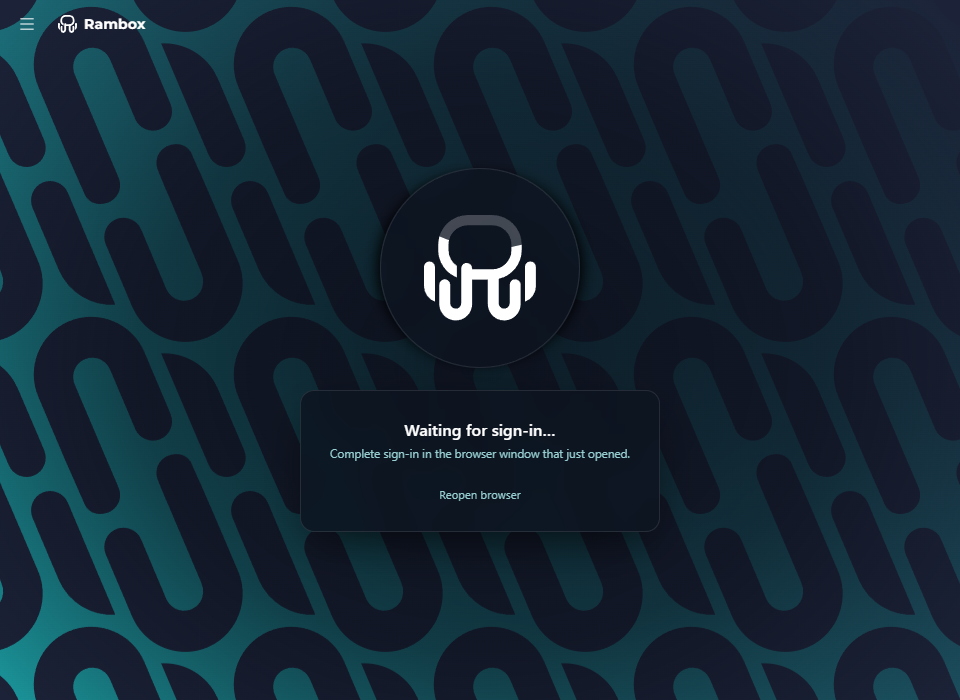
Your default browser opens the Rambox sign-in page, and the app now shows Waiting for sign-in… — "Complete sign-in in the browser window that just opened."
In the browser, choose how to sign in:
- Sign in with Google, Sign in with Microsoft or Continue with Facebook, if you created your account that way;
- or type your Email address and Password and click Sign In. Keep Remember me ticked if you don't want to type your password next time.
When you're signed in, the browser shows You're signed in! and asks whether to open Rambox. Accept the prompt (it may say "Open Rambox?" or similar, depending on your browser and system).
Rambox comes back to the front and finishes loading your account (you'll see messages like "Validating license..." for a few seconds).
That's it. You stay signed in on this computer until you sign out.
The browser prompt didn't appear?
Click Proceed to Rambox on the "You're signed in!" page. If your browser offers to always allow this kind of link, tick that option so you won't be asked again.
Don't have an account yet?
You create your account from the same browser page:
- In Rambox, click Continue with your browser.
- On the sign-in page, click the link to create a new account.
- On Create your account, sign up with Google, Microsoft or Facebook, or fill in First name, Last name, Email address and Password, accept the terms and click Create account.
- If you signed up with email, Rambox sends you a verification link. Open it, then go back to the browser tab and click I've verified — continue.
New accounts start with a free Pro trial — no credit card needed. Back in the app, a short setup wizard helps you add your first apps: see First-run setup.
Signing in to a company (Enterprise) account
If your company uses Rambox Enterprise, sign in through your company's own page:
In Rambox, click Continue with your browser.
On the sign-in page, find Does your company use Rambox? and click Sign in with your company ID.
Type your Company ID (the part before
.rambox.app, for exampleyour-company) and click Continue.On Sign in to {your company}, use the sign-in method your company enabled, or your Work email and Password.
Accept the browser prompt to go back to Rambox.
Don't know your company ID? Click Forgot your company ID?, enter your work email and click Email me my company ID. You'll receive the ID and sign-in link of every company workspace you belong to. Your administrator can also tell you.
If you tick Remember me, the next time you sign in the browser goes straight to your company's page. To use a personal account instead, click Sign in with your personal account on that page.
More details: How to log in to my Enterprise account.
Troubleshooting
Rambox stays on "Waiting for sign-in…"
This happens when the browser never sends you back to the app — for example if you closed the tab, dismissed the "Open Rambox?" prompt, or your browser blocked it.
- Click Reopen browser in Rambox to open the sign-in page again.
- On the "You're signed in!" page, click Proceed to Rambox.
- Make sure Rambox is still open while you sign in.
- Linux: update to Rambox 3.1.1 or later. Earlier AppImage, tar.gz and zip builds didn't return to the app after signing in.
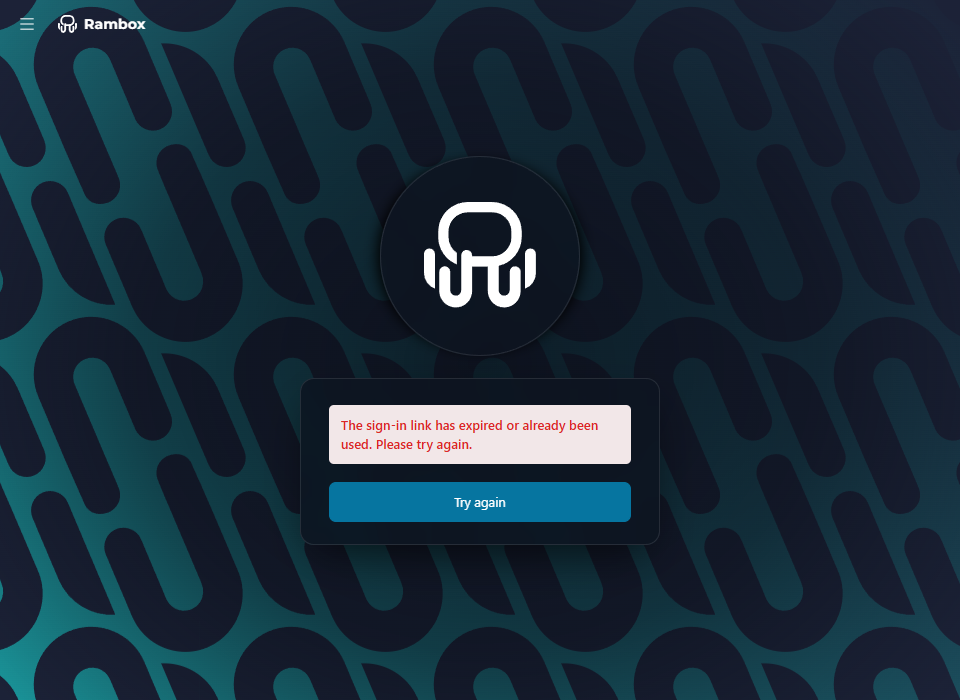
"The sign-in link has expired or already been used. Please try again."
Each sign-in link works only once and for a short time. Click Try again in Rambox and sign in again from the page that opens. Don't reuse an older browser tab.
"Sign-in failed. Please try again."
Click Try again. If it keeps failing, check your internet connection and run the Troubleshooting tool, or contact us with Having trouble? Let us know on the Sign in screen.
Errors on the browser sign-in page
- "Invalid email or password." Check what you typed, or use Forgot password? — see How to reset my Rambox password.
- "Please verify your email before signing in." Open the verification email Rambox sent you (check your spam folder) — see Not receiving emails from Rambox.
- "Too many failed attempts. Please try again later." Wait a few minutes before trying again.
- The page shows "Not you?" Your browser remembers someone else's Rambox session. Click Not you? to sign in with a different account, or enter your password to continue.
Signing out
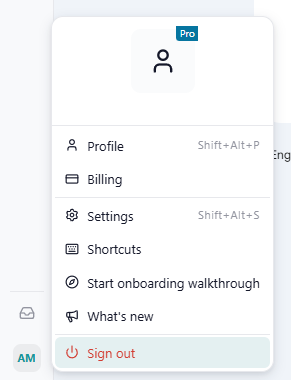
- Click your avatar at the bottom of the sidebar.
- Click Sign out.
- Confirm with Sign out in the "Are you sure you want to sign out?" dialog.
Rambox goes back to the Sign in screen. Your apps, workspaces and settings stay in your account, so they're all back the next time you sign in on this or any other computer.
WARNING
You need an internet connection to sign in again. If you work offline a lot, don't sign out before going offline.
Why was I signed out?
Rambox may sign you out by itself and show a notice explaining why. The most common ones:
| Notice | What it means |
|---|---|
| Welcome to the new Rambox — "This version needs you to sign in again." | You installed Rambox 3 over Rambox 2. Sign in once to move your account. See Upgrading from Rambox 2. |
| "You have been logged out remotely." / "You were signed out from another device." | Someone signed this computer out from the Machines page of your account. See Active sessions. |
| License Validation — "It has been 48hs without internet connection…" | Rambox couldn't check your license for 48 hours. Connect and sign in again. See Offline mode. |
| Email change | You changed your account's email. Sign in with the new address. |