
Tabs reordering
Put your apps and workspaces in the order you like by dragging and dropping them in the sidebar.
You can arrange your apps and workspaces in whatever order works for you by dragging them in the sidebar. The new order is saved to your account and syncs to all your devices.
Reorder apps or workspaces
- Press and hold the app or workspace you want to move. Keep the button pressed for a moment: there's a short delay before the drag starts, so you don't reorder things by accident when you just want to click.
- Drag it to its new position. The other items move aside to make room.
- Release it.
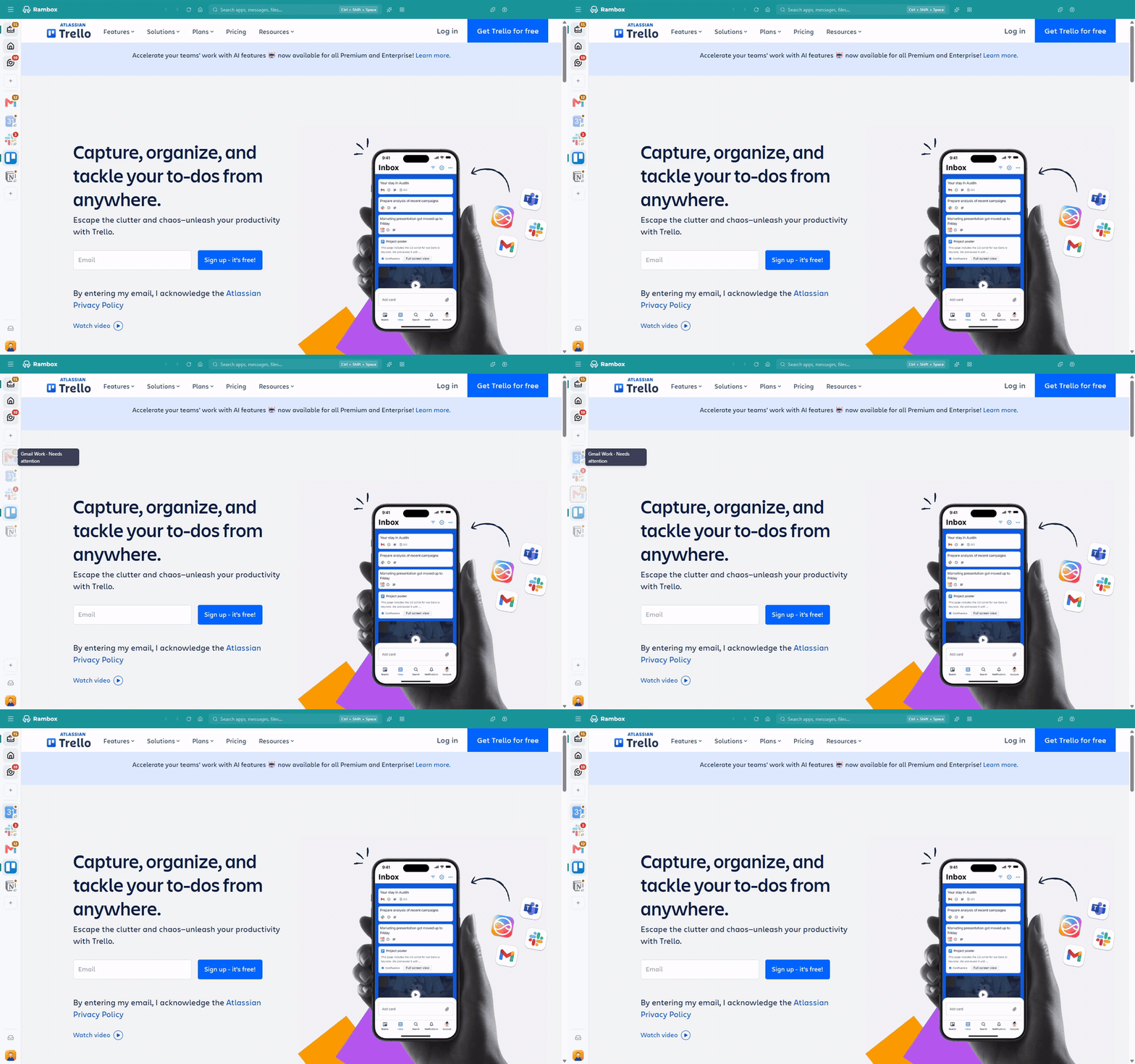
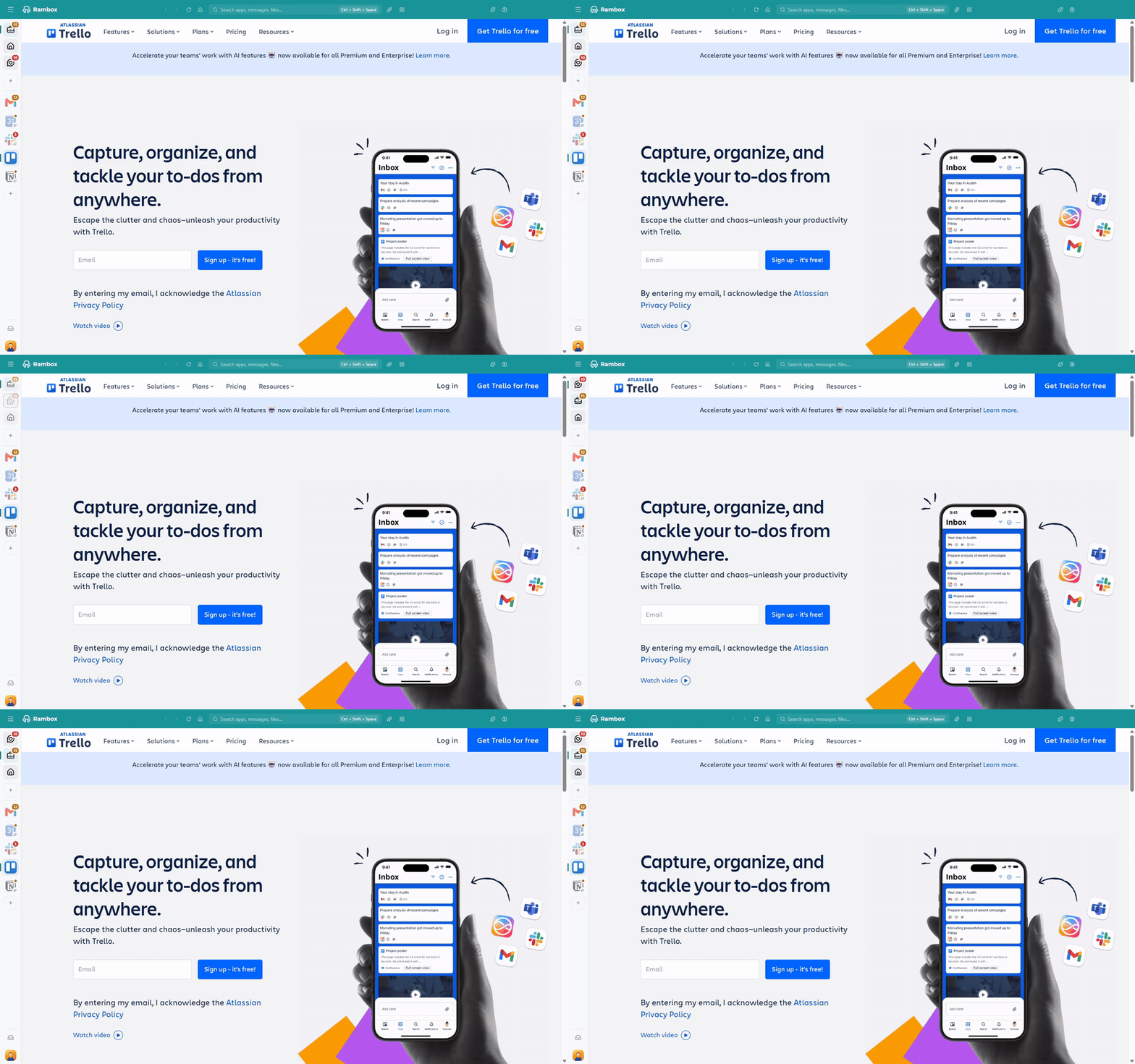
Apps can only be reordered within their own workspace. To move an app to a different workspace, drag it onto that workspace instead. See How to move apps to a workspace.
Items in the "…" menu
When there isn't enough room in the sidebar for everything, the extra apps or workspaces go into a … menu (More apps or More workspaces). Hover over the … to open it. You can reorder items inside this menu by dragging them too, and drag them back out into the sidebar.
TIP
Want to see more items without the … menu? Expand the sidebar, or drag the line between workspaces and apps (Compact layout) to give one of them more room. See Getting around Rambox.
Good to know
- Tiles workspaces arrange their apps in tiles, not in a list. You rearrange them by splitting and resizing tiles. See Tiles workspace layout.
- On the Basic plan, workspaces that aren't included in your plan sit in a locked menu and can't be reordered. On Basic, the workspace your plan includes is always shown first.
Drag and drop doesn't work?
- Make sure you hold the item for a moment before moving the mouse.
- If it still doesn't work, open the menu and choose Tools → Clear Cache (on Windows and Linux, the menu is under the Menu button at the top-left of the window; on macOS it's in the menu bar). Rambox restarts by itself.
- If the problem continues, contact support.