Billing: plan, payments and invoices
Use the Billing page of the Rambox Console to see your plan, manage your subscription, payment methods and billing details, and download invoices.
Everything about paying for Rambox is on the Billing page of the Rambox Console. From there you can upgrade, change or cancel your plan, add or remove cards, update the details printed on your invoices and download past invoices. There is no billing screen inside the desktop app anymore: the app opens this page in your browser.
INFO
This article is for personal accounts. If you manage a company's Rambox Enterprise organization, see Subscribing to Rambox Enterprise.
Open the Billing page
From the Rambox app:
Click your profile picture at the bottom of the sidebar.
Click Billing. On the free Basic plan the item is called Change plan and has an Upgrade! tag. During the free trial you can also click {days} trial days left (for example "12 trial days left").
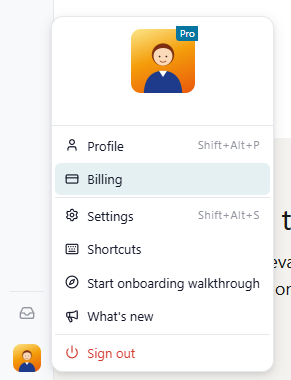
Your browser opens the Console's Billing page, already signed in.
From any browser: go to console.rambox.app/billing and sign in.
Payments are processed by Stripe. When you add a card or subscribe, Rambox sends you to a secure Stripe page and then brings you back to Billing.
Plan
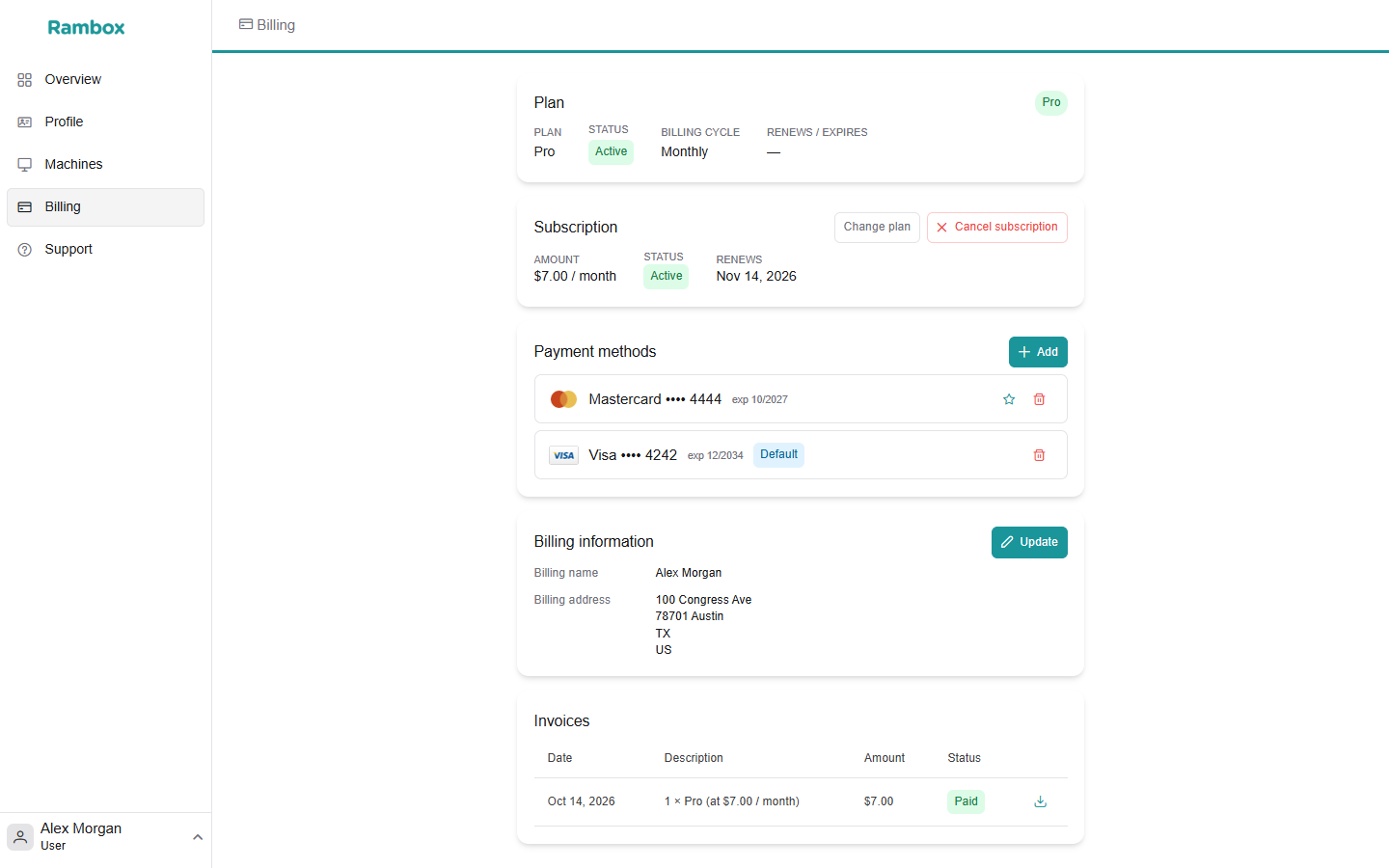
The first card shows your current plan, with a Pro or Free tag:
- Plan — Pro or Basic. During the free trial it says Pro.
- Status — for example Active or Trialing.
- Billing cycle — Monthly, Yearly or Lifetime. It shows "-" during the trial.
- Renews / expires — the date your plan renews or ends.
Subscription
This card shows your paid subscription and the buttons to change it. Which buttons you see depends on your situation:
| Your situation | Buttons |
|---|---|
| Free Basic plan | Upgrade to Pro |
| Free trial | Upgrade to Pro and Downgrade to Basic |
| Paying monthly or yearly | Change plan and Cancel subscription |
| Cancellation scheduled | Change plan and Resume |
When you have a subscription, the card also shows the Amount you pay per month or per year, its Status, and the date it Renews. If you cancelled, a Cancels at period end tag appears. Without a subscription it says "No active subscription — you're on the free plan."
Lifetime licenses are a one-time purchase, so this card isn't shown for them.
Learn more:
- How to become Pro
- How to change your Pro plan
- Subscription cancellation
- How can I cancel my trial period?
Payment methods
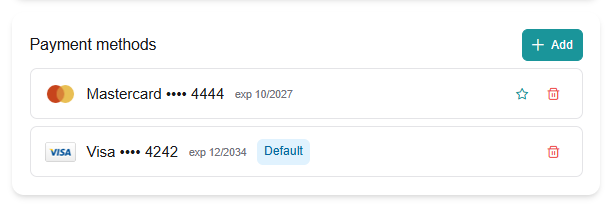
Here you see the cards saved on your account, each with its last four digits (•••• 4242), its expiry date and a Default tag on the one that is charged.
Add a card:
- Click Add.
- Enter the card on Stripe's secure page and save it.
- You return to Billing, where the new card is listed.
Make a card the default: click the star (Make default) next to it. The default card is the one used for your next payment.
Remove a card:
- Click the trash icon (Remove) next to the card.
- Confirm with Remove.
You can't remove your only card while you have an active subscription. You will see "This is your only payment method. Add another one before removing it." Add the new card first, then remove the old one.
TIP
If a payment fails, update your card here. See Problems with payment.
Billing information
This is the name, address and tax ID printed on your invoices.
- Click Update.
- On Stripe's page, edit your name, address and tax IDs (for example a VAT number).
- Save. You return to Billing, where the card shows Billing name, Billing address and Tax ID.
Changes apply to the invoices issued after you save them. Update your details before your next payment if you need them on that invoice.
Invoices
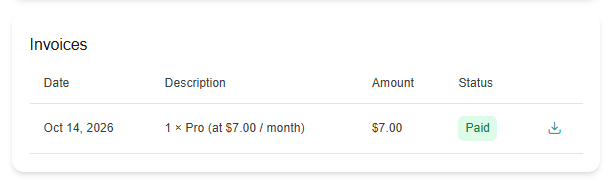
The Invoices card lists every payment with its Date, Description, Amount and Status. Click the download icon on a row to open the invoice PDF.
Payment receipts are also emailed to you by Stripe.