Getting around Rambox
A tour of the Rambox 3 window - the sidebar with your workspaces and apps, the bar at the top, Quick View and the address bar - and how to arrange them.
The Rambox window has three parts: the sidebar, where your workspaces and apps live; the bar at the top, with search and quick tools; and the app area in the middle, which shows the app you're using. This article explains each part and how to arrange it to your liking.
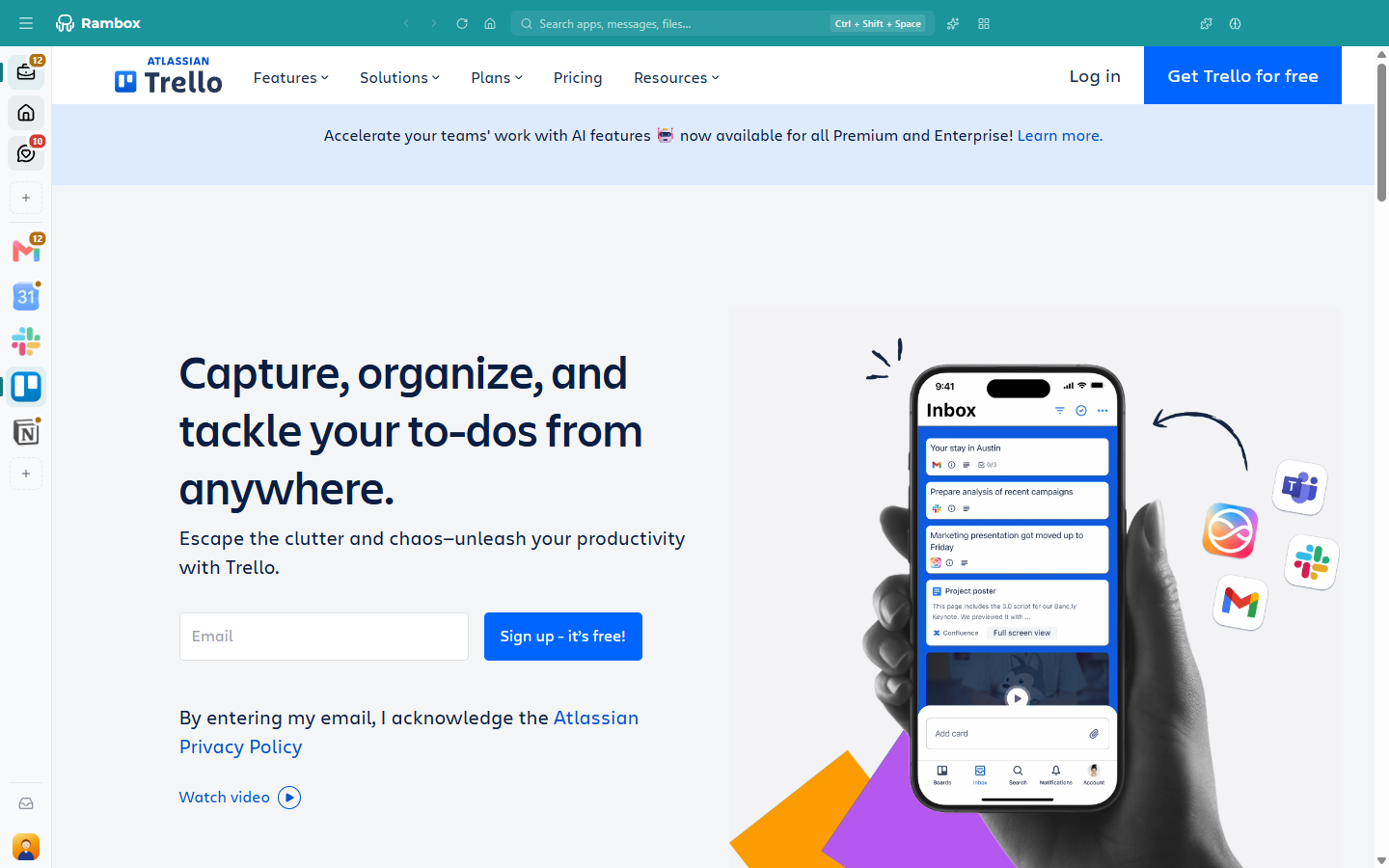
The sidebar
The sidebar lists your workspaces at the top and, below a divider, the apps of the workspace you're in. Click a workspace to switch to it; click an app to open it. At the bottom of the sidebar you'll find the Notification Center button and your avatar, which opens your profile menu.

- Badges on a workspace or app show unread messages: a number, a dot, or a yellow dot when an app needs your attention. See Dot and leaf indicators.
- Right-click a workspace or an app for its quick settings (turn it on or off, mute its sounds or notifications, open its settings). See Apps and workspaces quick settings.
- Drag and drop to reorder workspaces and apps, or drop an app onto another workspace to move it there (moving apps between workspaces is a Pro feature). Hold the mouse button down for a moment before dragging. See Tabs reordering and How to move apps to a workspace.
- Add a workspace or an app with the + button at the end of each list (tooltips Add workspace and Add app).
Expand and collapse the sidebar
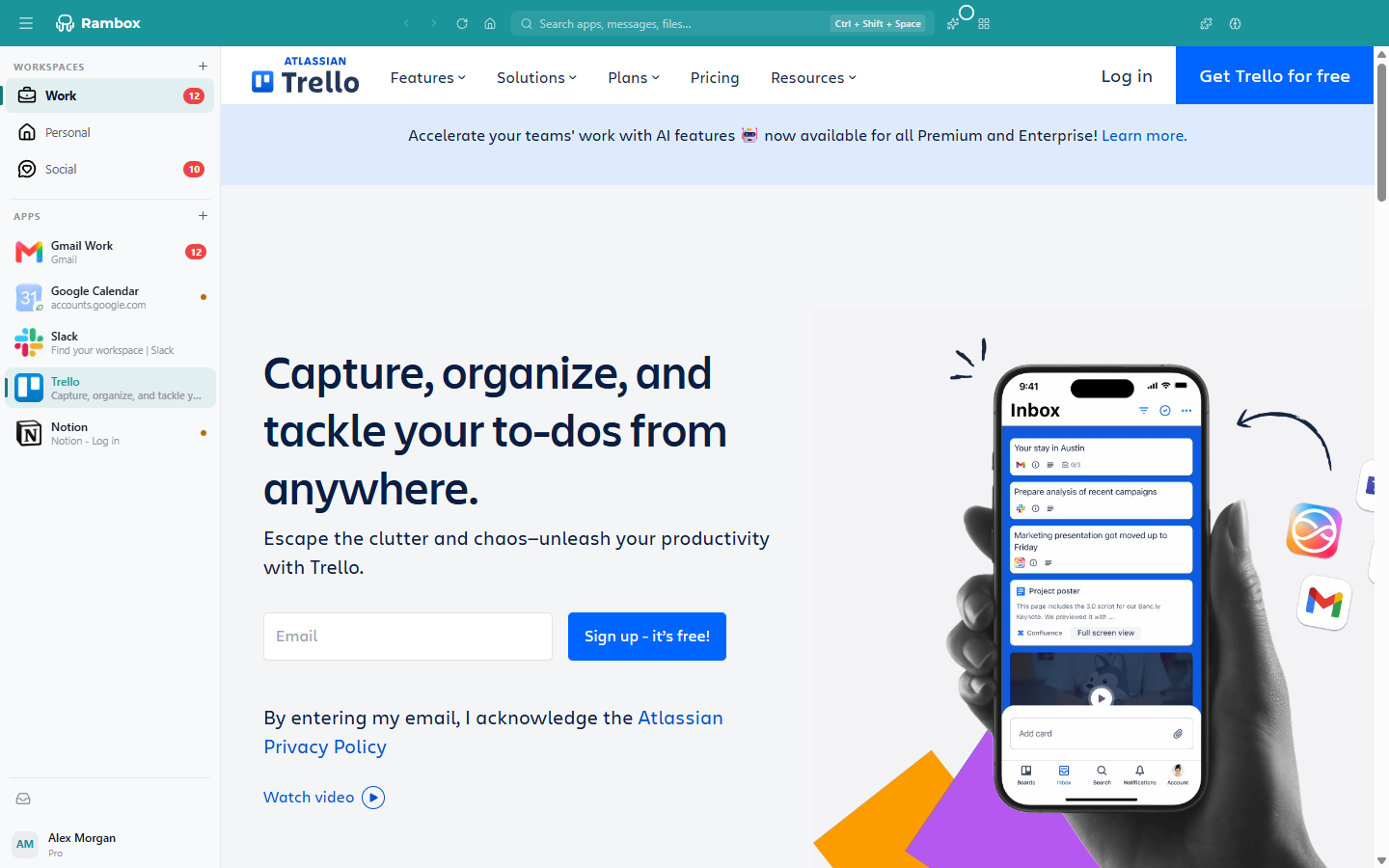
Collapsed, the sidebar shows only icons. Expanded, it also shows each workspace's and app's name, the title of the page open in each app, and its unread count.
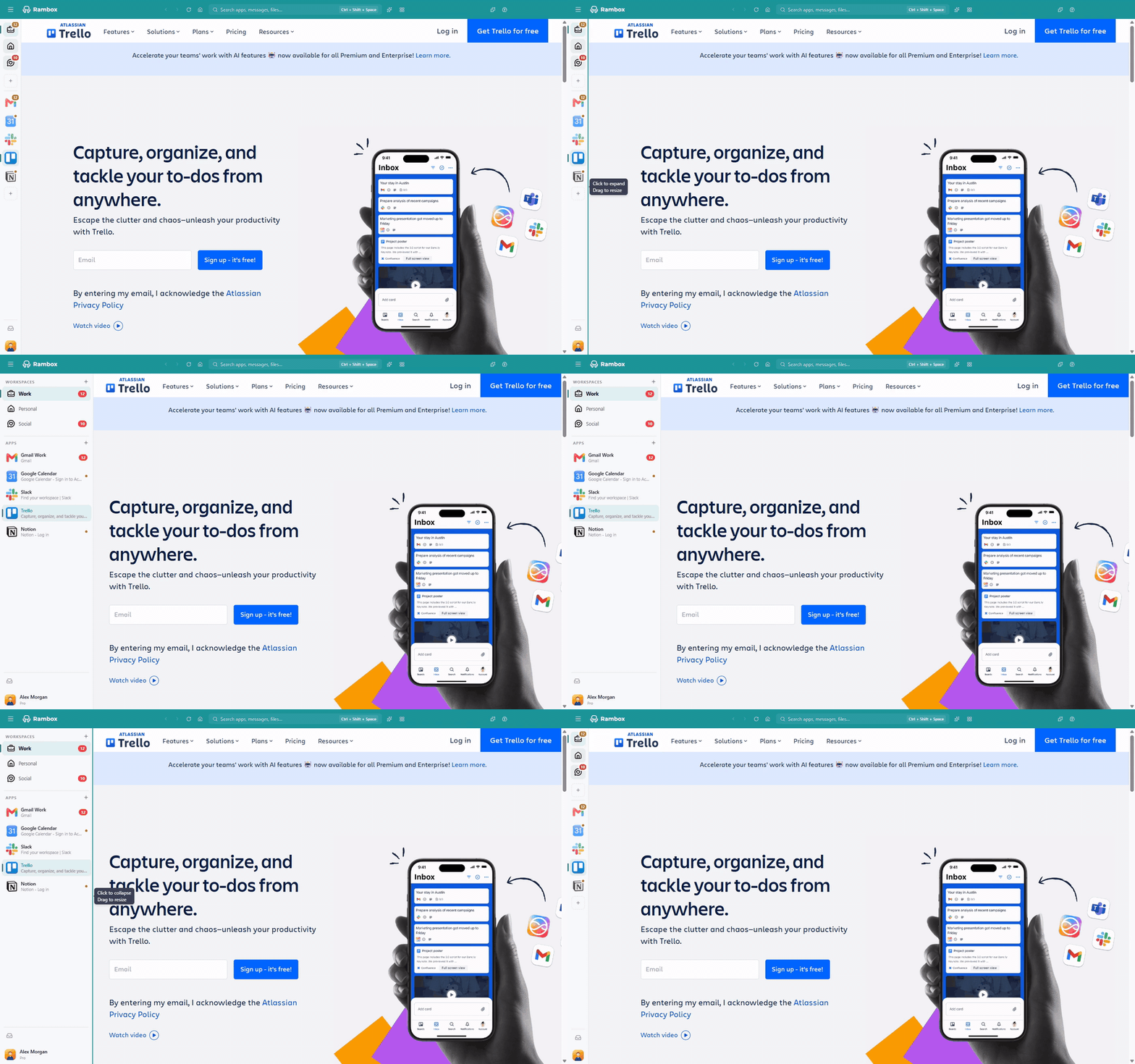
- Rest the pointer on the inner edge of the sidebar (the edge next to the app area) for half a second, until it lights up.
- Drag it to make the sidebar wider. Drag it back to collapse it.
- You can also simply click the lit edge to open or close it (tooltips Click to expand / Click to collapse).
When the sidebar is expanded, each list has a header (Workspaces, Apps) with its own + button.
TIP
You can also show or hide the sidebar from the Command Center: open it and choose Toggle Sidebar.
Compact or Split layout
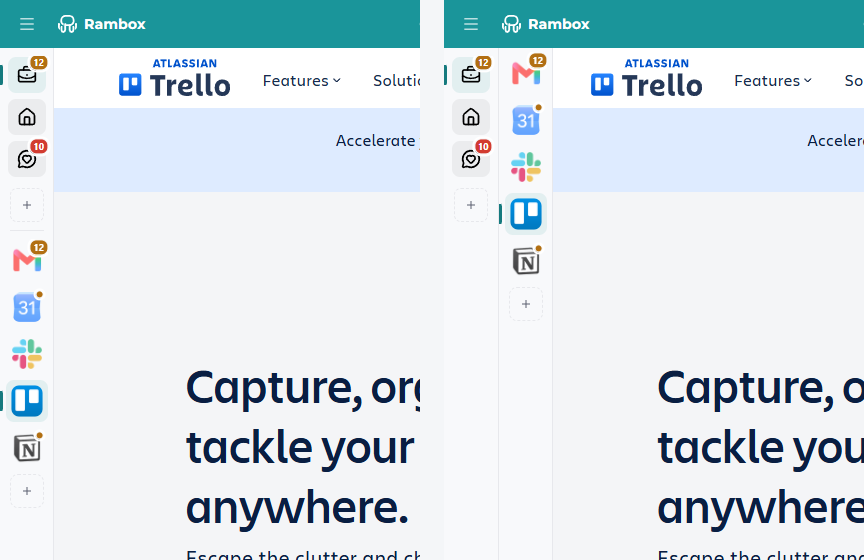
The sidebar comes in two layouts. Choose one in Settings → Appearance → Sidebar layout.
- Compact (default): workspaces and apps share one sidebar, separated by a line.
- Split: workspaces and apps sit in two separate bars.
Make room: the splitter and the "…" menus
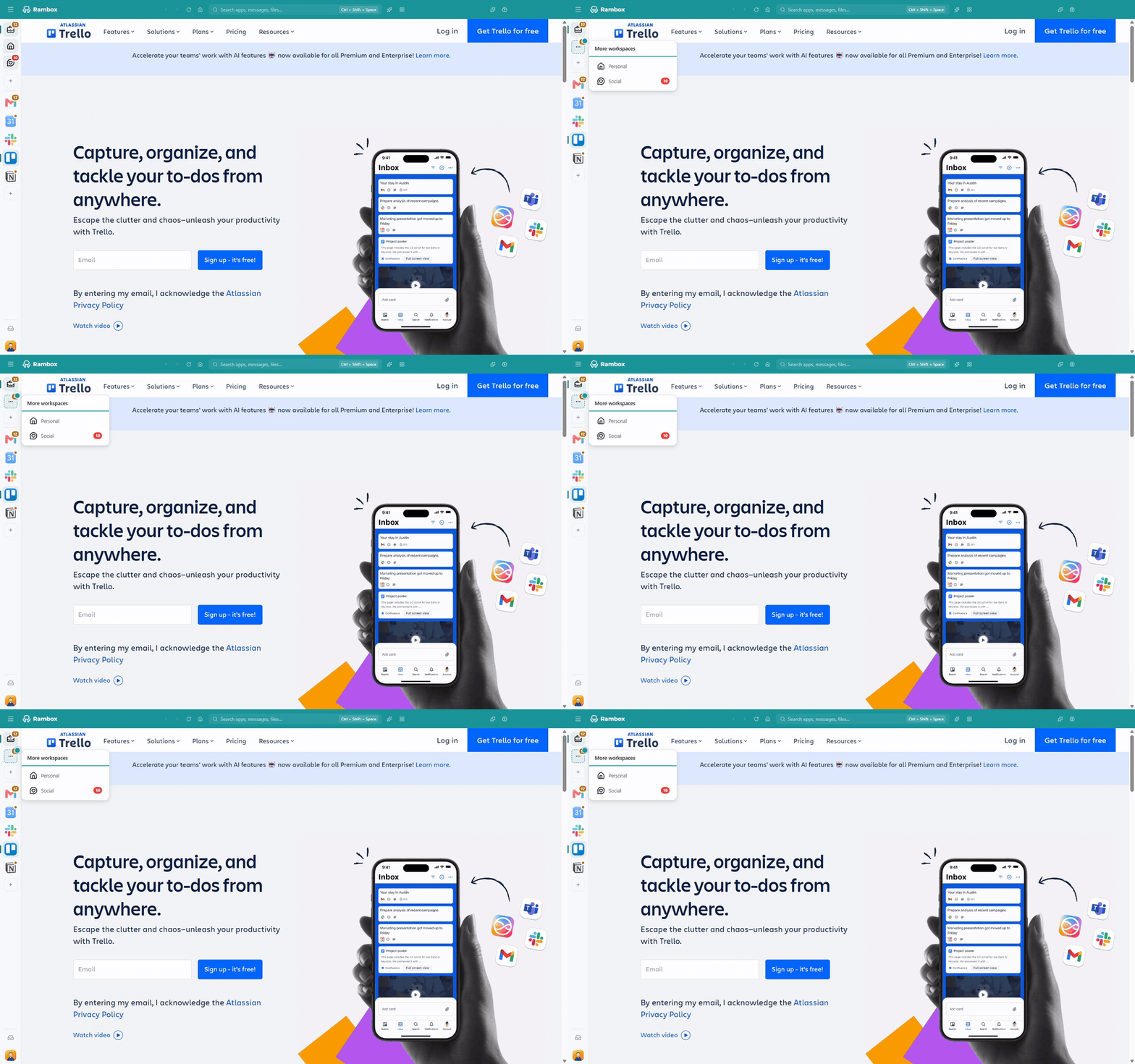
In the Compact layout, the line between workspaces and apps is a splitter:
- Drag it up or down to give more room to workspaces or to apps ("Drag to resize").
- Double-click it to go back to the automatic split.
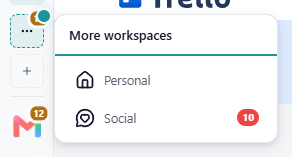
Whatever doesn't fit moves into a … menu at the end of the list (More workspaces or More apps). Hover over the … to see the rest. Items in this menu keep their badges and right-click menu, and you can reorder them by dragging inside the menu.
On the Basic plan
The Basic plan includes one workspace. Other workspaces are moved to a menu with a lock icon, titled Not included in your plan, and stay locked until you upgrade. See Where do all my apps and workspaces go after changing to Basic?
Move the sidebar to another edge
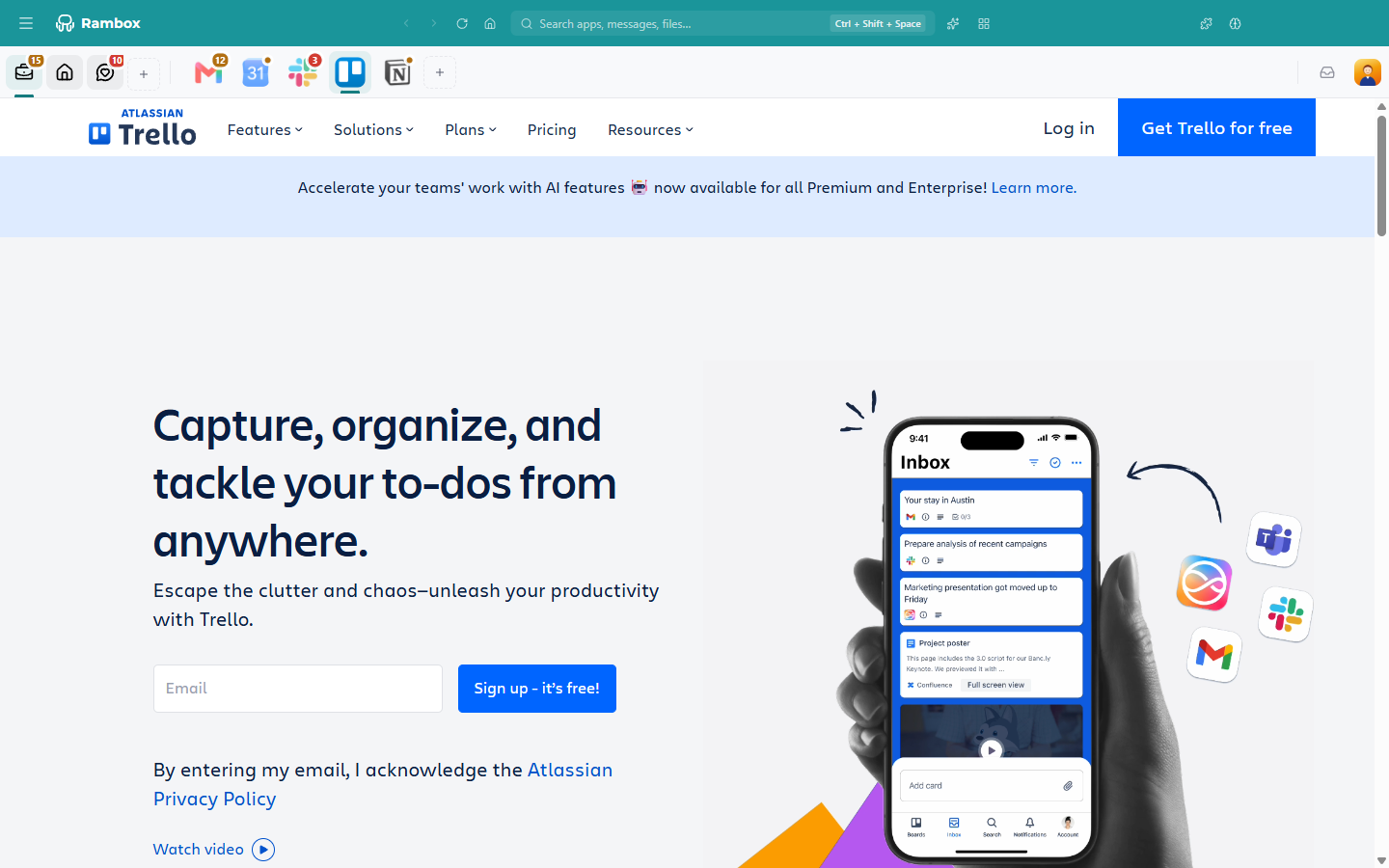
In Settings → Appearance → Apps position, choose Left (default), Right, Top or Bottom. With Top or Bottom, the sidebar becomes a horizontal bar: your workspaces, then the apps of the current workspace and the + button, with the Notification Center button and your avatar at the far end. These positions also offer Hide apps labels, to keep only the app icons.
Settings → Appearance → Density makes icons and rows smaller (Compact) or larger (Comfortable) than Normal.
See General settings for all the appearance options.
When there's nothing yet
A new account without workspaces shows "No workspaces yet" in the sidebar and "Create your first workspace!" in the middle of the window. Click + to create one. See How to create and configure workspaces.
The bar at the top
The bar at the top of the window holds tools that work on whatever app you're looking at.

From left to right:
| Button | What it does |
|---|---|
| Menu (☰) — Windows and Linux only | Opens the app menu: File, Edit, View, Window, Tools and Help. On macOS these menus are in the menu bar at the top of the screen. |
| Back, Forward, Reload, Home | Navigate inside the app you're looking at. Home takes the app back to its start page. While a page loads, Reload becomes Stop. |
| Search apps, messages, files… | Opens the Command Center, to jump to any app or run an action. Its keyboard shortcut is shown on the right of the box. |
| AI Assistant (sparkles) | Opens the AI side panel. Hidden if you turned the assistant off. See AI assistant. |
| Quick View (grid) | Shows all your apps at once. See Quick View below. |
| What's new (megaphone) | Only shown until you've seen the "What's new" tour of the latest version. See First-run setup. |
| Extensions (puzzle piece) | Shows the extensions of the current app. See Extensions. |
| Concentration (brain) | Focus mode, Pomodoro and ambient sounds. See Focus mode, Pomodoro and ambient sounds. |
On Windows, the usual minimize, maximize and close buttons sit at the right end of the bar, and Windows' snap layouts work as in any other app.
You can also go back and forward with Alt+← / Alt+→ (macOS: ⌘+← / ⌘+→) or your mouse's back and forward buttons, and reload with F5 or Ctrl+R (macOS: ⌘+R). All shortcuts are in Keyboard shortcuts.
The address bar
If you like to see where you are inside an app, turn on Settings → Appearance → Show address bar. A bar appears above the app with:
- the Back, Forward, Reload and Home buttons (they move here from the top bar);
- the site's icon (when the page has one) and the title of the page;
- the address of the page you're on, shortened to the site and path (for example
trello.com), with a padlock when the connection is secure.
The address is read-only, but you can click it to select and copy the full link.

Quick View
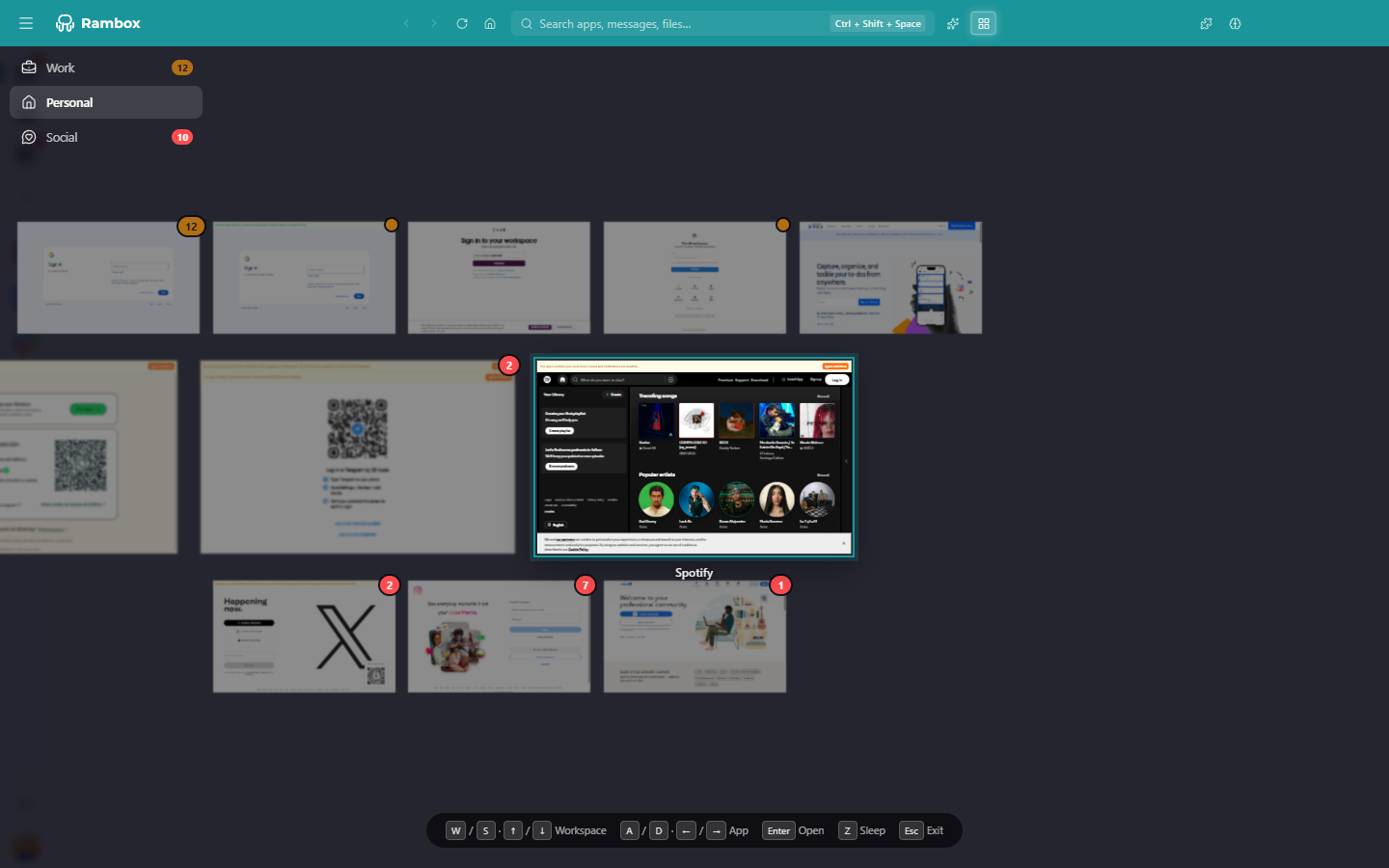
Quick View lays out every app side by side, so you can catch up on all of them at a glance without clicking through one at a time.
- Open it: click the Quick View button (grid icon) at the top, or press Ctrl+Shift+Q (macOS: ⌘+Shift+Q).
- Open an app: click its card, or select it and press Enter.
- Move around: ↑ / ↓ (or W / S) switch workspace; ← / → (or A / D) move between apps. You can also click a workspace in the list on the left.
- Hibernate an app: select it and press Z (Sleep). See How to hibernate.
- Close Quick View: press Esc or click the dark background.
Workspaces and cards show the same unread badges as the sidebar.
Your profile menu
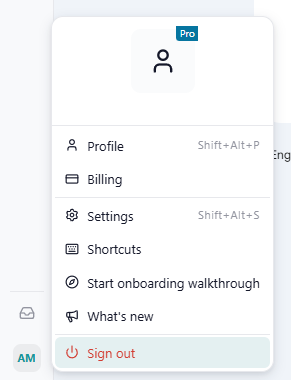
Click your avatar at the bottom of the sidebar to open the profile menu:
- Profile — opens your account page in the browser. See Your profile configuration.
- Change plan (Basic) or Billing (Pro) — opens billing in the browser. Trial accounts also see how many trial days are left.
- Settings — see General settings.
- Shortcuts — see and turn off keyboard shortcuts. See Keyboard shortcuts.
- Start onboarding walkthrough and What's new — replay the guided tours.
- Sign out — see Signing in to Rambox.
When an update is ready, the menu also shows Restart to apply update and a dot appears on your avatar.