About Rambox (version & updates)
Find out which version of Rambox you have, check for updates, read the release notes and choose between the stable and beta channels.
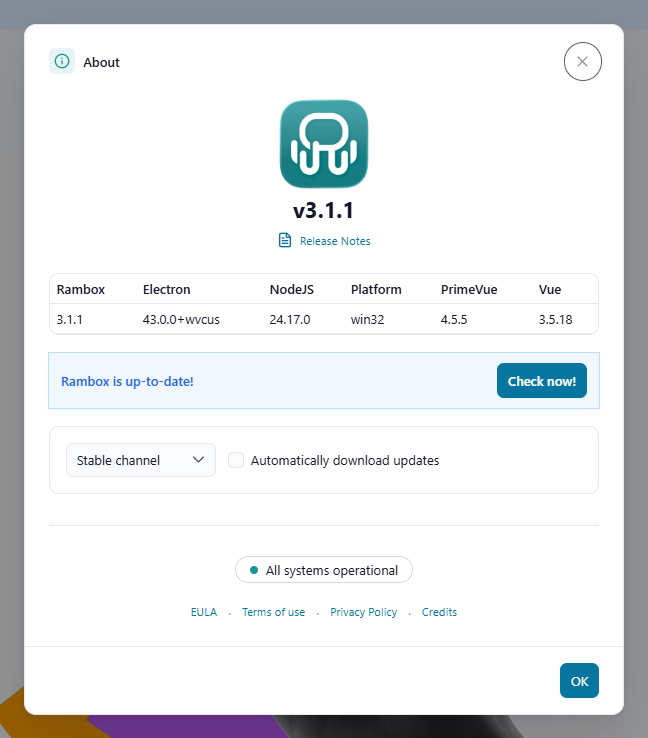
The About Rambox window tells you which version of Rambox you're running, whether there's a newer one, and lets you choose how you get updates. It also links to the release notes, our legal terms and the status of Rambox's services.
Open the About window
- Windows and Linux: click the Menu button (☰) at the top-left of the window and choose Help → About Rambox.
- macOS: in the menu bar, choose Rambox → About Rambox.
What you'll find
Version
Under the Rambox logo you'll see the installed version, for example v3.1.1. Support may ask you for it.
Release Notes
Opens the list of changes in your version — new features, improvements and fixes — on our releases page.
Update status
The box in the middle shows where things stand:
| Message | What it means | What you can do |
|---|---|---|
| Rambox is up-to-date! | You have the latest version. | Check now! to look again. |
| Checking for updates... | Rambox is looking for a new version. | Wait a moment. |
| A new version is available! | There's a newer version that hasn't been downloaded. | Download now! |
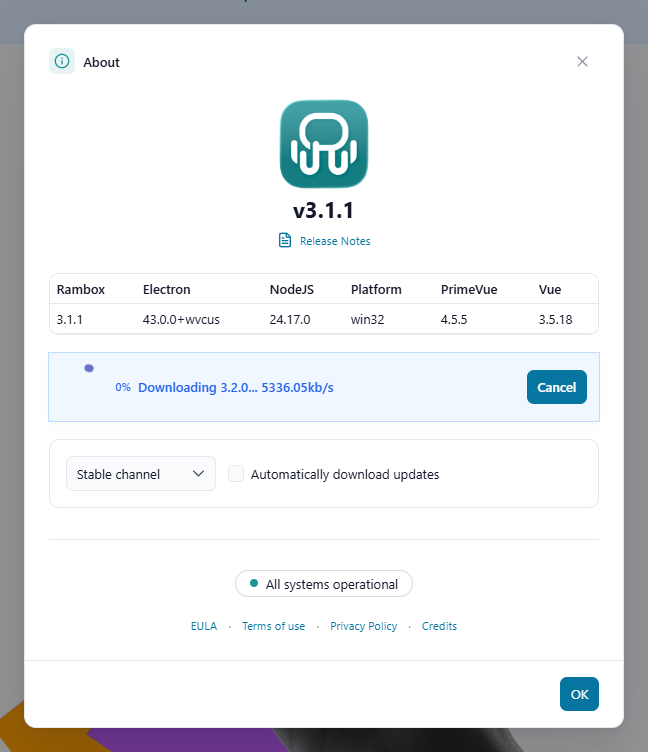
| Downloading {version}... | The update is downloading; you'll see the progress and speed. | Cancel to stop it. |
| The new version has been downloaded and is ready to install. | Everything's ready. | Restart to install it. |
| There was an error. Try again later or update manually. | The update couldn't be checked or downloaded. | Update manually / Download manually to get the installer from our website. |
Stable channel / Beta channel
- Stable channel (default): you get finished, fully tested versions.
- Beta channel: you also get pre-release versions with the newest features, a little earlier and possibly with some rough edges. While you run a beta, a banner reminds you: "You are running a beta version and it may contain some problems still. If you come across any, please report it."
See How to enroll in the Rambox beta program. This selector isn't shown to members of company (Enterprise) accounts, who always stay on the stable channel.
Automatically download updates
When ticked (default), Rambox downloads new versions in the background as soon as they're out and tells you when they're ready to install. When unticked, Rambox only tells you that a new version is available and you choose when to download it. Not shown on Linux, where updates are always manual (see below).
Service status
A small badge shows whether Rambox's online services are working: All systems operational, Some systems experiencing issues or Scheduled maintenance in progress. Click it to open our status page with the details.
EULA · Terms of use · Privacy Policy · Credits
Links to our license agreement, terms of use, privacy policy and credits.
How updates work
On Windows and macOS, Rambox updates itself:
- Rambox checks for a new version when it starts and then every 4 hours.
- If Automatically download updates is on, it downloads the update in the background: "An updated version is downloading in the background, we will notify you when it is ready to be installed."
- When the update is ready, a banner appears: "New version available! Press "Restart now" to quit Rambox and install the new version." You can read the Release notes, choose Later, or Restart now.
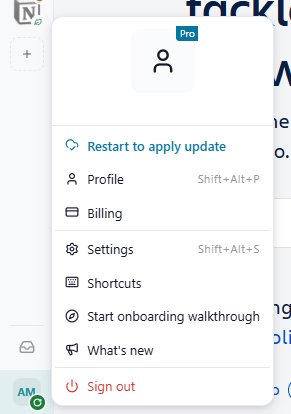
- If you choose Later, the update stays ready: your avatar at the bottom of the sidebar shows a dot, and the profile menu offers Restart to apply update. The update is also installed the next time you quit and reopen Rambox.

If you can't wait, open the About window and click Check now!. See How to check for updates.
Linux
Rambox doesn't update itself on Linux. It still checks for new versions and, when one is out, offers Download the new version in the profile menu so you can download the package that matches yours (deb, rpm, AppImage or tar.gz). Install it the same way you installed Rambox. See Install Rambox on Linux.
Versions that don't update automatically
Some copies of Rambox can't update themselves — for example the Linux packages, or versions installed from an app store. In that case the About window shows "This version does not support automatic updates" with a Read more link, and you install new versions by hand from rambox.app/download. See Rambox is not updating automatically.
When your version is too old
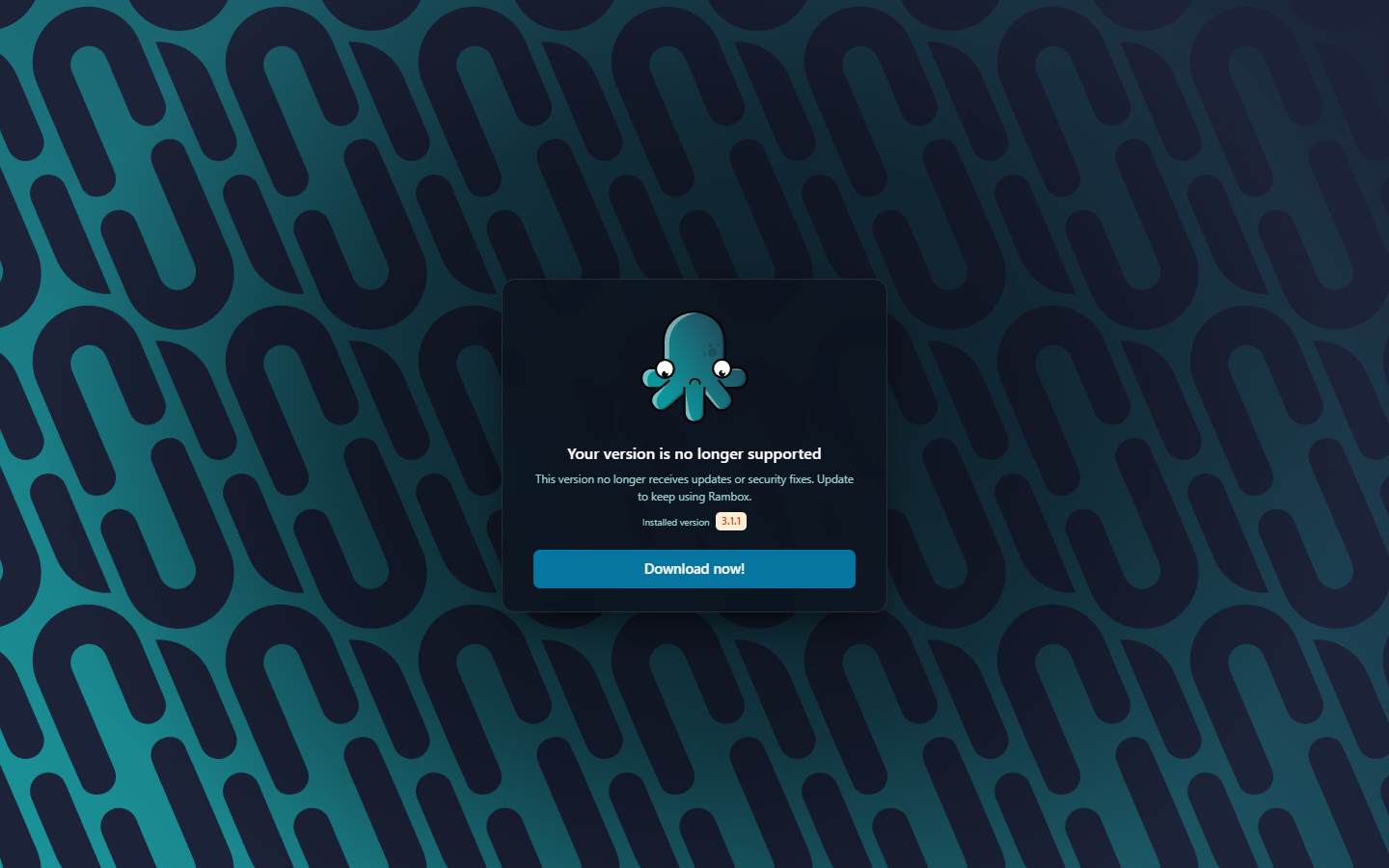
From time to time older versions stop being supported. Rambox warns you ahead of time with a banner that counts down the time left, such as "This version will no longer be supported in 12 days. Please, update to keep using Rambox."
If you're still on an unsupported version once that time is up, Rambox shows Your version is no longer supported or Your version is outdated with your installed version and a Download now! button, and you need to update before you can keep using it. See Why can't my version get updates?