
Link handling
Choose how Rambox opens the links you click inside an app: in your browser, a pop-up window, a tab inside the app, or blocked.
When you click a link inside an app (a document shared in Slack, an attachment in Gmail, a website someone sent you), Rambox has to decide where to open it. Link handling is the setting that decides: in your usual web browser, in a separate Rambox window, in a tab inside the app, or not at all. You can set it per app, set a default for all new apps, and override it for a single link with a key + click.
This article is about links that open a new window (most links to other sites). Links that just move to another page inside the same service open in the app as usual.
Set link handling for an app
- Right-click the app in the sidebar and click the gear icon (Settings).
- Find Link handling and pick an option.
- Click Save.
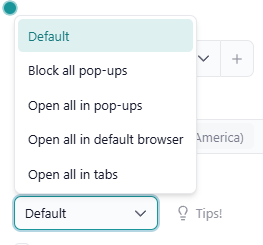
The options
- Default: uses the option set for all apps in Settings → Apps → Default app settings → Link handling (see below).
- Block all pop-ups: the link doesn't open. Instead, a small warning box appears just below the title bar, saying A popup was blocked. Click on "Choose how to open it" to select a "Link handling" option., with two buttons (and an ✕ to close it):
- Open in browser once: opens just this link in your default browser.
- Choose how to open it: opens the chooser described below, where you can also save a new behaviour for the app.
- Open all in pop-ups: opens links in a separate Rambox window that uses the same session as the app (so you stay signed in).
- Open all in default browser: opens links in the web browser you normally use (Chrome, Edge, Safari, Firefox…).
- Open all in tabs: opens links in tabs inside the app, with a tab bar above it. See Tabs inside an app. This option isn't available for apps in a Tiles workspace.
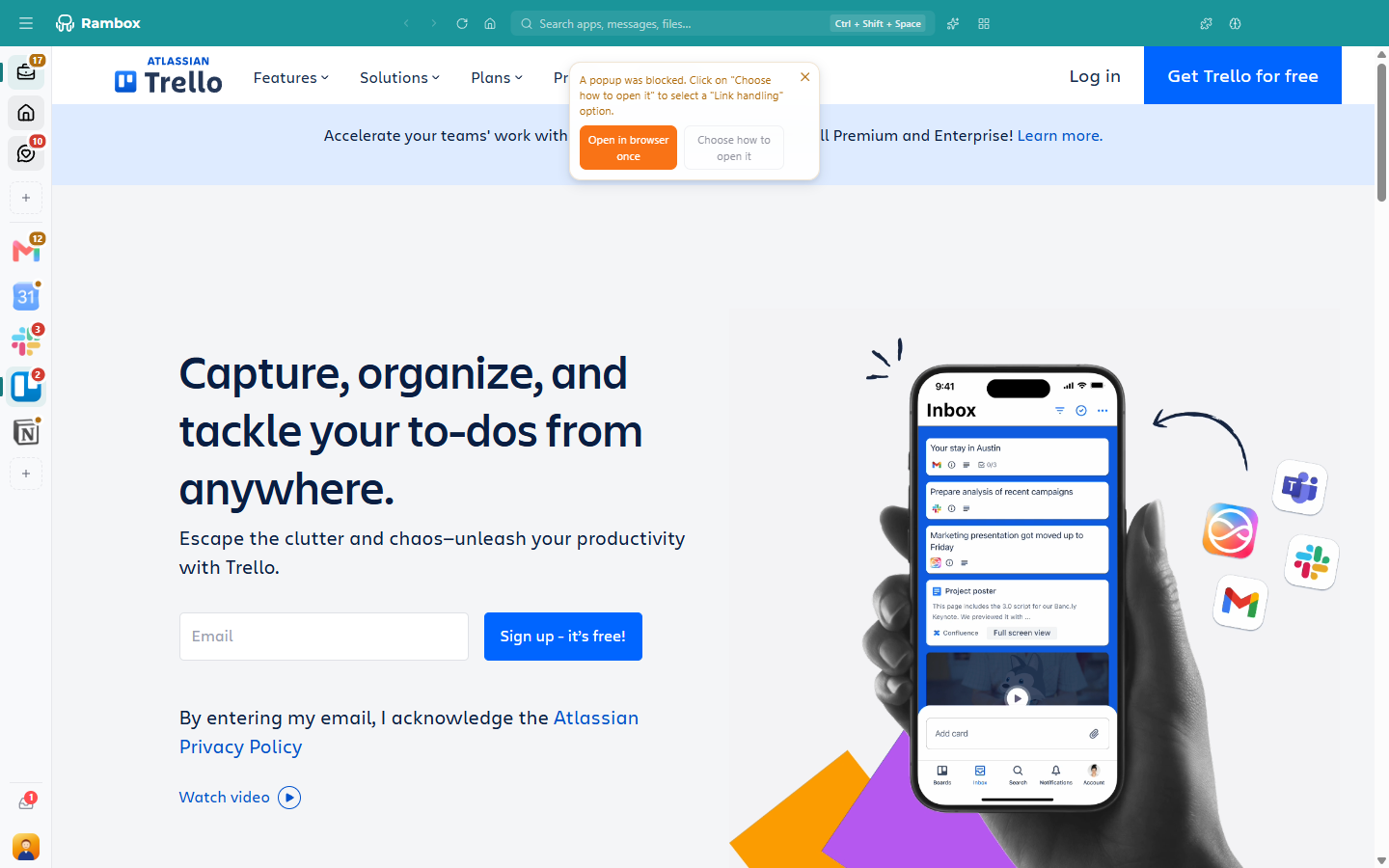
If pop-ups are blocked when you don't expect it, see Why are pop-ups blocked?
The default for all apps
Go to Settings → Apps → Default app settings → Link handling to choose what new apps use. The options are Block all pop-ups (the default), Open all in pop-ups, Open all in default browser and Open all in tabs. Click Save at the top of Settings.
Apps whose own Link handling is set to Default follow this setting. See General settings.
Open one link differently
Whatever the app's setting, you can choose how to open a single link with your keyboard and mouse. Click Tips! next to the field in the app's settings to see these reminders:
| Do this | What happens |
|---|---|
| Middle-click the link, or Ctrl+click (macOS: ⌘+click) | Opens it in your default browser in the background: Rambox stays in front and shows Link opened in background. |
| Shift+click | Opens it in a tab inside the app. |
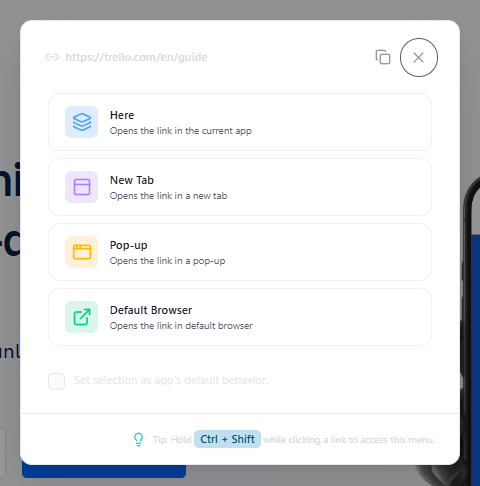
| Ctrl+Shift+click (macOS: ⌘+Shift+click) | Shows the chooser so you can pick. |
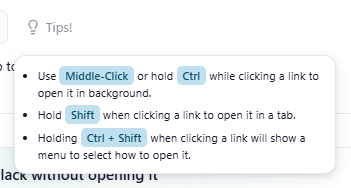
The chooser
The chooser window shows the link at the top and four options:
- Here: opens the link in the app itself, replacing the page you're on.
- New Tab: opens it in a tab inside the app.
- Pop-up: opens it in a separate Rambox window.
- Default Browser: opens it in your usual web browser.
Two extras:
- The copy icon next to the link (Copy URL) copies it so you can paste it anywhere.
- Set selection as app's default behavior.: tick it before choosing, and the option you pick becomes this app's Link handling setting. It isn't available for Here.
Right-click a link
Right-click any link inside an app to get the same choices from the menu:
- Open Link ▸ Default browser, Here, Pop-up or Tab (Tab isn't offered in Tiles workspaces or inside pop-up windows);
- Copy Link;
- Copy email address, for email links.
Links to apps you already have
If you click a link to a service you already have in Rambox (for example, a Google Drive link in Slack while you also have Drive in Rambox), Rambox offers to open it in that app instead: Open this link with…. You can also set rules so certain links always go to a given app. This is explained in Default apps for links.