
Dot and leaf indicators
What the numbers, dots, leaf and other small icons on your apps and workspaces in the sidebar mean.
The icons in the sidebar tell you at a glance what's going on in each app: how many unread messages it has, whether it needs you, whether it's asleep or muted. This article explains every badge and small icon you can see.
Hover for the full story
Move the pointer over any app in the sidebar: its tooltip sums up everything in one line, for example "Slack · Sounds: Muted · 3 unread".
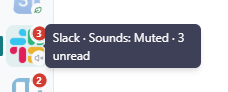
Unread badges
A badge on the app's icon shows that something is waiting for you:
- A number: how many unread items the app reports (shown up to 99+).
- A dot: the app says there is something to read, but doesn't give a number. The tooltip says Unread messages.
- A yellow dot or badge: the app needs your attention. Usually it means you have to sign in again, or the app is waiting for you to do something. The tooltip says Needs attention.
When the sidebar is expanded (showing names), the number or dot appears at the end of the app's row instead of on the icon.

You can hide an app's badge with its Display in tab option. See How to create and configure apps.
Status icons
Next to the badge, an app can show one small status icon. If several apply, Rambox shows the most important one, in this order:
| Icon | Meaning | Tooltip |
|---|---|---|
| Power-off | The app is disabled. Its icon is also dimmed. | is disabled |
| Green leaf | The app is hibernated (asleep to save memory). Its icon is also dimmed. | is hibernated |
| Muted speaker | The app's sounds are off. | Sounds: Muted |
| Bell with a line through it | The app's notifications are off. | Notifications: Disabled |
A speaker icon also appears while an app is playing sound, so you can find which app is making noise. The tooltip says Playing sound.

The leaf: hibernated apps
The leaf means the app is sleeping to free memory. When you open it you'll see Do you want to wake it up? with a Wake up! button (or it wakes up by itself, depending on Settings → Apps → Wake up hibernated apps). A hibernated app can't deliver notifications until it wakes up. Learn more in How to hibernate apps.
Workspace badges
A workspace in the sidebar shows the total unread count of its apps, as a number or a dot, with the same yellow color when one of its apps needs attention. A speaker appears when one of its apps is playing sound.
The workspace badge is not shown when:
- the workspace is disabled;
- the workspace is outside its work hours;
- its Display in Tab option is off;
- Focus mode is on and Settings → Apps → Remove all badges when 'Focus mode' is active is turned on;
- it's a workspace your Basic plan doesn't include.
An app can also leave itself out of the workspace total with its Include in workspace option.

The counter on the Rambox icon
The Rambox icon in your taskbar, Dock or system tray can show the total too. Which workspaces count is set with each workspace's Include in global option, and the indicator itself is set in Settings → Startup & window. If it's missing, see Why don't I see the badges in the taskbar icon?