
How to change the icon image?
Replace the icon of an app or a workspace with any image, or pick one from the icon library, to tell them apart at a glance.
Have two Slack workspaces or three Gmail accounts that all look the same in the sidebar? Give each one its own icon so you can tell them apart in a blink. In Rambox 3 you can use any image: Rambox crops it to a centered square and resizes it for you.
Change an app's icon
- Right-click the app in the sidebar.
- Click the gear icon (Settings).
- Click the app's logo at the top of the panel. A camera appears when you hover over it.
- Choose an image file from your computer.
- Click Save.
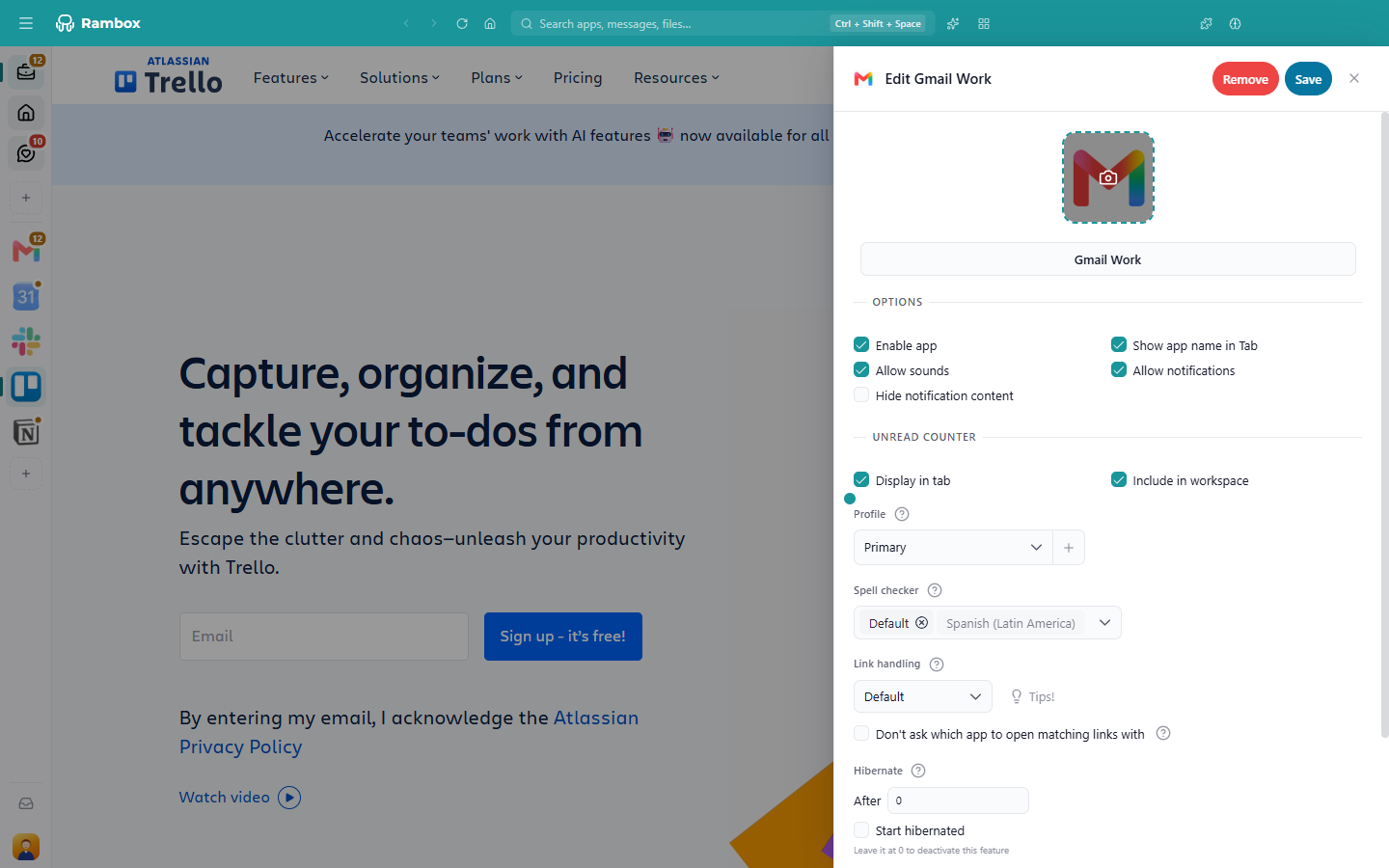
For custom apps, you can also click the magnifier button Get app logo next to the logo, and Rambox fetches the website's own icon. See Adding custom apps.
Change a workspace's icon
- Right-click the workspace in the sidebar.
- Click the gear icon (Settings).
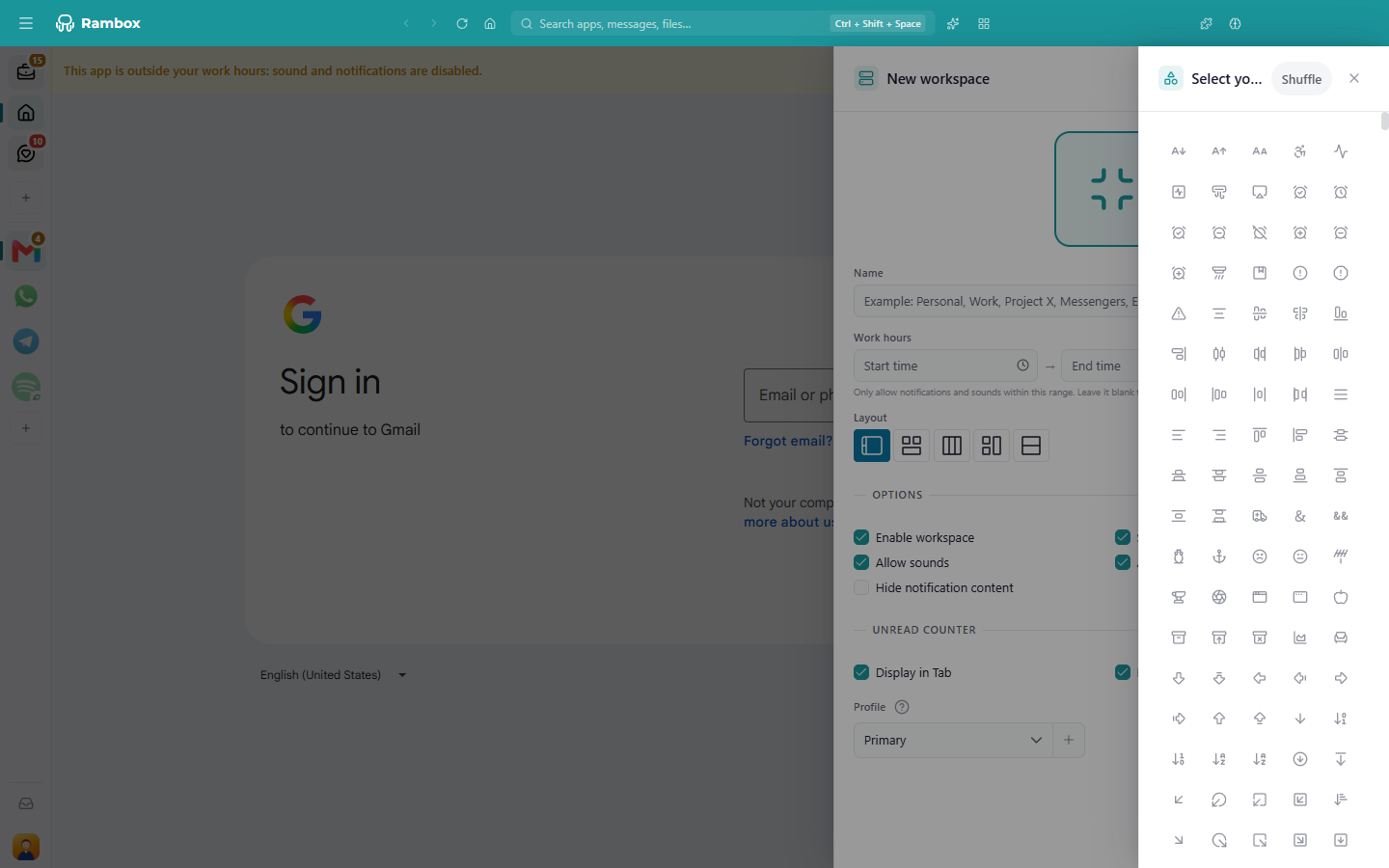
- Click the big icon at the top (tooltip Click here to change the icon).
- Choose one of the two options:
- Select an icon opens a library of icons (Select your desired icon). Click one to use it, or click Shuffle for a random pick.
- Upload image lets you pick any image from your computer.
- Click Save.
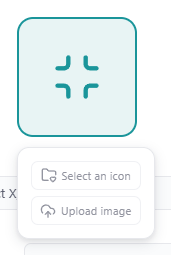
After you upload an image, two small buttons appear under it: one to replace it with another image and one to delete it.
You can also set the icon while creating a new workspace, in the same way.
About the images
- Any common image format works. There's no need for a specific size or a PNG file.
- Rambox crops the image to a centered square, so keep the important part of the image in the middle.
- Simple, high-contrast images are easiest to recognize at small sizes.
Can't change the icon?
- On the Basic plan, workspaces that aren't included in your plan are read-only, and you'll see Click here to change the icon (Pro plan). Upgrade to edit them, or change the icon of the workspace your plan includes. See Where do all my apps and workspaces go after changing to Basic?.
- Shared workspaces and apps in a company (Enterprise) account are set up by your administrator and may not be editable.