
First-run setup, guided tours and hints
How the Rambox setup wizard adds your first apps, what the guided tour and the "What's new" tour show, and how the little hint dots work.
The first time you sign in with a new account, Rambox helps you get going: a setup wizard adds your first apps and workspaces in about a minute, a short tour shows you around, and small hints point out features as you need them. Everything here is optional — you can skip any of it and change all your choices later.
The setup wizard
The wizard appears automatically when you sign in to a new personal account that doesn't have any workspaces yet. It isn't shown to company (Enterprise) accounts, whose workspaces are prepared by their administrator.
The steps are listed on the left: Welcome, About you, Detect apps, Your apps and Personalize. At the bottom you'll always find Previous, Skip setup and a main button to move forward.
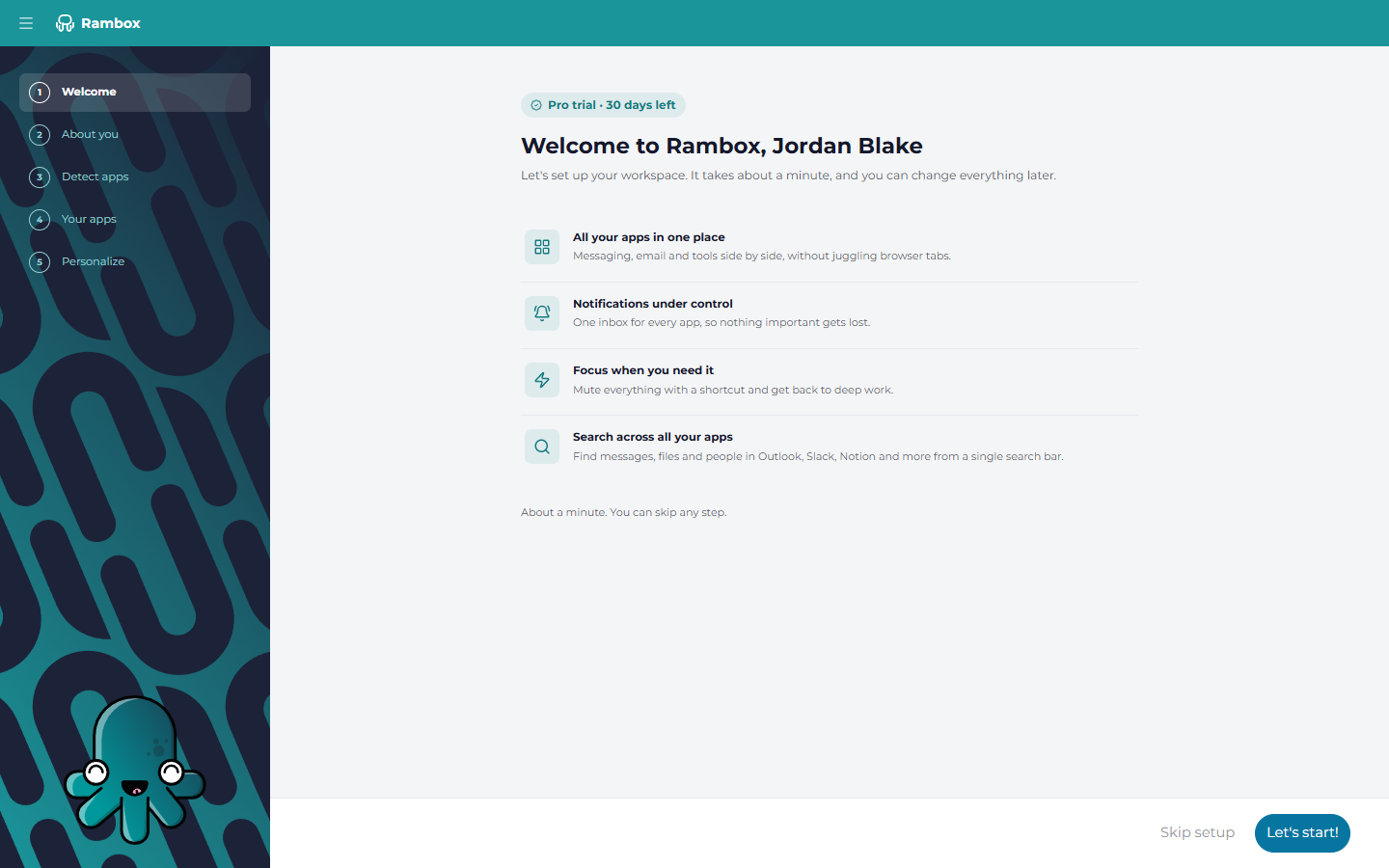
1. Welcome
Rambox greets you by name and shows your plan — for example Pro trial · {days} days left, Basic plan or Pro plan. Click Let's start!.
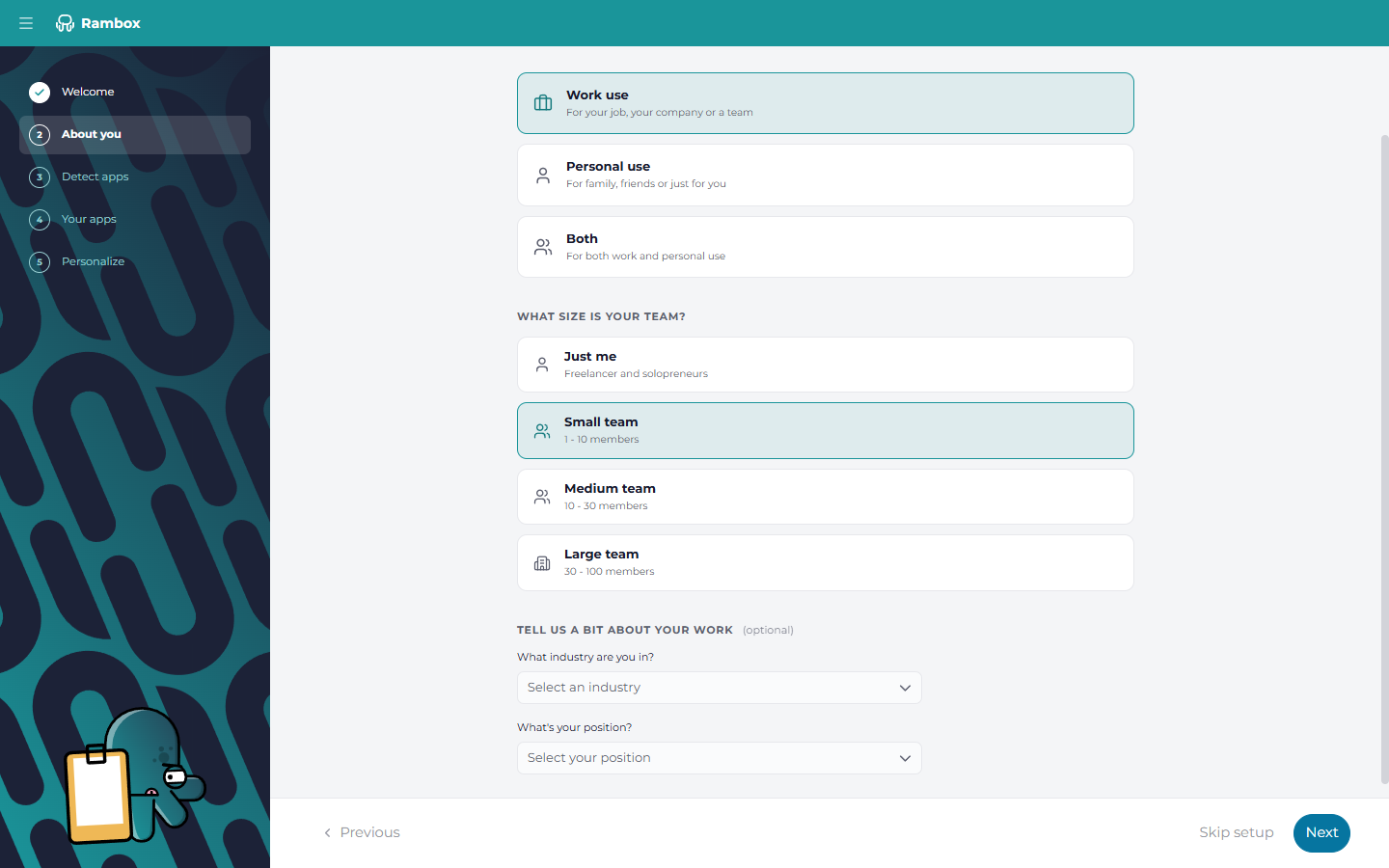
2. About you
"How will you be using Rambox?" Choose Work use, Personal use or Both, and your team size. You can optionally tell Rambox your industry and position. Your answer to the first question decides which apps are suggested in step 4.
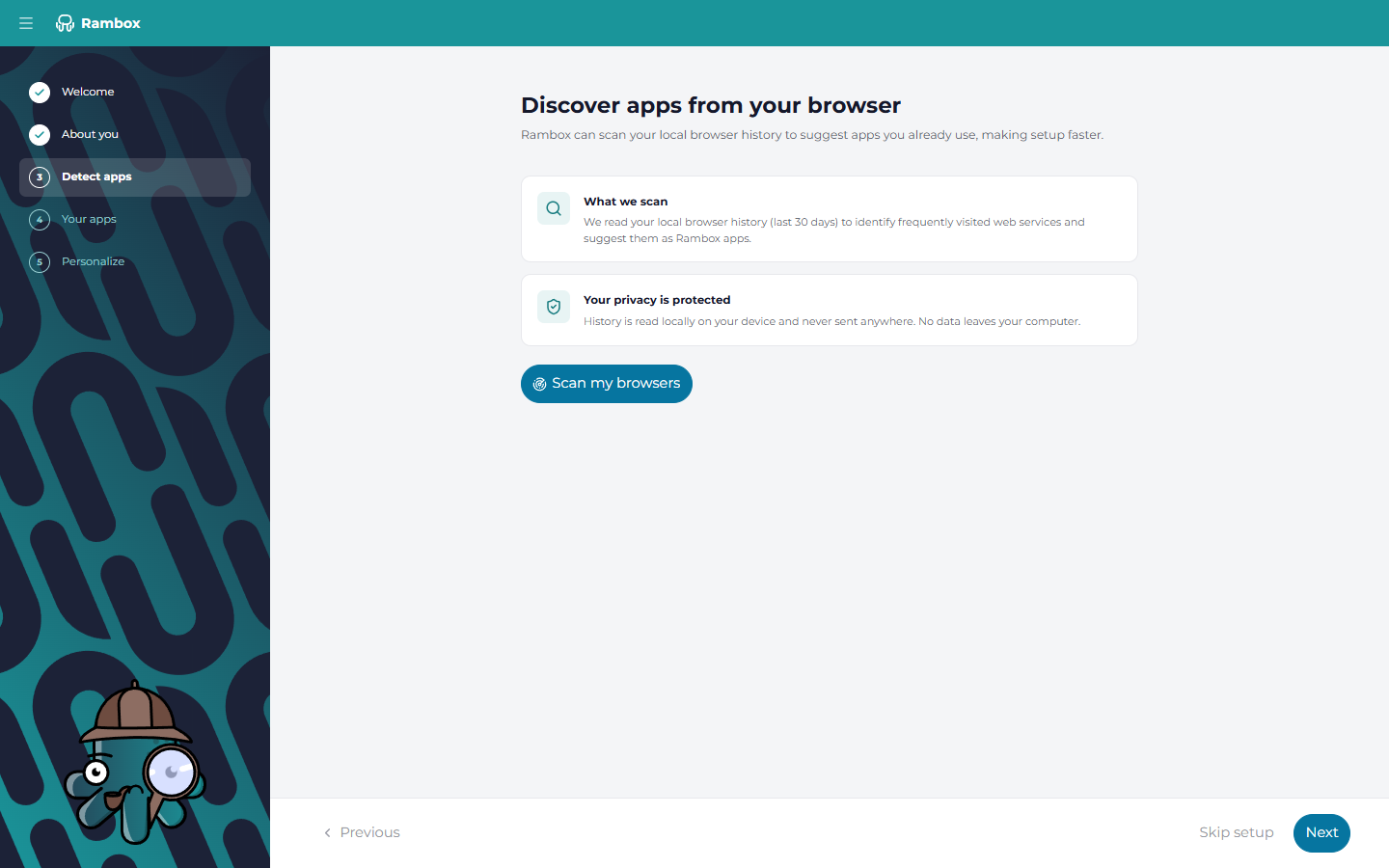
3. Detect apps
"Discover apps from your browser." Click Scan my browsers and Rambox looks at the sites you've visited in the last 30 days in the browsers installed on your computer (Chrome, Chromium, Edge, Brave, Vivaldi, Opera, Firefox and Safari) and lists the web apps you use most.
- Tick the ones you want (or use Select all / Deselect all) and click Add selected & continue.
- They're added to a workspace called From my browsers.
Your history stays on your computer
"History is read locally on your device and never sent anywhere." Rambox only uses it to suggest apps in this step. You can skip the scan and go to the next step without clicking it.
If the scan can't read your history, you'll see "We couldn't read your browser history this time…" with a Try again button. You can also just continue.
4. Your apps
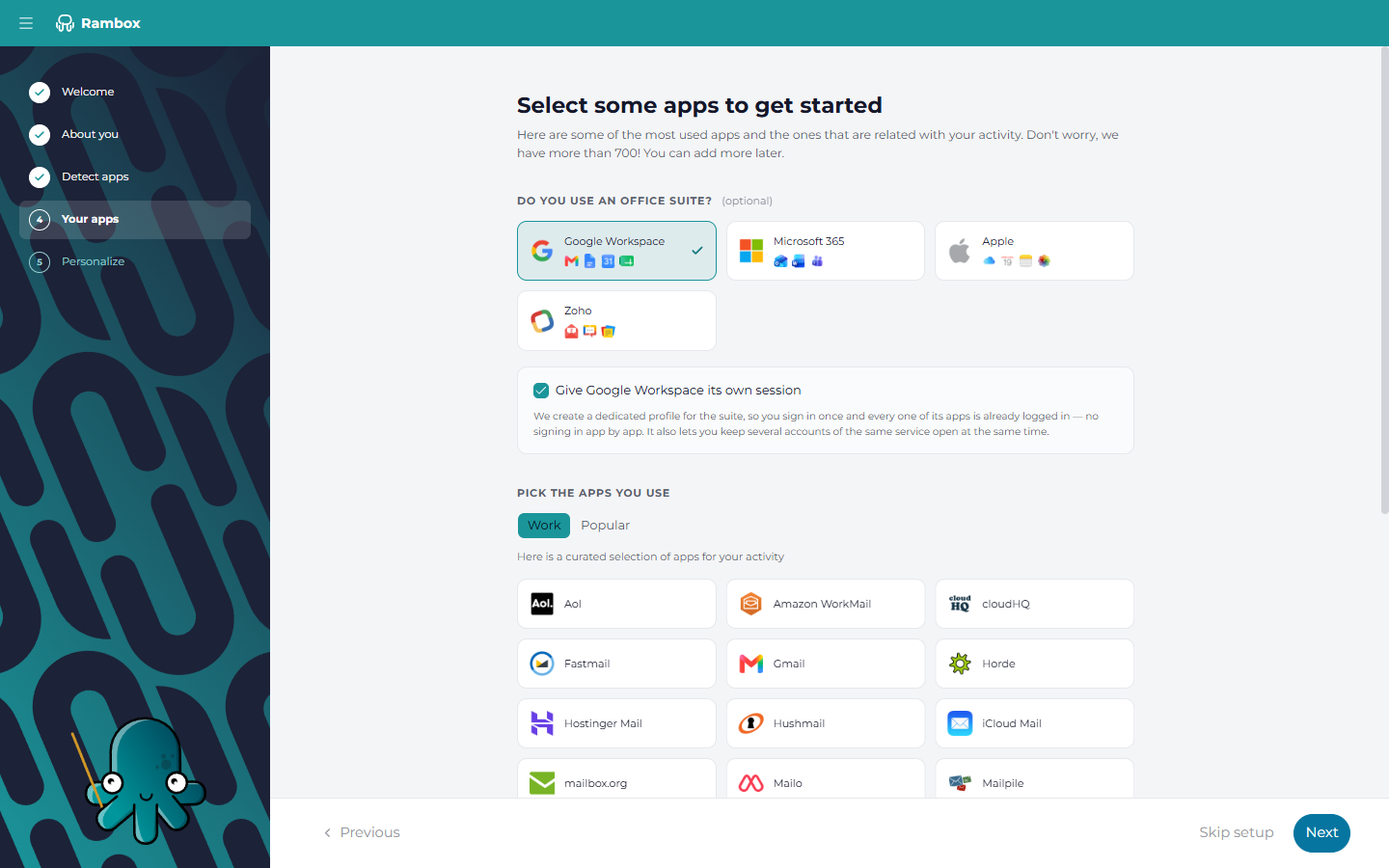
"Select some apps to get started."
- Do you use an office suite? Pick Google Workspace, Microsoft 365, Apple or Zoho. Each suite you pick gets its own workspace with its apps.
- Give {suite} its own session (a checkbox that appears once you pick the suite, ticked by default) creates a profile named "{suite} Profile" shared by all the suite's apps, so you sign in once and Mail, Calendar, Drive and the rest are all signed in. See Profiles.
- Pick the apps you use. Choose from the suggested lists, shown as tabs (for example Work and Popular). Each list becomes a workspace (the popular apps go into one called My apps).
- Some apps need one more detail, such as your company's address for that service ("Address for {app}"). If you leave it blank, that app is skipped.
If you don't pick anything, the button reads Continue without apps.
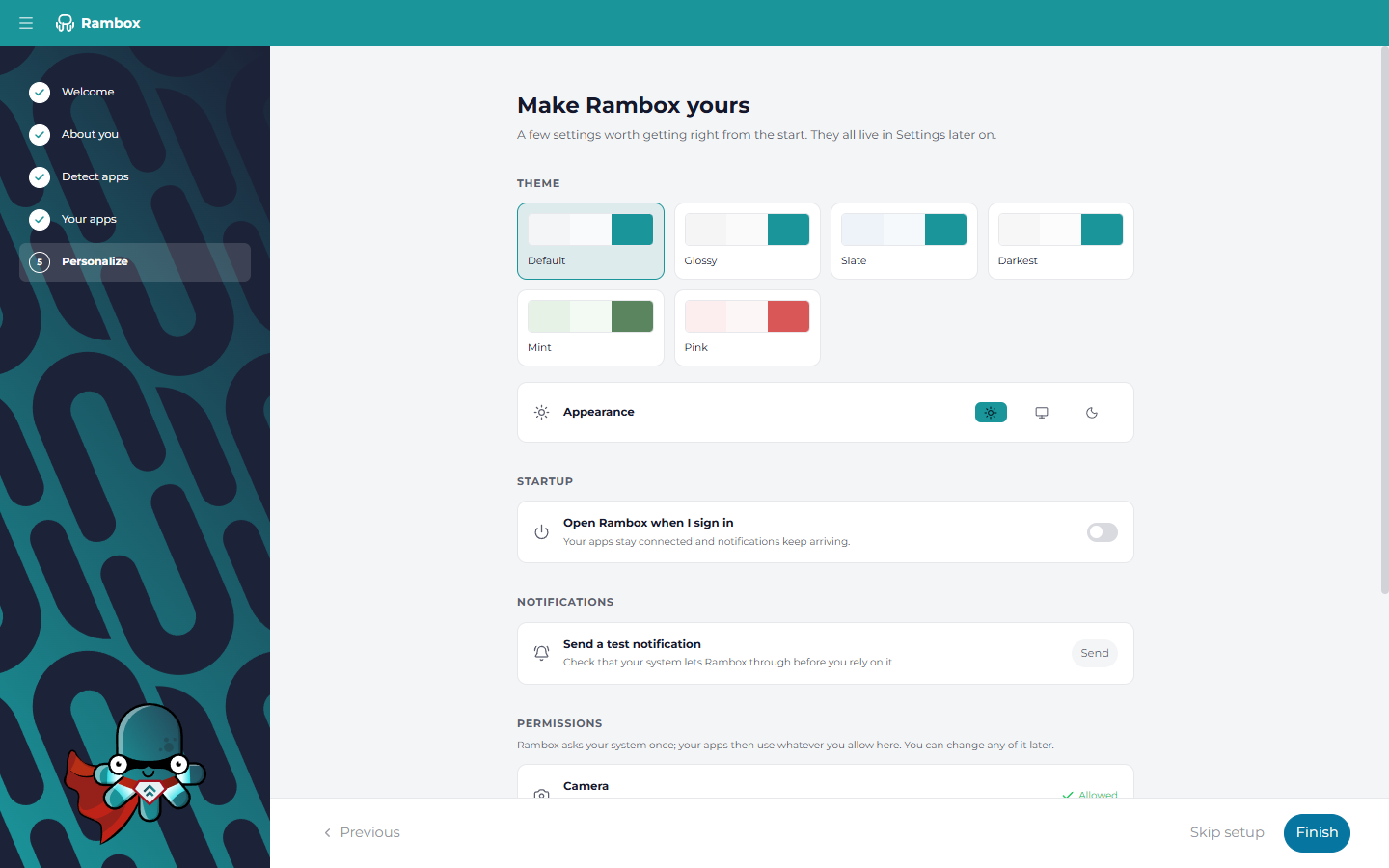
5. Personalize
"Make Rambox yours."
- Theme: choose Light, System or Dark.
- Startup: Open Rambox when I sign in to your computer, and Start minimized ("Rambox opens in the tray instead of taking over your screen.").
- Notifications: click Send to get a test notification and check that notifications reach you.
- Permissions: Camera, Microphone, Screen sharing, Location and Bluetooth, each with its current state (for example Allowed, Blocked, Not asked yet or Not needed). If one your apps will need, such as camera and microphone for video calls, shows Not asked yet, click Allow next to it. On Windows the camera and microphone usually already show Allowed, so there's nothing to click.
Click Finish.
Building your workspace
Rambox creates everything you chose ("Building your workspace") and opens your new workspaces. If something goes wrong you'll see "We couldn't finish the setup" with Try again or Continue anyway.
Skipped the wizard?
Skip setup closes the wizard without adding anything, and you start with an empty window that invites you to "Create your first workspace!". Follow How to create and configure workspaces and How to create and configure apps to add them by hand.
On the Basic plan
The wizard creates every workspace you pick, but the Basic plan includes one workspace. If your account is on Basic (for example, because your trial already ended), Rambox asks you to choose the one you keep, and the others stay locked until you upgrade. See Where do all my apps and workspaces go after changing to Basic?
The guided tour
After the wizard, Rambox offers a quick tour: "Let's take a tour". Click Start tour to follow it, or Skip for now.
The tour points at:
- Your workspaces — the top of the sidebar, where you switch between workspaces and create new ones with +.
- Your apps — the apps of the workspace you're in.
- Search everything — the search bar at the top of the window, which opens the Command Center.
- Notification Center — every notification from every app in one list.
- All set — with a link to Watch all tutorials if you'd like a deeper walkthrough.
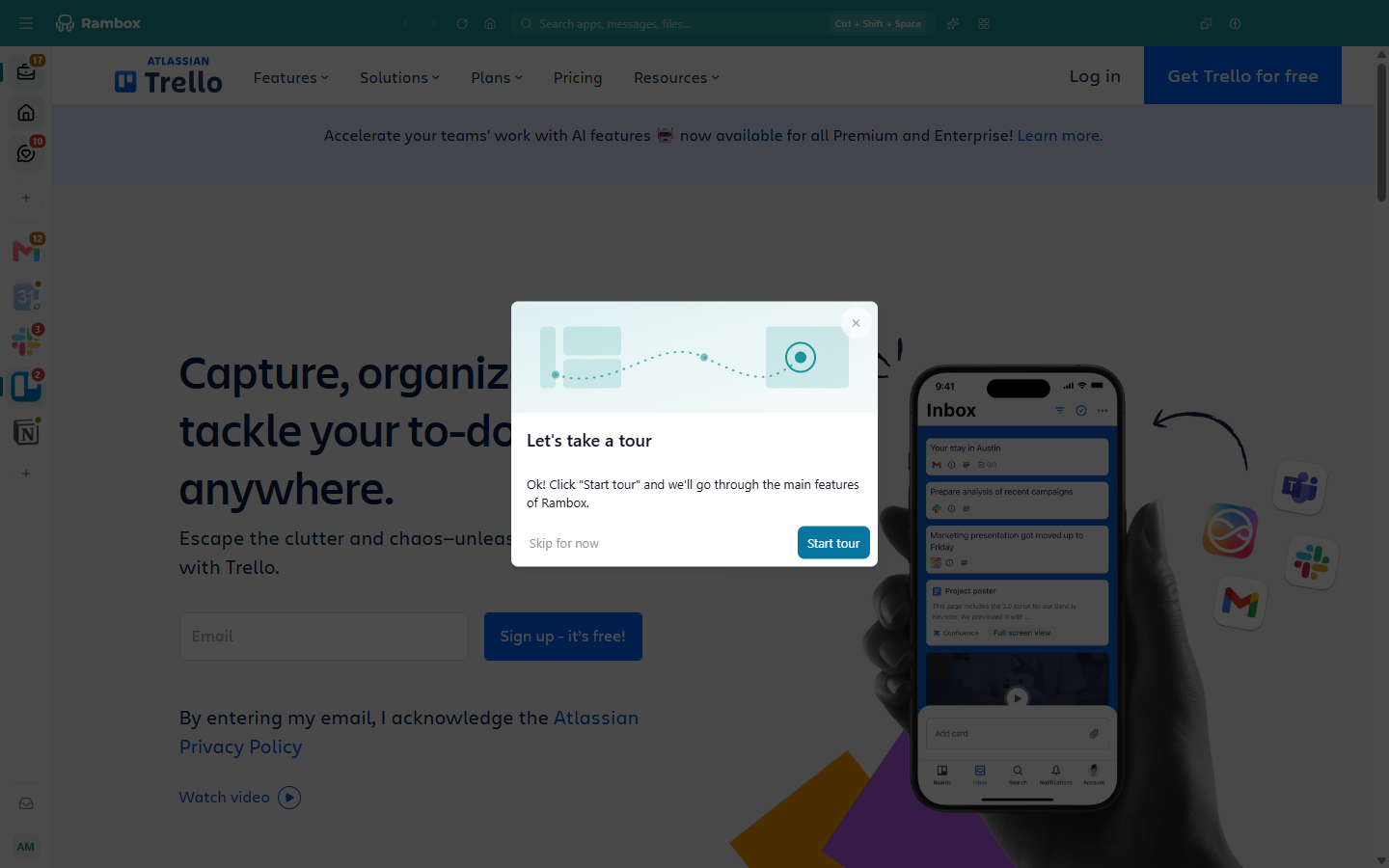
If you leave the tour halfway and have never finished it, Rambox asks the next time you open it: "You left the Rambox tour unfinished. Want to pick up where you left off?" — click Resume tour or No thanks.
Take the tour again at any time: click your avatar at the bottom of the sidebar and choose Start onboarding walkthrough.
The "What's new" tour
If you used Rambox 2 before, the first time you open Rambox 3 you're offered a one-minute tour of what changed: "Welcome to the new Rambox". Click Show me to follow it, or Not now.
It covers:
- A new sidebar that holds your workspaces and apps, and can be expanded to show their names;
- Compact or Split, the two sidebar layouts;
- Quick View, all your apps in one grid;
- Unified Search (Pro), to search your connected services;
- AI, without leaving Rambox, the AI assistant panel (skipped if you've turned the assistant off);
- Concentration, with Focus mode, Pomodoro and ambient sounds;
- Remote Control (MCP), off by default;
- That's what's new, with a link to the full release notes.
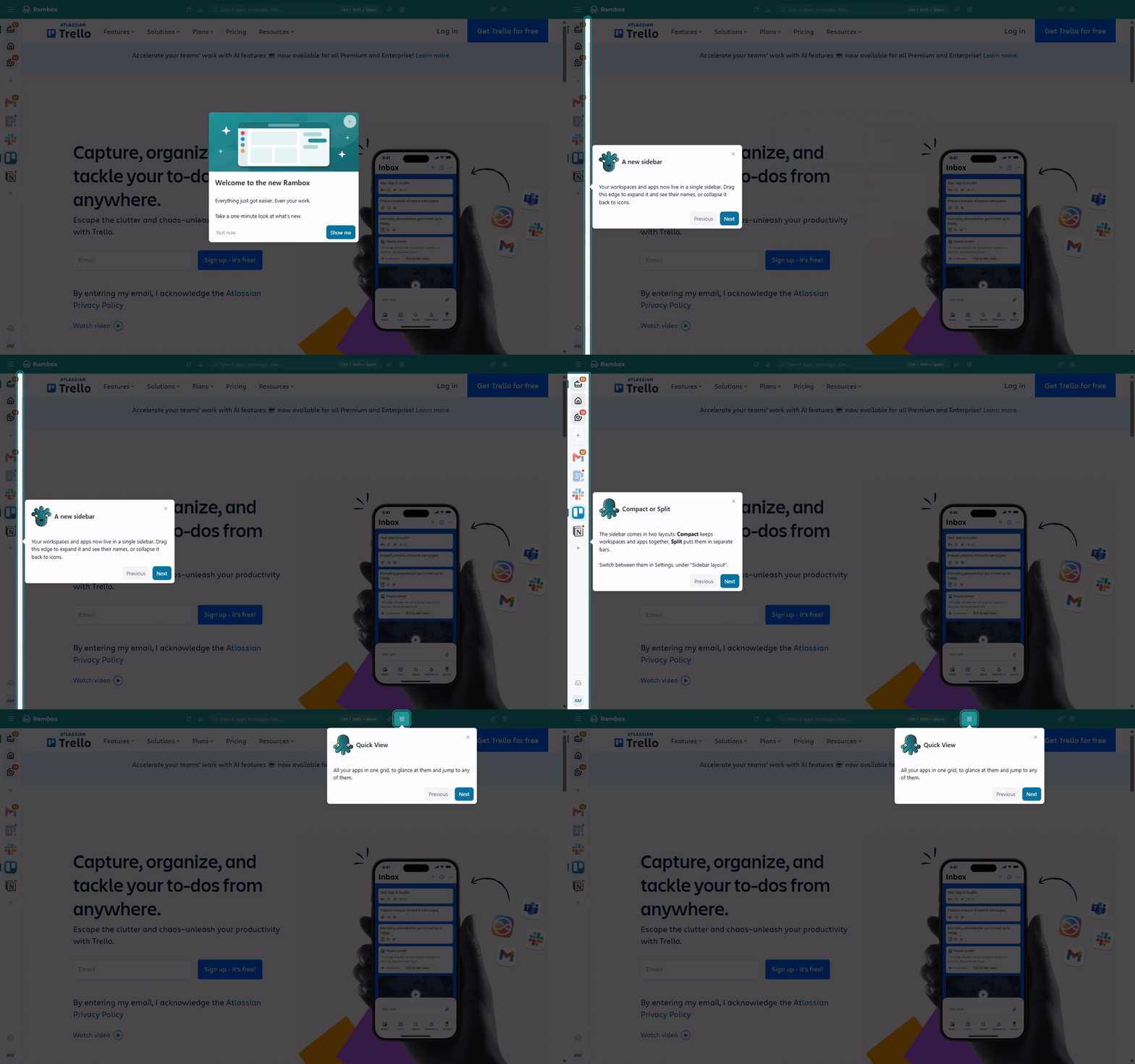
See it again: while you haven't finished it, a megaphone button (What's new) appears at the top of the window. You can also open it at any time from your avatar menu → What's new.
Brand-new accounts don't get this tour, since everything is new to them anyway. For a walk through the changes, see Upgrading from Rambox 2 and Getting around Rambox.
Hints
Now and then a small pulsing dot appears on a button or control. Click the dot and a short popover explains what that control does. Each hint appears for a few sessions and then goes away on its own; some only show up when they become useful (for example, the hint about expanding the sidebar appears once you have several apps).
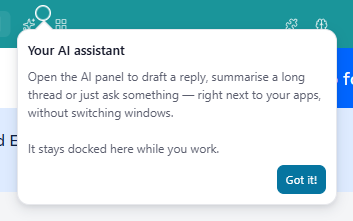
Hints you may see include:
| Hint | Where it appears |
|---|---|
| Expand the sidebar | The inner edge of the sidebar |
| Split the sidebar | The line between workspaces and apps |
| Your other workspaces / Your other apps | The "…" menu at the end of each list |
| See everything at once | The Quick View button at the top of the window |
| Your AI assistant | The AI button at the top of the window |
| Concentration | The Concentration button at the top of the window |
| Profile & Settings | Your avatar at the bottom of the sidebar |
| Can't find what you need? | The Add custom app button when adding an app |
| Profiles / Profile / Layout | The matching fields in app and workspace settings |