
Adding Custom Apps
Add any website to Rambox as a custom app when it isn't in the catalog, with its own name, logo and settings.
Rambox's catalog has more than 700 apps ready to add. If the service you need isn't there (an internal company tool, a self-hosted app or any other website), you can add it yourself as a custom app. A custom app works like any other app in Rambox: it has its own settings, notifications, profile and so on.
Add a custom app
- Open the workspace where you want the app.
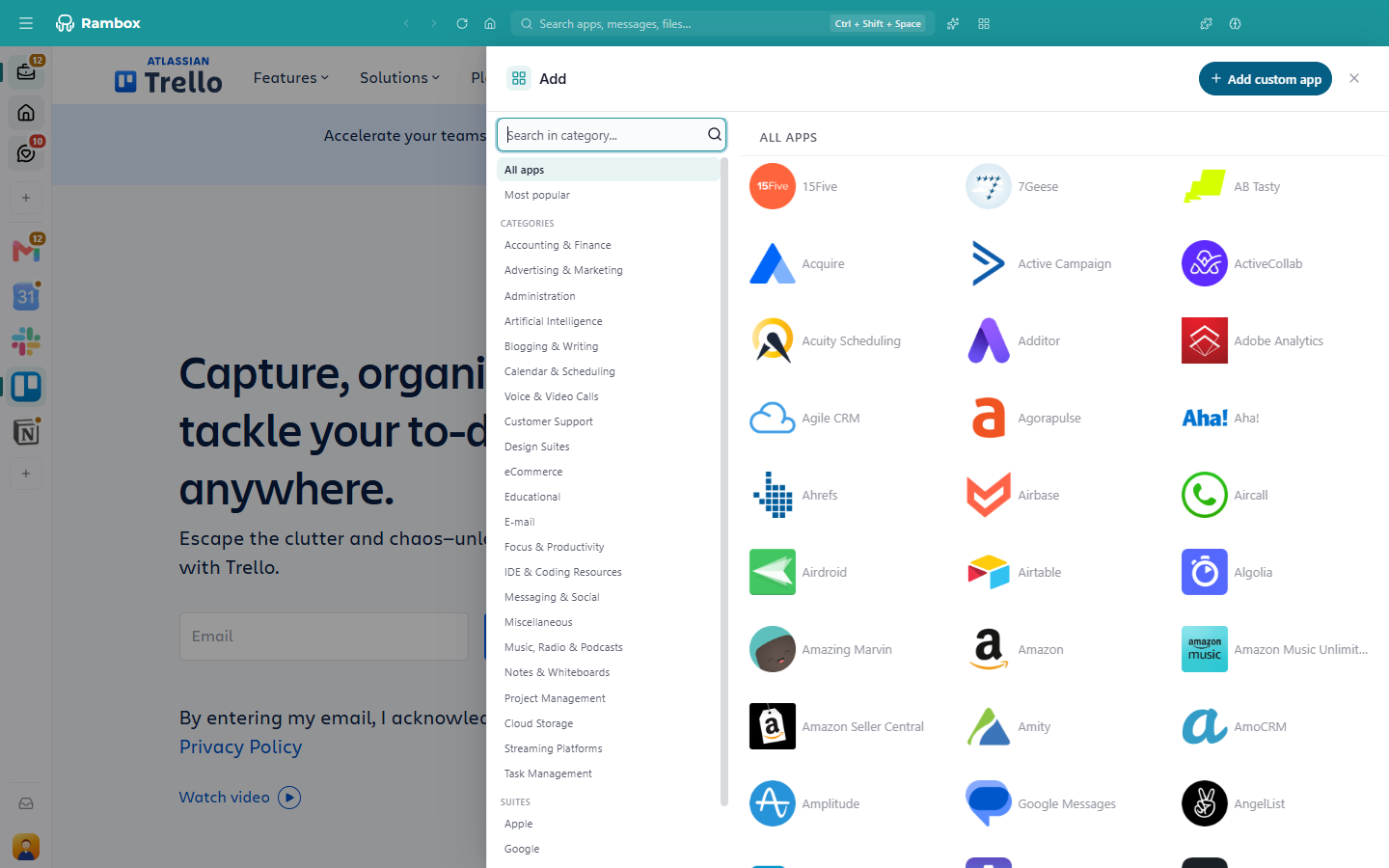
- Click the + button below the list of apps in the sidebar (tooltip Add app). If the sidebar is expanded, the + sits next to the Apps header.
- In the Add panel, click Add custom app at the top right. If you searched for an app and nothing was found, you'll also see No app found, but you can followed by an Add custom app button.
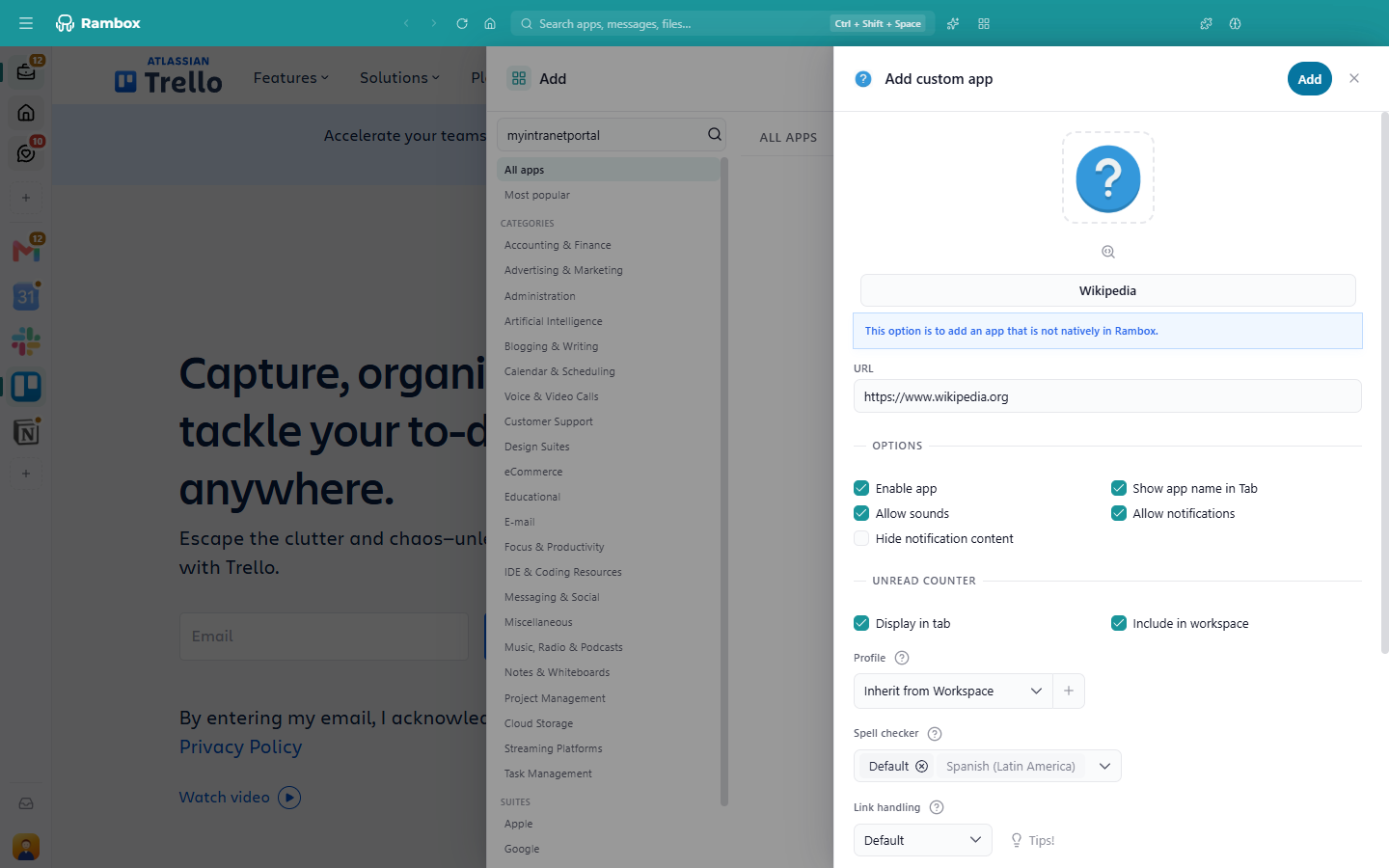
- In URL, type the full address of the site, for example
https://intranet.example.com. - Click the name at the top to give the app a name.
- Set a logo (see below), and adjust any other settings you want.
- Click Add.
TIP
In a Tiles workspace, the sidebar's + button is hidden. Add apps from an empty tile's + button instead. See Tiles workspace layout.
Set the logo
You have two options:
- Get it from the website. Once the URL is valid, click the magnifier button Get app logo next to the logo. Rambox fetches the site's icon. You'll see Logo successfully retrieved, or We couldn't get a logo from the URL if the site doesn't offer one.
- Upload your own image. Click the logo and choose any image file. Rambox crops it to a centered square and resizes it for you, so there's no need to prepare a 128×128 PNG as in older versions.
You can change the logo later in the app's settings. See How to change the icon image.
All the other settings
The rest of the settings (notifications, sounds, profile, link handling, hibernation and advanced options) are the same as for any catalog app. See How to create and configure apps.
My custom app doesn't show unread counts
Rambox shows a badge when a site puts the number of unread items in its page title, for example "(2) Inbox". Many sites do this; some don't.
If yours doesn't, you can add a small script in the app's Advanced options → Inject JavaScript Code that counts the unread items and writes the number into the title. This is a Pro feature and requires some knowledge of the site's code. Here is an example to start from: replace unread_countValue with the class name the site uses for its counters.
function checkUnread() {
	var elements = document.getElementsByClassName('unread_countValue');
	var total = 0;
	for (var i = 0; i < elements.length; i++) total += parseInt(elements[i].innerHTML.trim());
	updateBadge(total);
}

function updateBadge(count) {
	document.title = count >= 1 ? '(' + count + ') ' + originalTitle : originalTitle;
}

var originalTitle = document.title;
setInterval(checkUnread, 3000);
Learn more in How to inject JavaScript and CSS code.
Ask us to add it to the catalog
If you think other people would use the app too, let us know through a support request. We review every suggestion for the catalog.