
General settings
Every option in Rambox Settings, tab by tab - language, theme and layout, startup and window behavior, app defaults, security and permissions, proxy and more.
Settings is where you adjust how Rambox itself looks and behaves: its language and theme, where the sidebar sits, what happens when you start your computer or close the window, the defaults for new apps, locking Rambox with a password, and a few advanced options.
These settings are about Rambox as a whole. Each app and workspace also has its own settings — see How to configure an existing app and How to create and configure workspaces.
Open Settings
Use whichever is handiest:
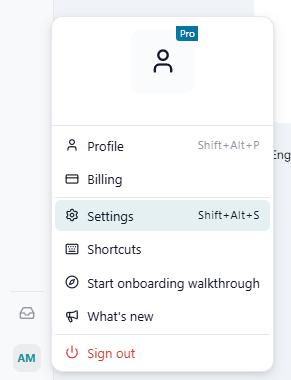
- Click your avatar at the bottom of the sidebar and choose Settings.
- Press Alt+Shift+S (macOS: ⌘+,).
- Windows and Linux: click the Menu button (☰) at the top-left and choose File → Settings. macOS: choose Rambox → Settings in the menu bar.
- Open the Command Center and choose Open Settings.
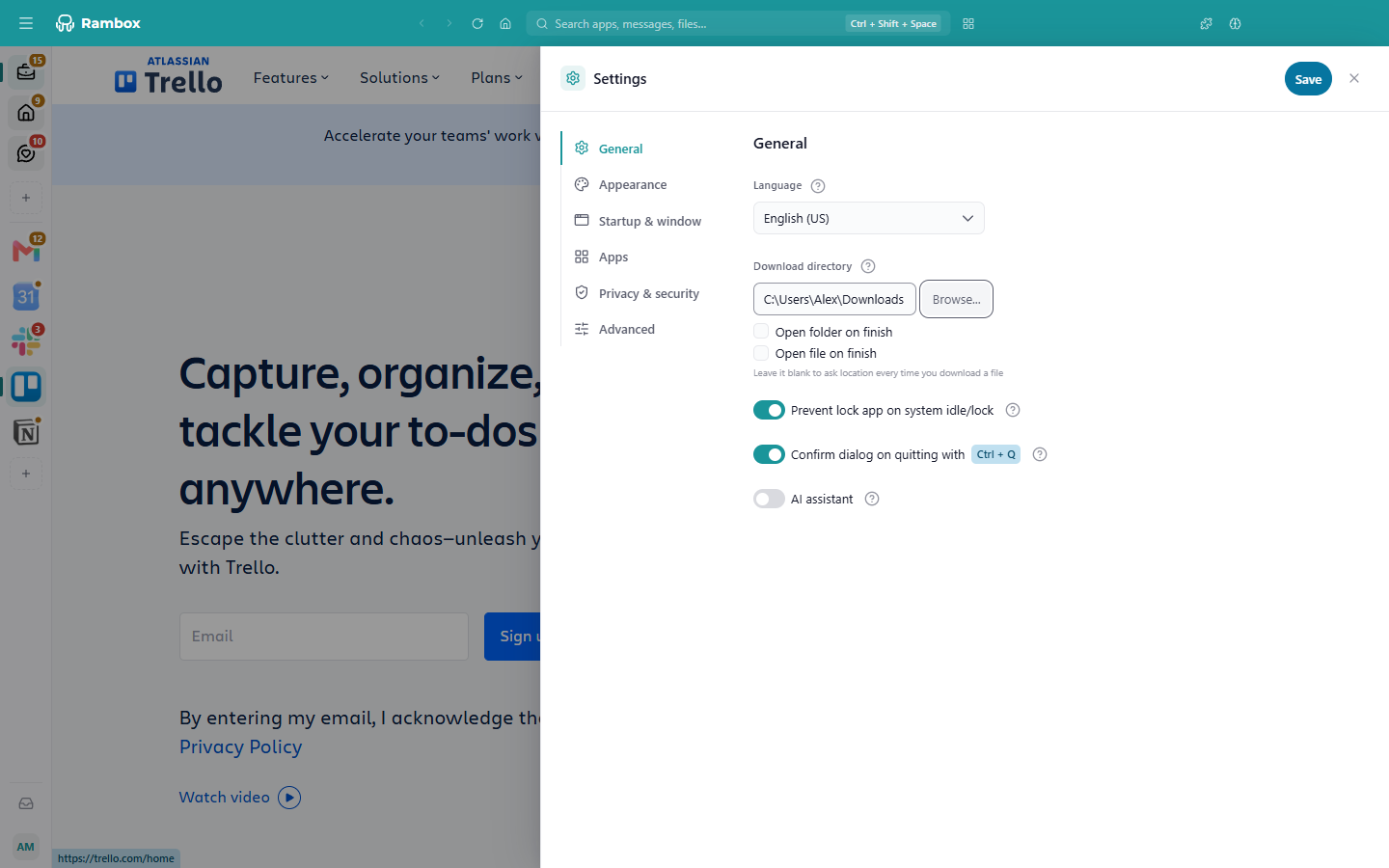
Settings opens in a panel on the right side of the window, with six tabs on the left: General, Appearance, Startup & window, Apps, Privacy & security and Advanced. In a narrow window the tabs show only their icons; hover over one to see its name.
Saving your changes
You can move between tabs freely: nothing changes until you click Save (top right), which saves all tabs at once and closes Settings. Click the ✕ to close without saving.
- When everything is applied right away, you'll see Saved successfully!
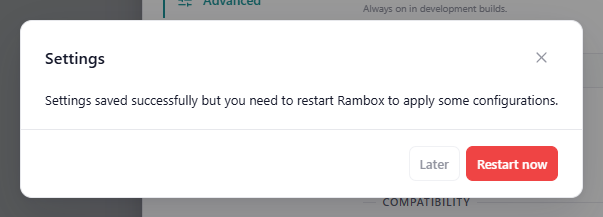
- Options marked (needs to relaunch) only take effect after restarting Rambox. If you changed one, Rambox tells you "Settings saved successfully but you need to restart Rambox to apply some configurations." Click Restart now, or Later to restart yourself when it suits you.
TIP
Most options have a small ? next to them. Click it for a one-line explanation of that option.
General
Language
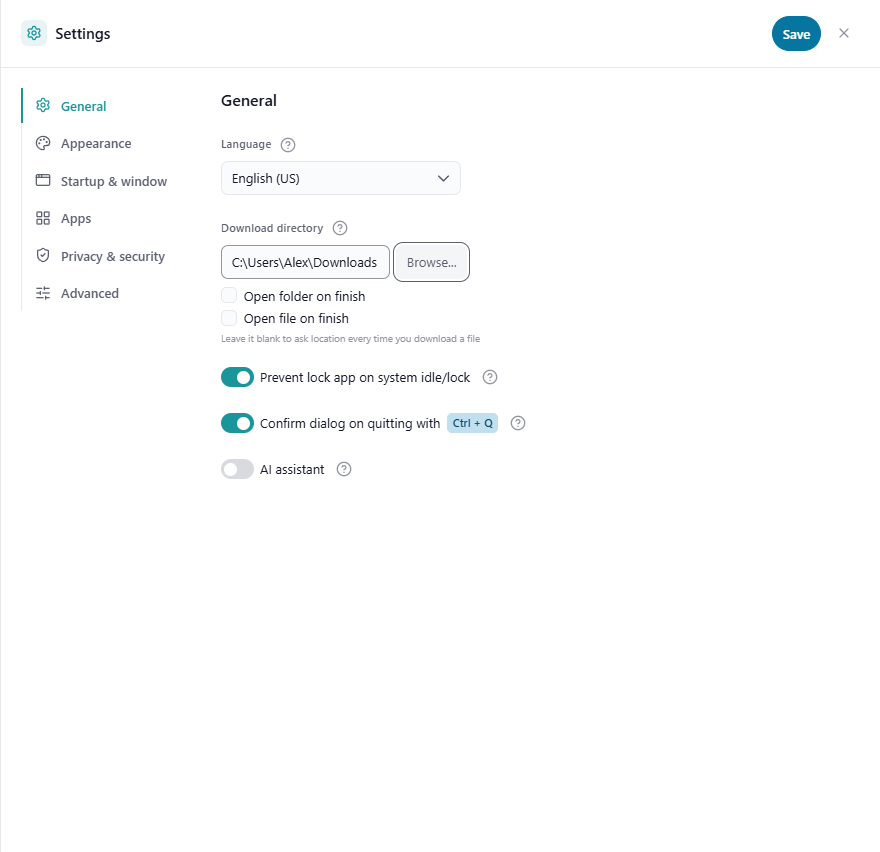
The language of Rambox's own menus, dialogs and settings. Choose between English (US), Español (ES), Português (Brasil), Deutsch (Deutschland), Français (France), Italiano (Italia), 日本語(日本), 한국어 (대한민국), Русский (Россия) and 中文(简体,中国).
The first time you open Rambox it picks the language closest to your system's. This doesn't change the language of the apps you've added — each web app uses its own language setting.
Download directory
The folder where files you download from your apps are saved. Click Browse... to choose it. The default is your system's Downloads folder.
Leave it blank to have Rambox ask where to save each file. (needs to relaunch)
Open folder on finish / Open file on finish
When a download finishes, open the folder that contains it (Open folder on finish, on by default) and/or the file itself (Open file on finish, off by default). (needs to relaunch)
Prevent lock app on system idle/lock
Only matters if you lock Rambox with a password or YubiKey (see Security). When on, Rambox stays unlocked when your computer goes to sleep or locks its screen; when off, you're asked for your password again every time your computer wakes up.
Default: on for Windows and Linux, off for macOS.
Confirm dialog on quitting with Ctrl + Q
When on (default), pressing Ctrl+Q (macOS: ⌘+Q) asks "Are you sure you want to exit?" before quitting, so you don't close Rambox by accident. If you tick Do not ask me again in that dialog, this option is turned off.
AI assistant
Shows or hides everything related to the AI assistant: the AI button at the top of the window, the side panel, the shortcut that appears when you select text, and the Ask entries in the right-click menu. On by default.
Rambox has no built-in AI: the assistant opens the AI service you choose (Claude, ChatGPT, Copilot or Gemini), signed in with your own account. Turn this off if you don't want to use it. See AI assistant.
Appearance
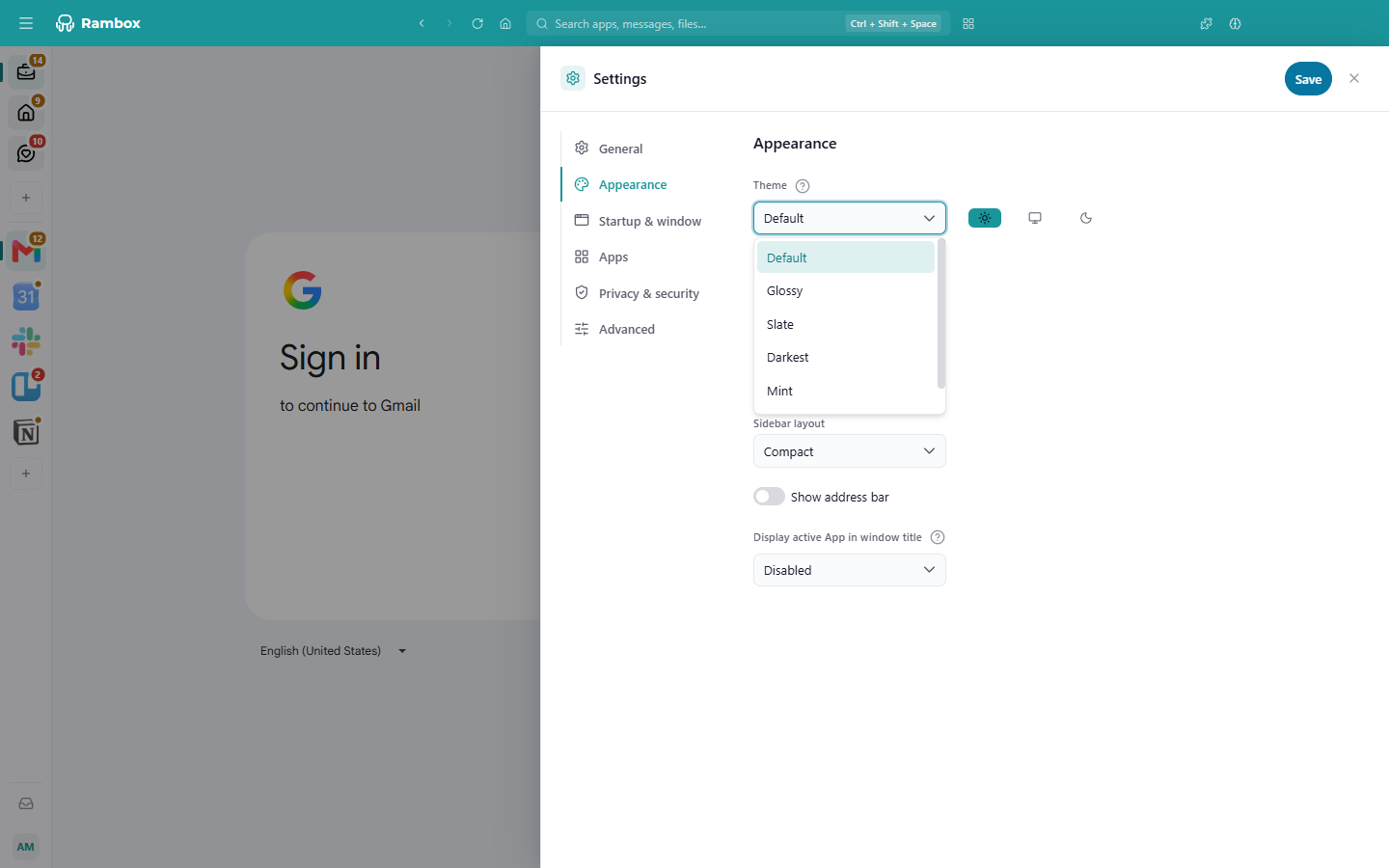
Theme
How Rambox looks. Choose Default, Glossy, Slate, Darkest, Mint or Pink, and next to it pick:
- Light or Dark to always use that version of the theme;
- System (default) to switch between light and dark together with your operating system.
The window doesn't preview your choice: it changes when you click Save.
If your company uses Rambox Enterprise, its own theme may appear under Enterprise in the list. Your organization can also set a theme for everyone, in which case you can't change it here.
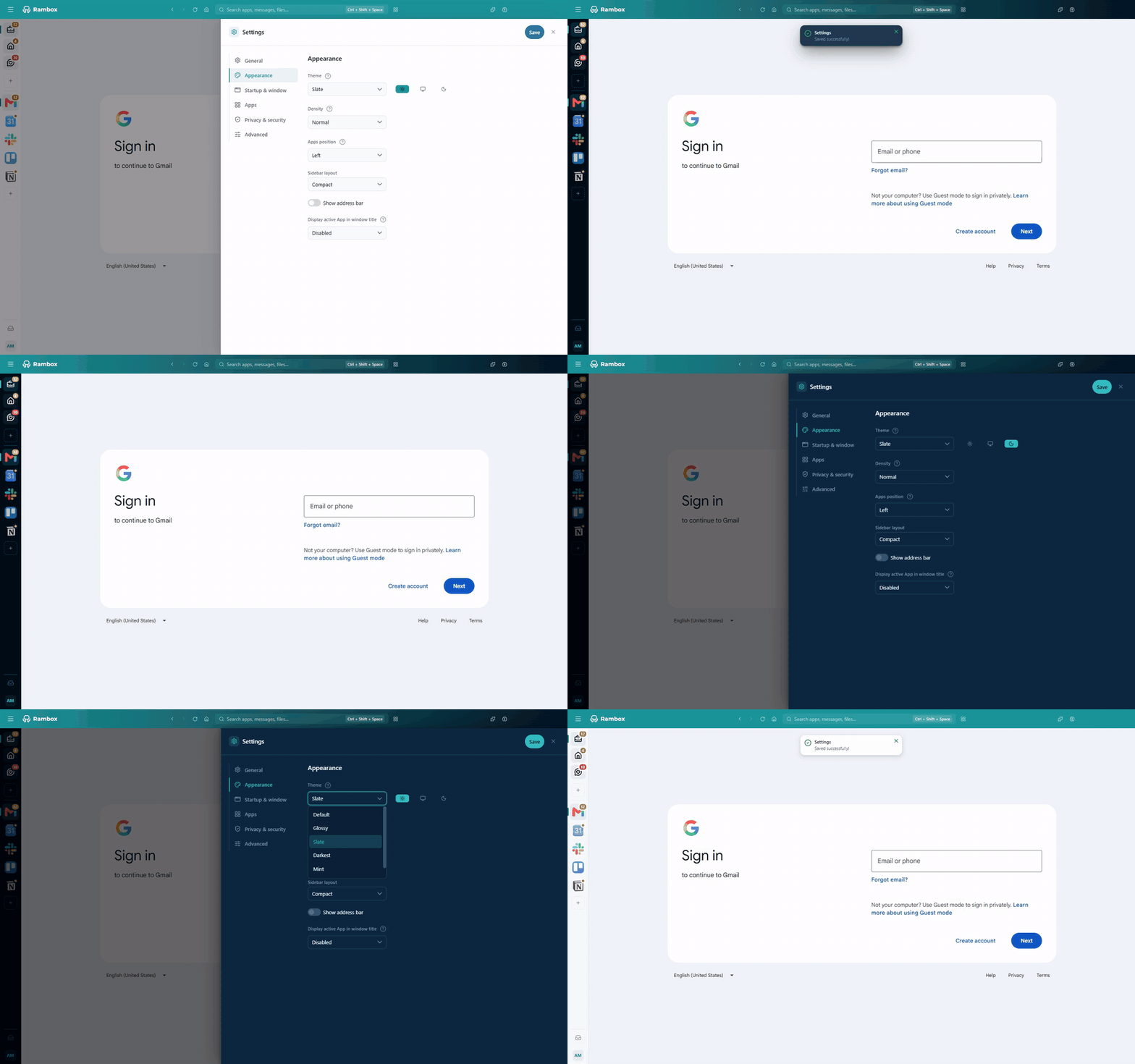
Density
How big the app icons and rows are: Compact fits more apps on screen, Comfortable makes them easier to click, Normal (default) is in between.
Apps position
Which edge of the window the sidebar sits on: Left (default), Right, Top or Bottom.
With Top or Bottom, you also get Hide apps labels, to show only the app icons without their names.
Sidebar layout
- Compact (default): workspaces and apps share one sidebar, separated by a line you can drag.
- Split: workspaces and apps sit in two separate bars.
See Getting around Rambox for how each looks.
Show address bar
Shows a bar above the app with the address of the page you're on, and moves the Back, Forward, Reload and Home buttons into it. Off by default. See The address bar.
Display active App in window title
What the window title shows next to "Rambox". This is useful for time-tracking tools that record which window you're using.
- Disabled (default): just "Rambox".
- App's name: "Rambox" plus the name of the app you're on, for example Slack.
- App's title: "Rambox" plus the title of the page or conversation open in that app.
Startup & window
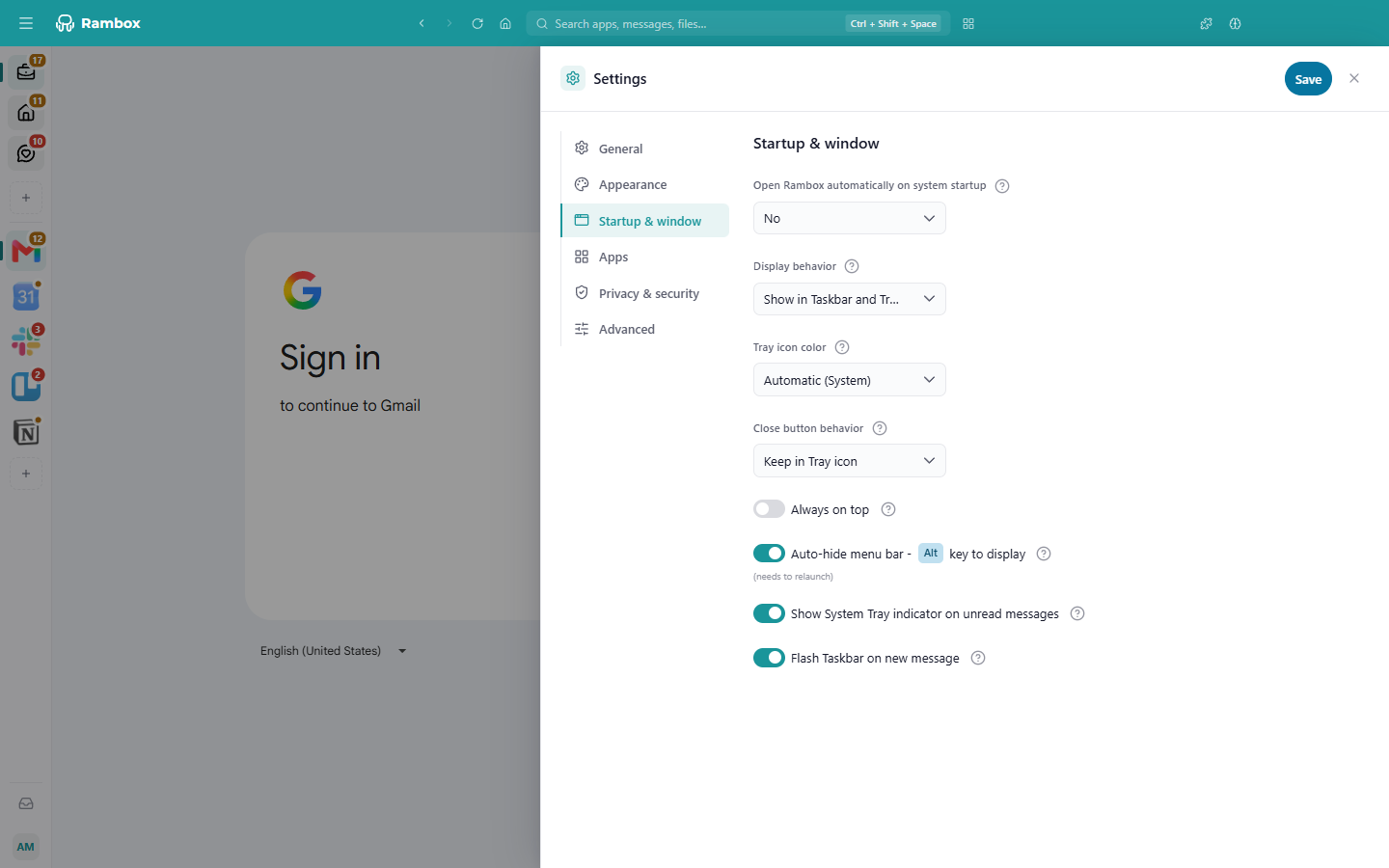
Open Rambox automatically on system startup
- Yes (default): Rambox opens when you sign in to your computer.
- Minimized: Rambox starts in the background, in the tray or taskbar.
- No: you open Rambox yourself.
Display behavior (Windows and Linux)
Where Rambox shows up while it's running:
- Show in Taskbar (default)
- Show Tray icon — only in the system tray, next to the clock.
- Show in Taskbar and Tray icon
Tray icon color
Only when the tray icon is shown. Automatic (System) (default) follows your system theme; choose Dark or Light if the icon is hard to see in your tray.
Close button behavior (Windows and Linux)
What happens when you click the window's close button:
- Keep in Tray icon or Keep in Taskbar / Keep in Tray and Taskbar — Rambox keeps running in the background, so you keep getting notifications. The options available depend on Display behavior.
- Quit — Rambox closes completely.
Always on top
Keeps the Rambox window above all other windows, even when you're working in another program. Off by default. You can also toggle it from Window → Always on Top in the app menu, and from the tray.
Auto-hide menu bar - Alt key to display
Hides the classic menu bar (File, Edit, View…) until you press Alt. Turn it off to keep the menu bar always visible. This mainly matters on Linux. (needs to relaunch)
Show System Tray indicator on unread messages
On macOS: Show Dock icon indicator on unread messages. Adds a dot to the tray (or Dock) icon whenever you have unread messages. On by default. See Why don't I see the badges in the taskbar icon?
Flash Taskbar on new message
On macOS: Bounce Dock icon on new message. Flashes the taskbar button (or bounces the Dock icon) when a new message arrives. Off by default.
macOS
On macOS the Display behavior and Close button behavior options aren't shown.
Apps
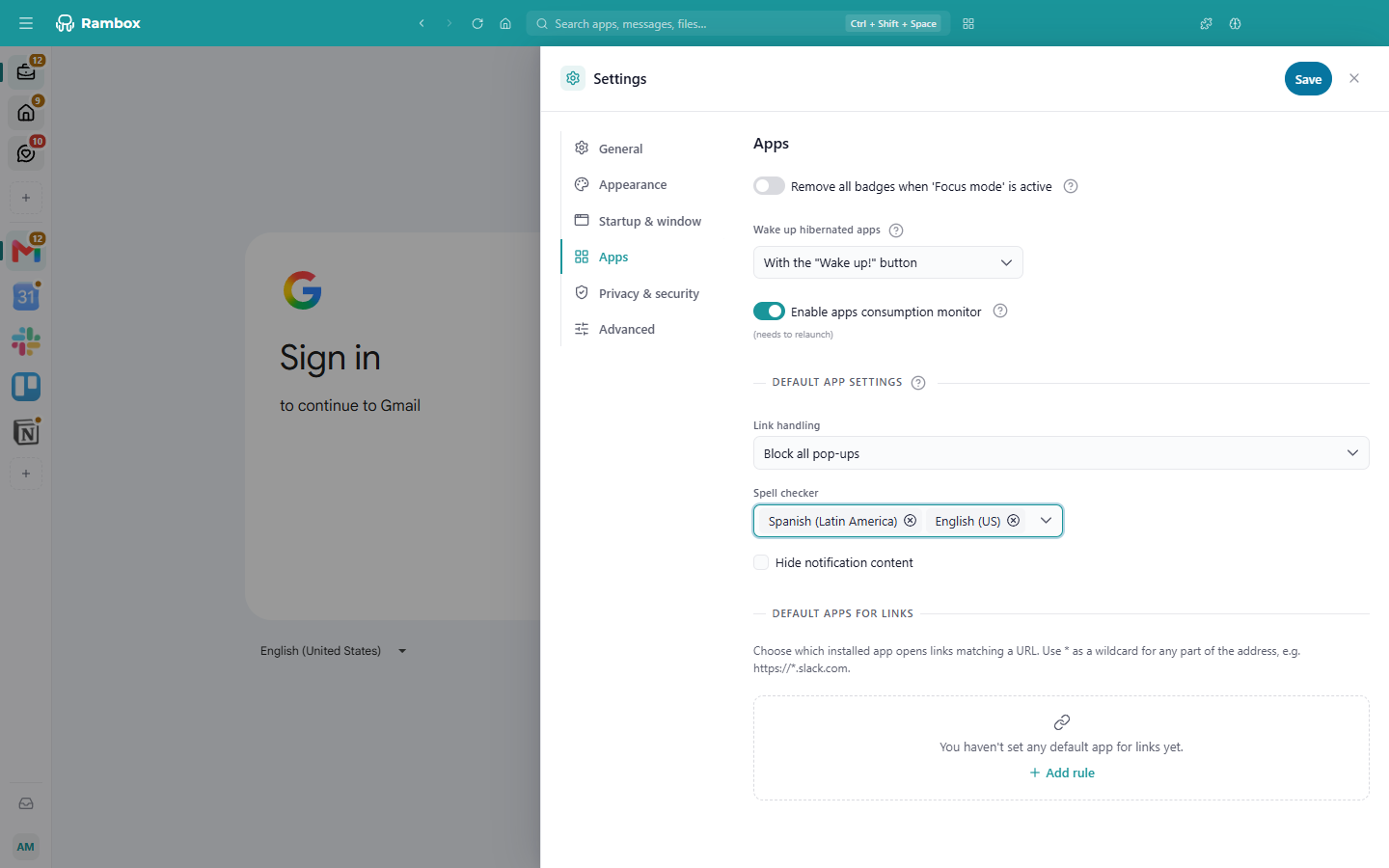
Remove all badges when 'Focus mode' is active
Hides every unread badge while Focus mode is on, so no counter pulls you back in the middle of a session. Off by default. See Focus mode, Pomodoro and ambient sounds.
Wake up hibernated apps
What happens when you open an app that is hibernating (asleep to save memory):
- With the "Wake up!" button (default): the app shows a Wake up! button and waits for you to click it.
- Automatically when you open them: the app wakes up as soon as you go to it.
The first time you click Wake up!, Rambox asks once whether you'd like apps to wake up automatically from now on (Keep the button / Wake up automatically). See How to hibernate.
Enable apps consumption monitor
Notifies you when an app starts using an unusual amount of CPU or memory, so you can hibernate or reload it before it slows everything down. On by default. Turn it off if the alerts bother you — you can still see each app's usage in the Apps manager. (needs to relaunch) See Apps manager and alerts.
Default app settings
The settings every app you add from now on starts with. Apps you've already added keep their own settings.
- Link handling — how links that open a new window are handled: Block all pop-ups (default), Open all in pop-ups, Open all in default browser or Open all in tabs. See Link handling.
- Spell checker — the languages new apps check spelling in. You can pick several; choose None to turn spell checking off. (needs to relaunch) See How to configure the spell checker.
- Hide notification content — new apps show "You have a new notification" instead of the message text. Off by default.
Pro feature
The spell checker is available on the Pro plan and during the free trial. On Basic it shows None and can't be changed. How to become Pro
Default apps for links
Choose which of your apps opens links to a certain website. For example, links to https://*.slack.com can always open in your Slack app instead of the browser.
- Click Add rule.
- Type the address pattern. Use
*as a wildcard for any part of the address, for examplehttps://*.slack.com. - In Select app, choose the app (apps are listed with their workspace).
- Choose how the link opens: New tab (in a tab inside that app) or Redirect (in the app's main view).
Click the trash icon to delete a rule. If a pattern can never match a link, Rambox warns you: "This pattern will never match a link. Include the domain, e.g. https://*.slack.com." Your rules are saved to your account and apply on all your computers.
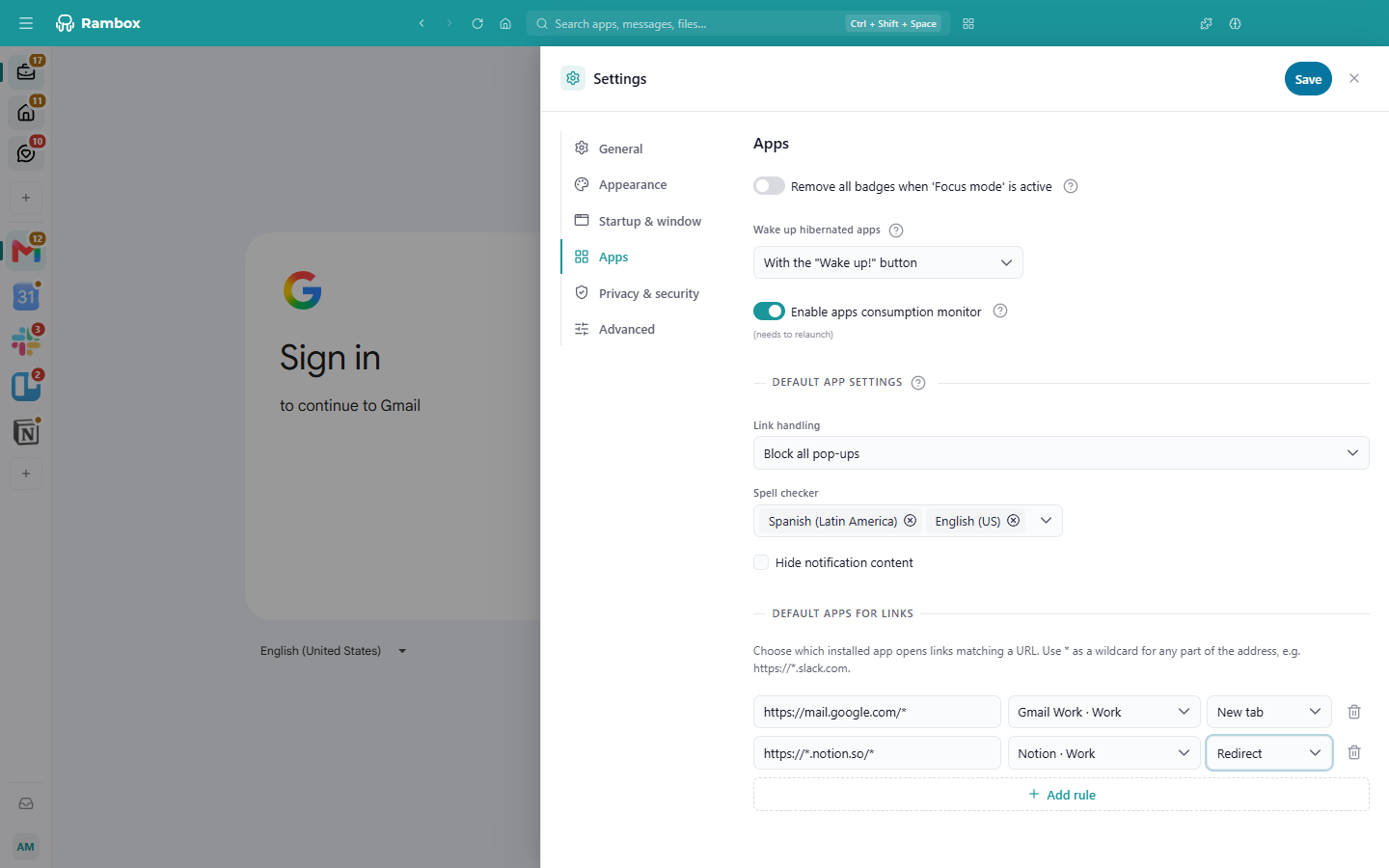
See Default apps for links for how this works when you click a link.
Privacy & security
Security
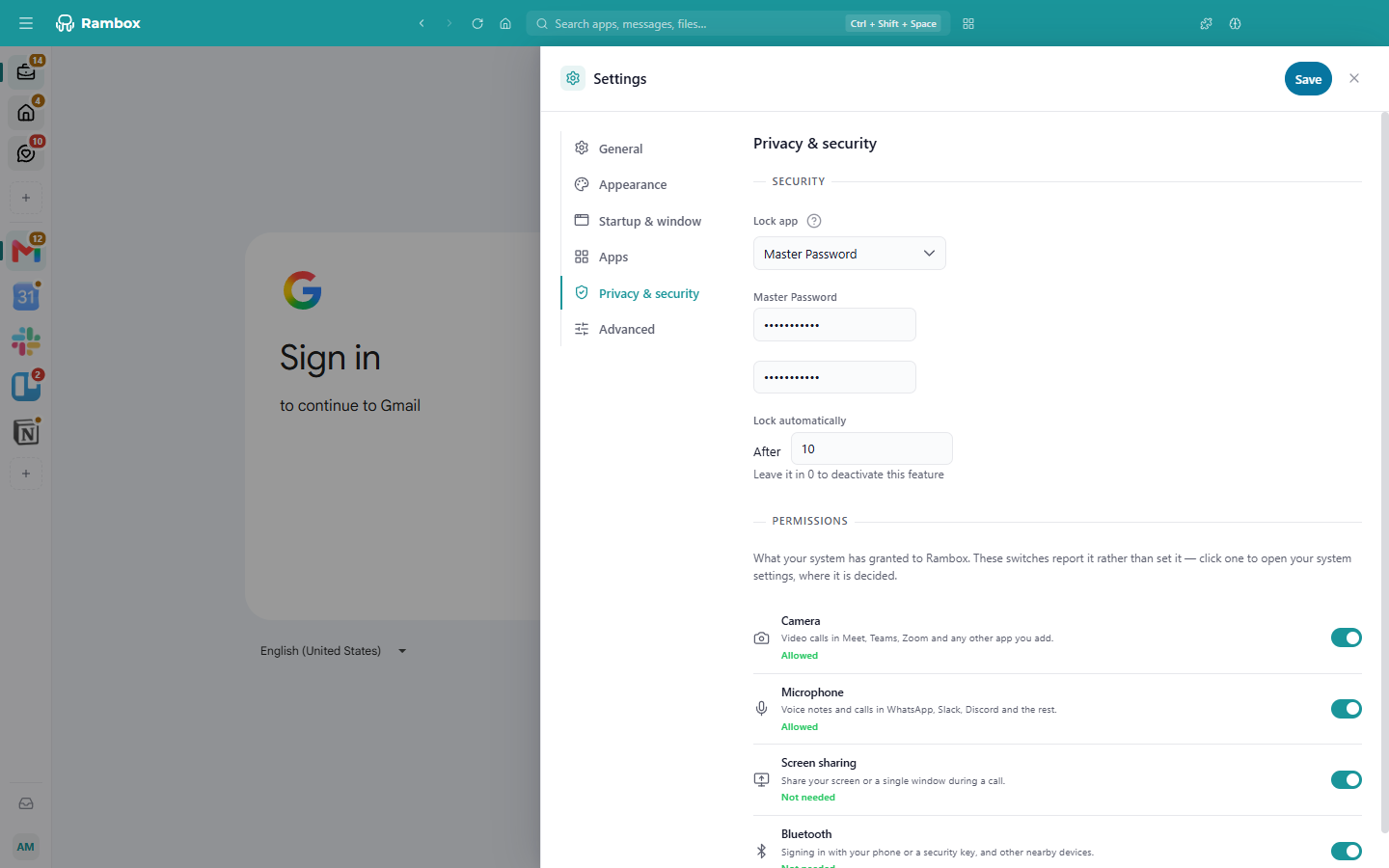
Lock Rambox so nobody can use it without a password or a YubiKey — on startup and every time you lock it.
Lock app
- Disabled (default): Rambox is never locked.
- Master Password: type a password in Master Password and again in the confirmation field. This password is stored only on this computer and isn't the same as your Rambox account password.
- YubiKey: click the YubiKey OTP field, insert your YubiKey into a USB port and tap its button if it has one.
Lock automatically — After [n] (minutes)
Locks Rambox after that many minutes without any keyboard or mouse activity on your computer. Leave it at 0 (default) to turn it off. (needs to relaunch)
To lock Rambox right away, press Alt+Shift+L (macOS: ⌘+⌥+L).
To remove the lock, set Lock app to Disabled and click Save. Forgot your master password? On the lock screen, click Sign out and sign in again. Full guide: How to set and remove your master password.
Permissions
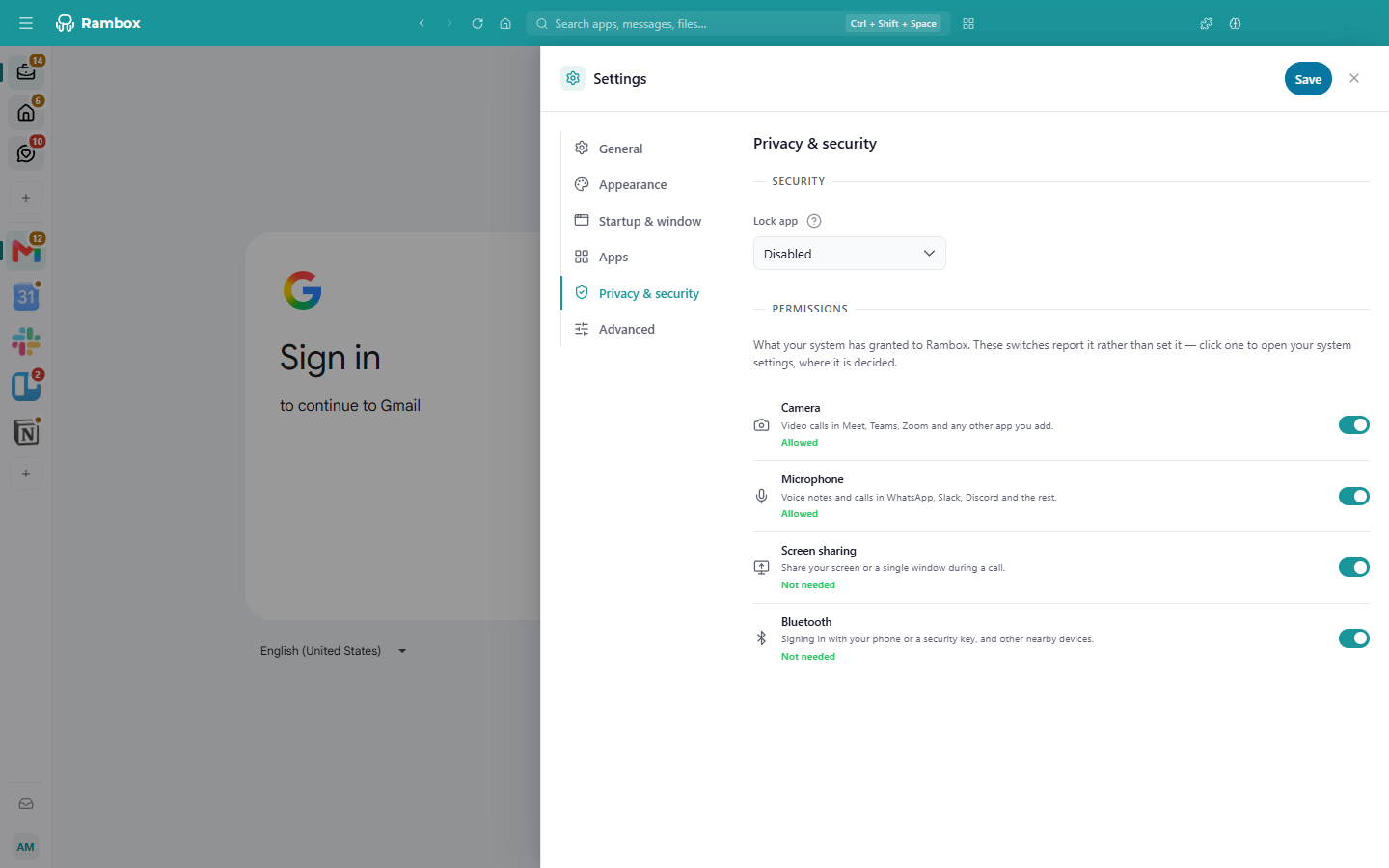
What your computer allows Rambox to use: Camera, Microphone, Screen sharing, Bluetooth and, when available, Location. Your apps need these for video calls, screen sharing or signing in with your phone or a security key.
These switches show the current state rather than change it — your operating system decides. Each one shows Allowed, Blocked, Not asked yet, Not needed, Turned off or Not checked.
- Click a switch to open the matching page of your system settings (or, on macOS, to have the system ask you if it hasn't yet).
- On macOS, click Check next to Location and Bluetooth to see their state.
- The list refreshes when you come back to Rambox from your system settings.
macOS asks for each permission separately. Windows has privacy settings for the camera, microphone and location; screen sharing shows Not needed. Linux usually shows Not needed.
If an app can't use your camera or microphone, see Issues sharing your camera, microphone or screen.
Advanced
Proxy
If your network requires a proxy server, click Open configuration. A Proxy panel opens on the side; pick a Type:
- Use system proxy settings (default) — use the proxy configured in your operating system.
- Auto detect — let Rambox find the proxy settings.
- No Proxy — connect directly.
- HTTP, HTTPs, Socks4, Socks5 — enter the Host name, Port and, if needed, Username and Password.
When you save, Rambox tests the proxy against its servers ("Testing Proxy...") and tells you whether it worked. A proxy change needs a restart: Settings shows Proxy settings — Restart to apply changes. with a Restart Now! button.
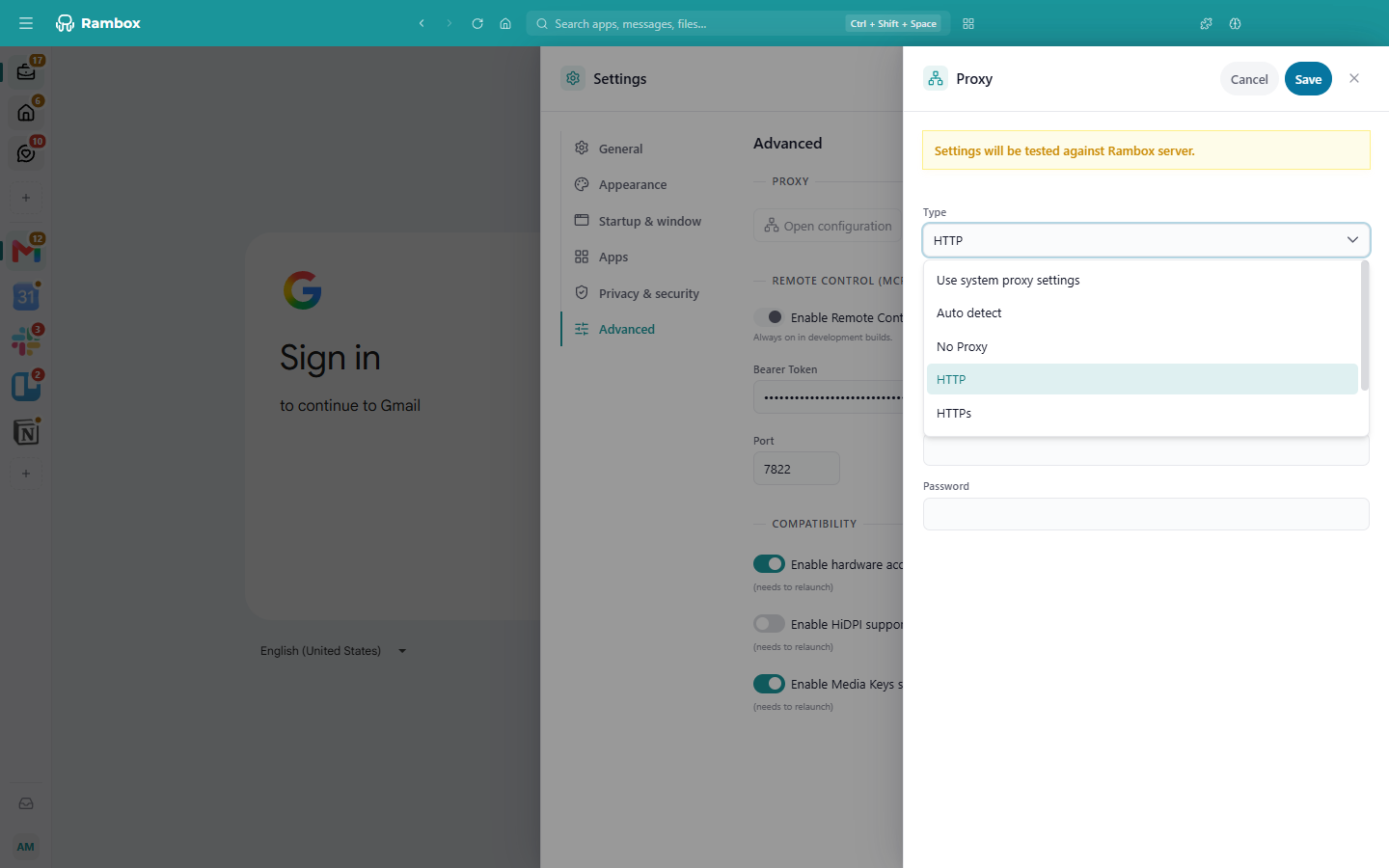
This proxy applies to all of Rambox. You can also set a proxy for a single app or profile in its own settings (Pro). See Connectivity issues.
Remote Control (MCP)
For advanced users. Enable Remote Control via Model Context Protocol lets an MCP client running on your computer — for example an AI assistant app — control Rambox: list and open your apps, switch the theme, start a focus session, take screenshots and similar actions. Off by default.
When you turn it on:
- Bearer Token is the secret key the MCP client must use. Click Regenerate to create a new one (any client using the old token must be updated).
- Port is where Rambox listens (default 7822). Rambox only accepts connections from your own computer.
This section applies as soon as you change it; you don't need to click Save.
Compatibility
All three need a restart. (needs to relaunch)
- Enable hardware acceleration (on by default) — uses your graphics card to draw Rambox. Turning it off can fix flickering, blank apps or crashes with some graphics drivers. See Crashes and loading issues.
- Enable HiDPI support (off by default) — turn it on if the interface looks blurry on a high-resolution or Retina display.
- Enable Media Keys support (on by default) — lets Rambox respond to the play, pause and track keys on your keyboard. Turn it off to leave those keys to your music player.
Settings that aren't here
- Your name, photo, email, password and devices are managed in your account page on the web. Click your avatar → Profile. See Your profile configuration.
- Your plan and payments: avatar → Billing (or Change plan). See Billing.
- Keyboard shortcuts: avatar → Shortcuts. See Keyboard shortcuts.
- Updates and the beta channel: in the About Rambox window. See About Rambox (version & updates).
- Profiles (shared sessions between apps) are managed from an app's or workspace's settings. See Profiles.