
Command Center
Jump to any app, run common actions and search inside your connected services from one floating window, even while Rambox is in the background.
The Command Center is a small search window that floats above everything else on your screen. Type a few letters and jump straight to an app, open a part of Rambox, or (with Unified Search) find an email, file or message without opening the app first.
It works even when Rambox isn't the window you're using: press the shortcut from any program and the Command Center appears on top.
Using Rambox 2?
The Command Center replaces the old Quick Search. The Google search from Quick Search (Ctrl+E) is no longer available. To search the web for some text, select it inside an app, right-click and choose Search with Google.
Open the Command Center
You must be signed in to Rambox. Then use any of these:
- Global shortcut, from anywhere on your computer: Ctrl+Shift+Space (macOS: ⌘+Shift+Space). Press it again to close the window.
- The search box in the title bar, the one that reads Search apps, messages, files…. It also shows your current shortcut.
- Inside Rambox: Ctrl+K (macOS: ⌘+K), or Alt+Shift+K (macOS: ⌘+Alt+K).
- The tray panel: click Command Center (Windows and macOS). See Tray panel and taskbar.
- Windows taskbar: right-click the Rambox icon and choose Command Center, or use the Command Center button that appears when you hover over the Rambox taskbar button.
Find and open an app
- Open the Command Center.
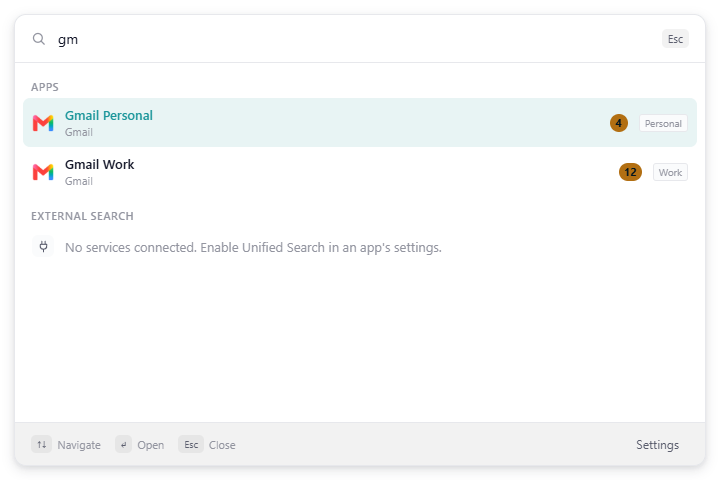
- Start typing the name of the app (for example,
gmail). The list filters as you type. - Use ↑ and ↓ to move through the results.
- Press Enter, or click the result. Rambox comes to the front with that app open.
Press Esc at any moment to close the Command Center without doing anything. The footer at the bottom of the window reminds you of the keys (Navigate, Open, Close).
What you see for each app
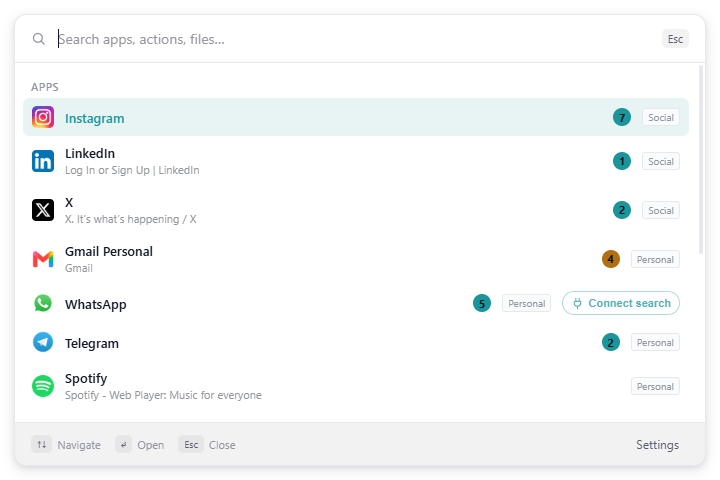
The Apps section shows up to eight matches. Rambox matches the name you gave the app and the service it belongs to, and also the title of the page that's open inside it, so typing the name of a chat or a document can find the app that has it open. Each row shows:
- the app's icon and name, with the page title underneath when it matched;
- its unread badge, if it has unread messages;
- the workspace it lives in, as a small tag on the right;
- a Connect search button on apps that support Unified Search but aren't connected yet, or a small search icon (Search connected) on apps that are.
Run an action
Below the apps, the Actions section gives you shortcuts to common parts of Rambox. If you have many apps, scroll down the list to reach it, or type part of an action's name. The actions are:
| Action | What it does |
|---|---|
| Open Settings | Opens Rambox's Settings. The row also shows the Settings keyboard shortcut. |
| Open Profile | Opens your account page in the web Console, in your browser. |
| Add App | Opens the panel to add a new app. |
| Toggle Focus Mode | Starts or stops a Focus session. See Focus mode, Pomodoro and ambient sounds. |
| Toggle Notification Center | Shows or hides the Notification Center. See Notifications and the Notification Center. |
| Toggle Sidebar | Expands the sidebar so your apps show their names, or collapses it back to icons. See Getting around Rambox. |
Search inside your connected services
If you have connected apps with Unified Search (a Pro feature), the Command Center can also search inside them: emails in Gmail or Outlook, files in Google Drive or OneDrive, messages in Slack, issues in Jira, and more.
- Type at least two characters.
- Wait a moment: an External search section appears with Searching connected services…, and then the results.
- Each result shows which service it came from, the workspace of the app, and how long ago it was created or updated.
- Press Enter or click a result to open it.
To search only one service, click its chip under the search box. All goes back to searching every connected service. When a single service is selected, the search box reads Search in {service}….
If you haven't connected any service yet, the section says No services connected. Enable Unified Search in an app's settings. Learn how in Unified Search.
Change the global shortcut
- Open the Command Center.
- Click Settings in the bottom-right corner.
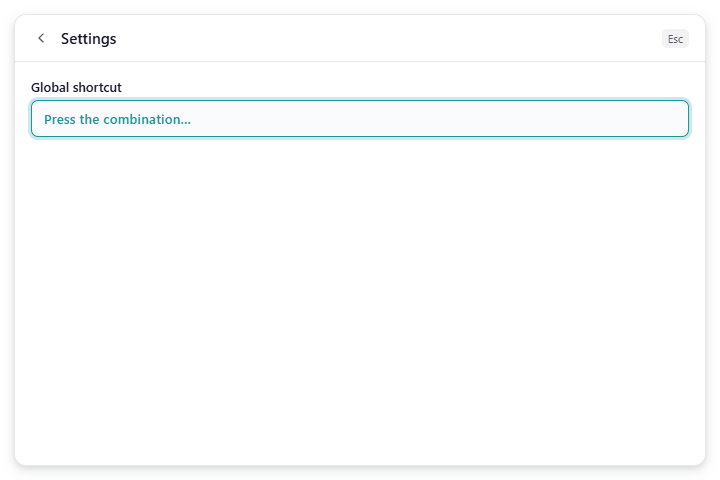
- Click the Global shortcut box. It changes to Press the combination….
- Press the key combination you want to use. It must include at least one modifier key (Ctrl, Alt or Shift, or ⌘ on macOS).
- Press Esc or click the back arrow to return to the search.
The new shortcut works straight away and the title-bar search box shows it.
If the shortcut doesn't work
Some combinations are reserved by your operating system (for example Alt+Space or Win+Space on Windows, or ⌘+Space on macOS). When the system refuses a combination, the Settings view shows: The operating system rejected this shortcut… Pick another combination. Another program that already uses the same combination can also take it first.
Good to know
- You need to be signed in. When you sign out, the Command Center and its shortcut stop working until you sign in again.
- It follows your Rambox look and language. Changing the theme or the language in Settings changes the Command Center too.
- The in-app shortcuts can be switched off. Alt+Shift+K and the in-app Ctrl+Shift+Space appear as Quick search in the Shortcuts panel. The global shortcut is set only from the Command Center's own Settings.
- On Basic, finding apps and running actions work as usual. Searching inside connected services needs Pro; if you connected services during a trial, they stay saved but return no results until you upgrade.