
Upgrading from Rambox 2 to Rambox 3
What happens when you move from Rambox 2 to Rambox 3, what stays the same, what changes, and what to expect on the Basic plan.
Rambox 3 is a big redesign: a new sidebar, sign-in through your browser, account and billing pages on the web, and many new features. Your apps, workspaces and preferences come with you. This article explains what happens during the upgrade and what will look different afterwards, so nothing catches you by surprise.
There's no going back
When you sign in to Rambox 3, your account is moved to the new format. After that, Rambox 2 can no longer sign in with that account, and any Rambox 2 window open on your other computers is signed out. Upgrade all your computers to Rambox 3.
Before you start
- Make sure you know how you sign in to Rambox (Google, Microsoft, Facebook or email and password). If you don't remember your password, reset it first.
- Have an internet connection: the first sign-in moves your account and needs to reach Rambox.
- If you belong to a company (Enterprise) account, check with your administrator: the organization itself also needs to be moved. See Moving your organization to Rambox 3.
Step 1: Install Rambox 3
Download Rambox 3 from rambox.app/download and install it over Rambox 2. You don't need to uninstall the old version first.
Step 2: Sign in again
When Rambox 3 opens for the first time, it shows a notice: Welcome to the new Rambox — "This version needs you to sign in again." (or "Your account needs to be updated to the new format. Please, sign in again to continue.").
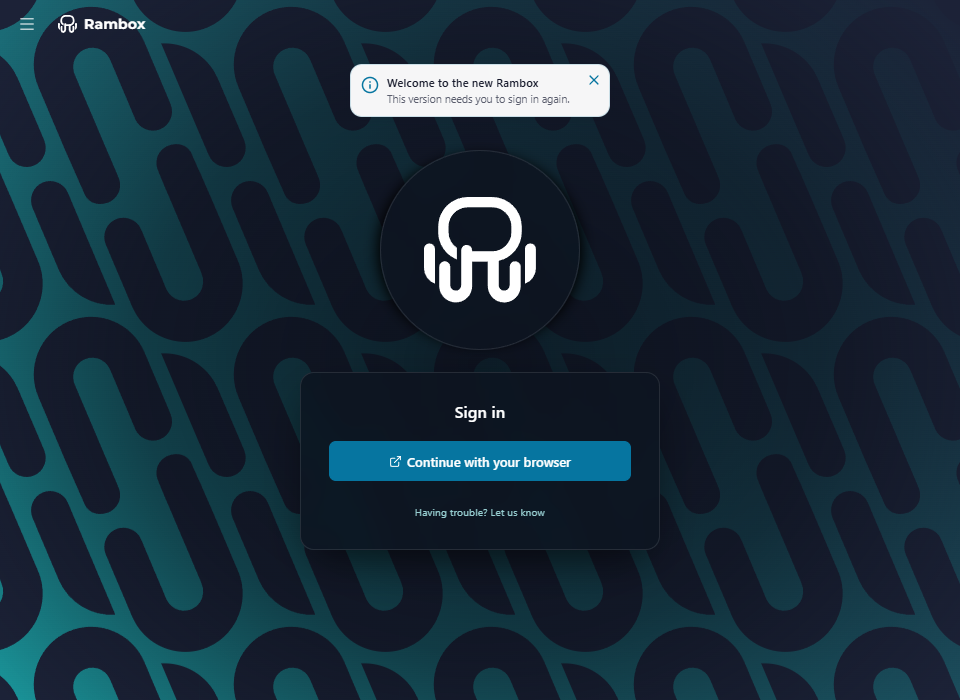
- Click Continue with your browser.
- Sign in in the browser with the same account you used in Rambox 2.
Rambox 3 signs you in through your web browser instead of inside the app. The details are in Signing in to Rambox.
Step 3: Move your account
Right after you sign in, the browser shows a short wizard: Welcome to the new Rambox. It explains what moving your account means.
Stays the same:
- Your custom profiles and preferences.
- Your apps and workspaces.
What changes:
- Workspaces move into a single, flat level — no more nested groups.
- Apps sitting in the root level are collected into a new Root Apps workspace.
Click Move my account. When you see You're all set, accept the browser prompt to go back to Rambox.
- Not now, sign out cancels without moving anything: your account stays as it was and you're signed out of Rambox 3.
- If something goes wrong, the wizard says so and you can keep using Rambox 2 while you contact support.
Step 4: Take the "What's new" tour
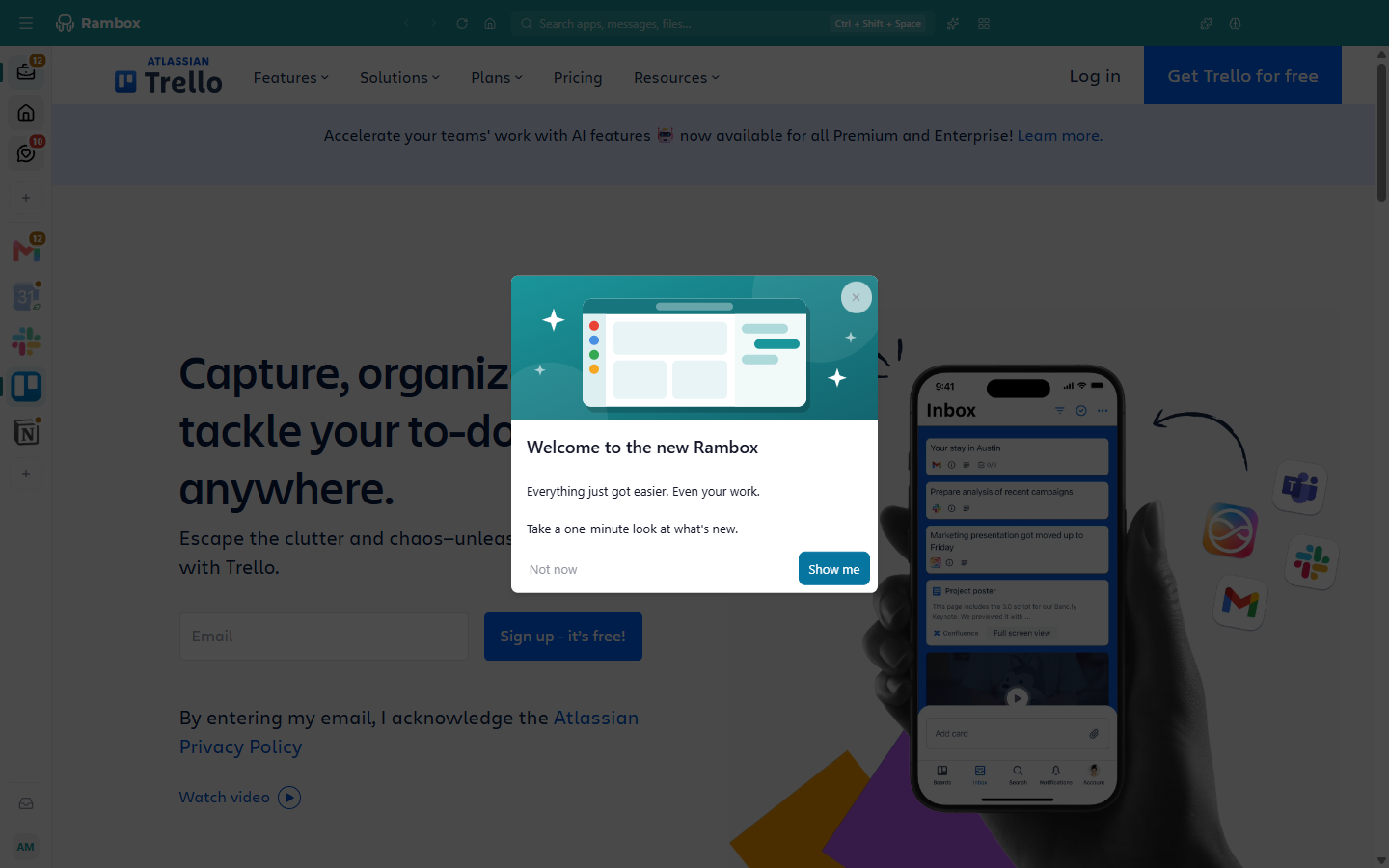
Back in Rambox, a card offers a one-minute tour: "Welcome to the new Rambox". Click Show me to see the highlights, or Not now — you can open it later from your avatar menu → What's new. See First-run setup, guided tours and hints.
What looks different in Rambox 3
Workspaces are flat, and every app lives in one
In Rambox 2 you could put workspaces inside other workspaces, and keep apps outside any workspace. In Rambox 3:
- Every workspace is at the top level. Workspaces that were nested are moved up, one after another. Each keeps the settings it used to inherit from the workspaces above it (profile, sounds, notifications, work hours and so on), so it behaves the way it did before.
- Every app belongs to a workspace. Apps you had outside any workspace are now in a workspace called Root Apps. You can rename it, move its apps elsewhere or delete it like any other workspace.
A new sidebar and window
Workspaces and apps share one sidebar that you can expand to show names, and there's a new bar at the top of the window with search, the AI assistant, Quick View, Extensions and Concentration. Back, forward and reload for the app you're looking at are now at the top too. See Getting around Rambox.
Moving apps is drag and drop
The Move App option is gone. To move an app to another workspace, drag it onto that workspace in the sidebar. See How to move apps to a workspace.
Quick Search is now the Command Center
The search window opens with Ctrl+Shift+Space (macOS: ⌘+Shift+Space) even when Rambox is in the background. See Command Center.
Focus mode moved to Concentration
Focus mode is now in the Concentration button (brain icon) at the top of the window, together with a Pomodoro timer and ambient sounds. See Focus mode, Pomodoro and ambient sounds.
Your profile and billing are on the web
Profile and Billing in your avatar menu open your account page in the browser, already signed in. That's where you change your name and photo, manage your devices and handle your subscription. See Your profile configuration and Billing.
Some shortcuts changed
On macOS, Settings is now ⌘+, and Profile is ⌘+⌥+P. There are new ones too. See Keyboard shortcuts.
Removed
- Use Compatibility Mode in an app's advanced settings.
- Search with Google from Quick Search (you can still right-click selected text inside an app and choose Search with Google).
- The gear button in the title bar of each tile (right-click the app in the sidebar instead).
If you're on the Basic plan
In Rambox 2, workspaces were a Pro feature. In Rambox 3, the Basic plan includes one workspace.
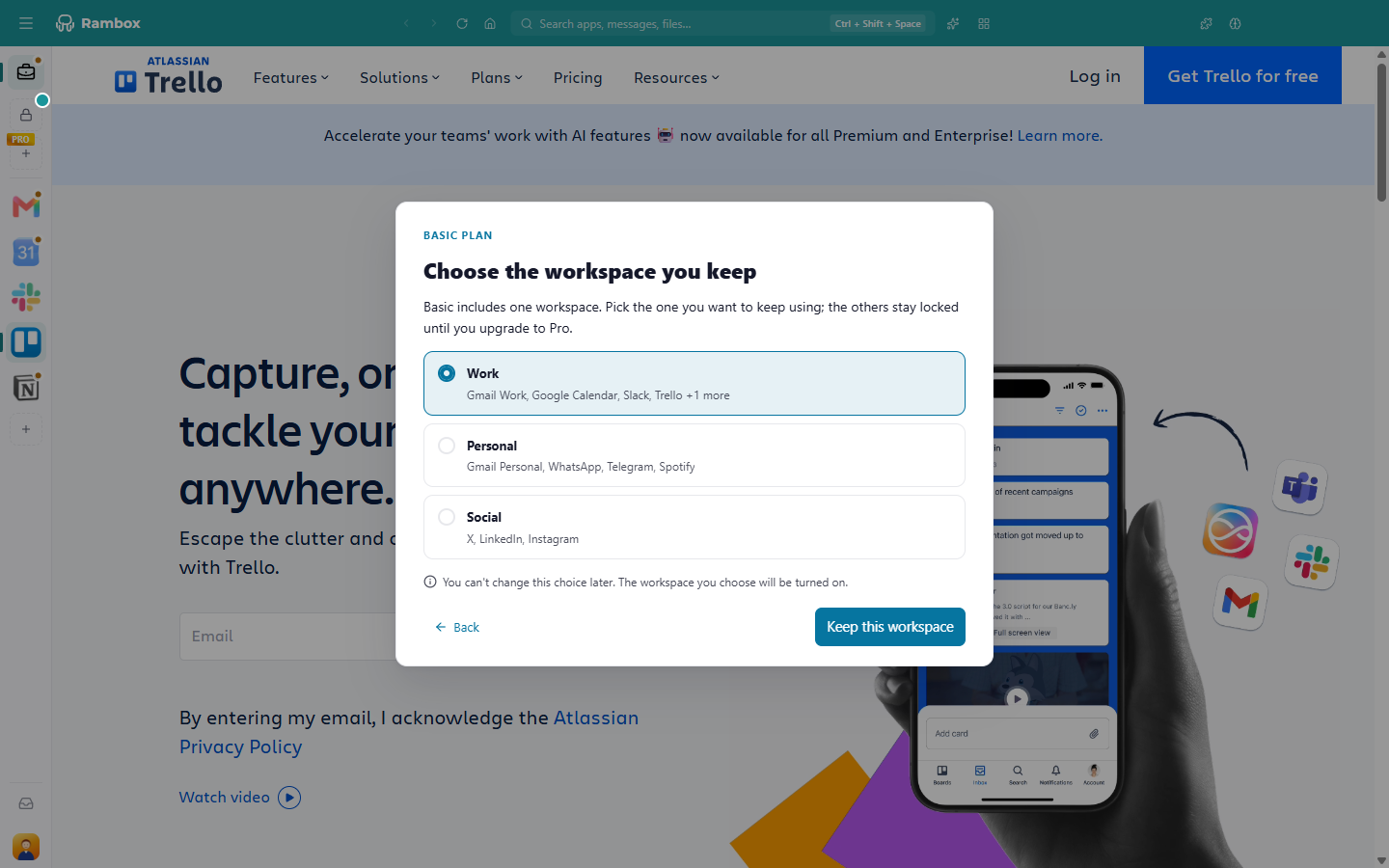
If you have more than one workspace after the upgrade (for example, because of Root Apps), Rambox shows a Basic plan dialog:
- The first step lists what Basic doesn't include. Click Upgrade to Pro to keep everything, or Continue with Basic.
- Choose the workspace you keep. Pick the one you want to keep using and click Keep this workspace.
This choice is final
"You can't change this choice later." The other workspaces stay visible but locked until you upgrade to Pro. Nothing is deleted: your workspaces and apps stay where they are.
Full details: Where do all my apps and workspaces go after changing to Basic?
Questions
Will I have to sign in to all my apps again? Your apps keep their identity when your account is moved, so on the same computer they should stay signed in.
Can I go back to Rambox 2? No. Once your account has been moved, Rambox 2 can't sign in with it.
Where are the help articles for Rambox 2? They're still available in the Rambox 2 help section.
I had the old Community Edition installed. If Rambox finds apps from the Community Edition, it shows "We detected apps from the Community Edition, do you want to import them?" Accept to bring them into Rambox 3.