
Tabs inside an app
Open links in tabs inside the same Rambox app, like a mini browser, without losing the page you were on.
Sometimes you want to open a link without leaving the page you're on and without jumping to your web browser. Tabs inside an app do exactly that: the link opens in a new tab inside the same app, with a small tab bar on top, like a mini browser. The app's main page stays in the first tab, untouched, and you can switch back and forth.
Tabs use the app's own session, so if the link needs you to be signed in to the same account (a Google Doc from your Gmail, for example), you already are.
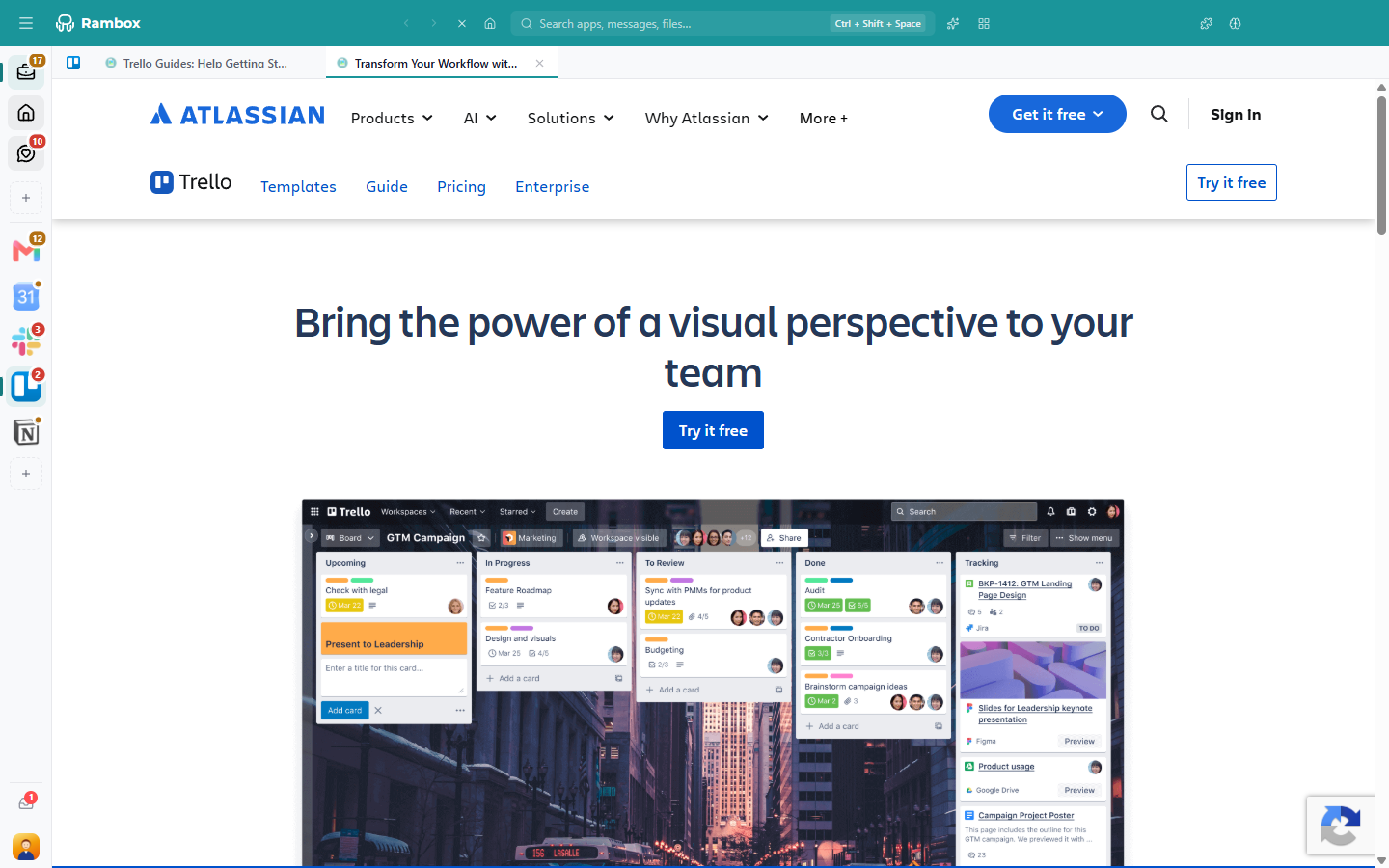
Open a link in a tab
There are several ways, depending on whether you want it for every link or just one:
- Every link from an app: set the app's Link handling to Open all in tabs (right-click the app → gear icon → Link handling). See Link handling.
- Just one link: hold Shift while you click it.
- From the right-click menu: right-click the link and choose Open Link ▸ Tab.
- From the chooser: Ctrl+Shift+click the link (macOS: ⌘+Shift+click) and pick New Tab.
- In another app: when Rambox offers to open a link in an app you already have, clicking that app's card opens the link in a tab inside it. See Default apps for links.
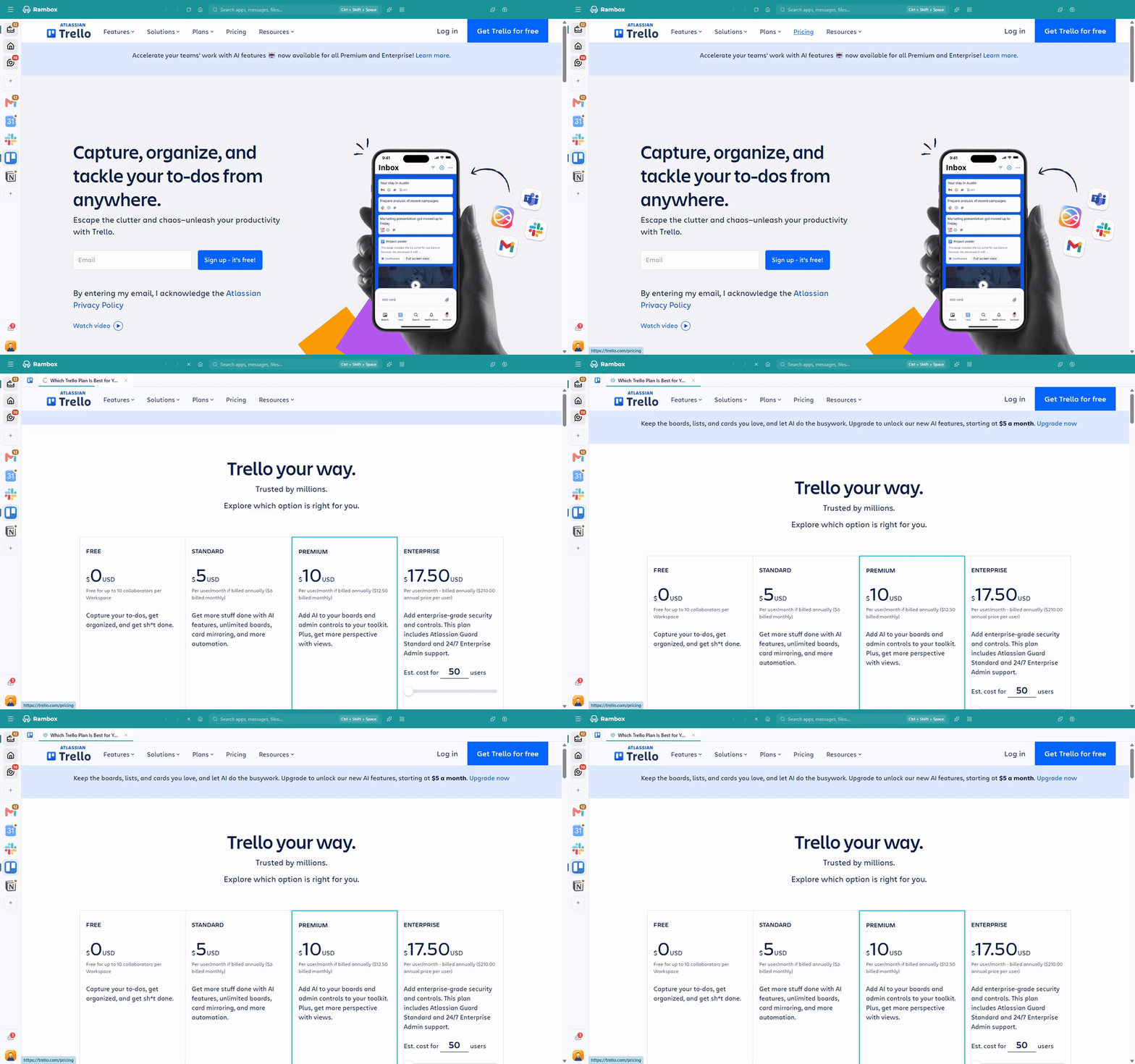
Using the tabs
- The tab bar only appears when there's at least one extra tab. With no tabs open, the app looks as usual.
- The first tab is the app itself, shown with just the app's icon. Click it to go back to the app's main page.
- Each other tab shows the site's icon (a generic icon when the site doesn't provide one) and the page title (or the site name while it loads). Hover over a tab to see its full title or address.
- Close a tab with its ✕, which shows on the tab you're on and when you hover over a tab. Rambox then shows the tab next to it.
- Back, Forward and Reload in the titlebar (or in the address bar, if you turned it on) act on the tab you're looking at. So does searching in the page (Alt+Shift+F, macOS: ⌘+⌥+F). See How to search inside an app.
- Download links that open in a tab close the tab by themselves once the download finishes.
Tabs opened from another app
When a tab was opened from a link in a different app, it shows a bar at the top: Opened from followed by that app's name, with a Switch button. Click Switch to go straight back to the app where you clicked the link.
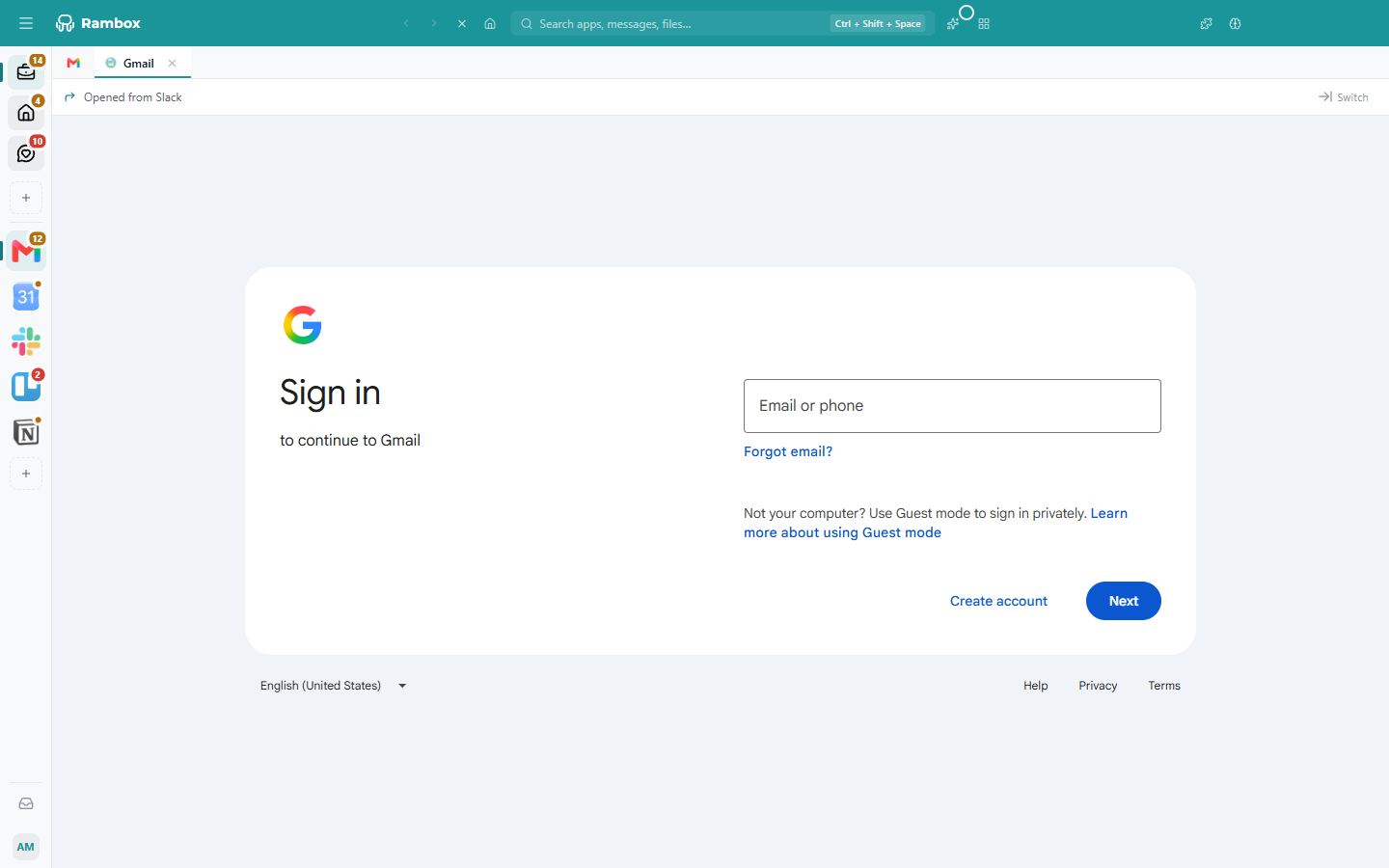
Tabs hibernate too
To save memory, tabs follow the app's Hibernate setting: a tab you haven't used for that many minutes goes to sleep. It keeps its place in the tab bar, dimmed, and remembers the page it was on.
- Clicking a sleeping tab wakes it up on the same page.
- If you're looking at the tab when it falls asleep, you'll see its title, Do you want to wake it up? and a Wake up! button.
- A tab that's playing audio or sharing your screen doesn't go to sleep.
- If the app's hibernation is set to 0, its tabs never hibernate.

Learn more about hibernation in How to hibernate apps.
Good to know
- Tabs are temporary. They aren't saved: they close when you restart Rambox, and also when you disable or remove the app. Hibernating the app keeps them.
- Not in Tiles workspaces. Apps inside a Tiles workspace can't open tabs: Open all in tabs isn't offered for them, and Tab is missing from the right-click Open Link menu. See Tiles: workspace layout.
- Not in pop-up windows. Links inside a Rambox pop-up window can't be opened as tabs either.
- Tabs are not a replacement for apps. If you use a site every day, add it as an app instead, so it gets its own icon, notifications and settings. See How to create and configure apps.