
Notifications and the Notification Center
Choose which apps can notify you and make sounds, hide message previews, and catch up on everything in the Notification Center.
Rambox shows your apps' notifications as regular desktop notifications, and also keeps them in the Notification Center, a panel inside Rambox where you can review what you missed. This article explains where notifications appear and every setting that controls them, from a single app up to all of Rambox.
Where notifications show up
When an app inside Rambox sends a notification:
- A desktop notification appears, like the ones from any other program. Click it to bring Rambox to the front with that app open.
- The Notification Center keeps a copy, so you can check it later.
- The app's icon in the sidebar shows an unread badge, and so does its workspace (depending on the unread counter settings).
- The tray panel lists recent notifications too (Windows and macOS). See Tray panel and taskbar.
The Notification Center
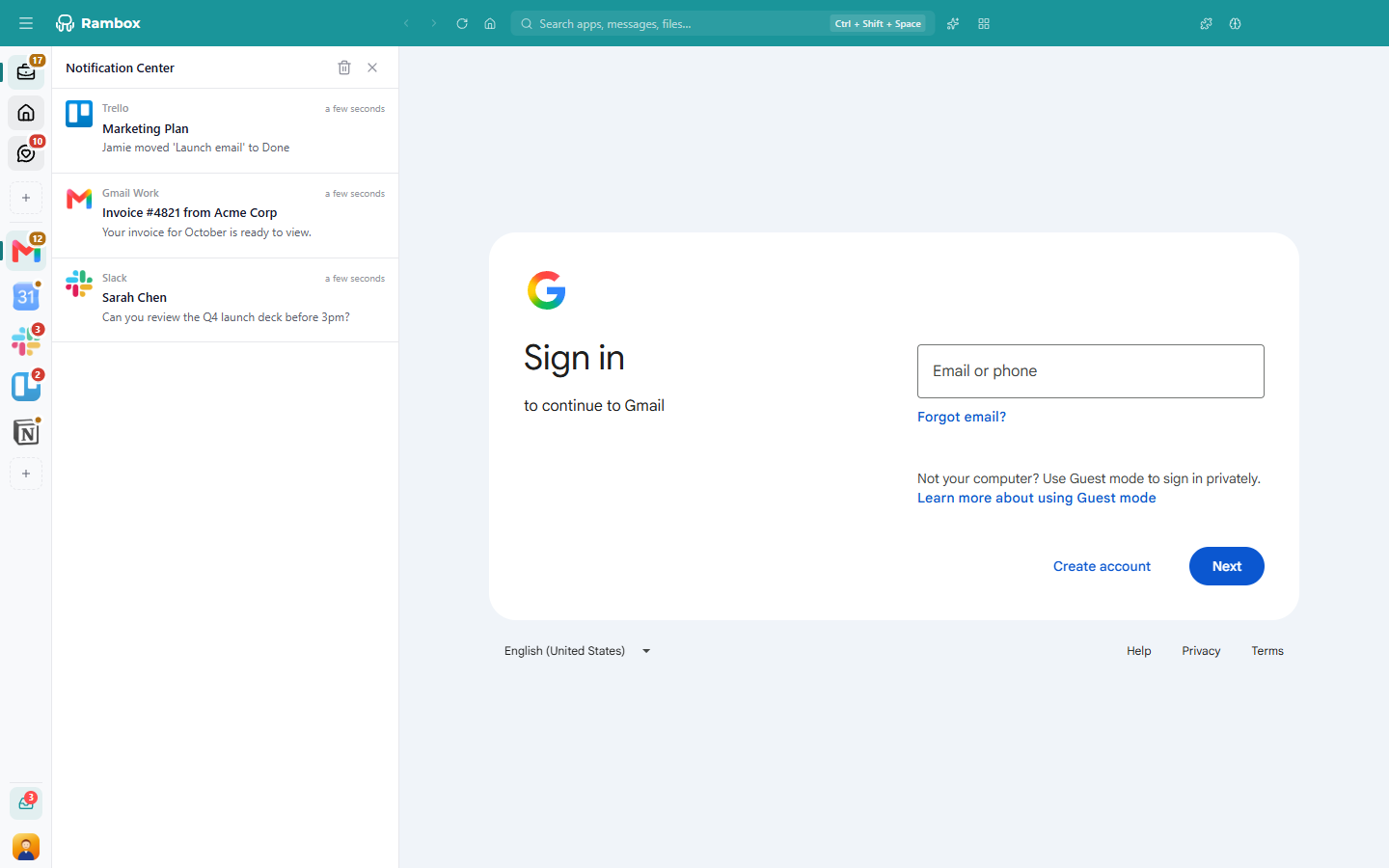
The Notification Center collects the notifications from all your apps, newest first.
Open it
- Click the Notification Center button (the inbox icon) at the bottom of the sidebar, next to your avatar. A number on the icon tells you how many notifications are waiting (it shows 99+ above 99).
- Or open the Command Center and choose Toggle Notification Center.
Click the button again, or the X in the panel, to close it. You can drag the panel's edge to make it wider.
Work with your notifications
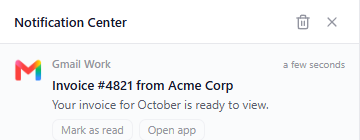
Each card shows the app it came from, when it arrived, the sender or title, and the first lines of the message. Hover over a card to see its buttons:
| To… | Do this |
|---|---|
| Go to where the notification points | Click the card. Rambox opens the app (or the part of Rambox the notification is about) and closes the panel. |
| Open the app | Click Open app. This button appears on notifications that come from an app. |
| Dismiss it without opening | Click Mark as read, or click the card with the middle mouse button. |
| Dismiss everything | Click the trash icon (Clear all) at the top of the panel. |
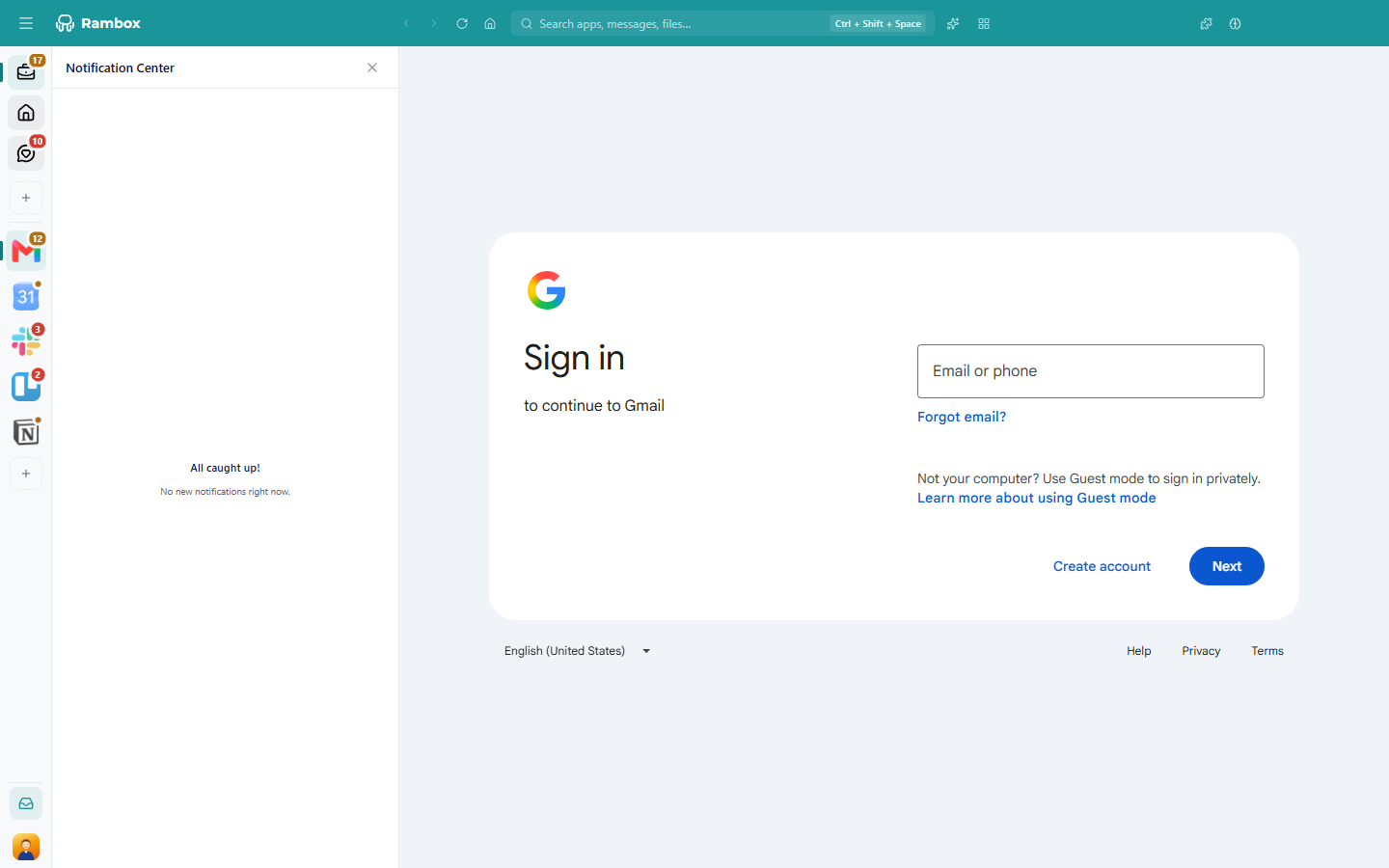
When you dismiss the last notification, the panel closes. If you open it with nothing in it, it shows All caught up!
Sometimes the top of the Notification Center also shows a Rambox offer or announcement. You can dismiss it.
Turn notifications and sounds on or off for one app
Quickly, from the sidebar
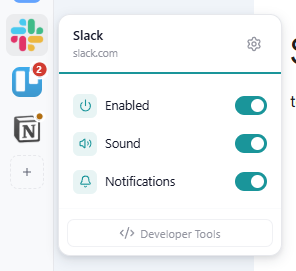
- Right-click the app in the sidebar.
- In the menu that opens, switch Notifications or Sound on or off.
The change applies right away. See Apps and workspaces quick settings.
From the app's settings
Right-click the app in the sidebar, click the gear icon (Settings) and use these options:
- Allow notifications: when off, the app doesn't show desktop notifications and nothing reaches the Notification Center. On by default.
- Allow sounds: when off, the app is muted. On by default.
- Hide notification content: notifications from this app say only You have a new notification, without the sender or the message. Useful if you share your screen or other people can see your computer. Off by default (see the default for new apps).
Click Save to apply.
Turn notifications and sounds on or off for a whole workspace
Workspaces have the same three options (Allow notifications, Allow sounds, Hide notification content) in their settings, and the same Notifications and Sound switches when you right-click the workspace.
The workspace and the app work together: an app notifies you only if both the app and its workspace allow it. If you turn notifications off for a workspace, none of its apps will notify you, whatever their own settings say.
Work hours
Each workspace can also have Work hours: a time range outside which its apps stay quiet. Outside those hours, the apps don't notify you or make sounds, and they show the banner This app is outside your work hours: sound and notifications are disabled. Learn more in Work hours.
Silence everything for a while: Focus mode
When you need to concentrate, start a Focus session from the Concentration button in the title bar, or press Alt+Shift+D (macOS: ⌘+D). While it runs, all apps stay silent. See Focus mode, Pomodoro and ambient sounds.
Let one app through
When an app is silenced by its workspace's work hours, it shows a banner at the top with a Bypass restrictions button. Click it to let that app notify you and play sounds again for now. Click Restore restrictions to silence it again.
During a Focus session, apps don't show this banner: only an app that is streaming (for example, in a call) shows one, and it keeps its sound. See Focus mode, Pomodoro and ambient sounds.
Defaults for new apps
In Settings → Apps → Default app settings, Hide notification content sets whether new apps you add start with their notification content hidden. Apps you already added keep their own setting.
Unread badges
Badges are the counters on apps, workspaces and the Rambox icon. You control them in the app's and the workspace's settings, under Unread counter:
- Display in tab (apps and workspaces): show the badge on the icon in the sidebar.
- Include in workspace (apps): add this app's count to its workspace's badge.
- Include in global (workspaces): add this workspace's count to the total on the Rambox icon in your taskbar, Dock or tray.
The overall indicator on the Rambox icon is set in Settings → Startup & window:
- Show System Tray indicator on unread messages (macOS: Show Dock icon indicator on unread messages): marks the Rambox icon when you have unread messages. On by default.
- Flash Taskbar on new message (macOS: Bounce Dock icon on new message): calls your attention when a new message arrives. Off by default.
And in Settings → Apps, Remove all badges when 'Focus mode' is active hides every badge while a Focus session is running, so no counter pulls you back. Off by default.
More details in Why don't I see the badges in the taskbar icon? and Dot and leaf indicators.
Check that notifications work
If you don't get any notifications, first make sure your operating system allows Rambox to show them, then send a test:
- Open the Troubleshooting tool: on Windows and Linux click the Menu button (☰) at the top-left, then Tools → Troubleshooting; on macOS use Tools → Troubleshooting in the menu bar.
- Find Show notification and run it. Rambox sends a Test notification and asks if you saw it.
See Troubleshooting tool.
Notifications and hibernation
A hibernated app is asleep and can't receive messages, so it can't notify you either. For mail and chat apps, keep hibernation off. See How to hibernate apps.