
Tray panel and taskbar
Use Rambox from the system tray or menu bar, and from the Windows taskbar, without opening the main window.
You don't always need the Rambox window to keep up with your apps. The tray panel is a small window that opens from the Rambox icon in your system tray (Windows) or menu bar (macOS). From there you can see your latest notifications, start a focus session, open the Command Center or show Rambox. On Windows, the taskbar button adds a few more shortcuts of its own.
These features are available on every plan. Some things the panel lets you start, like Pomodoro, are Pro.
The tray icon
Windows
The Rambox icon sits in the notification area, at the right end of the taskbar (you may need to click the ^ arrow to see it).
- Left-click the icon to show and focus the Rambox window.
- Right-click the icon to open the tray panel.
macOS
The Rambox icon sits in the menu bar at the top of the screen. Click it to open the tray panel.
Linux
On Linux, tray icons can only show a menu, so clicking the Rambox icon opens a short menu. Choose Open panel… (the first item) to open the tray panel.
When you're signed out
The tray panel needs you to be signed in. While you're signed out (on any system) the icon shows a simple menu instead: Show/Hide Rambox, Always on Top and Quit. Once you sign in, the menu also includes Focus mode.
Show or hide the tray icon (Windows and Linux)
Go to Settings → Startup & window and set Display behavior:
- Show in Taskbar: Rambox appears only in the taskbar.
- Show Tray icon: Rambox appears only in the tray, not in the taskbar.
- Show in Taskbar and Tray icon: both.
If the icon blends into your tray, use Tray icon color (Automatic (System), Dark or Light) in the same tab.
The Close button behavior setting decides what clicking the window's close button does: keep Rambox running in the tray, in the taskbar, or in both, or Quit.
Learn more about these options in General settings.
What's in the tray panel
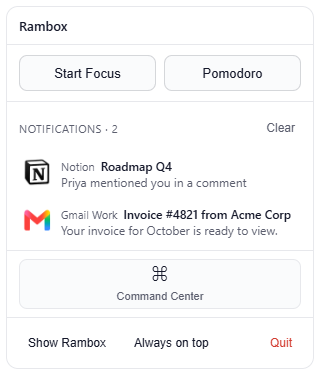
The panel follows Rambox's theme and language, and has three parts.
Focus
- Start Focus starts a focus session, which silences notifications and sounds from all apps.
- Pomodoro starts a Pomodoro cycle (Pro).
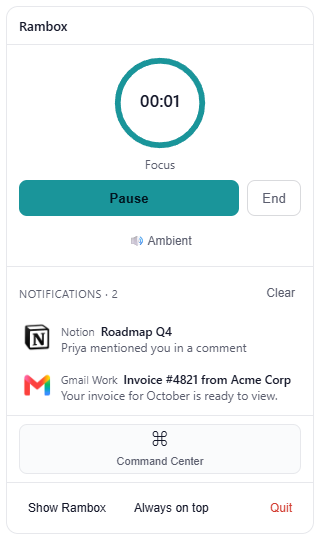
- While a session runs, you see the timer with Pause/Resume and End, plus an Ambient button that mutes or unmutes your ambient sounds.
Learn more in Focus mode, Pomodoro and ambient sounds.
Notifications
The header shows Notifications · N (how many are waiting) and a Clear button. Click a notification to open the app it came from. When there's nothing new, the panel says No notifications.
These are the same notifications you see in the Notification Center.
Tools and window
- Command Center opens the Command Center.
- Show Rambox brings the main window to the front.
- Always on top keeps the Rambox window above every other window.
- Quit closes Rambox completely.
Windows taskbar extras
On Windows, the Rambox taskbar button does more than open the window. These extras appear only while you're signed in.
Jump list (right-click the taskbar button)
Right-click the Rambox button in the taskbar to see:
- Your apps: up to five apps, those with unread messages first and then the ones you used most recently. The unread count appears next to the name. Click one to go straight to it.
- Command Center: opens the Command Center.
If you turned off recent items in Windows' Start settings, everything appears under one list instead.
Thumbnail buttons (hover over the taskbar button)
Rest the mouse on the Rambox button in the taskbar. Under the window preview you'll find small buttons:
- Command Center.
- Focus mode: starts or stops a focus session. Its icon changes to show whether one is running.
- Media controls, when an app is playing music or video: Previous track, Play/Pause and Next track, plus a button that takes you to that app (Go to {app}).
Media controls only appear for services that tell the system what they're playing, such as Spotify or YouTube Music. To control playback with your keyboard's media keys, keep Settings → Advanced → Enable Media Keys support on.
Progress on the taskbar button
While a focus session or Pomodoro is running, the Rambox taskbar button fills up like a progress bar, so you can see how much time is left at a glance.
Unread indicators on the icon
To get a dot on the Rambox icon when you have unread messages, or to flash the taskbar button (bounce the Dock icon on macOS) on new messages, see Settings → Startup & window:
- Show System Tray indicator on unread messages (macOS: Show Dock icon indicator on unread messages)
- Flash Taskbar on new message (macOS: Bounce Dock icon on new message)
More in Why don't I see the badges in the taskbar icon?