Apps and workspaces quick settings
Right-click an app or workspace in the sidebar to turn it off, mute it or silence its notifications in one click.
Quick settings are the small menu you get when you right-click an app or a workspace in the sidebar. They let you switch the most common things on and off without opening the full settings: handy when you need to silence a chatty app for an hour or pause a whole workspace.
Workspace quick settings
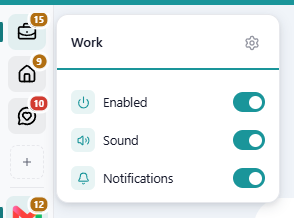
Right-click a workspace in the sidebar. The menu shows the workspace's name and:
- Settings (gear icon): opens the full workspace settings. See How to create and configure workspaces.
- Enabled: turns the whole workspace on or off. When it's off, none of its apps load and you get no notifications from them. If you turn off the workspace you're in, the main area switches to Workspace disabled, with an Enable button to bring it back.
- Sound: mutes or unmutes every app in the workspace.
- Notifications: turns notifications on or off for every app in the workspace.
App quick settings
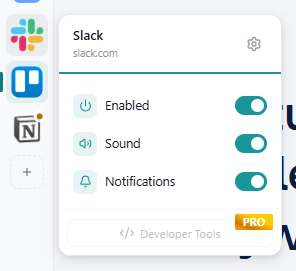
Right-click an app's icon in the sidebar (or in the … menu if it doesn't fit). The menu shows the app's name and address, and:
- Settings (gear icon): opens the full app settings. See How to configure or edit an existing app.
- Enabled: turns the app on or off. A disabled app doesn't load and sends nothing.
- Sound: mutes or unmutes the app.
- Notifications: turns the app's notifications on or off.
- Developer Tools: opens the browser developer tools for that app, for advanced troubleshooting. This is a Pro feature, and it's greyed out while the app is disabled. See Open the app's developer tools.
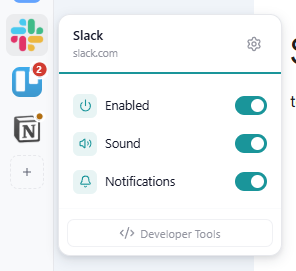
These switches are the same as Enable app, Allow sounds and Allow notifications in the full settings: changing one changes the other.
App and workspace work together
An app only plays sounds or shows notifications when both the app and its workspace allow it. If an app is silent even though its own switches are on, check its workspace's quick settings.
Where did back, forward and reload go?
In Rambox 2 this menu also had buttons to go back, go forward and reload the app. In Rambox 3 they live elsewhere:
- in the titlebar at the top of the window (they act on the app you're looking at);
- in the address bar above each app, if you turn it on in Settings → Appearance → Show address bar;
- in the menu you get when you right-click inside the app's page (Back, Forward, Reload, Home).
There's also no "move app" option any more: to move an app to another workspace, drag it there. See How to move apps to a workspace.
On the Basic plan
- Developer Tools shows a PRO ribbon and can't be used. How to become Pro
- For workspaces your plan doesn't include, the switches are greyed out.
- For apps in those workspaces, the menu only shows the gear and the note Read-only: this app's workspace isn't included in your Basic plan.