How to configure or edit an existing app
Open the settings of an app you already added to change its name, logo, notifications, profile, link handling and more.
Once an app is in Rambox, you can change its settings at any time: rename it, give it a new logo, mute it, change how it opens links, set it to hibernate, and so on.
Open an app's settings
- In the sidebar, right-click the app's icon. (If the app is hidden in the … menu because the sidebar is full, hover over … and right-click the app there.)
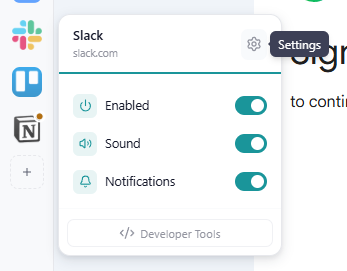
- A small menu opens with the app's name and a few switches. Click the gear icon (Settings) at the top.
- The settings panel opens on the right, titled Edit followed by the app's name.
- Change what you need and click Save. To leave without saving, click ✕.
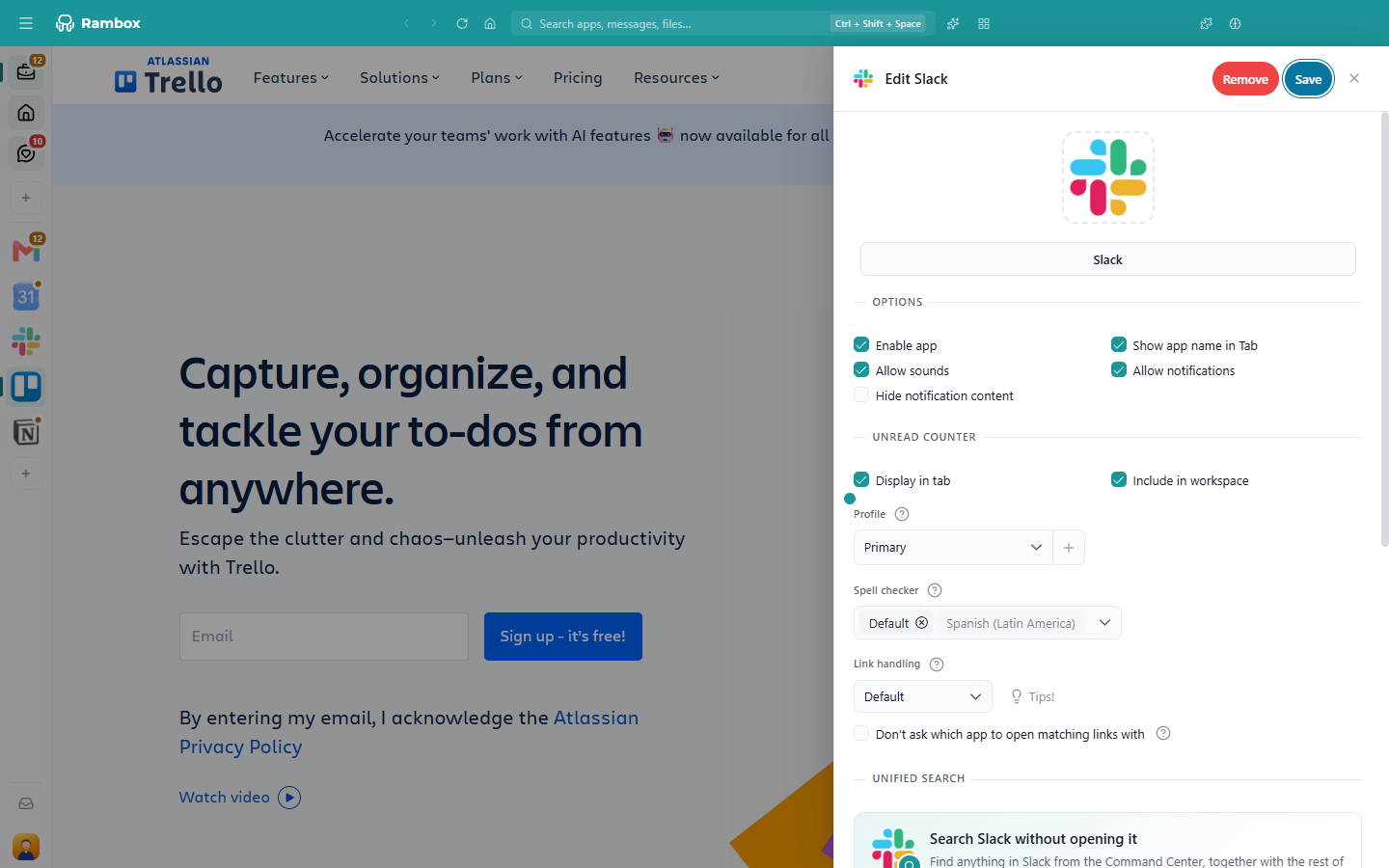
Every option in this panel is explained in How to create and configure apps.
TIP
For quick changes (turn the app off, mute it, silence its notifications) you don't need the full settings: use the switches in the right-click menu. See Apps and workspaces quick settings.
Changes that reload the app
Some changes only take effect after the app reloads: the URL, the profile, hibernation, Force mobile rendering, Stylish URL, injected JavaScript or CSS, and Prevent Basic Auth. When you save one of them, Rambox asks: To apply the new settings we have to reload the app. Continue? Confirm and the app reloads with the new settings.
If you changed the profile, the app now uses a different session, so you may need to sign in to the service again. See Profiles and session management.
Things you can't change here
- The workspace an app belongs to. To move an app, drag it onto another workspace in the sidebar. See How to move apps to a workspace.
- The service. You can't turn a Slack app into a Teams app. Add the new app from the catalog and remove the old one.
Apps in a locked workspace (Basic plan)
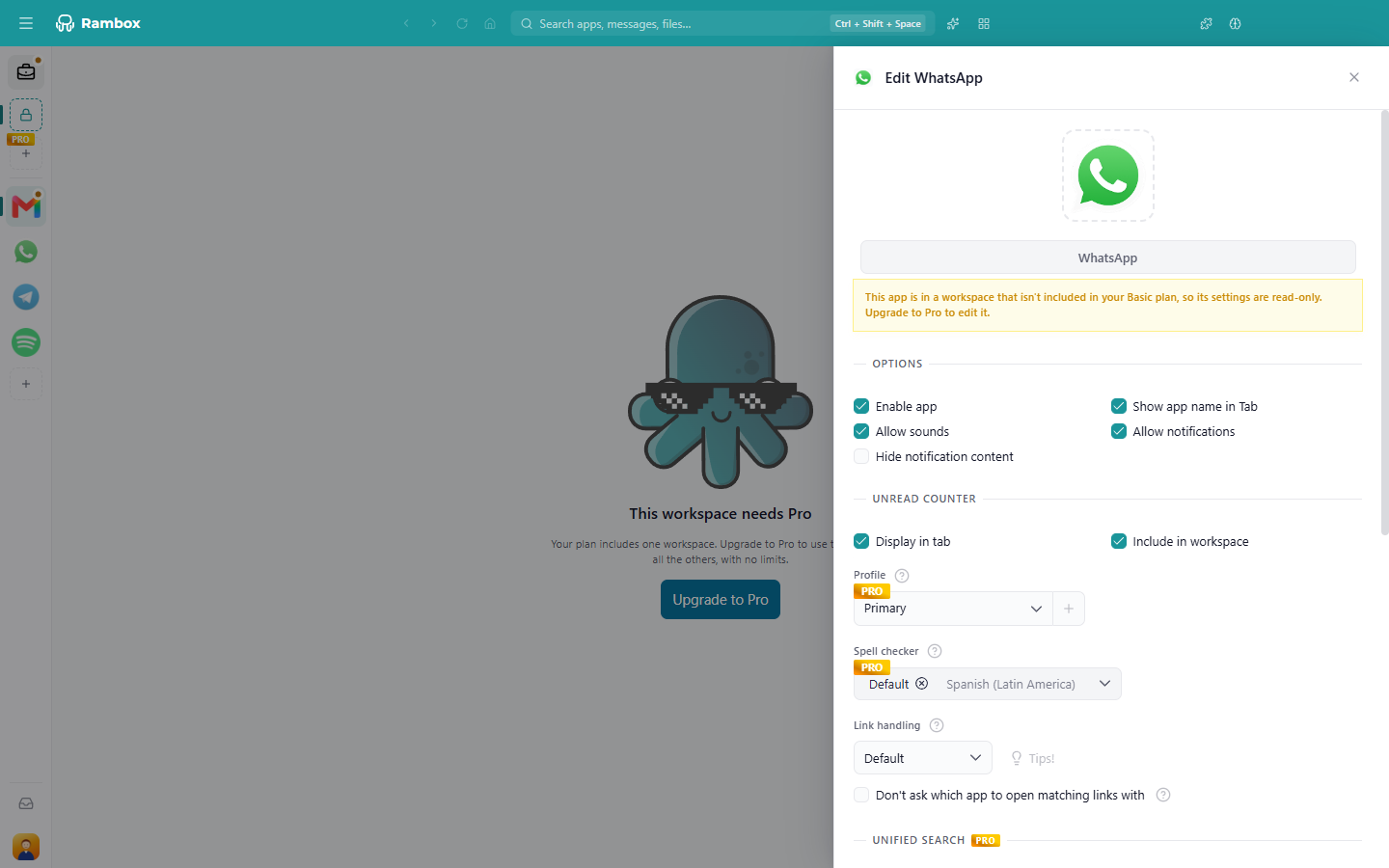
If you are on the Basic plan and the app is in a workspace your plan doesn't include, the settings open read-only with the message This app is in a workspace that isn't included in your Basic plan, so its settings are read-only. Upgrade to Pro to edit it. You can look at the settings, but not change or remove the app. See Where do my apps and workspaces go after changing to Basic?