
How to remove an app or a workspace
Delete an app or a whole workspace from Rambox, and what happens to the apps inside a workspace you remove.
When you no longer need an app or a workspace, you can remove it from its settings panel. Removing is permanent, so read the notes below before you confirm, especially for workspaces.
Just want a break?
If you only want an app or workspace to stop loading or stop notifying you for a while, you don't need to remove it: turn it off with the Enabled switch in its right-click menu. See Apps and workspaces quick settings.
Remove an app
- In the sidebar, right-click the app.
- Click the gear icon (Settings).
- At the top of the panel, click Remove.
- Rambox asks Remove app: "You will permanently delete the app. Do you want to continue?" Click Yes.
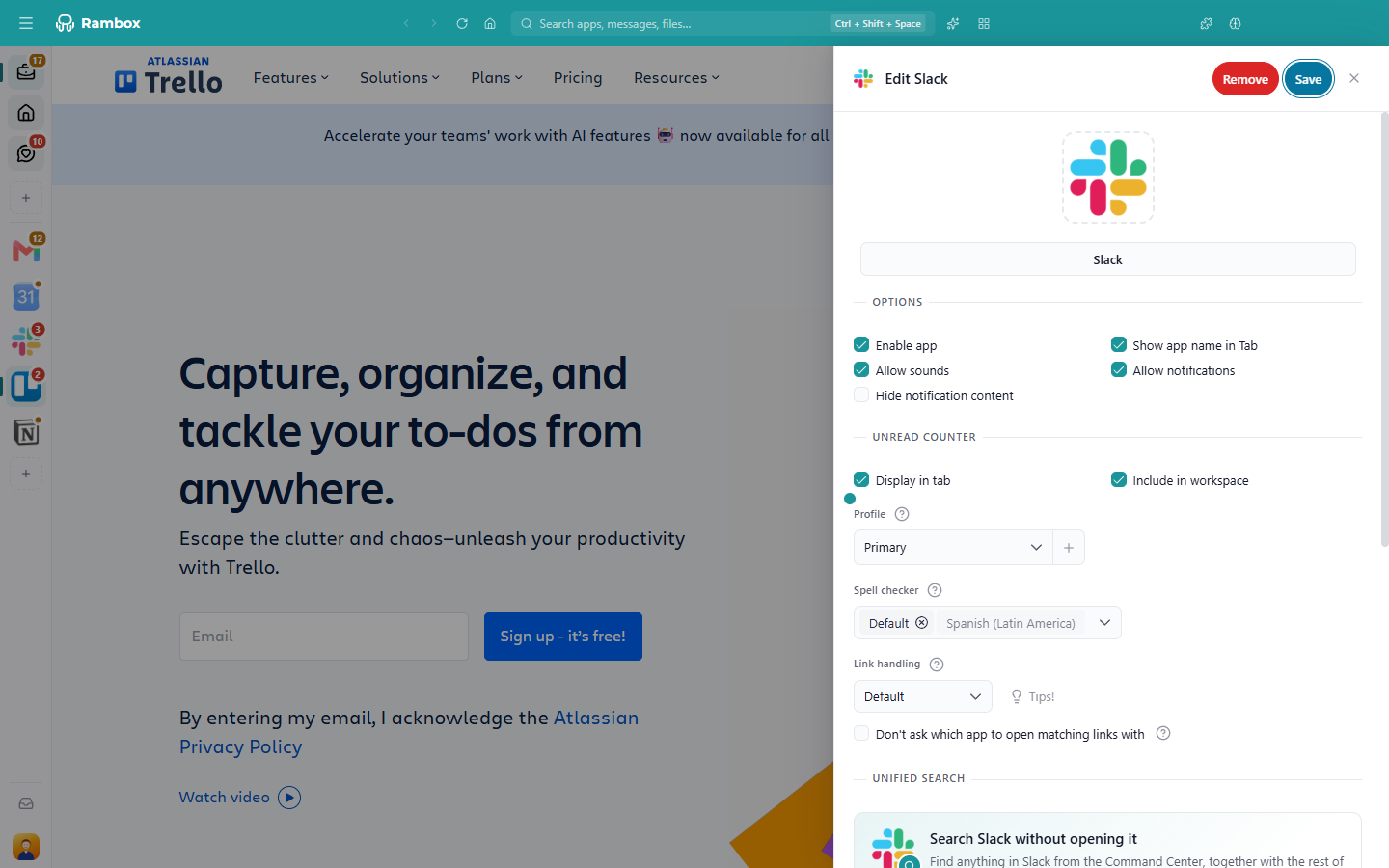
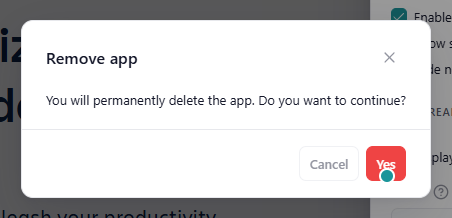
The app disappears from the sidebar on all your computers.
Remove a workspace
- In the sidebar, right-click the workspace.
- Click the gear icon (Settings).
- At the top of the Edit workspace panel, click Remove.
- Rambox asks you to confirm that you want to permanently delete it. Click OK.
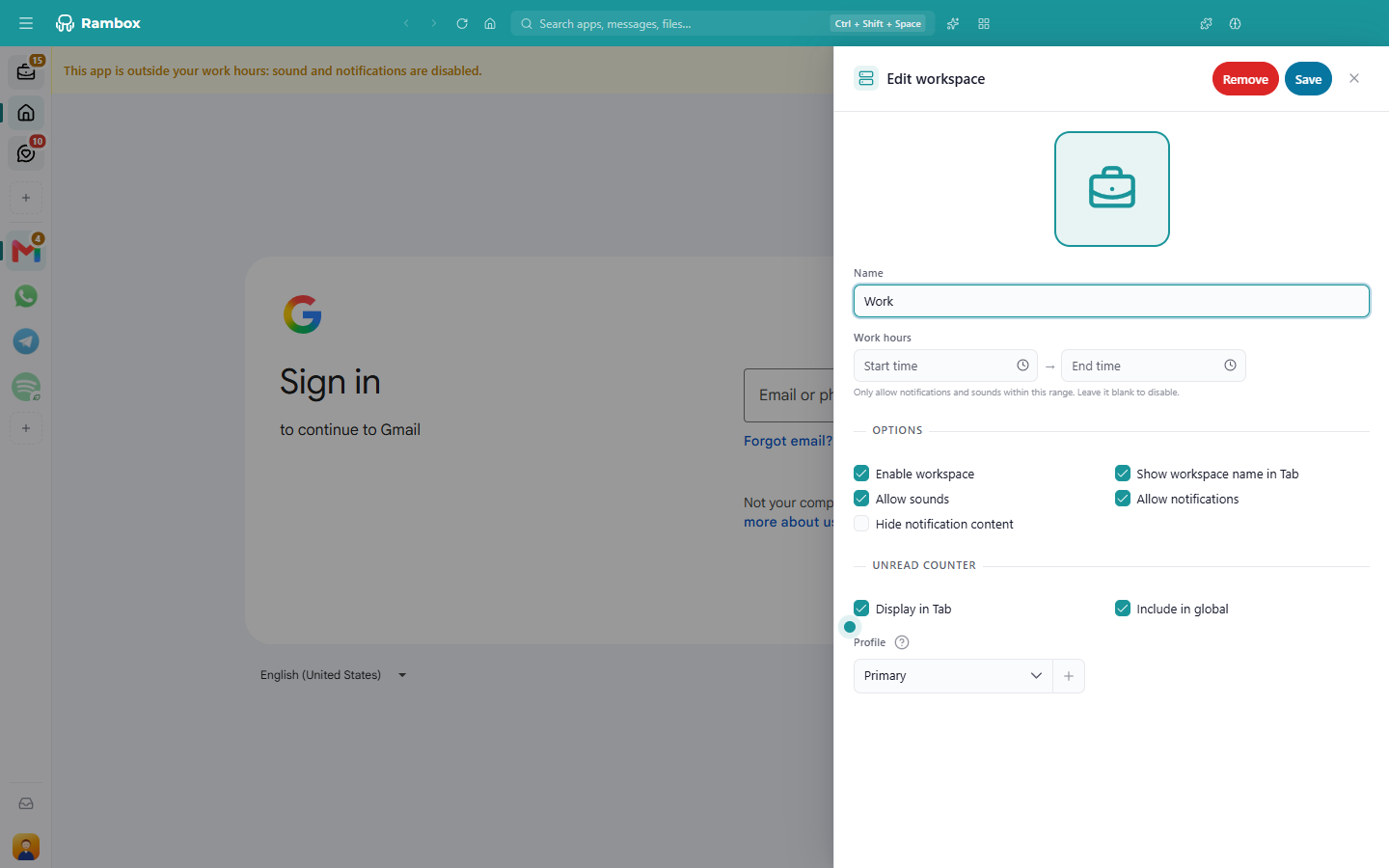
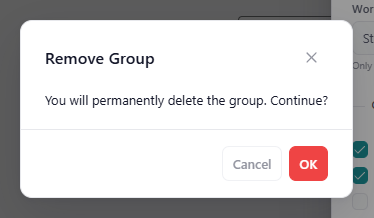
The apps go with it
Removing a workspace also removes every app inside it. If you want to keep some of them, drag them to another workspace first. See How to move apps to a workspace.
What removing does (and doesn't) do
- The app or workspace is removed from your account, so it disappears from Rambox on every computer where you use it.
- There is no undo or trash can. To get an app back, add it again from the catalog; you may need to sign in to the service again.
- Removing an app doesn't delete your account with that service (your Gmail, Slack, etc. stay as they are).
On the Basic plan
- Apps in a workspace your plan doesn't include are read-only: you can't remove them one by one.
- Workspaces your plan doesn't include can be removed, together with their apps.
- If you remove the workspace you chose to keep on Basic, Rambox asks you to choose again.
See Where do my apps and workspaces go after changing to Basic?