
How does Rambox work?
A plain-language look under the hood of Rambox 3, what stays on your computer and what syncs across your devices.
Rambox brings the web apps you use every day (email, chat, calendars, project tools and more) into a single desktop window. Knowing a little about how it works helps you understand why some things sync between your computers and others don't.
Rambox is built on the same engine as Chrome
Rambox is an Electron application. Electron uses Chromium, the open-source engine behind Google Chrome, Microsoft Edge, Brave and other browsers. Many desktop apps you may already know, such as Slack, Microsoft Teams and Visual Studio Code, are built the same way.
In practice, this means each app you add to Rambox behaves like a website open in a modern browser: it looks and works the way it does in Chrome.
Each app runs in its own browser session
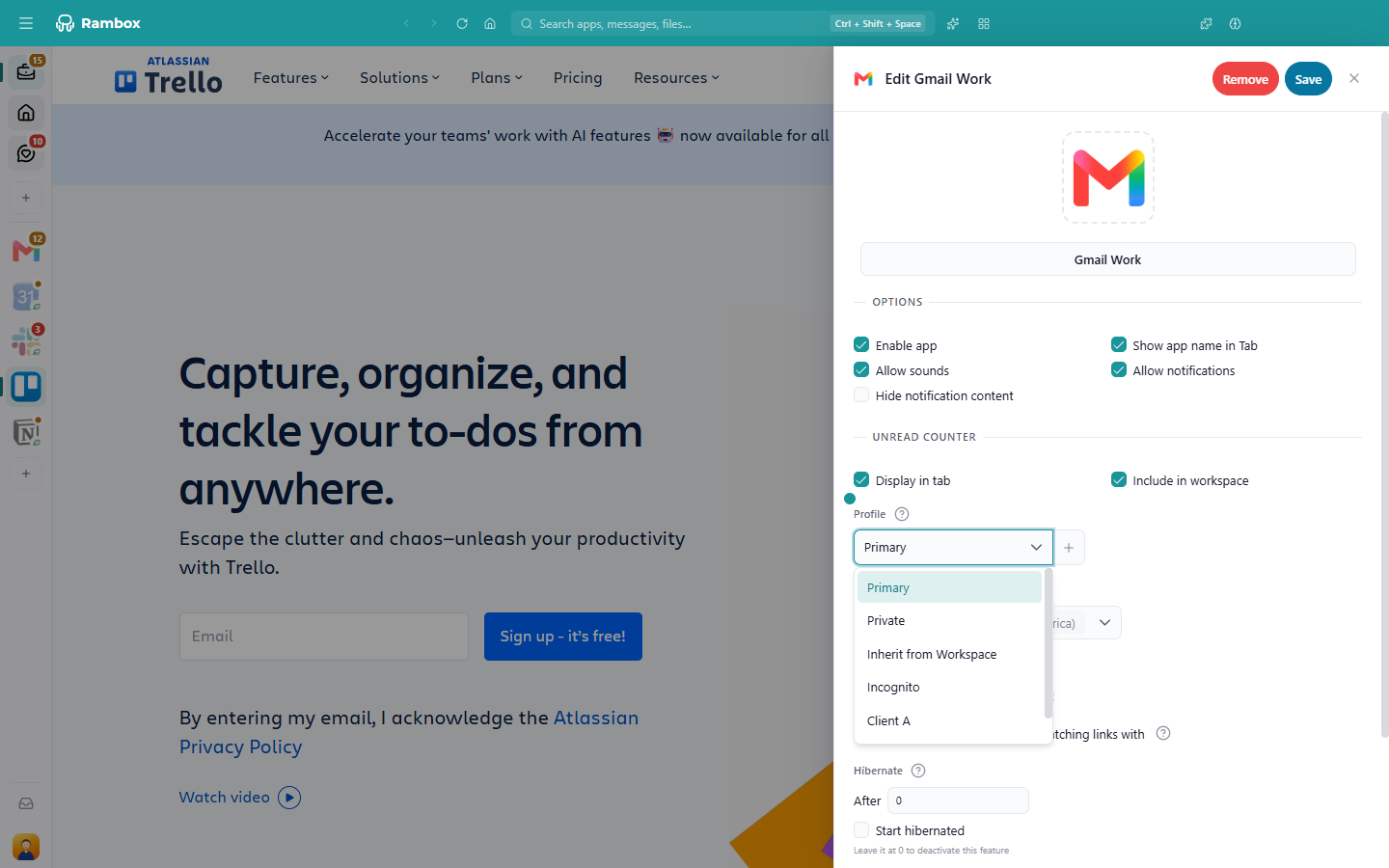
Every app you add opens in its own view inside Rambox. Which apps share a sign-in depends on the Profile you give them:
- Apps that share a profile share one browser session. Sign in to Google once and Gmail, Calendar and Drive on that profile are all signed in.
- Apps on a "Private" profile get a session of their own, so you can keep, for example, two Gmail accounts side by side.
- "Incognito" apps keep nothing once you close Rambox.
On the Basic plan, every app automatically gets its own isolated session. Choosing profiles and sharing sessions between apps is a Pro feature. Learn more in Profiles.
What stays on your computer
Your sign-ins to the apps themselves (passwords, cookies and similar data) are stored only on your computer, the same way Chrome stores them. Rambox doesn't keep a copy of your app passwords on its servers.
That's why, when you start using Rambox on a new computer, your workspaces and apps appear automatically, but you have to sign in to each app once on that computer. After that, the app remembers you.
TIP
Password managers make this faster. Several are available as extensions (Pro).
Other things that stay on your computer:
- The Master Password or YubiKey lock, if you set one.
- The keyboard shortcuts you switched on or off.
- Content Rambox reads for features such as Unified Search: it is fetched only when you search and is not stored on Rambox's servers.
What syncs across your devices
Your Rambox account keeps your setup in sync on every computer where you sign in:
- your workspaces and the apps inside them, and their order;
- each app's and workspace's settings (name, icon, notifications, profile and so on);
- your custom profiles;
- your default apps for links.
Change something on one computer and the others follow.
How you sign in to Rambox
Rambox 3 signs you in through your web browser. When you click Continue with your browser, your browser opens the Rambox sign-in page. Once you're done there, the browser hands you back to the app. See Signing in to Rambox.
Your account details, billing and devices are managed in the web console, which opens in your browser when you choose Profile or Billing from the profile menu in Rambox.
How Rambox keeps things light
Running many web apps at once uses memory, so Rambox includes a few tools to keep things fast:
- Apps load one at a time when Rambox starts, in the order they appear in the sidebar. See Why is my app waiting for its turn?.
- Hibernation puts apps you aren't using to sleep and wakes them up when you need them. See How to hibernate apps.
- Disabled apps and workspaces don't load at all.