
Active Sessions: How does it work?
How many computers can use Rambox at the same time on your plan, what the "Inactive device" screen means, and how to manage your devices.
You can sign in to Rambox on as many computers as you like, but only a limited number can be active (in use) at the same time. This article explains how that works and how to manage the computers signed in to your account.
How many devices can be active at once?
| Plan | Active devices at the same time |
|---|---|
| Basic | 1 |
| Pro and free trial | 3 |
Signed-in computers that aren't active stay registered to your account: your setup is still there, and you can switch back to any of them with one click, without signing in again.
What happens when you go over the limit
When you start using Rambox on one computer too many, the computer you used least recently becomes inactive. It isn't signed out or removed, it just stops being active.
A computer that hasn't been used for 30 days also becomes inactive automatically.
The "Inactive device" screen
When you come back to an inactive computer, Rambox shows the Inactive device screen:
- Rambox is active in another device. on the Basic plan, or Rambox is active in 3 other devices. on Pro, followed by "If you use it here, another device will become inactive."
- Use here — click it to start using Rambox on this computer.
- Sign out — signs this computer out of Rambox instead.
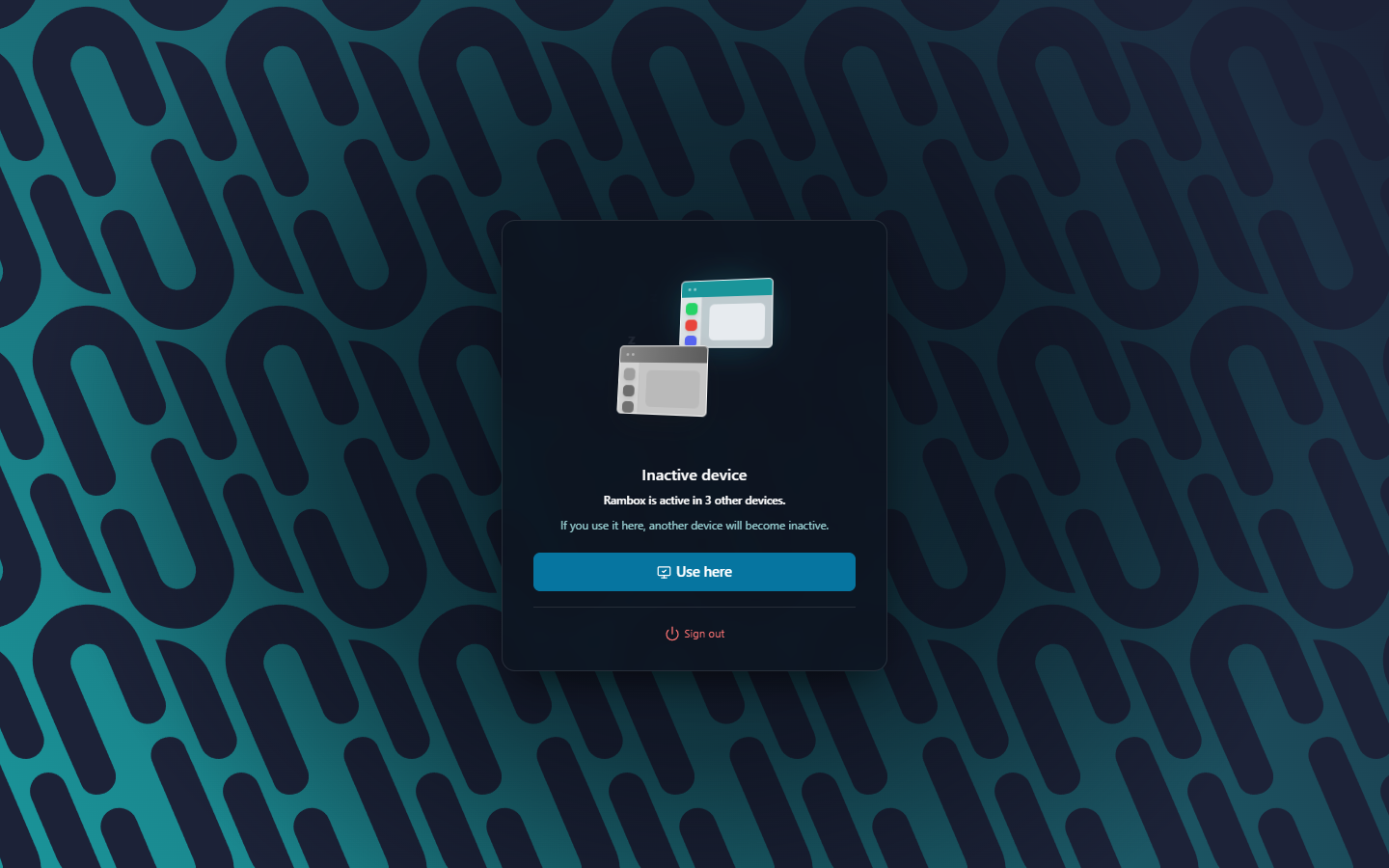
When you click Use here, this computer becomes active and the least recently used of the others becomes inactive. Everything is still there, nothing is lost.
See and manage your devices
Your devices are listed in the web console:
- In Rambox, click your avatar at the bottom of the sidebar and choose Profile (or press Alt+Shift+P; on macOS ⌘+Alt+P). The web console opens in your browser, already signed in.
- Click Machines in the sidebar.
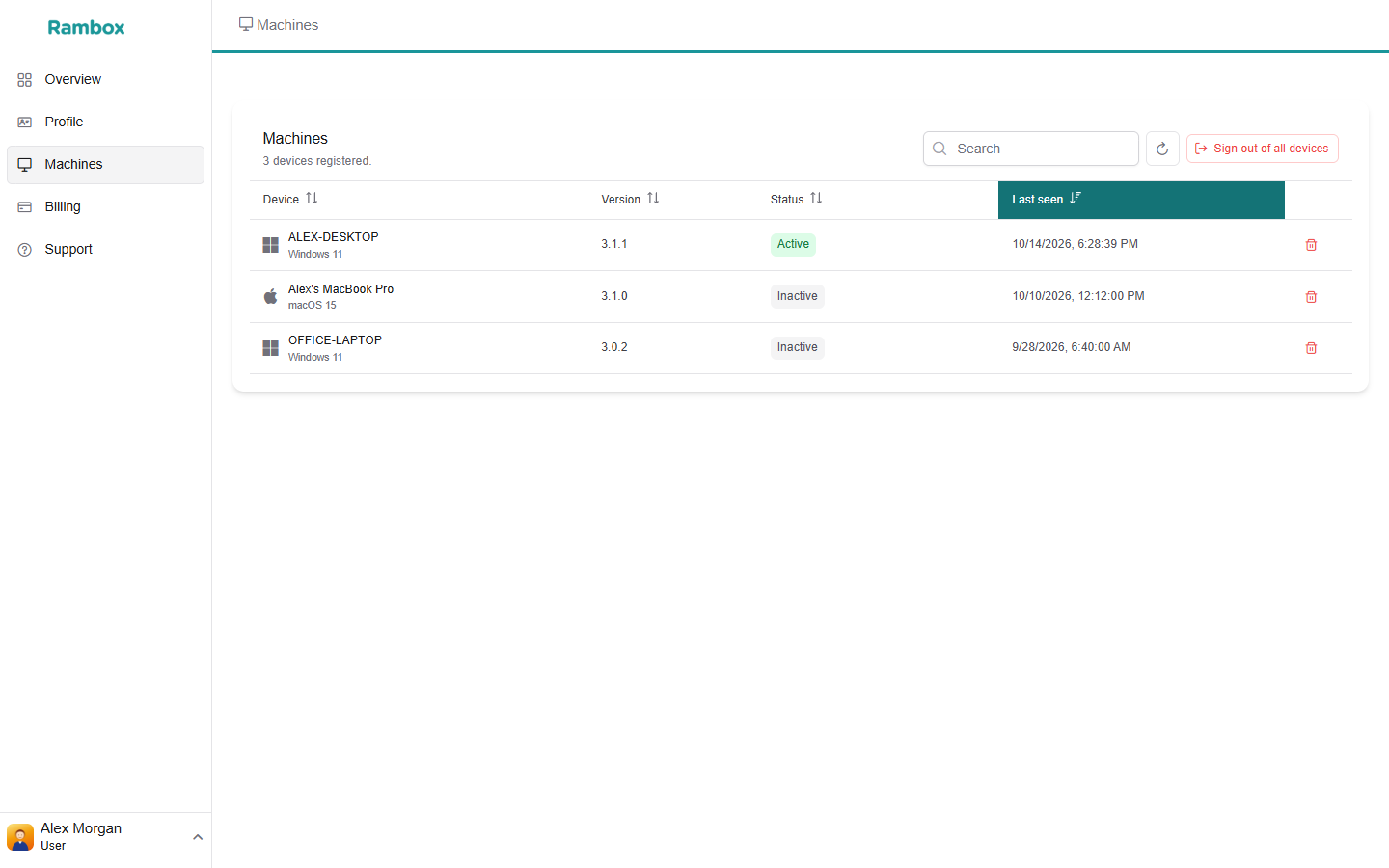
For each device you'll see its name and system, the Rambox Version, its Status (Active or Inactive) and when it was Last seen.
Remove a device
Click the trash icon (Remove device) next to it and confirm. That computer is signed out of Rambox and shows "You have been logged out remotely." To use Rambox there again, you'll need to sign in.
Removing a computer you no longer use (for example, an old laptop) keeps your device list tidy.
Sign out of all devices
Click Sign out of all devices and confirm. Every computer signed in to your account is signed out and shows "You were signed out from another device." Useful if you think someone else may have access to your account, for example after losing a laptop. Change your password afterwards too. See How to reset my Rambox password.
Changes from Rambox 2
- Your devices are now managed in the web console, not in a panel inside Rambox.
- Rambox 2 let you mark up to 2 devices as primary (so they were never made inactive) and deactivate another device by hand. Rambox 3 doesn't have these buttons: the device you used least recently is made inactive automatically, and you can remove any device from the console.