How to reset my Rambox password
Forgot your Rambox password? Request a reset link from the sign-in page, or change your password from the Rambox Console if you are signed in.
If you forgot your Rambox password, you can set a new one from the sign-in page in a couple of minutes. If you know your password and just want to change it, see Change your password while signed in below.
Reset a forgotten password
Open the Rambox sign-in page:
- From the Rambox app: on the Welcome screen click Sign in, then Continue with your browser. The sign-in page opens in your browser.
- From any browser: go to auth.rambox.app.
Click Forgot password? under the password field.
In Reset your password, enter your email and click Send reset link.
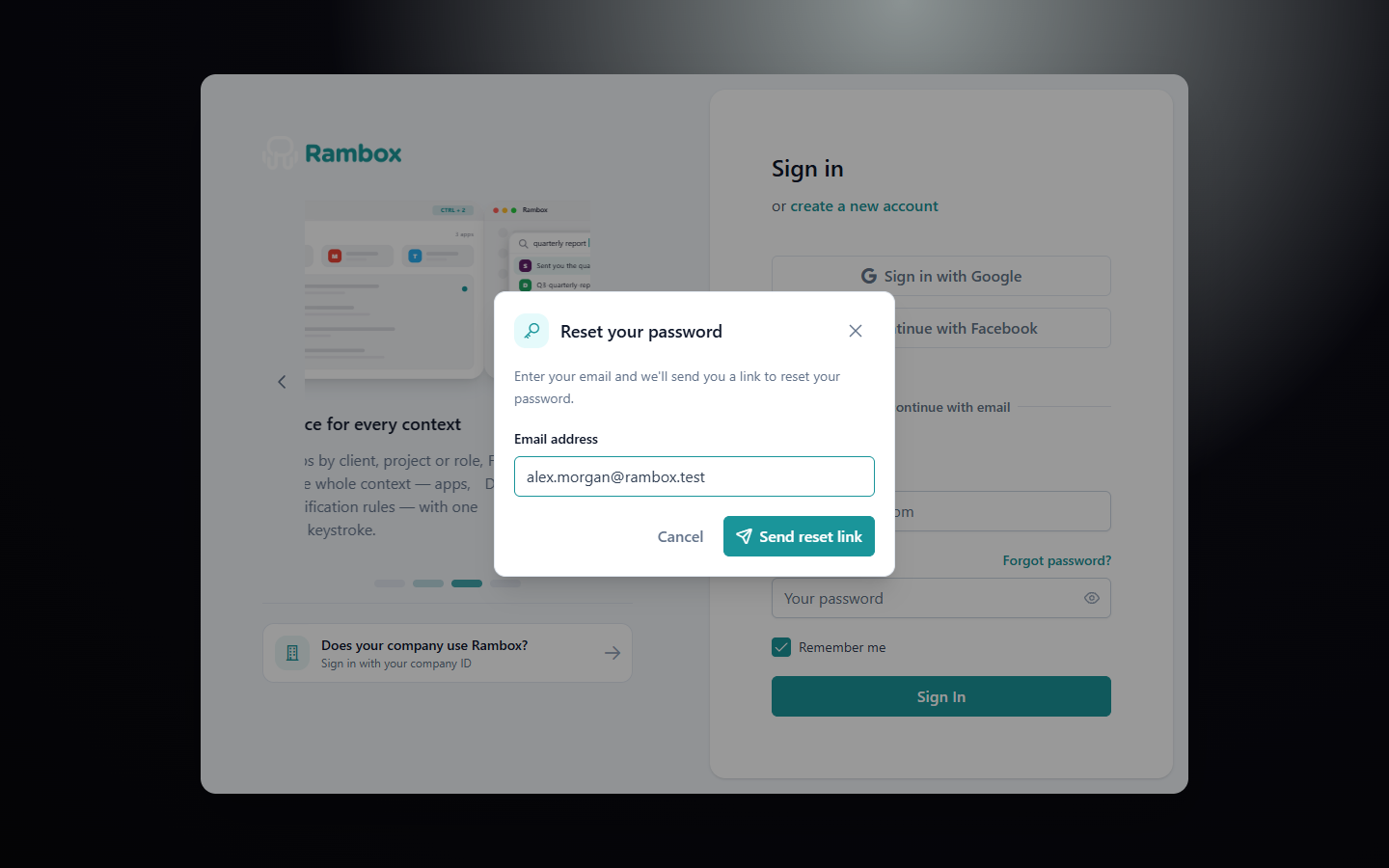
You see "Check your email. If an account exists for this address, you'll receive a password reset link shortly." Open the email from Rambox and click the link in it.
On the Reset your password page, type your New password (at least 6 characters) and repeat it in Confirm password.
Click Set new password.
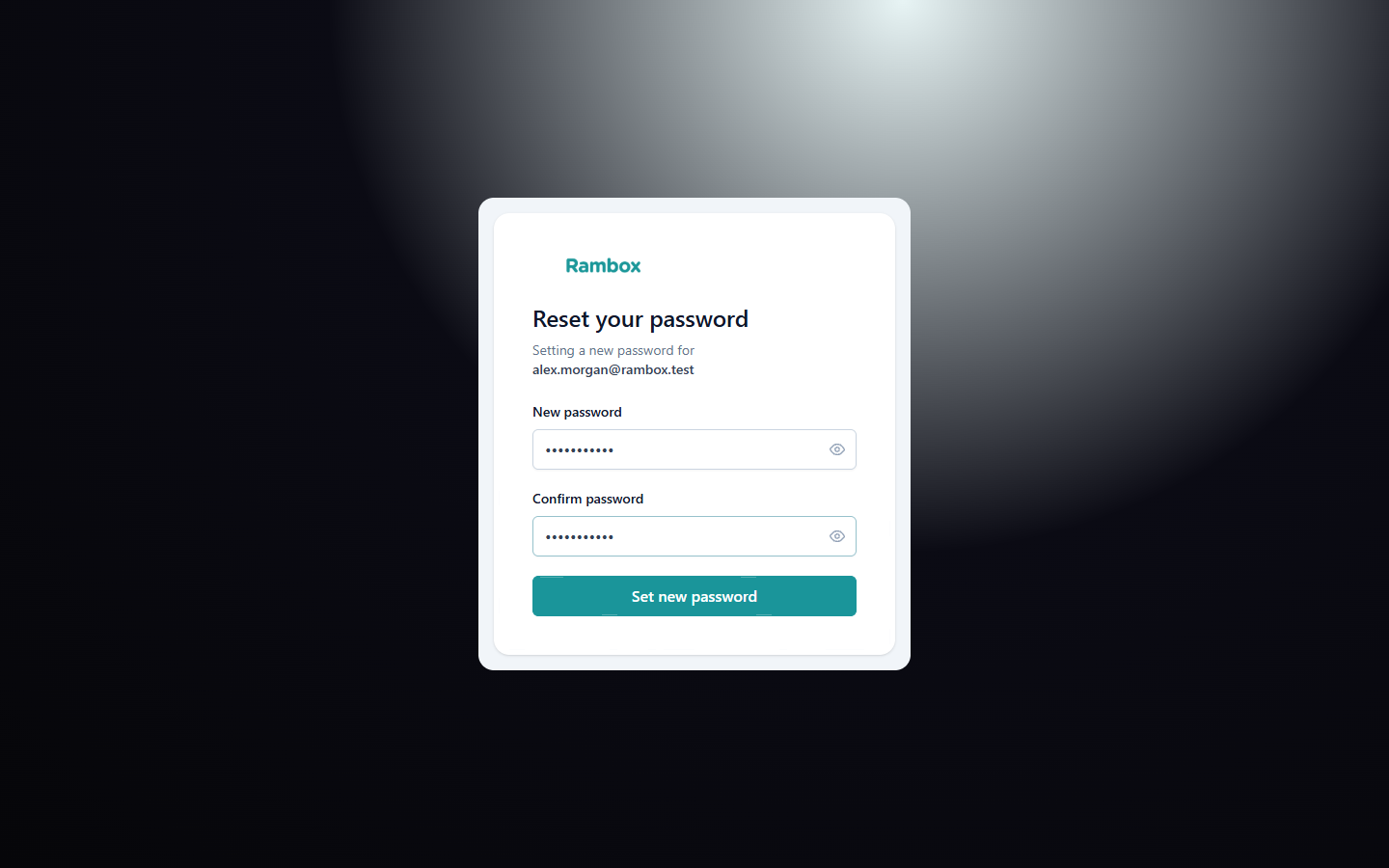
You see Password updated! Click Back to sign in and sign in with your new password.
The link says "Link expired"
Each reset link works only once and for a limited time. If you see "This password reset link has expired or was already used", go back to step 2 and ask for a new one. Always use the most recent email.
If the email doesn't arrive, check your spam folder and see Not receiving emails from Rambox.
Do you sign in with Google or Facebook?
If you created your account with Sign in with Google or Continue with Facebook, you may not have a Rambox password at all. Just sign in with the same button. If you want a password too, you can create one from the Console (see below).
Enterprise accounts
If your email belongs to a company's Rambox Enterprise organization, the reset dialog says "This email belongs to an Enterprise workspace. Reset your password from your company's sign-in page." Click Enterprise Sign In, enter your company ID, and use Forgot password? on your company's sign-in page.
Change your password while signed in
- In the Rambox app, click your profile picture at the bottom of the sidebar and choose Profile. The Rambox Console opens in your browser.
- In Sign-in & security, click Change password.
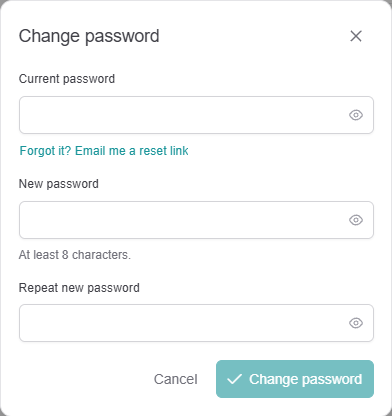
- Enter your Current password, then your New password (at least 8 characters) and Repeat new password.
- Click Change password.
You see "Password changed". Your other computers may ask you to sign in again.
- Forgot the current one? Click Forgot it? Email me a reset link in the same dialog.
- No password yet? If you only sign in with Google or Facebook, the section says "You don't have a password yet." Click Email me a link and follow the link to create one.