
How to check for updates?
How Rambox 3 updates itself, how to check for a new version by hand, and what to do on Linux.
New versions of Rambox bring new features, fixes and the latest security updates from Chromium, so it's worth staying up to date. Most of the time you don't need to do anything: Rambox checks for updates on its own.
How automatic updates work (Windows and macOS)
- Rambox checks for a new version every time it starts and then every 4 hours while it's running.
- If Automatically download updates is on (the default), the new version downloads in the background. You'll see: "An updated version is downloading in the background, we will notify you when it is ready to be installed."
- When it's ready, a banner appears: New version available! Press "Restart now" to quit Rambox and install the new version. Click Restart now to update right away, or Later to keep working. Release notes shows what's new.

If you choose Later, you can install the update whenever you want: click your avatar at the bottom of the sidebar and choose Restart to apply update. A colored dot on your avatar reminds you that an update is waiting.
Check for updates by hand
- Open the About Rambox window:
- Windows and Linux: click the Menu button at the top-left of the window, then Help → About Rambox.
- macOS: in the menu bar, choose Rambox → About Rambox.
- Click Check now!.
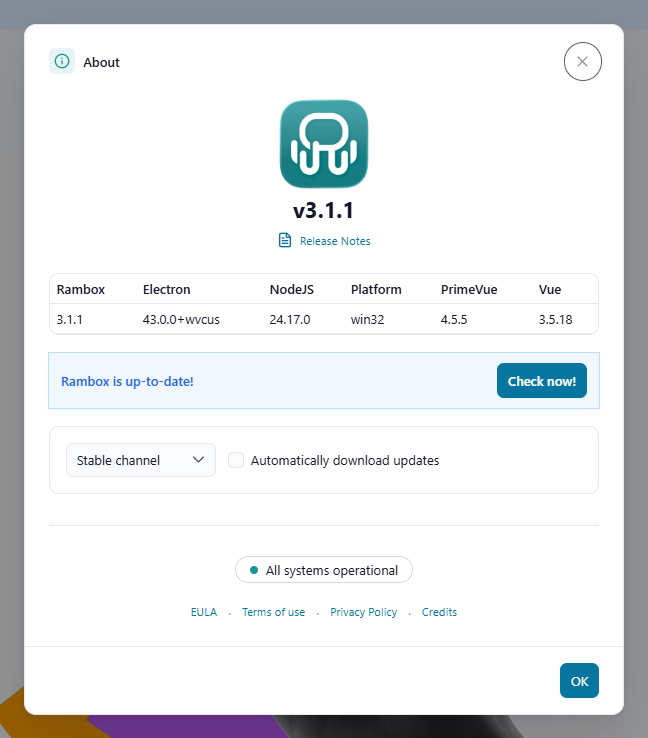
You'll see one of these messages:
| Message | What it means |
|---|---|
| Rambox is up-to-date! | You already have the latest version. |
| A new version is available! | Click Download now! to get it. |
| Downloading {version}... | The update is downloading. You can Cancel it. |
| The new version has been downloaded and is ready to install. | Click Restart to install it. |
| There was an error. Try again later or update manually. | Try again later, or use Update manually / Download manually to get the installer from the website. |
Options in the About window
- Automatically download updates: downloads new versions in the background as soon as they're found. If you turn it off, Rambox only tells you A new version is available! and you download it yourself.
- Stable channel / Beta channel: choose Beta channel to get new features before everyone else. See How to enroll for the Rambox beta program.
Linux
Rambox doesn't install updates by itself on Linux. Instead, it checks for new versions and, when there is one, offers a download of the right package for your system: click your avatar and choose Download the new version. Then install it the same way you installed Rambox the first time. If you installed it from a software store such as the Snap Store, update it from there.
The Automatically download updates option isn't shown on Linux.
When automatic updates aren't available
Some copies of Rambox can't update themselves, for example versions installed from an app store. In that case, the About window shows This version does not support automatic updates. Update through the store you installed it from, or download the latest version from rambox.app.
See Rambox is not updating automatically if you expected an update and didn't get one.
When your version is too old
- A banner such as This version will no longer be supported {time}. Please, update to keep using Rambox. means you should update soon.
- If your version is no longer supported, Rambox shows a full screen saying Your version is no longer supported or Your version is outdated, with a button to download the latest version. You need to update to keep using Rambox.
See Why can't my version get updates?.