
Keyboard shortcuts
Every keyboard shortcut in Rambox for Windows, Linux and macOS, and how to turn them on or off.
Most of what you do in Rambox can be done from the keyboard: jump between apps and workspaces, open the Command Center, start Focus mode, lock Rambox and more. This page lists every shortcut, with the Windows/Linux keys and the macOS keys side by side.
Shortcuts work even while you're typing inside an app.
Turn shortcuts on or off
If a Rambox shortcut clashes with one you use inside an app (or in another program), you can switch it off:
- Click your avatar at the bottom of the sidebar.
- Click Shortcuts.
- Turn off the switch next to the shortcut you don't want. Turn it on again to bring it back.
- Click Save and close.
The panel groups shortcuts into App/Workspace navigation and Sections and Features, and shows the keys for your system. These settings are saved on each computer, so you can have different choices on different machines.
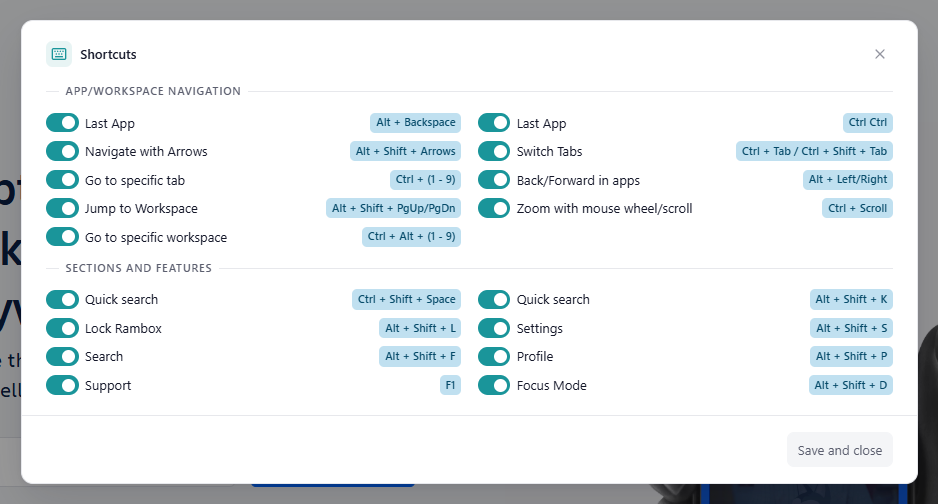
The shortcuts marked Yes in the "Can be turned off" column below are the ones in this panel. The others are always on.
App and workspace navigation
| Action | Windows / Linux | macOS | Can be turned off |
|---|---|---|---|
| Last App: go back to the app you were using before | Alt+Backspace | Alt+Backspace | Yes |
| Last App (alternative) | Press Ctrl twice | Press ⌘ twice | Yes |
| Navigate with Arrows: move to the next or previous app, or up and down between workspaces | Alt+Shift+← → ↑ ↓ | ⌘+Alt+← → ↑ ↓ | Yes |
| Switch Tabs: next / previous app | Ctrl+Tab / Ctrl+Shift+Tab | Ctrl+Tab / Ctrl+Shift+Tab | Yes |
| Go to specific tab: the 1st to 9th app of the current workspace | Ctrl+1 … 9 | ⌘+1 … 9 | Yes |
| Jump to Workspace: next / previous workspace | Alt+Shift+PgUp / PgDn | ⌘+Alt+PgUp / PgDn | Yes |
| Go to specific workspace: the 1st to 9th workspace | Ctrl+Alt+1 … 9 | ⌘+Alt+1 … 9 | Yes |
| Back/Forward in apps: go back or forward inside the current app | Alt+← / Alt+→ | ⌘+← / ⌘+→ | Yes |
| Zoom with mouse wheel/scroll: zoom the current app | Ctrl+scroll | ⌘+scroll | Yes |
Notes:
- Navigate with Arrows follows the position of your app bar (Settings → Appearance → Apps position): one pair of arrows moves between apps, the other moves between workspaces.
- On Mac laptops without PgUp and PgDn keys, use Fn+↑ and Fn+↓: ⌘+Alt+Fn+↑ / ↓.
- Your mouse's back and forward buttons also go back and forward inside the current app.
- Go to specific workspace is new in Rambox 3. If it doesn't respond, open the Shortcuts panel, make sure its switch is on and click Save and close.
Sections and features
| Action | Windows / Linux | macOS | Can be turned off |
|---|---|---|---|
| Command Center (global: works even when Rambox isn't in front) | Ctrl+Shift+Space | ⌘+Shift+Space | Change it in the Command Center's Settings |
| Quick search: open the Command Center | Alt+Shift+K | ⌘+Alt+K | Yes |
| Open the Command Center | Ctrl+K | ⌘+K | No |
| Search: find text inside the current app | Alt+Shift+F | ⌘+Alt+F | Yes |
| Lock Rambox (needs a master password or YubiKey set up) | Alt+Shift+L | ⌘+Alt+L | Yes |
| Focus Mode: start or stop a focus session with no time limit | Alt+Shift+D | ⌘+D | Yes |
| Settings | Alt+Shift+S | ⌘+, | Yes |
| Profile: open your account page in the browser | Alt+Shift+P | ⌘+Alt+P | Yes |
| Support: open the Help Center in your browser | F1 (also Ctrl+F1) | F1 (also ⌘+F1) | F1 only |
| Quick View: see all your apps at once | Ctrl+Shift+Q | ⌘+Shift+Q | No |
| Apps manager | Alt+Shift+Del | Alt+Shift+Del | No |
Notes:
- The Command Center's global shortcut can be changed to any combination you like. See Command Center. Inside Rambox, the same Ctrl+Shift+Space (macOS ⌘+Shift+Space) also appears in the Shortcuts panel as Quick search.
- On Mac laptops without a Del key, press Fn+Backspace instead: Alt+Shift+Fn+Backspace.
- The Support shortcut is hidden if your organization has turned off support access.
Zoom
| Action | Windows / Linux | macOS |
|---|---|---|
| Zoom in the current app | Ctrl++ | ⌘++ |
| Zoom out the current app | Ctrl+- | ⌘+- |
| Reset the current app's zoom | Ctrl+0 | ⌘+0 |
| Zoom in all of Rambox | Ctrl+Alt++ | ⌘+Alt++ |
| Zoom out all of Rambox | Ctrl+Alt+- | ⌘+Alt+- |
| Reset Rambox's zoom | Ctrl+Alt+0 | ⌘+Alt+0 |
Rambox remembers each app's zoom level. You can also zoom from the View menu, or by right-clicking inside an app and choosing Zoom.
App and window
| Action | Windows / Linux | macOS |
|---|---|---|
| Reload the current app | F5 or Ctrl+R | F5 or ⌘+R |
| Full screen | F11 | F11 |
| Minimize the window | Ctrl+M | ⌘+M |
| Close the window | Ctrl+W | ⌘+W |
| Quit Rambox | Ctrl+Q | ⌘+Q |
| Emojis and symbols | — | ⌘+Ctrl+Space |
When you quit with the keyboard, Rambox asks Are you sure you want to exit? To stop that question, tick Do not ask me again, or turn off Confirm dialog on quitting with Ctrl + Q (macOS: Cmd + Q) in Settings → General.
Find inside an app
After pressing Alt+Shift+F (macOS: ⌘+Alt+F):
| Action | Key |
|---|---|
| Next match | Enter |
| Previous match | Shift+Enter |
| Close the search | Esc |
See How to search inside an app.
Link handling
Use these key + click combinations on a link inside an app to open it in a different way:
| Action | Windows / Linux | macOS |
|---|---|---|
| Open the link in a new tab | Shift+click | Shift+click |
| Open the link in the background | Middle-click or Ctrl+click | Middle-click or ⌘+click |
| Choose how to open the link | Ctrl+Shift+click | ⌘+Shift+click |
You'll also find these combinations under the Tips! button next to Link handling in each app's settings. Learn more in Link handling.
Command Center keys
Inside the Command Center:
| Action | Key |
|---|---|
| Move through the results | ↑ / ↓ |
| Open the selected result | Enter |
| Close the Command Center | Esc |
Using Rambox 2?
A few shortcuts changed in Rambox 3:
- Settings on macOS is now ⌘+, (it was Alt+S).
- Profile on macOS is now ⌘+Alt+P (it was Alt+P), and it opens your account page in the browser.
- Go to specific tab goes from 1 to 9 (there's no 0 any more).
- Quick search now opens the Command Center, and the Google search shortcut (Ctrl+E) is gone.
- New: Go to specific workspace, Ctrl+K for the Command Center, Quick View, and reload with F5 / Ctrl+R.