Apps manager and alerts
See how much memory and CPU each app uses, get alerts when an app misbehaves, and understand the other notices Rambox shows inside apps.
When you have many apps open, one of them can slow everything down: a chat that keeps the processor busy, or a page that keeps using more and more memory. Rambox helps you spot and fix these cases with the Apps manager, and warns you on its own when it notices an app consuming too much. This article also covers the other notices you may see inside an app: blocked pop-ups and messages from the Rambox team.
The Apps manager and the alerts are available on every plan.
Apps manager
The Apps manager shows, in real time, the memory and CPU each of your apps (and Rambox's own processes) is using, so you can find the one that's slowing things down.
Open it
- Press Alt+Shift+Del. On Mac laptops without a Del key: Alt+Shift+Fn+Backspace.
- Windows and Linux: click the Menu button (☰) at the top-left of the window, then View → Apps manager. (On Linux, you can also use the menu bar; press Alt if it's hidden.)
- macOS: in the menu bar, View → Apps manager.
What you see
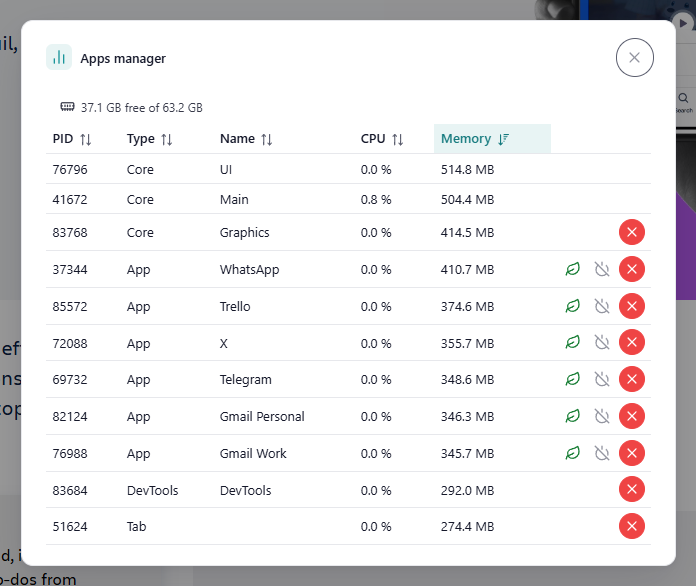
| Column | Meaning |
|---|---|
| PID | The process number your operating system gives this app. |
| Type | What kind of process it is (an app, or one of Rambox's own processes). |
| Name | The app's name. If you have an app's Developer Tools open, that window is listed too, as DevTools. |
| CPU | How much of the processor it's using right now. |
| Memory | How much memory (RAM) it's using. |
Click a column header to sort by it. For example, sort by Memory to see the heaviest apps first. At the top you'll also see how much memory your computer has free ({free} GB free of {total} GB).
Actions
Each app's row has icon buttons (hover over them to see their names):
- Hibernate app: puts the app to sleep and frees the memory it uses. It wakes up when you open it again. See How to hibernate apps.
- Disable app: turns the app off until you enable it again.
- Kill process: forces that process to close immediately. Use it only when an app is frozen and nothing else works. Rambox's core processes can't be killed from here.
Consumption alerts
Rambox keeps an eye on your apps in the background. When an app uses an unusual amount of resources, a message appears in the corner of the window:
- {app}: CPU overflow!: the app is using an unusual amount of processor for a sustained time.
- {app} : High CPU consumption in idle: the app is keeping the processor busy even though you aren't using it.
- {app}: high memory usage: your computer is running low on memory and this app is using a large part of it. The message tells you how much.
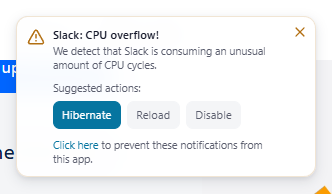
Under Suggested actions: you can pick:
- Hibernate: puts the app to sleep until you open it again. Good for a quick break in consumption.
- Reload: reloads the app. Good when it's a one-off problem.
- Disable: turns the app off. Good when it keeps happening, which may mean the app itself has a problem.
Stop alerts for one app
Click Click here in the message (Click here to prevent these notifications from this app.). Rambox stops showing consumption alerts for that app.
Stop all consumption alerts
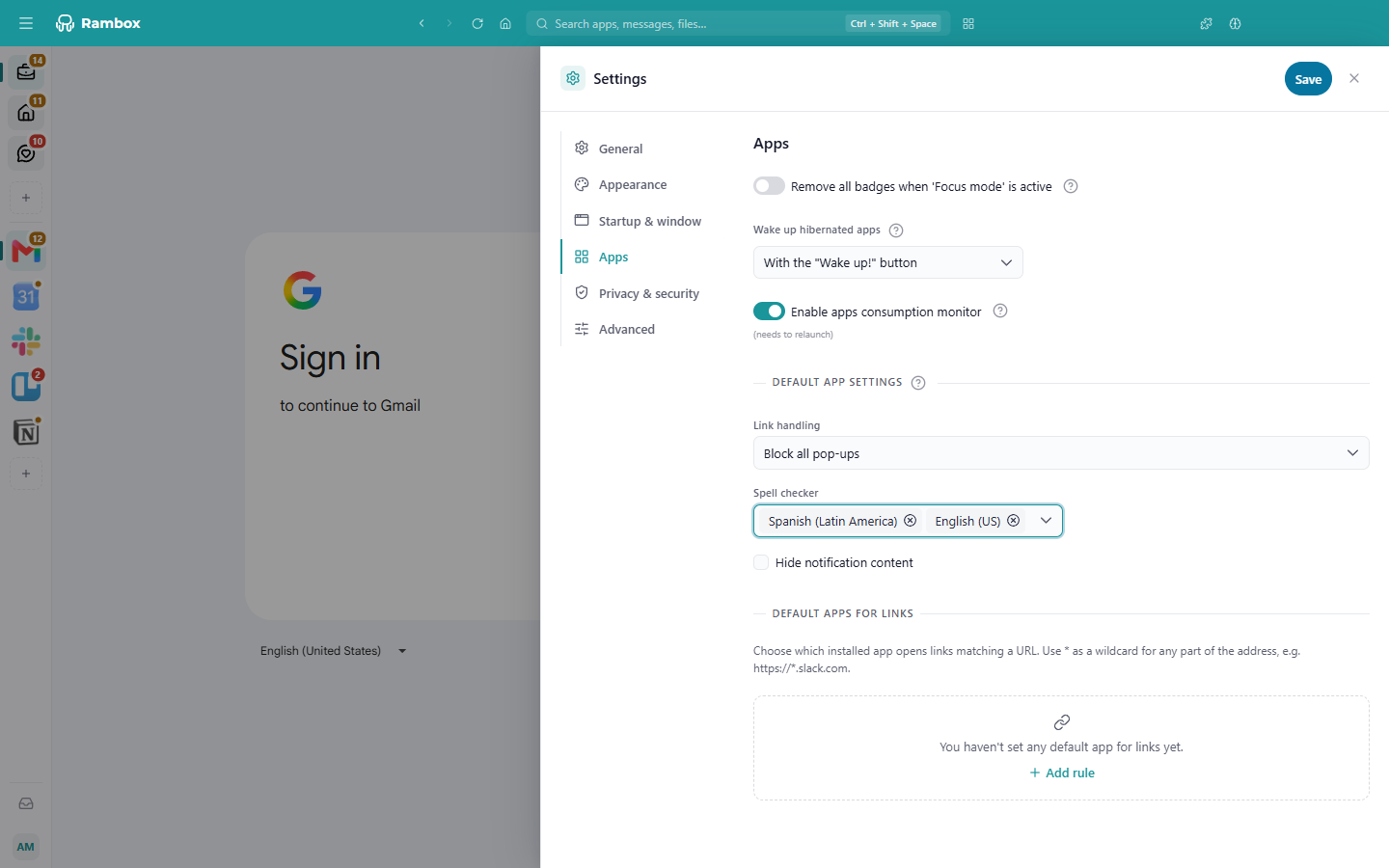
- Open Settings (click your avatar at the bottom of the sidebar, then Settings).
- Go to the Apps tab.
- Turn off Enable apps consumption monitor.
- Click Save and restart Rambox when asked.
Blocked pop-up notice
If an app's Link handling is set to Block all pop-ups (the default for new apps) and the app tries to open a pop-up window, Rambox blocks it and shows a small warning box below the title bar: A popup was blocked. Click on "Choose how to open it" to select a "Link handling" option.
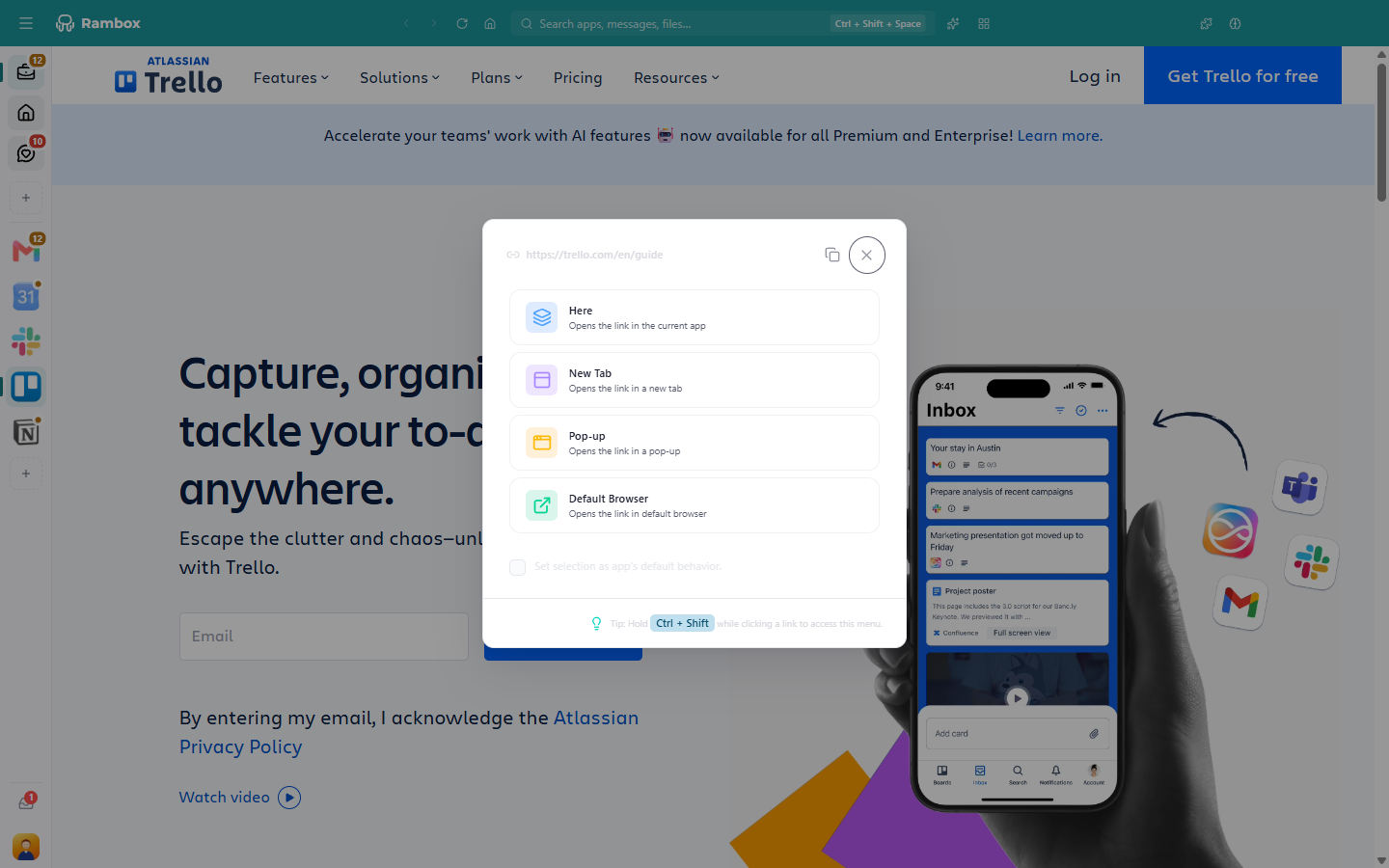
Open in browser once opens that link in your default browser, just this time.
Choose how to open it opens a window that shows the link and lets you pick:
- Here: opens the link in the current app;
- New Tab: opens it in a new tab inside the app;
- Pop-up: opens it in a pop-up window;
- Default Browser: opens it in your default browser.
Tick Set selection as app's default behavior. to use that option for every link from this app from now on (not available for Here). The copy icon next to the link (Copy URL) copies it instead.
You can change this later in the app's settings, under Link handling. Learn more in Link handling and Why are pop-ups blocked?
Notes from the Rambox team
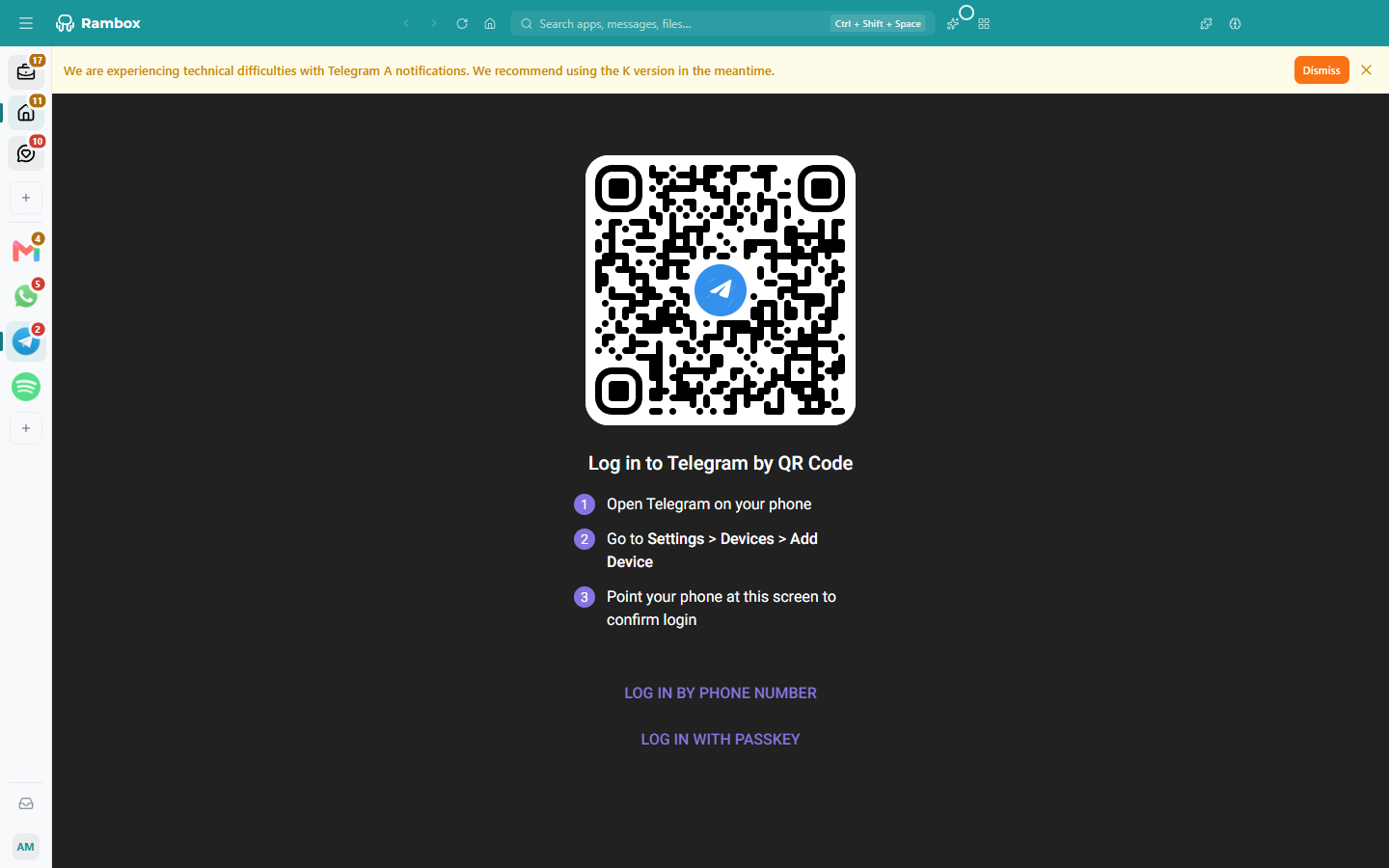
Sometimes a service changes something that affects how it works inside Rambox: a new version, a known issue, or problems on its servers. When that happens, the Rambox team may add a note to that app. You'll see it as a banner at the top of the app: blue for information, yellow for a warning, red for an error. Click Dismiss to hide it.