
How to set and remove your Master Password?
Lock Rambox with a Master Password or a YubiKey so nobody else can see your apps, and remove the lock when you no longer need it.
A Master Password locks Rambox so nobody can see your apps without it, for example when you step away from a shared computer. Once it's set, Rambox asks for it:
- every time Rambox starts;
- when you lock it yourself with a keyboard shortcut;
- after a period of inactivity, if you choose to;
- when your computer locks or goes to sleep (unless you turn that off, see below).
Instead of a password, you can also unlock Rambox with a YubiKey security key.
The lock is free on every plan.
Set a Master Password
- Click your avatar at the bottom of the sidebar and choose Settings (or press Alt+Shift+S; on macOS ⌘+,).
- Open the Privacy & security tab.
- In the Security section, set Lock app to Master Password.
- Type your password in the first field (Type the new password...).
- Type it again in the second field (Confirm password...).
- Click Save at the top of Settings.
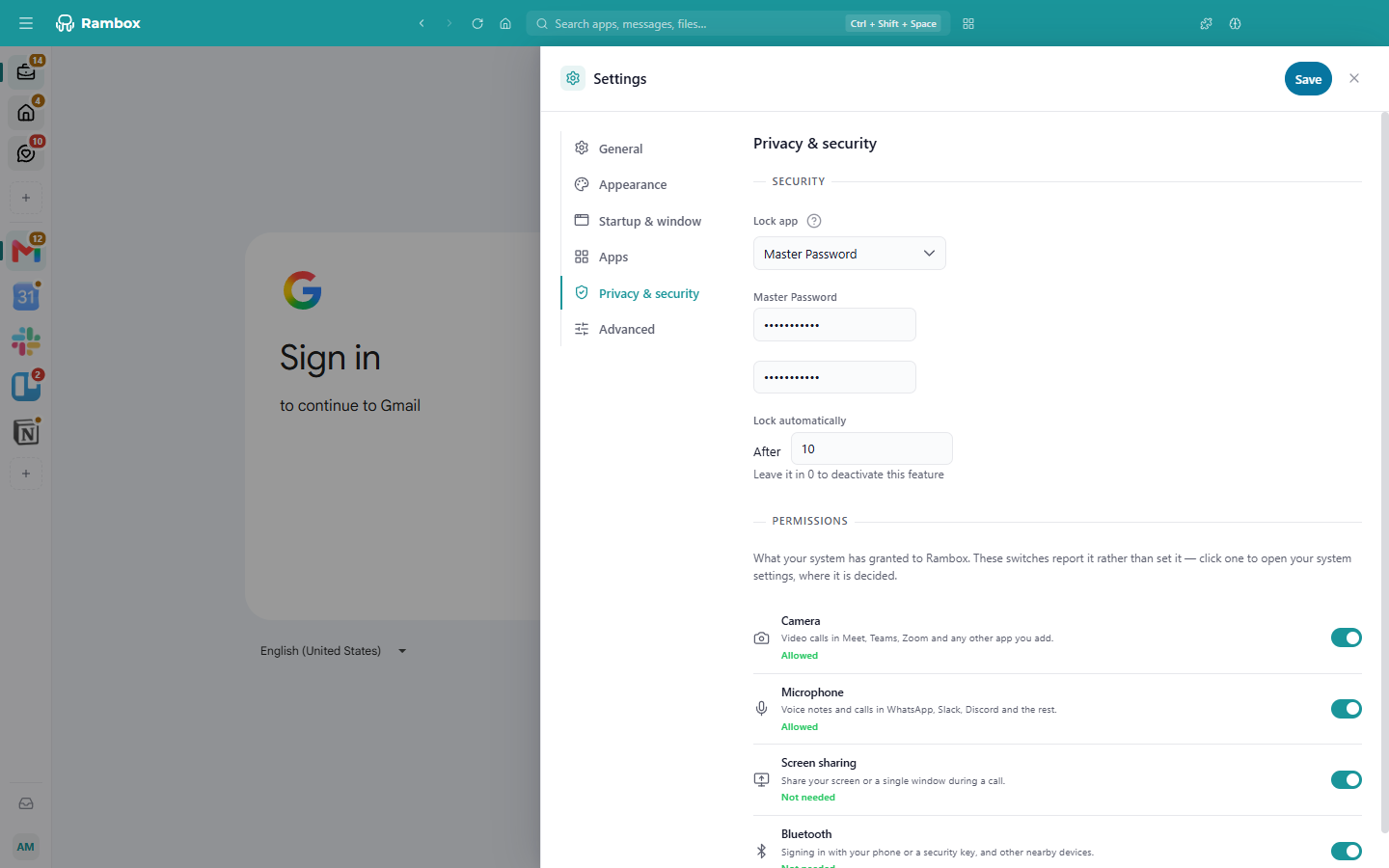
If the two passwords don't match, you'll see The password doesn't match! and nothing is saved.
WARNING
There is no way to recover a forgotten Master Password. Choose one you'll remember. If you forget it, see I forgot my Master Password below.
Use a YubiKey instead
- In Settings → Privacy & security, set Lock app to YubiKey.
- Click the YubiKey OTP field if it isn't already selected.
- Insert your YubiKey into a USB port and, if it has a button, tap it.
- Click Save.
To unlock Rambox, insert your YubiKey and tap it when the lock screen asks for it.
Lock automatically
In Lock automatically, enter the number of minutes after which Rambox locks itself if you don't use your computer. Leave it at 0 to turn it off. The timer counts time without any keyboard or mouse activity on your whole computer, not just in Rambox. Rambox needs to restart to apply this change.
Lock Rambox now
Press Alt+Shift+L on Windows and Linux, or ⌘+Alt+L on macOS. This only works once a Master Password or YubiKey is set.
When your computer locks or sleeps
Rambox can lock itself whenever your computer locks its screen or goes to sleep. This is controlled by Settings → General → Prevent lock app on system idle/lock:
- On: Rambox stays unlocked when your computer locks or sleeps. This is the default on Windows and Linux.
- Off: Rambox asks for your Master Password again every time your computer wakes up. This is the default on macOS.
Unlock Rambox
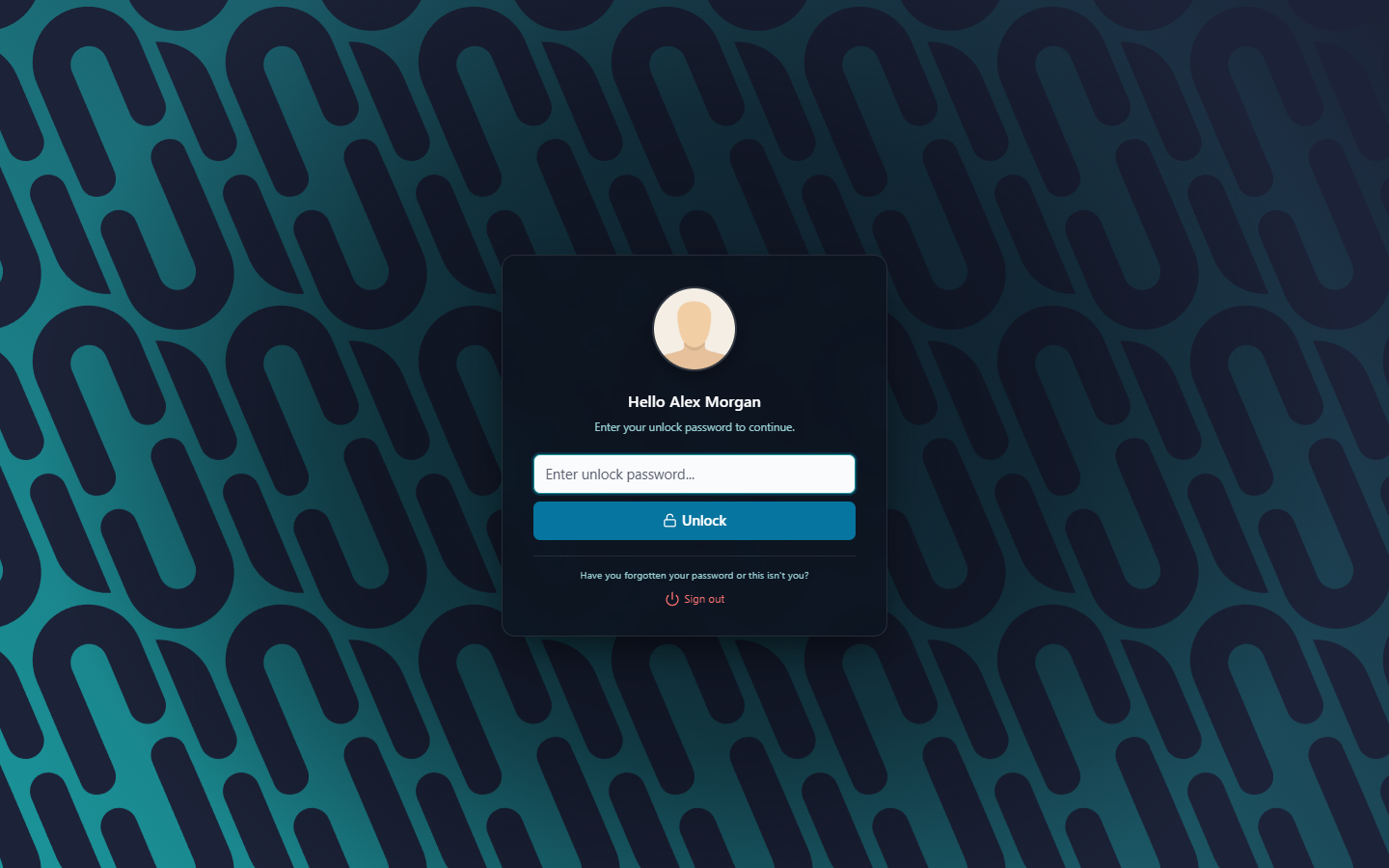
When Rambox is locked, you'll see Hello {your name}. Type your password in Enter unlock password... and click Unlock. If the password is wrong, you'll see Oops, the Master Password you entered is incorrect.
Change your Master Password
- Go to Settings → Privacy & security.
- Type the new password in Type a new password to change current... and confirm it.
- Click Save.
If you leave both fields empty, your current password stays as it is.
Remove your Master Password
- Go to Settings → Privacy & security.
- Set Lock app to Disabled.
- Click Save.
You don't need to type your current password: you can only reach Settings while Rambox is unlocked.
I forgot my Master Password
- On the lock screen, next to Have you forgotten your password or this isn't you?, click Sign out.
- Confirm when Rambox asks Are you sure you want to logout?.
- Sign in again with your Rambox account.
Signing out this way also turns the lock off on this computer, so you can set a new Master Password afterwards. Your workspaces and apps are saved in your account and come back when you sign in.
Good to know
- The lock is set per computer. Your Master Password is stored only on the computer where you set it and doesn't sync. If you use Rambox on several computers, set it on each one.
- The lock protects the Rambox window. It doesn't encrypt files on your computer. For full protection, also lock your computer when you step away.