
Connectivity issues
Rambox says it's offline, can't connect or keeps checking the connection? Find out what's blocking it and get back online.
You may be here because:
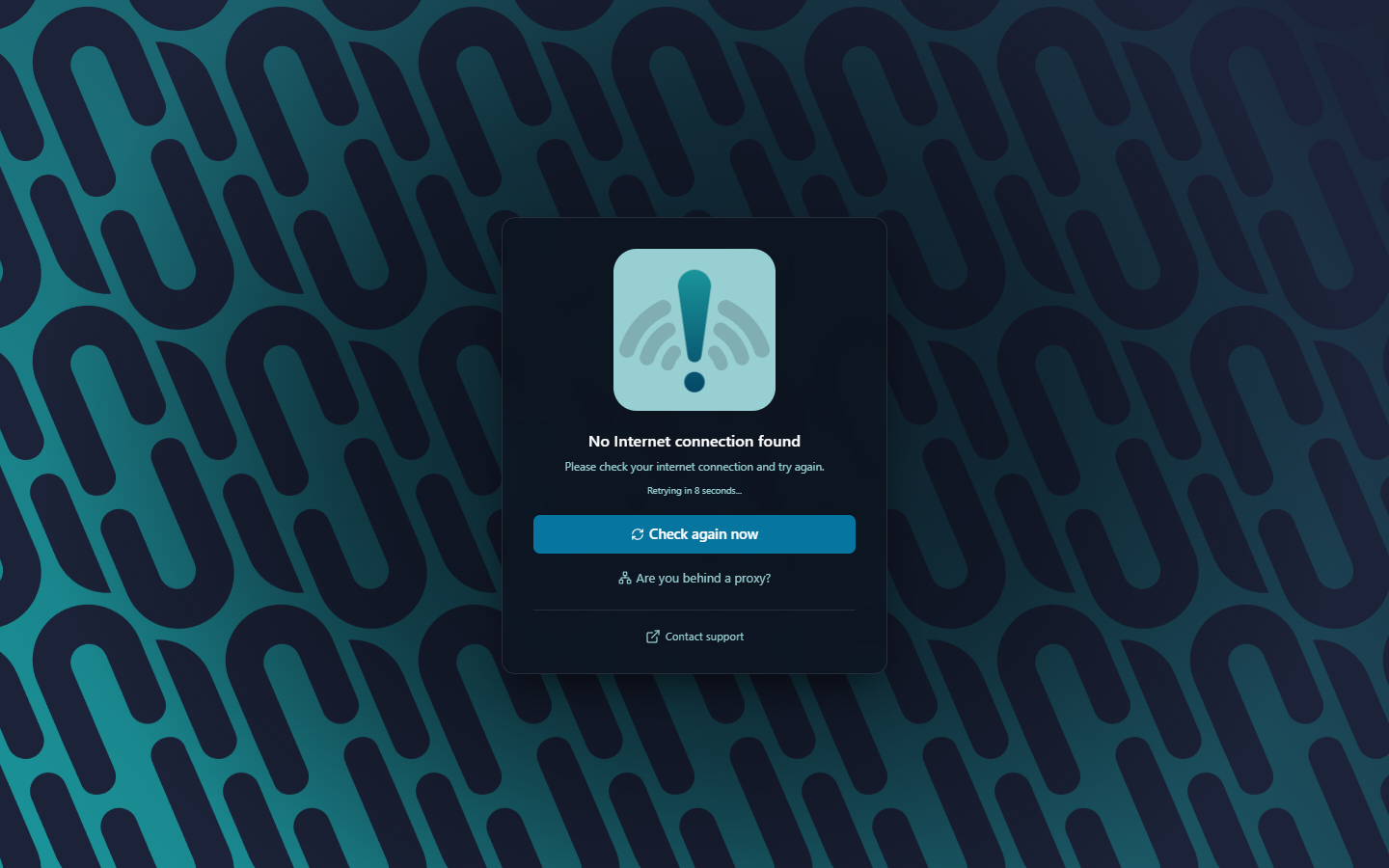
- Rambox won't start and shows No Internet connection found with a Retrying in … seconds... countdown.
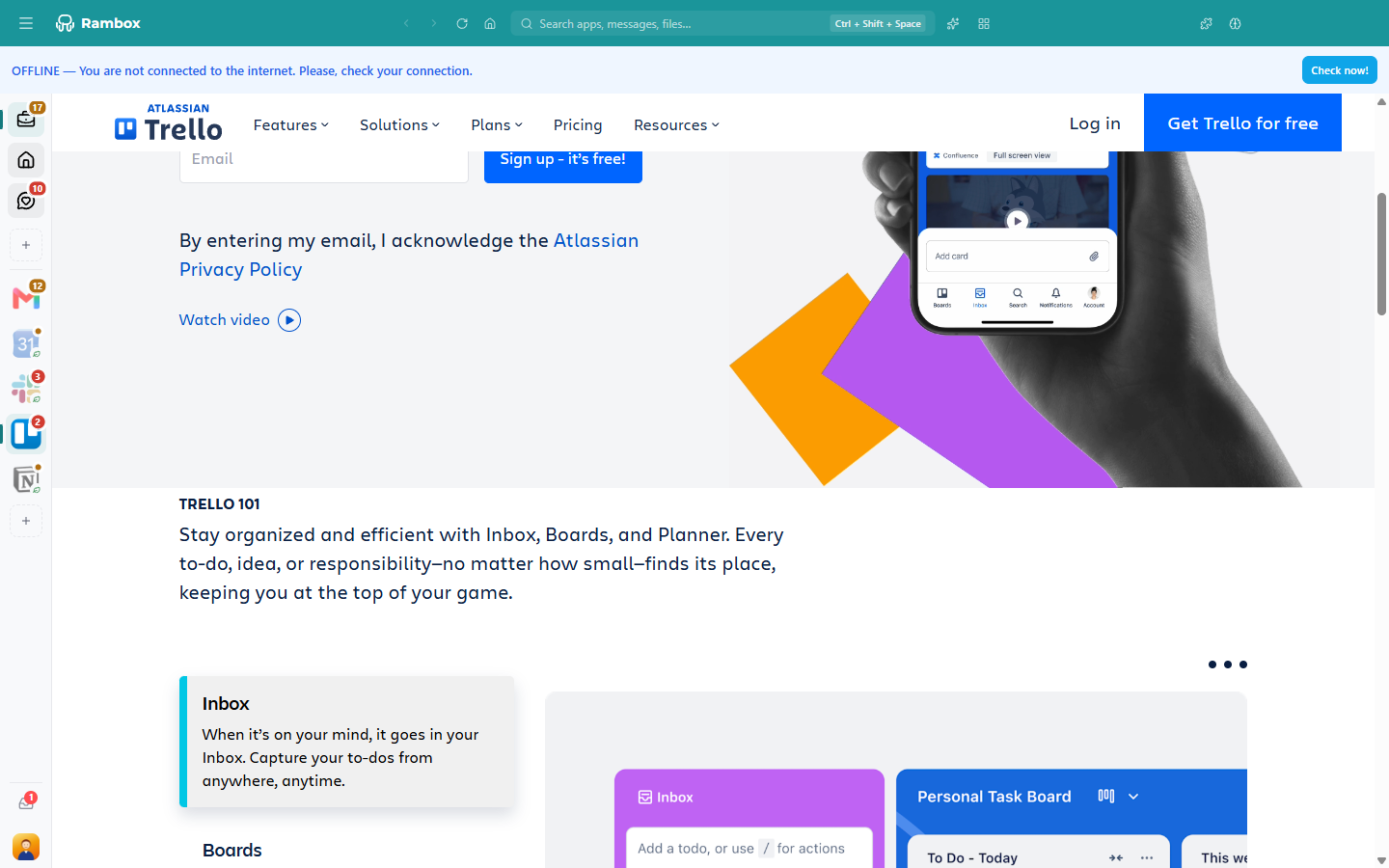
- A blue OFFLINE — You are not connected to the internet. Please, check your connection. banner appears at the top of the window.
- Apps show an error such as Name not resolved. Check your internet connection. or Connection timeout. with a Try again... button.
Likely causes
- Your computer has no internet connection, or it's unstable.
- A proxy, VPN, firewall, antivirus or custom DNS is blocking Rambox from reaching our servers.
- Our servers are having a temporary problem.
INFO
Losing the connection doesn't sign you out of Rambox right away. You can keep working offline for a while. See Offline mode.
How to fix it
1. Check your connection and try again
- Open a website in your browser to confirm you're online.
- In Rambox, click Check again now (on the offline screen) or Check now! (on the OFFLINE banner).
If an app shows a loading error, click Try again... on it once your connection is back.
2. Run the Troubleshooting tool
- Open Tools → Troubleshooting. On Windows, the Tools menu is under the Menu button (☰) at the top-left of the window.
- Click Test all.
- Look at these rows: API connection, Authentication service, Database connection, Storage server #1, Storage server #2, Remote settings #1 and Remote settings #2.
All of them should show Test: PASSED. If one or more fail, Rambox can't reach the services it needs to sign you in, load your apps and get its configuration. Keep going with the next steps. More about the tool: Troubleshooting tool.
3. Check our service status
Sometimes the problem is on our side.
- Open status.rambox.app. If everything shows as operational, the problem is on your network: continue with the next step.
- If you see an outage or scheduled maintenance, please wait. Our team is already working on it.
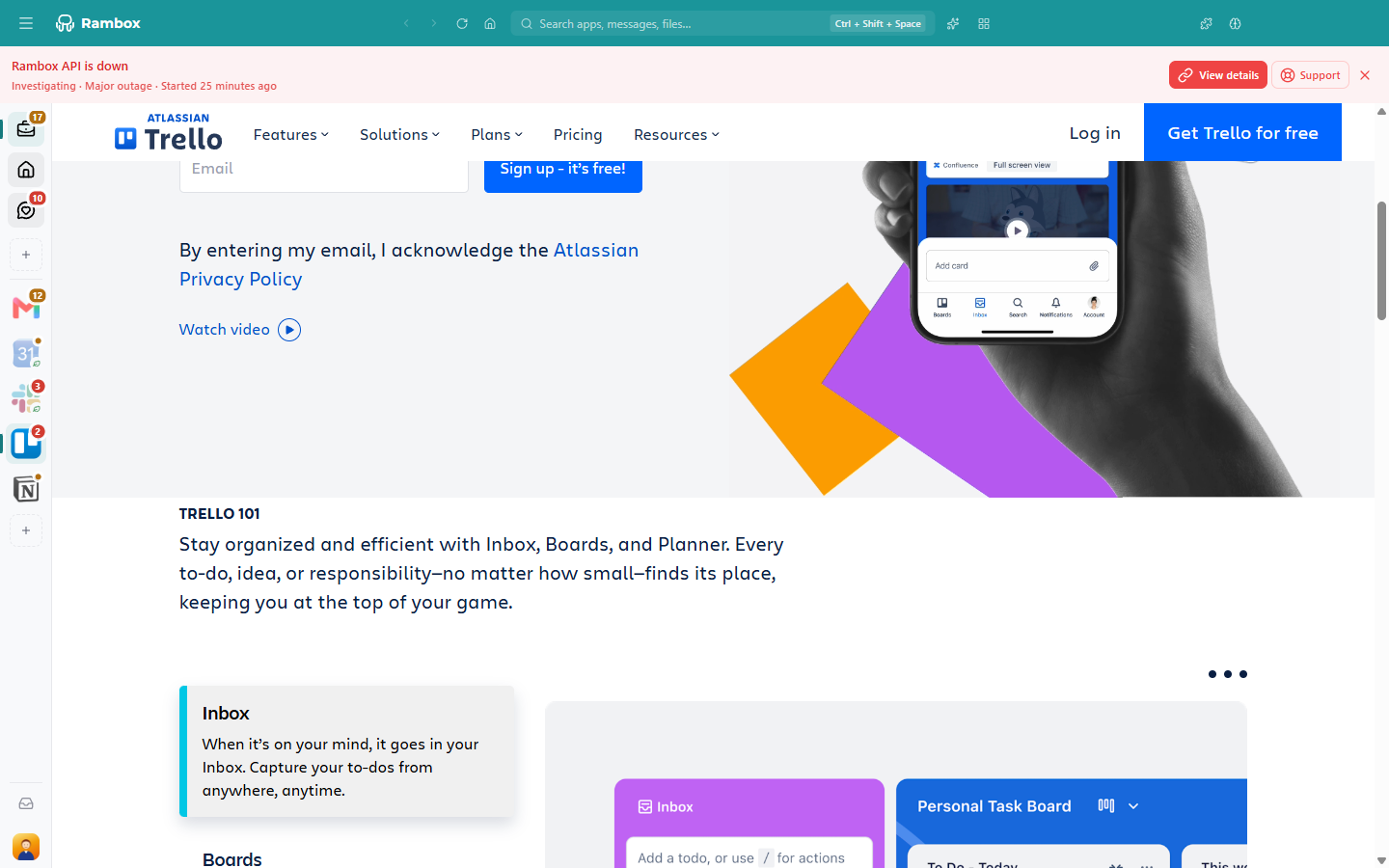
While there's an incident or maintenance, Rambox also shows a banner under the title bar (for example Scheduled maintenance or Partial outage) with a View details link.
4. Test our servers from your browser
Open these addresses in your web browser:
- https://api.rambox.app/health
- https://auth.rambox.app
- https://storage.googleapis.com/rambox-d1326.appspot.com/test.json
If they load in your browser but Rambox is still offline, something is blocking Rambox specifically (usually a firewall, antivirus or proxy rule for that program). If they don't load in the browser either, your network is blocking them.
5. Check your network setup
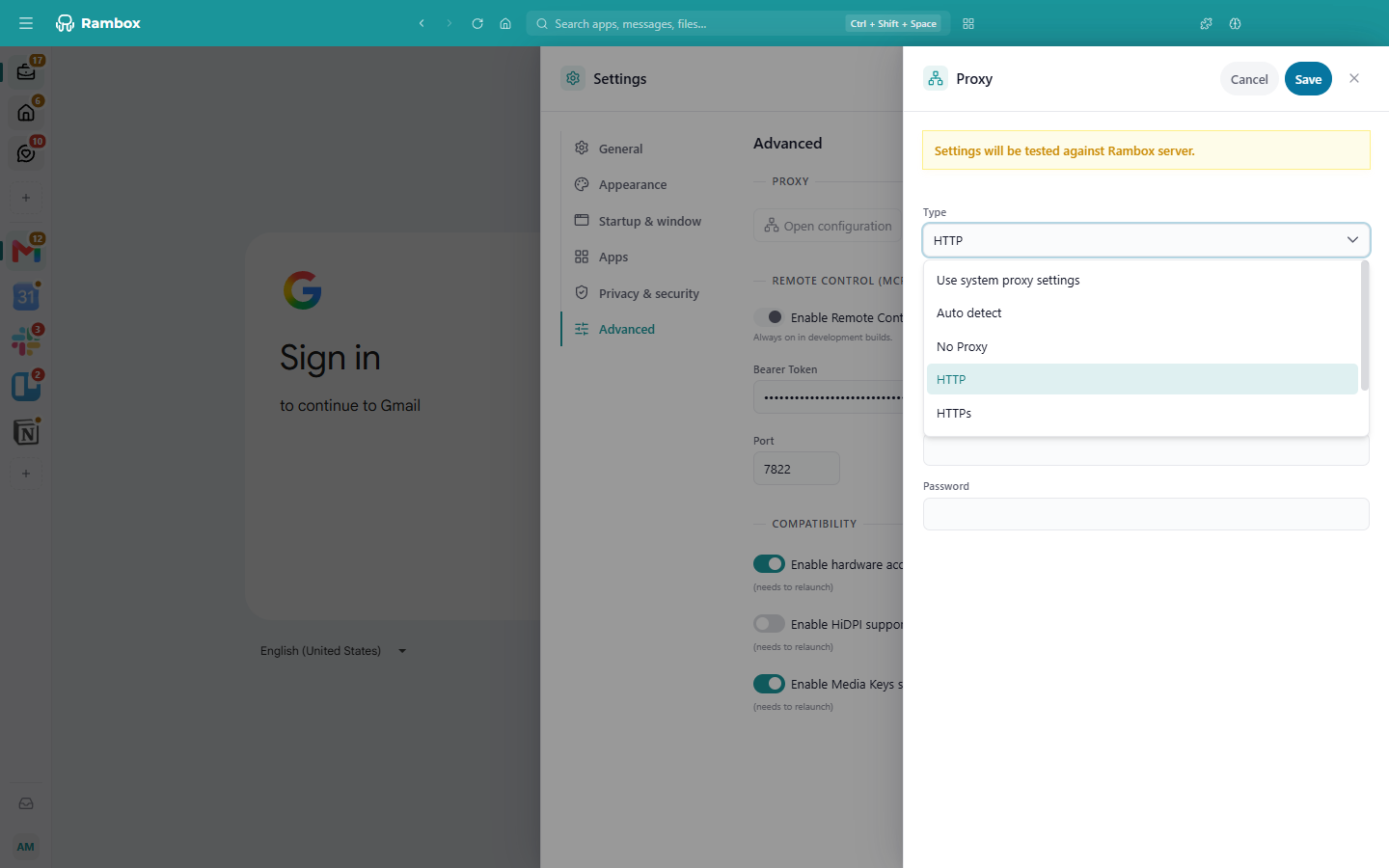
- Proxy. If your company uses a proxy, set it up in Rambox: open Settings → Advanced → Proxy and click Open configuration (or click Are you behind a proxy? on the offline screen). Choose Use system proxy settings to use the same proxy as your computer, or pick the type and fill in Host name, Port and, if needed, Username and Password. When you save, Rambox tests the proxy and shows Proxy configuration successful!, Wrong Credentials or Proxy test failed. Restart Rambox to apply it.
- VPN. Disconnect the VPN and try again. If Rambox works without it, ask your VPN provider or IT team to allow the addresses above.
- Firewall or antivirus. Make sure Rambox is allowed to access the internet. Add an exception for Rambox, or temporarily turn the protection off to test.
- DNS. If you use a custom DNS server, switch back to your internet provider's default DNS, or flush your DNS cache, and try again.
6. Restart Rambox and your computer
- Quit Rambox: Windows and Linux: File → Exit or Ctrl+Q. macOS: Rambox → Quit or ⌘+Q.
- Restart your computer.
- Open Rambox again.
When you contact support
Include:
- A screenshot of the Troubleshooting results.
- Your operating system and Rambox version.
- Whether you use a proxy, VPN, firewall/antivirus or custom DNS.
Related articles
Still not working? Request support