
Crashes and loading issues
Fix apps that won't load, freeze or crash, and what to do when Rambox itself crashes or won't start, including safe mode.
This article covers two situations: one app that won't load or doesn't work properly, and Rambox itself crashing, freezing or not starting. Try the steps in order; they go from the quickest to the most drastic.
When an app won't load or doesn't work
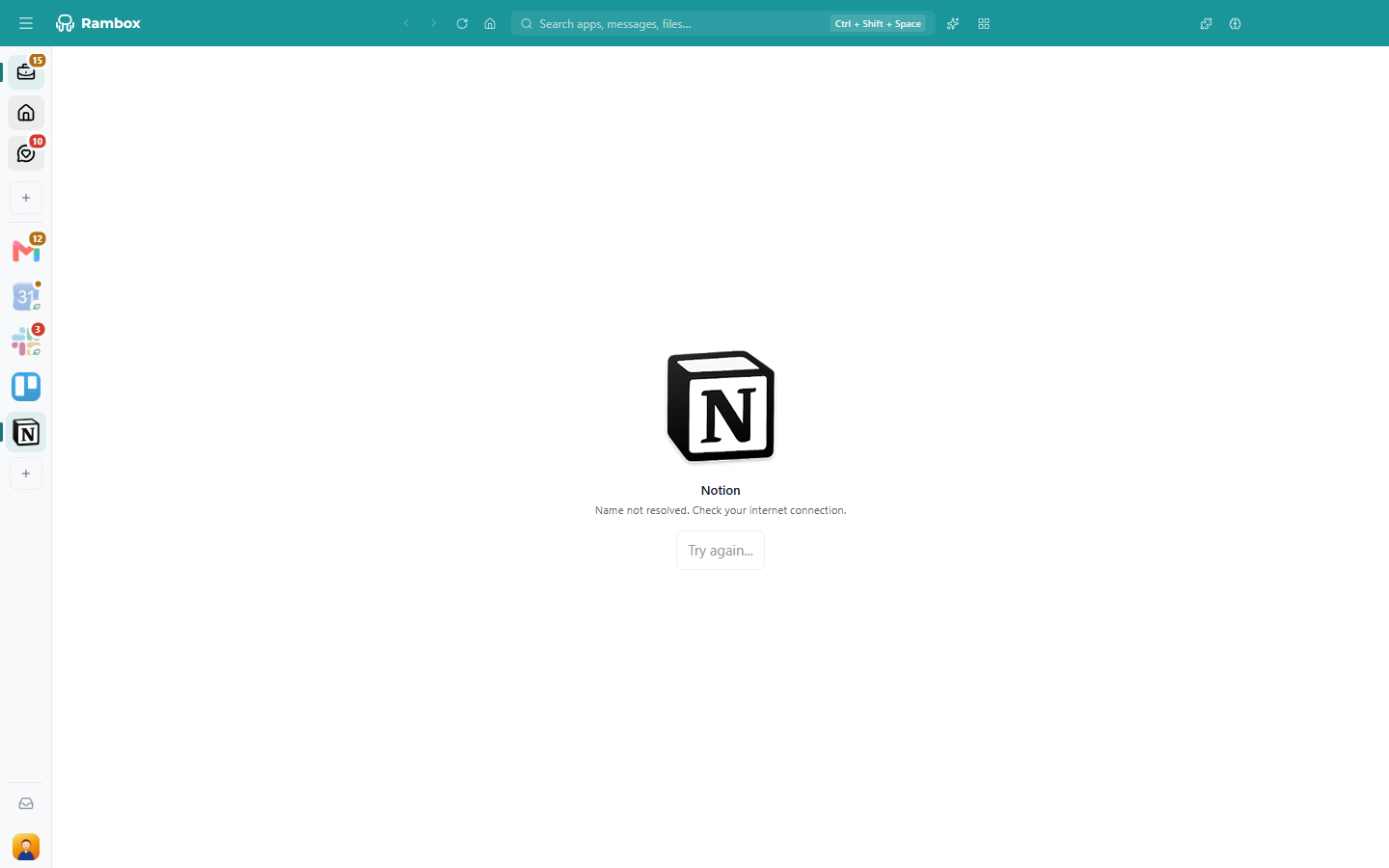
You may see a blank app, a spinner that never ends, or an error screen with the reason, such as Name not resolved. Check your internet connection., The app has crashed. or Connection timeout. When Rambox doesn't know the reason, it says The app failed at loading.
First, check the app in your browser
Rambox shows the web version of each service. Open the same address in Chrome, Firefox or Safari:
- It doesn't work in the browser either: the service itself or your connection is the problem. Check the service's status page or Connectivity issues.
- It works in the browser: continue with the steps below.
1. Check the app's state
- Waiting for app's turn to load...: Rambox loads apps one at a time when it starts. Click Load now! to load it right away. See Why is my app waiting for its turn?
- Do you want to wake it up?: the app is hibernated. Click Wake up!. See How to hibernate apps.
- This app is disabled. Do you want to enable it?: click Enable.
- The app failed at loading. or another error (such as Connection timeout.): click Try again....
2. Reload the app
Press F5 or Ctrl+R (macOS: ⌘+R), or right-click inside the app and choose Reload.
3. Stop the app's process
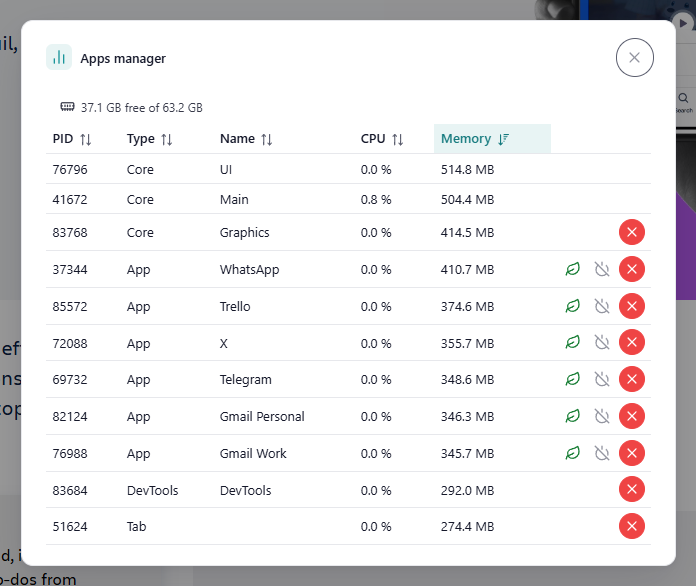
If the app is frozen, open the Apps manager: press Shift+Alt+Del, or go to View → Apps manager (on Windows, the menus are under the Menu button ☰ at the top-left). Select the app and click Kill process, then reload it. See Apps manager and alerts.
4. Free up memory
If your computer is low on memory, apps may not load or may reload by themselves. The RAM row of the Troubleshooting tool tells you if memory is low.
- Hibernate or disable the apps you're not using.
- Close other programs running on your computer.
- Turn off extensions you don't need.
5. Free up disk space
Rambox needs at least 2 GB of free disk space. See Insufficient hard disk space?
6. Check the app's settings
Right-click the app in the sidebar and click the cog (Settings):
- If the app uses a custom User Agent, injected code or a Stylish URL (under Advanced options), remove them, click Save and reload the app.
- If you have Pro, try the Private profile for this app, save and sign in again. See Profiles.
7. Clear the app's data
If you use profiles (Pro), clear just the data of the app's profile from Profiles → Maintenance → Clear LocalStorage. This signs you out of the apps on that profile. See Clear cache and local storage.
8. Remove the app and add it again
- Remove it following How to remove an app or a workspace.
- Add it again following How to create and configure apps.
You'll need to sign in to the app again.
When Rambox crashes, freezes or won't start
1. Restart Rambox
- Quit Rambox: Windows and Linux: File → Exit or Ctrl+Q. macOS: Rambox → Quit or ⌘+Q.
- If it doesn't respond, close it from the Task Manager (Windows), Force Quit (macOS, ⌘+⌥+Esc) or your system monitor (Linux).
- Open Rambox again.
2. Restart your computer
Other programs, or a pending system update, can interfere with Rambox.
3. Update Rambox
Make sure you're on the latest version. See How to check for updates?
4. Turn off hardware acceleration
Some graphics drivers cause flickering, blank apps or crashes.
- Open Settings: click your avatar at the bottom of the sidebar and choose Settings (or press Alt+Shift+S; macOS: ⌘+,).
- Go to the Advanced tab.
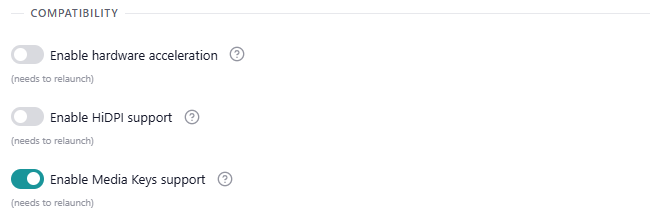
- Under Compatibility, turn off Enable hardware acceleration.
- Click Save, then Restart now.
5. Turn off your extensions
An extension can make apps misbehave. Turn them off and on again one by one to find the culprit. See Extensions issues.
6. Start Rambox in safe mode
If Rambox crashes as soon as it opens (so you can't reach Settings), start it in safe mode. In safe mode Rambox starts without hardware acceleration, without starting automatically with your computer, and without the component that plays protected video and music (so services such as Spotify or Netflix may not play).
- Windows: right-click your Rambox shortcut and choose Properties. In Target, add a space and
--safe-modeafter the closing quote, for example"C:\…\Rambox.exe" --safe-mode. Click OK and open Rambox from that shortcut. - macOS: open Terminal and run
open -a Rambox --args --safe-mode. - Linux: run
rambox --safe-modein a terminal (or add--safe-modeto your launcher's command).
If Rambox works in safe mode, turn off Enable hardware acceleration (step 4), then start Rambox normally again.
TIP
If Rambox only has problems drawing its window, you can try --disable-gpu instead of --safe-mode. It only turns off hardware acceleration.
7. Reinstall Rambox
Your installation may be damaged.
- Uninstall Rambox following How to uninstall Rambox?.
- Download and install the latest version from rambox.app/download.
Your apps, workspaces and settings are saved in your Rambox account and come back when you sign in.
8. Clear Local Storage (last resort)
DANGER
Tools → Clear Local Storage signs you out of every app and restarts Rambox immediately, without asking for confirmation. Use it only if nothing else has worked. See Clear cache and local storage.
When you contact support
Tell us your operating system, your Rambox version, which apps are affected and what you were doing when it happened. A screenshot of the Troubleshooting tool results also helps.
Related articles
Still not working? Request support