
Rambox is not updating automatically?
Which Rambox installations update by themselves, which ones don't, and how to update manually when the automatic update fails.
Rambox checks for new versions when it starts and every few hours. On most installations it downloads and installs them for you. If you're still on an old version, one of the reasons below is usually the cause.
Recommended article: How to check for updates?
Likely causes
Your installation can't update itself. These versions don't update from inside Rambox:
- All Linux packages (deb, rpm, AppImage, Snap, tar.gz). Rambox tells you when there's a new version and offers Download the new version, but you install it yourself (Snap updates through the Snap Store).
- Windows portable version.
- Versions installed from the Microsoft Store or the Mac App Store. They're updated by the store.
In these cases About Rambox shows This version does not support automatic updates.
Automatic download is off. If Automatically download updates is unticked in About Rambox, Rambox only tells you there's a new version (A new version is available!) and waits for you to click Download now!.
The update is downloaded but not installed yet. Updates install when Rambox restarts.
The update failed. You see There was an error. Try again later or update manually. or There has been an error while checking for updates. This can happen because of your connection, a proxy or firewall, permissions on the installation folder, or a change in how Rambox installs itself.
How to fix it
1. Restart to apply a downloaded update
When an update is ready, Rambox shows New version available! Press "Restart now" to quit Rambox and install the new version. Click Restart now. You can also click your avatar at the bottom of the sidebar and choose Restart to apply update.

2. Check for updates in About Rambox
- Open About Rambox:
- Windows: click the Menu button (☰) at the top-left of the window, then Help → About Rambox.
- Linux: Help → About Rambox in the menu bar.
- macOS: Rambox → About Rambox in the menu bar.
- Click Check now!.
- If a new version appears, click Download now! and, when it's ready, Restart.
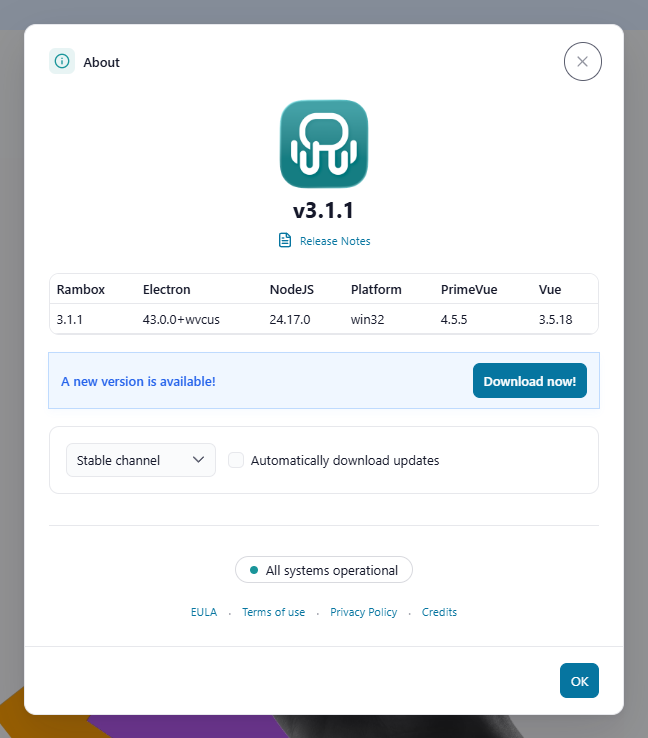
3. Update manually
If the automatic update keeps failing, or your installation doesn't support it:
- Download the latest version for your system from rambox.app/download or from the latest release page. In About Rambox you can also click Update manually or Download manually.
- Quit Rambox.
- Run the installer (or install the package). You don't need to uninstall Rambox first, and your apps, workspaces and settings are kept.
Windows portable and Linux AppImage
Replace the old file with the new one you downloaded.
4. Check your connection and permissions
- If you're behind a proxy, VPN or firewall, make sure Rambox can reach the internet. See Connectivity issues.
- On Windows, if Rambox was installed for all users, you may need administrator rights to update it.
My system is too old to update
If your operating system is no longer supported, Rambox can't install newer versions. See Why can't my version get updates?
Related articles
Still not working? Request support