
Why can't my version get updates?
The operating systems Rambox 3 supports, and what the "end of support" and "Your version is outdated" messages mean.
Rambox is built on Electron (the same engine as Google Chrome), which stops supporting operating systems once their makers stop updating them. When that happens, Rambox can no longer release updates for those systems either.
Supported operating systems
To install Rambox 3 and keep receiving updates, you need:
- Windows: Windows 10 (version 1809 or later) or Windows 11, 64-bit or ARM64.
- macOS: macOS 12 Monterey or newer, on Apple Silicon or Intel.
- Linux: a recent 64-bit distribution, such as Ubuntu 22.04+, Fedora 38+, openSUSE Leap 15.5+ / Tumbleweed or Debian 12+.
If your computer runs an older system (for example Windows 7, 8 or 8.1, or macOS 11 Big Sur or earlier), update your operating system to keep using the latest Rambox.
Messages you may see
"This version will no longer be supported…"
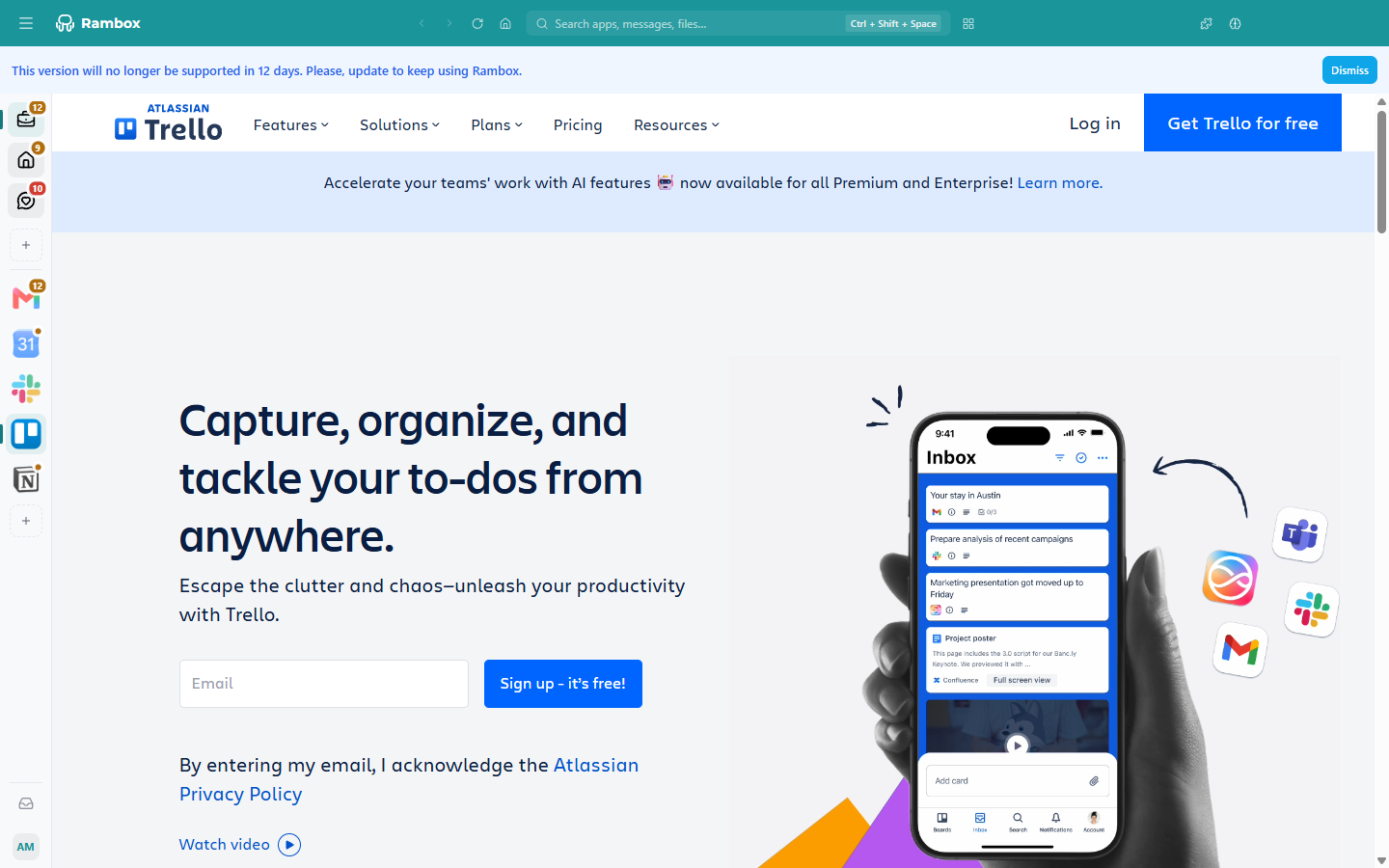
A banner warns you ahead of time: This version will no longer be supported … Please, update to keep using Rambox. The banner tells you how much time is left (for example, "in 12 days"); update Rambox before then. You can close the banner with Dismiss, but it will come back as the date gets closer.
"Your version is outdated" or "Your version is no longer supported"
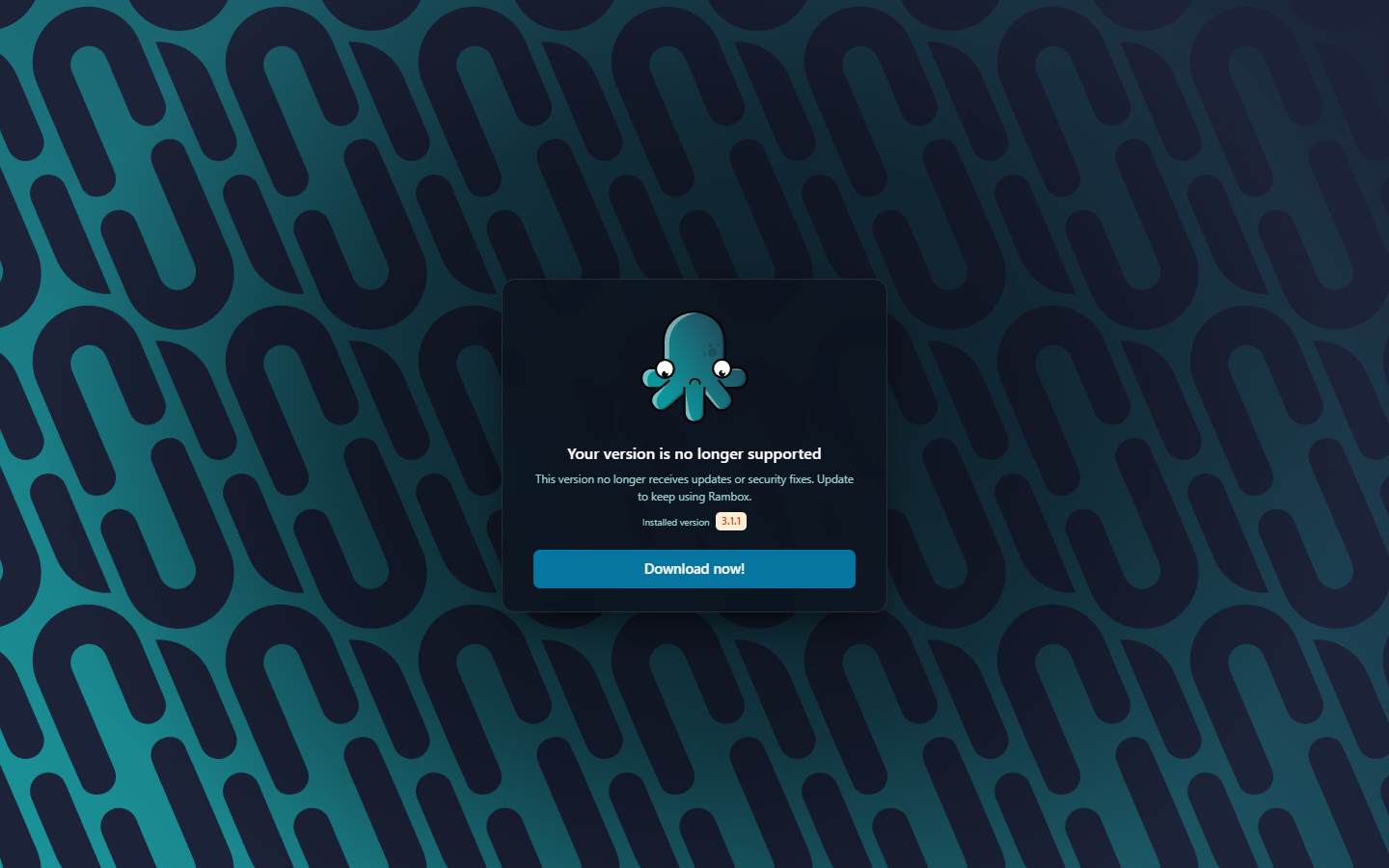
If your version is too old to keep working, Rambox shows a full screen that blocks it:
- Your version is outdated — Rambox now requires version … or later. Update to keep using it.
- Your version is no longer supported — This version no longer receives updates or security fixes. Update to keep using Rambox.
The screen shows your Installed version and a button to get the new one (Download now! or Download from rambox.app).
You may also be signed out with Unsupported version: You are using an outdated version, please update to continue using Rambox.
How to fix it
- Check your operating system version:
- Windows: Settings → System → About.
- macOS: Apple menu → About This Mac.
- If it's supported, update Rambox. Download the latest version from rambox.app/download and install it over your current one. Your apps, workspaces and settings are kept. See Rambox is not updating automatically?
- If it isn't supported, update your operating system first, then install the latest Rambox.
Using Rambox 2?
Once your account has moved to Rambox 3, Rambox 2 can no longer sign in with it. Install Rambox 3 on each of your computers. See Upgrading from Rambox 2.
Related articles
- Rambox is not updating automatically?
- Install Rambox on Windows
- Install Rambox on macOS
- Install Rambox on Linux
Still not working? Request support