
Why are pop-ups blocked?
Why Rambox blocks pop-up windows by default, how to open a blocked link, and how to choose what each app does with its links.
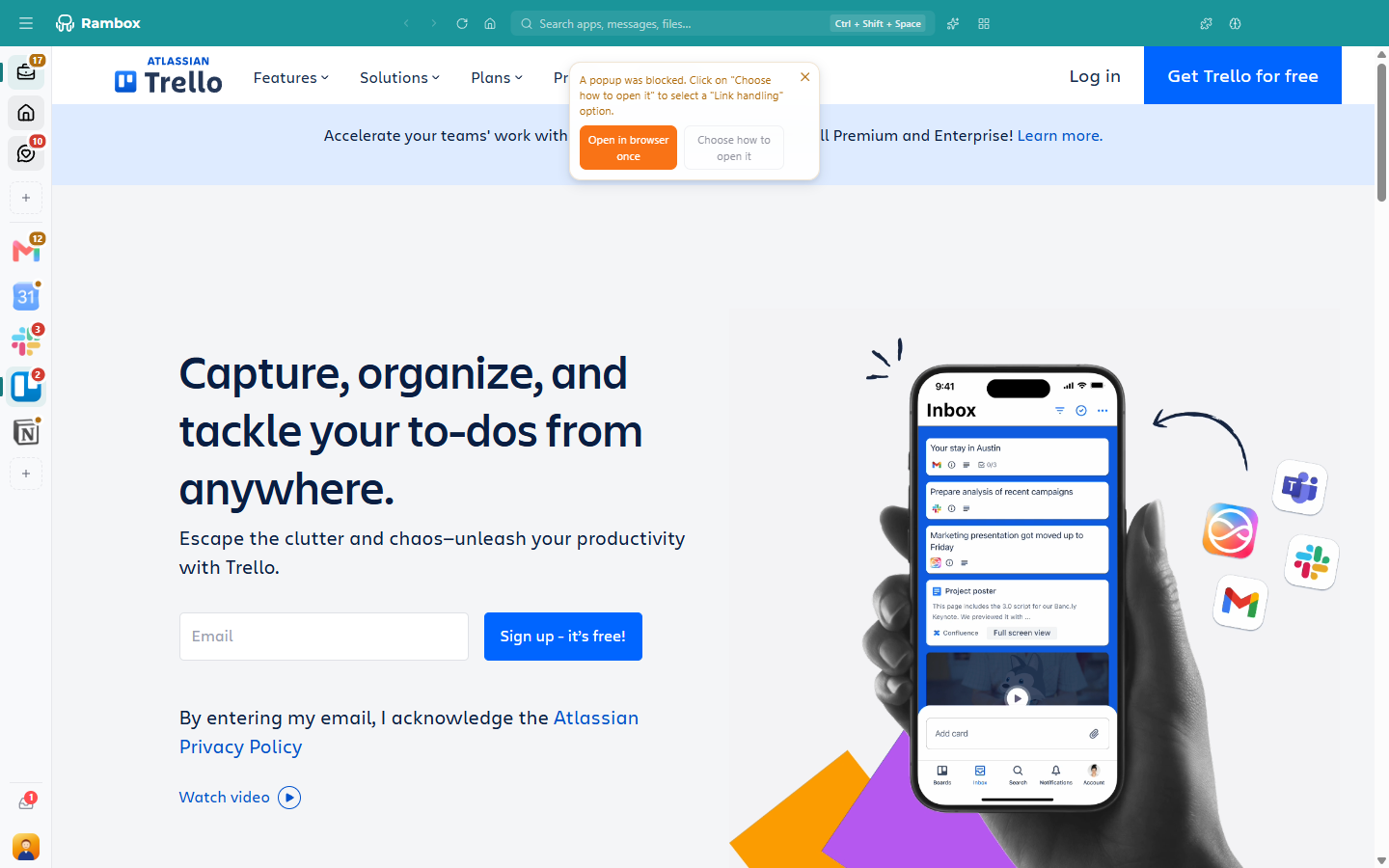
When you click a link that tries to open a new window, Rambox may show this message instead, in a small warning box just below the title bar:
A popup was blocked. Click on "Choose how to open it" to select a "Link handling" option.
Why it happens
By default, Rambox blocks pop-up windows to keep your workspace tidy and avoid unwanted windows. The default for new apps is Block all pop-ups. You can change it for each app, or for every new app you add.
Open the blocked link now
In the message, click:
Open in browser once: opens that link in your default browser, without changing anything.
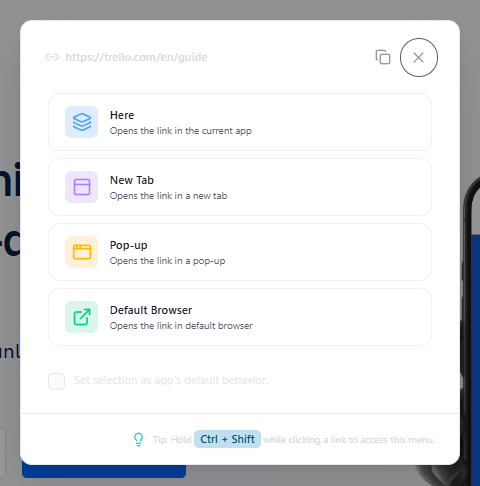
Choose how to open it: opens a window that shows the link and lets you pick:
- Here: opens the link in the current app.
- New Tab: opens it in a tab inside the app.
- Pop-up: opens it in a separate Rambox window.
- Default Browser: opens it in your web browser.
Tick Set selection as app's default behavior. to do the same with every link from this app from now on (not available for Here). Use the copy icon next to the link (Copy URL) if you just want the address.
Change how an app opens links
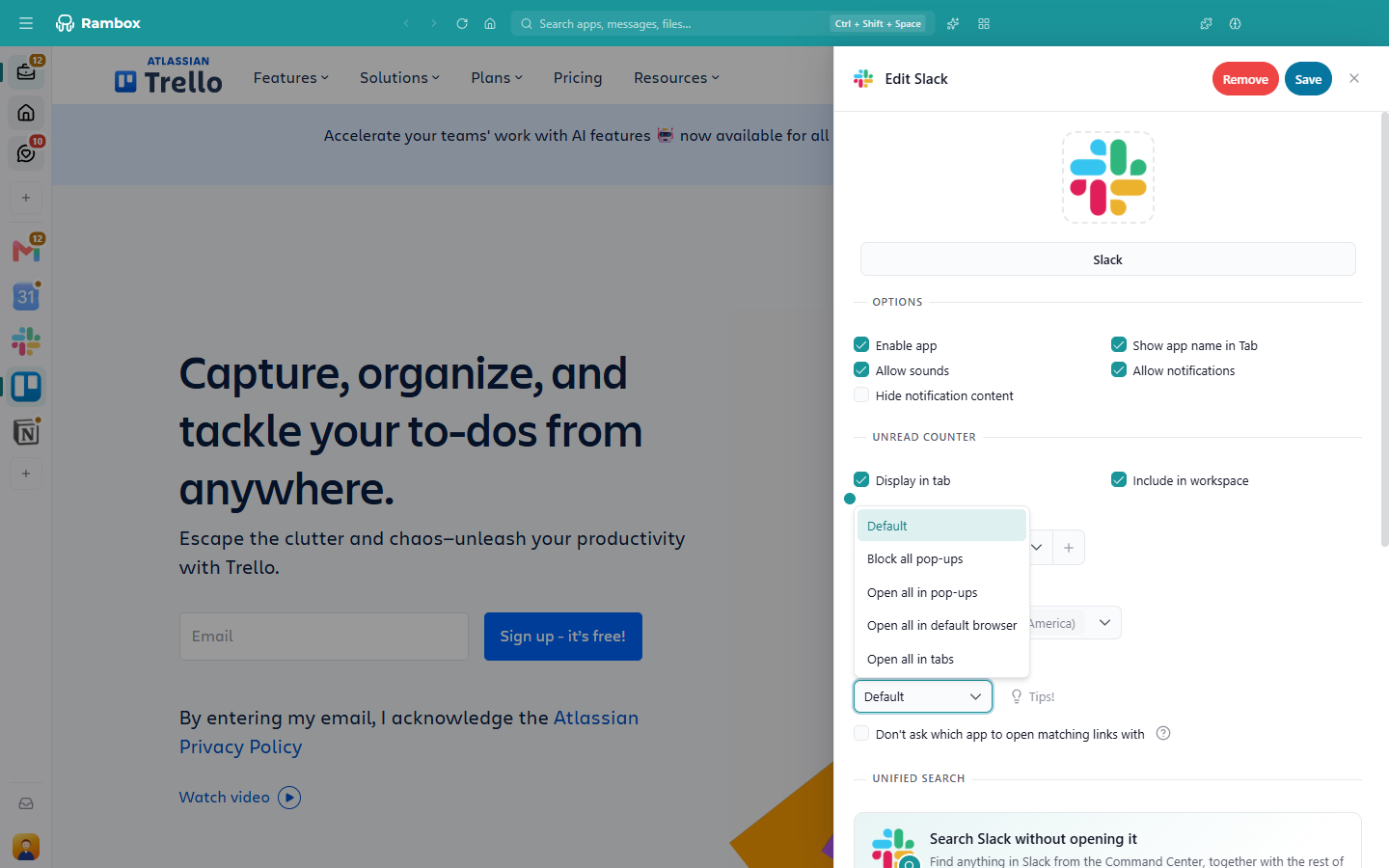
- Right-click the app in the sidebar and click the cog (Settings).
- Find Link handling and choose:
- Default: uses the option set in Settings → Apps → Default app settings.
- Block all pop-ups: blocks every pop-up and shows the message above.
- Open all in pop-ups: opens links in a separate Rambox window.
- Open all in default browser: opens links in your web browser.
- Open all in tabs: opens links in tabs inside the app. Not available in a Tiles workspace.
- Click Save.
Change the default for new apps
- Open Settings: click your avatar at the bottom of the sidebar and choose Settings.
- Go to the Apps tab.
- Under Default app settings, choose a Link handling option.
- Click Save.
This applies to apps you add from now on, and to apps whose Link handling is set to Default.
Handy shortcuts
- Shift+click a link: opens it in a tab.
- Middle-click, or Ctrl+click (macOS: ⌘+click): opens it in the background.
- Ctrl+Shift+click (macOS: ⌘+Shift+click): opens the link chooser.
- Right-click a link → Open Link: choose Default browser, Here, Pop-up or Tab.
Related articles
Still not working? Request support