
Subscribing to Rambox Enterprise
Add a payment method and subscribe your organization from the console Billing page, how seats are counted, and how to cancel or reactivate.
Every new organization starts with a 30-day free trial. To keep using Rambox Enterprise after the trial, add a payment method in the console. You can also end the trial early and start paying right away.
You need the Billing permission to see the Billing page: Read to see it, Full to make changes. See Permissions explained.
Add a card before the trial ends
If the trial ends and there's no payment method on file, your members are signed out of Rambox with the message "You were kicked out because your license is expired. Please, contact your admin." Add a card before the trial ends to avoid any interruption.
How seats work
- You pay per seat. A seat is a member who has accepted their invitation. You, the owner, use the first seat.
- Pending invitations don't use a seat.
- The number of seats updates automatically as members join or are removed.
- Deactivating a member does not free their seat. Removing the member does. See How to edit a user.
For current prices, see rambox.app/pricing.
The Billing page
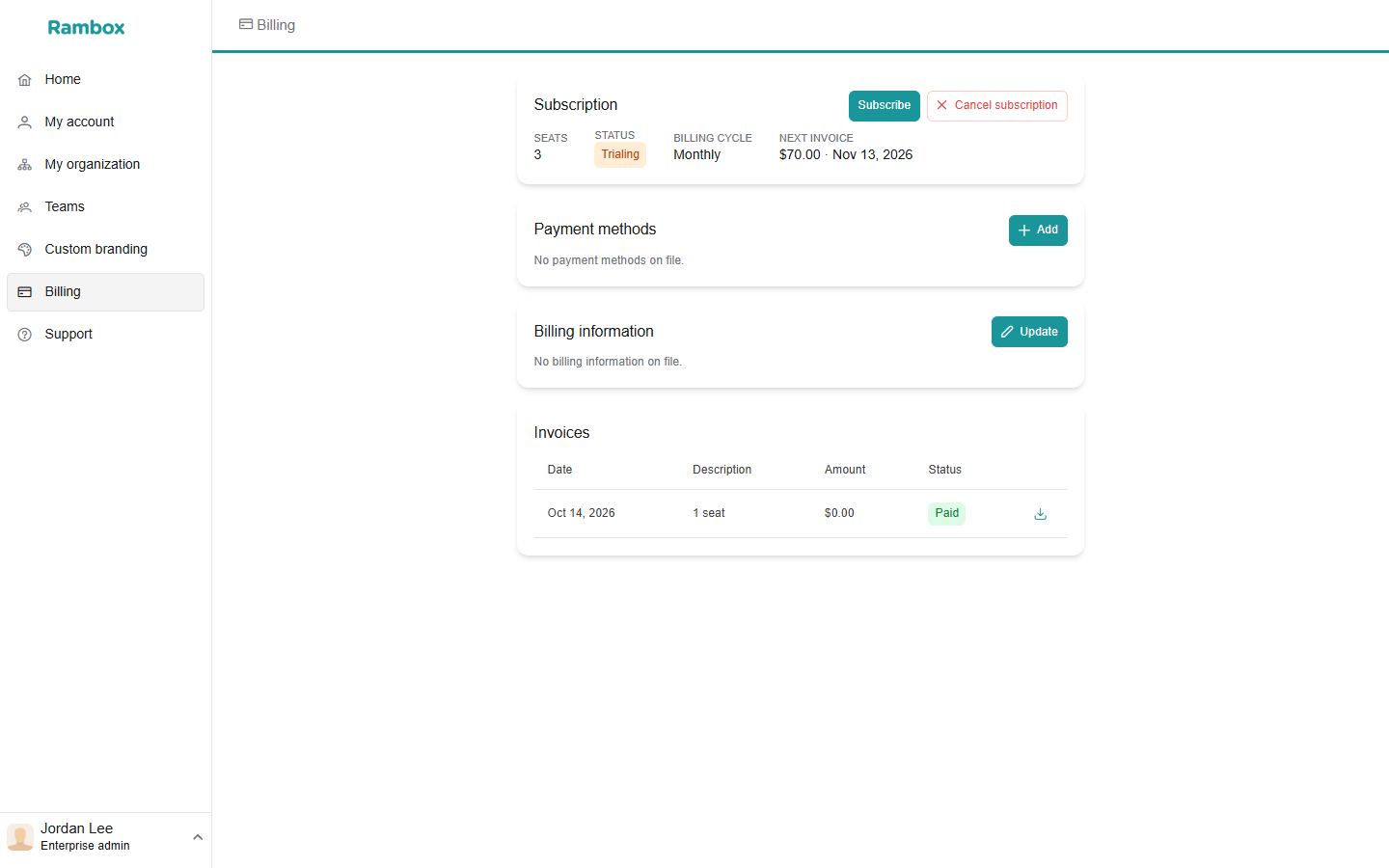
In console.rambox.app, click Billing in the sidebar. You see:
- Subscription: Seats, Status, Billing cycle, and Next invoice (amount and date). While the trial runs, Status shows Trialing.
- Payment methods: your cards. Add opens Stripe's secure page.
- Billing information: billing name, address and tax IDs. Update opens Stripe's secure page.
- Invoices: every invoice, with a download icon for the PDF.
Add a payment method
- On the Billing page, under Payment methods, click Add.
- Stripe's secure page opens. Enter your card details and confirm.
- You come back to the console. The card appears in the list. The first card is your Default.
With a card on file, the subscription continues automatically when the trial ends. Payment details are handled by Stripe; Rambox never sees your full card number.
Subscribe before the trial ends
If you want to start paying now instead of waiting for the trial to end:
- On the Billing page, in the Subscription card, click Subscribe.
- A message tells you how many trial days are left and that subscribing ends the trial today.
- If you already have a card, click End trial and subscribe.
- If you don't, click Add payment method, add a card on Stripe's page, and the subscription starts when you come back.
- You see the message "Subscription started".
To keep the trial instead, click Keep trial.
Update your billing information
- Under Billing information, click Update.
- On Stripe's page, change the billing name, address or tax IDs, and save.
These details appear on your next invoices.
Cancel the subscription
- In the Subscription card, click Cancel subscription.
- In the dialog, click Yes, cancel subscription. To change your mind, click Keep Teams.
- Stripe's page opens. Confirm the cancellation there.
The subscription ends at the end of the current period, and the card shows Cancels at period end. Until then, you can click Resume to undo the cancellation ("Subscription resumed"). When it ends, members can no longer use Rambox Enterprise.
Reactivate a subscription
If the subscription has ended, the Status shows Inactive with "No active subscription for this organization." Click Reactivate subscription and complete the payment on Stripe's page.