
Moving your organization to Rambox 3
How the owner or an admin moves a Rambox 2 organization to Rambox 3, what changes for teams and shared workspaces, and what members need to do.
Rambox 3 stores organizations in a new format. If your organization was created with Rambox 2, its owner or one of its admins has to move it once. It takes a minute and nobody is signed out while it happens.
There's no going back
Once your account and your organization are moved, they can't return to the previous format, and Rambox 2 stops working with your account. Make sure you're ready to use Rambox 3.
Who can do it
- The organization's owner (the person who created it), or
- any admin (a member whose Organization permission is Full).
It only has to be done once, by one of them. Regular members can't move the organization.
What changes
| Rambox 2 | Rambox 3 |
|---|---|
| Admin website at admin.rambox.app | The console at console.rambox.app |
| Areas | Teams |
| Roles | Sub-teams |
| White-Label | Custom branding |
| Basic / Intermediate / Full permission | A detailed permissions matrix, with Basic, Intermediate and Full presets |
When the organization is moved:
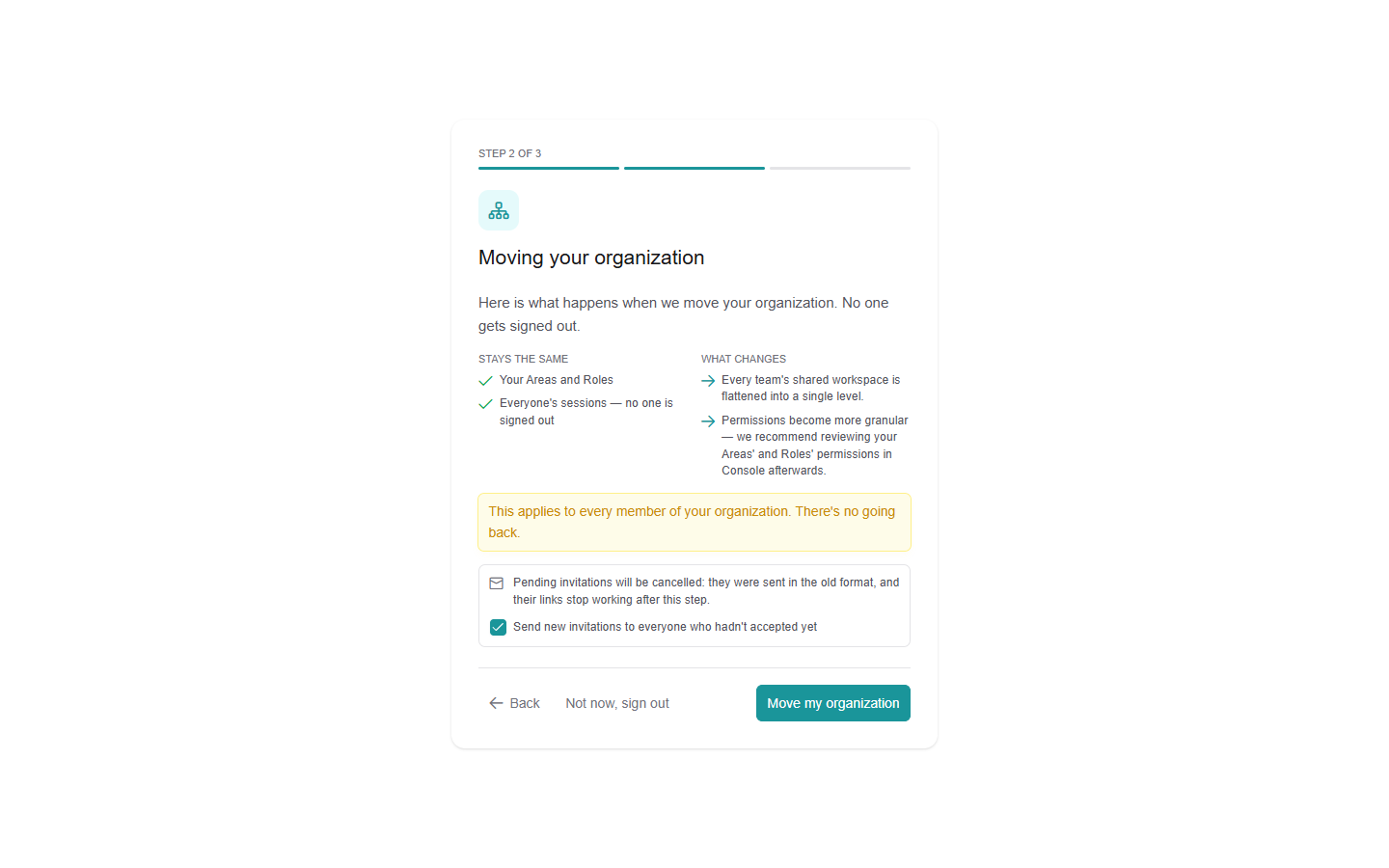
Stays the same: your Areas and Roles (now Teams and Sub-teams), and everyone's sessions. No one is signed out.
Shared workspaces are flattened: every team's shared workspace becomes a single level, with no more groups nested inside other groups.
Permissions become more granular: review your teams' and sub-teams' permissions in the console afterwards. See Permissions explained.
Pending invitations are cancelled: invitations that were sent with Rambox 2 and not yet accepted stop working. You can have them sent again automatically (see below).
Move your account and your organization
You can start from the Rambox 3 desktop app or directly from console.rambox.app. Either way you see the same steps.
- Install Rambox 3 and sign in with your company ID (or open the console and sign in). See How to log in to my Enterprise account.
- On Welcome to the new Rambox, read the introduction and click Get started.
- On Moving your account, check what stays and what changes for your own account, then click Move my account.
- On Moving your organization, review the list of changes.
- Leave Send new invitations to everyone who hadn't accepted yet checked if you want pending invitations sent again. If you uncheck it, you'll need to invite those people again yourself.
- Click Move my organization. Don't close the tab until it finishes. With many teams it can take a minute.
- On You're all set, the console tells you how many invitations were sent again. If you came from the desktop app, Rambox opens again, signed in.
If your own account was already moved earlier, the wizard starts at One last step: your organization. Click Continue and go on from step 4.
From the desktop app you can postpone the organization step with Not now, continue. From the console, the only alternative is Not now, sign out, because the console needs the new format to work.
If something goes wrong, you see "Something went wrong while updating your account. Please contact support." Click Contact support, or write to support@rambox.app.
What your members need to do
- Install Rambox 3 and sign in with your company ID. The first time, they're asked to move their own account (the same Moving your account step). Their sessions in Rambox 2 end once their account is moved.
- Until the organization is moved, members who open Teams in the console see "Teams is temporarily unavailable". They need to ask the owner or an admin to move it.
- People with a cancelled invitation receive a new invitation email if you left the box checked.
After the move: checklist
- Open Teams and review each team's and sub-team's Permissions.
- Open each team's Shared Workspaces and check that the workspaces and apps look right after flattening.
- Open My organization → Members and check for anyone still Pending.
- Open Custom branding and check your logo and colors.