
Troubleshooting tool
Run Rambox's built-in Troubleshooting tool to check its connection to our servers, notification and media permissions, memory and disk space.
When something isn't working (Rambox says it's offline, an app can't use your camera, notifications never show up, or everything feels slow), the Troubleshooting tool is the best place to start. It runs a short list of checks and tells you which one needs attention.
Open the Troubleshooting tool
The tool is in the Tools menu:
- Windows: click the Menu button (☰) at the top-left of the Rambox window, then Tools → Troubleshooting.
- macOS: in the menu bar at the top of the screen, click Tools → Troubleshooting.
- Linux: in the window's menu bar, click Tools → Troubleshooting. If you don't see the menu bar, press Alt.
Run the tests
- Click Test all at the bottom-right of the Troubleshooting window.
- Wait while each row shows Checking.... The tests run one after another and take a few seconds.
- When the Show notification test runs, a notification called Test notification appears, and Rambox asks You should see a notification. Do you see it? Click Yes if you saw it, or No if you didn't.
- When all tests finish, you see a summary:
- All test successfully passed!: Rambox can reach everything it needs.
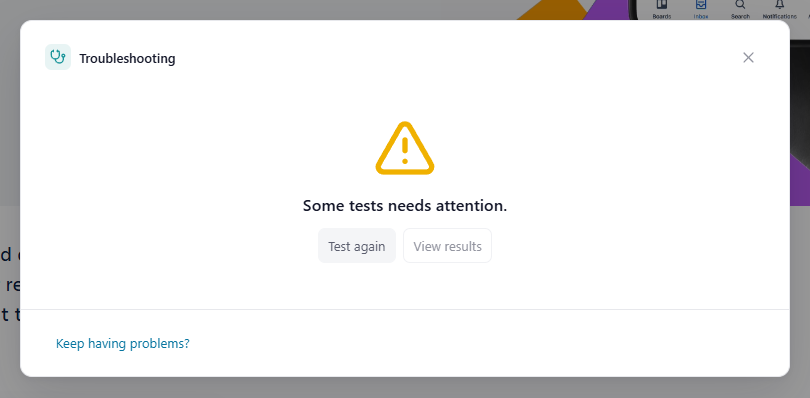
- Some tests needs attention.: at least one row has a problem.
- All tests failed, please contact us.: nothing could be reached. This usually means there's no internet connection, or something on your network is blocking Rambox.
- Click View results to see each row, or Test again to repeat the run.
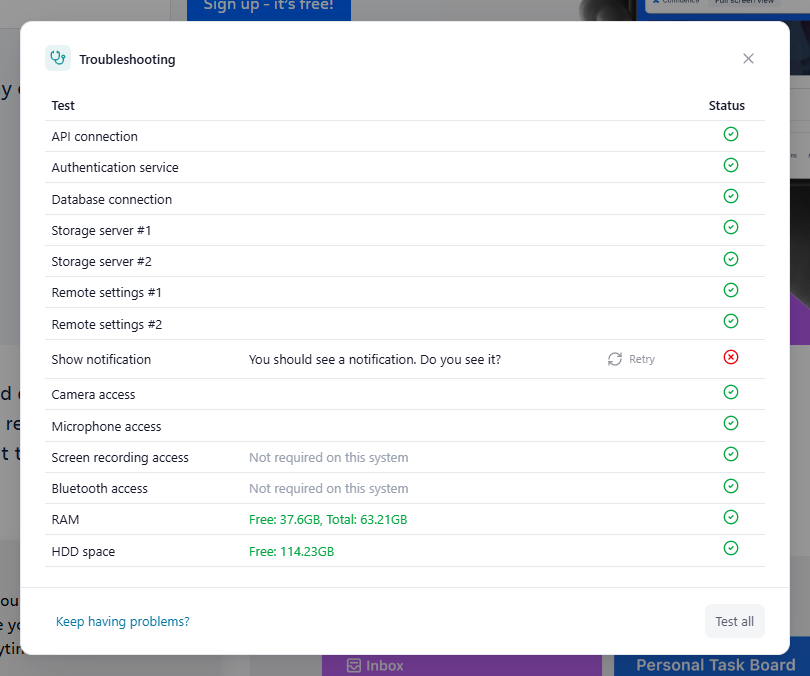
You can also re-run one row at a time: a failed row shows a Retry button.
What the status icons mean
Hover over the icon in the Status column to see its meaning:
- Not tested: the test hasn't run yet (or the system doesn't report a status for it).
- Test: PASSED: everything is fine.
- Needs attention: it works, but something is low or missing (for example, little free memory).
- Test: FAILED: the check didn't succeed.
- Permission denied: your operating system is blocking Rambox from using that device.
What each test checks
Connection to Rambox
API connection, Authentication service, Database connection, Storage server #1, Storage server #2, Remote settings #1 and Remote settings #2 check that Rambox can reach the services it needs to sign you in, sync your apps and workspaces, and download its configuration.
All of them should pass. If one or more fail, follow Connectivity issues.
Show notification
Checks that your operating system lets Rambox show notifications. If you didn't see the test notification:
- Windows: open Settings → System → Notifications and make sure notifications are on, and that Rambox is allowed.
- macOS: open System Settings → Notifications, select Rambox and turn on Allow notifications.
- Check that Do Not Disturb (Windows: Focus assist / Do not disturb; macOS: Focus) isn't on.
- Check that Focus mode isn't running in Rambox. See Focus mode, Pomodoro and ambient sounds.
Camera, microphone, screen, location and Bluetooth
Camera access, Microphone access, Screen recording access and Bluetooth access show whether your operating system allows Rambox to use them. Location access appears only when location is offered for your apps.
These rows only read the current state, so running the tests never pops up a system dialog. Next to each row you may see:
- Not required on this system: your operating system doesn't ask for this permission (common on Linux, and for screen sharing and Bluetooth on Windows). Nothing to do.
- Not granted yet: Rambox hasn't been allowed yet.
- Not checked yet: the system doesn't report a status for this permission (usual for Location and Bluetooth).
- Blocked by the system: the permission was denied.
- Turned off or unavailable: the device or the feature is off.
To fix a row, click Grant. Rambox asks your operating system for the permission. If the system can't show a prompt, it opens the matching privacy settings page instead. See Issues sharing your camera, microphone or screen?
TIP
The same permissions are listed in Settings → Privacy & security → Permissions, where you can open the right system settings page at any time.
RAM
Shows your computer's free and total memory, for example Free: 3.2GB, Total: 16GB. You get a warning, and the value is marked (LOW), when your computer has less than about 4 GB in total or less than about 512 MB free. With little memory, apps may load slowly or reload by themselves. See Crashes and loading issues for ways to free memory.
HDD space
Shows the free space on your disk. You get a warning when there's less than 2 GB free. See Insufficient hard disk space?
Contacting support
If a test keeps failing, take a screenshot of the results. It helps our team understand the problem much faster. Include your operating system and Rambox version (shown in About Rambox).
Related articles
- Connectivity issues
- Offline mode
- Issues sharing your camera, microphone or screen?
- Insufficient hard disk space?
Still not working? Request support