
No sounds from apps?
Find out why one app, or all of them, don't play sounds in Rambox, and how to turn sound back on.
Rambox lets you mute apps, workspaces, or everything at once while you concentrate. If you don't hear an app, one of those switches is usually on. Find your case below.
Some apps play sounds, others don't
1. Check the app's sound switch
- Right-click the app in the sidebar.
- In the popover, make sure Sound is on.
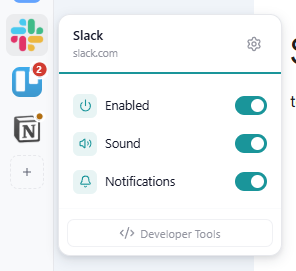
Muted apps show a muted speaker on their icon, and the tooltip says Sounds: Muted. You can also check it in the app's settings (the cog in the same popover): Allow sounds must be ticked.
2. Check the workspace's sound switch
A workspace can be muted too, which mutes every app in it. Right-click the workspace in the sidebar and make sure Sound is on. See Apps and workspaces quick settings.
3. Check the workspace's work hours
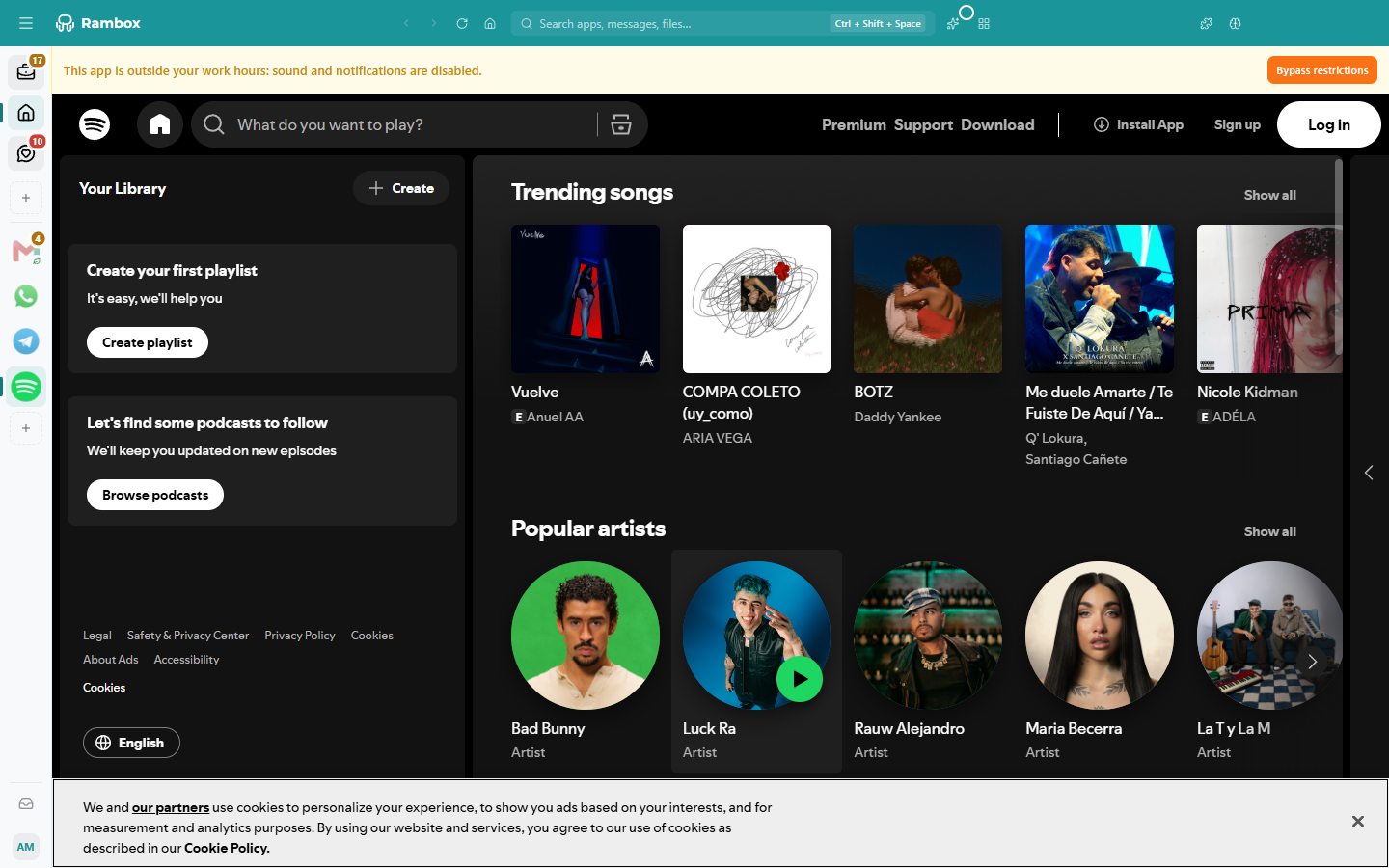
If the workspace has Work hours, sounds and notifications are only allowed inside that time range. Outside it, the app shows This app is outside your work hours: sound and notifications are disabled..
- To hear it just this once, click Bypass restrictions in that message.
- To change the hours, open the workspace's settings. See Work hours.
No app plays sound
1. Check that Focus mode is off
While a Focus session or a Pomodoro is running, all apps are silenced. The apps don't show a message about it, so check the Concentration button (brain icon) in the title bar and end the session there.
Apps in a call or sharing your screen keep their sound during Focus mode (This app is currently streaming: sound is temporarily enabled.). See Focus mode, Pomodoro and ambient sounds.
2. Check your speakers
Play a video or sound in another program or website. If you don't hear anything there either, the problem is your computer's audio, not Rambox.
3. Check the audio output
If your computer has several outputs (speakers, headphones, a monitor, Bluetooth), make sure the right one is selected in your system's sound settings.
4. Check that your system isn't muting Rambox
- Windows: right-click the speaker icon in the taskbar and open the Volume mixer. Make sure Rambox isn't muted or set to zero.
- macOS: macOS doesn't have a per-app volume control. Check the system volume, and make sure Rambox's notifications are allowed to play sounds in System Settings → Notifications → Rambox.
- Linux: open your desktop's sound settings (or a mixer such as
pavucontrol) and check Rambox's volume under applications.
5. Restart Rambox
Quit Rambox (Ctrl+Q; macOS: ⌘+Q) and open it again.
Notification sounds only
If you hear the app's calls and media but not its notification sounds, check that notifications are on for the app (right-click it → Notifications) and in your system. See Notifications and Notification Center.
Related articles
Still not working? Request support