
Extensions issues
What to do when a browser extension doesn't show up, doesn't work or makes an app misbehave in Rambox.
Rambox is built on the same engine as Google Chrome, but it can't run every Chrome extension. That's why Rambox offers a curated list of extensions that we've tested. Even so, an extension can occasionally stop working, not show up, or cause problems in an app.
Pro feature
Extensions are available on the Pro plan and during the free trial. On Basic, the extension switches are disabled. How to become Pro
Likely causes
- The app hasn't been reloaded since you turned the extension on or off.
- The app uses a profile where the extension isn't turned on. Extensions are turned on per profile, not per app.
- The app uses the Incognito profile, where extensions aren't allowed.
- The extension was updated and needs to be reinstalled.
- On Linux, some newer extensions can't use all their features.
How to fix it
1. Reload the app
When you change an extension, apps show There's been a change in the extensions, please reload it to apply the changes. Reload the app with F5 or Ctrl+R (macOS: ⌘+R).
2. Check that the extension is on for this app's profile
- Open the app where the extension should work.
- Click the puzzle button (Extensions) in the title bar.
- If the popover says:
- No extensions installed: no extension is turned on for this app's profile. Continue with step 4.
- Wake up the app to see the extensions: the app is hibernated. Wake it up first.
- Enable the app/workspace to see the extensions: the app or its workspace is disabled. Turn it on first.
- Click the gear (Manage extensions). The Extensions for "…" panel opens for this app's profile.
- Make sure the extension's switch is on. Turning it on installs it if needed (Installing extension. Please wait...).
- Reload the app.
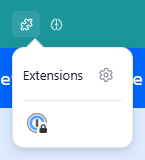
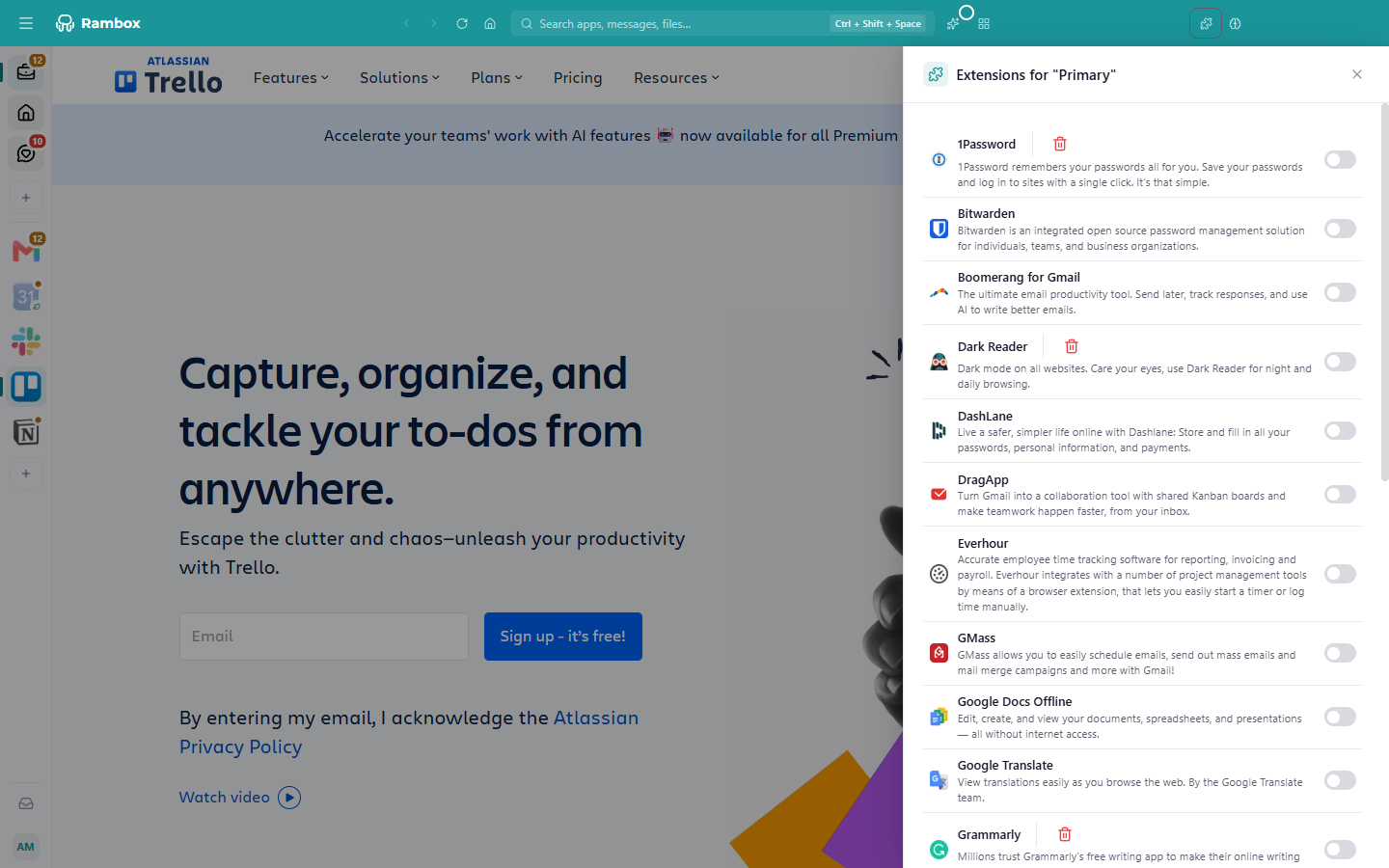
If the panel says Extensions are not allowed in "Incognito" profiles, change the app's profile (right-click the app in the sidebar → cog Settings → Profile). See Profiles.
3. Reinstall the extension
- Open the app, click the puzzle button (Extensions) in the title bar and then the gear (Manage extensions).
- Find the extension and click the trash icon (Uninstall). Confirm with Yes. If other profiles use it, Rambox warns you that they'll lose it too.
- Restart Rambox.
- Open the panel again and turn the extension back on.
- Reload the app.
4. Find out if an extension is breaking an app
If an app started misbehaving after you turned on extensions, turn them off one by one (reloading the app each time) until the problem goes away. Then let us know which extension it was.
Related articles
Still not working? Request support