
Troubleshooting tool
Run the built-in Troubleshooting tool to diagnose connectivity, permission and performance problems.
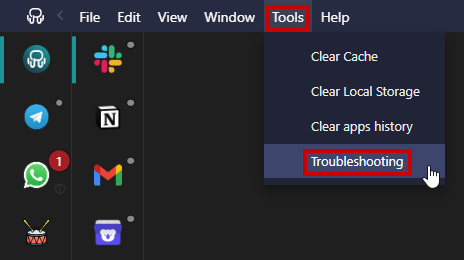
If you experience connectivity issues, permissions problems with your mic or camera, or maybe a performance complication, you can resort to our "Troubleshooting" tool. To access it, you must click on "Tools" and then on "Troubleshooting" on our top menu:
The following screen will appear, showing all possible parameters that can be tested:
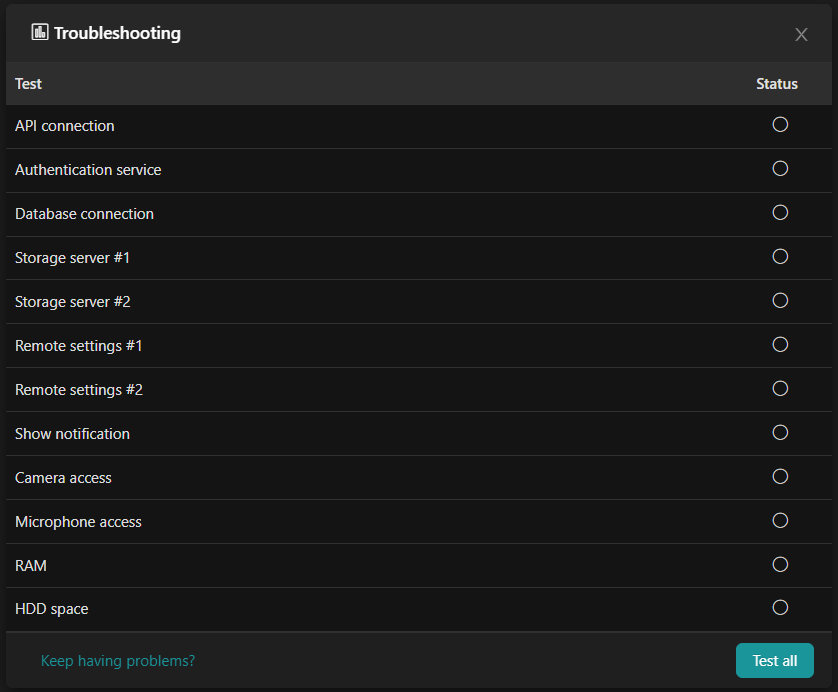
API connection, Authentication service, Database connection, Storage servers #1 and #2,
Remote settings #1 and #2
Essential access to our servers to utilize our services, log in, get our configurations and use our app. You can read more about this subject here: Connectivity Issues.
Show notification
You will be shown a notification to confirm that your OS has permissions to display them: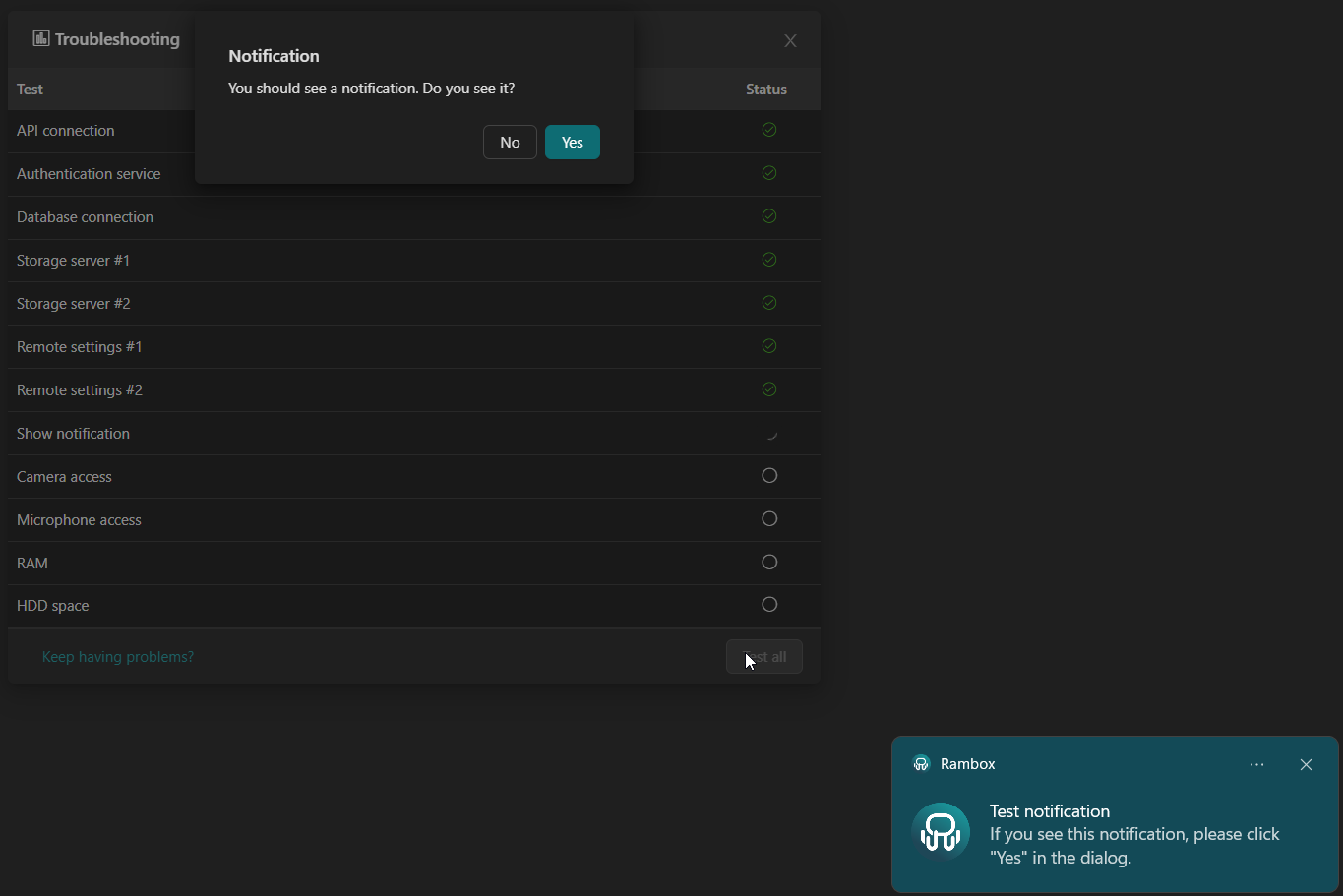
Camera and Microphone access
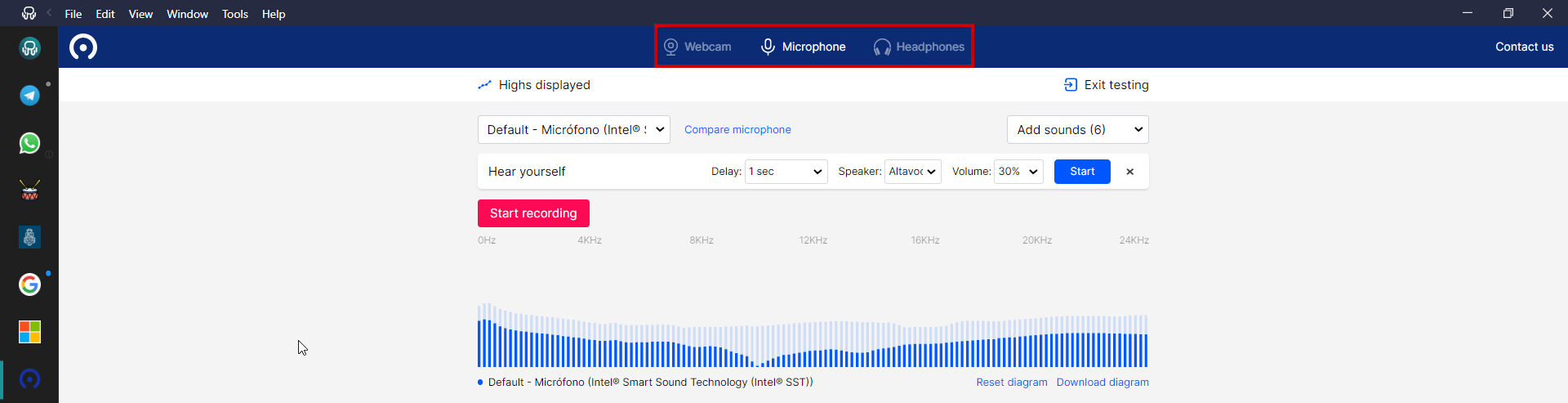
Tests if Rambox has access to your camera and microphone. If this fails, you can add "WebcamMicTest" from our list of preconfigured apps, to test how your camera and microphone work. Please refer to THIS ARTICLE to learn how to add this app:

RAM
Checks if your system has enough memory for Rambox to work properly. It will show a warning if your memory is low:

HDD space
Checks if your system has enough free hard disk space for Rambox to work properly.