
How to set and remove your Master Password?
Protect your working environment with a Master Password, and remove it when you no longer need it.
In Rambox, you can set a Master Password to protect your working environment. Each time that Rambox locks (at start up, locking manually or automatically), you will need to enter this password to access your apps.
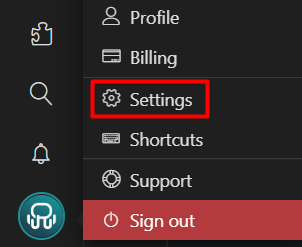
To configure your Master Password, click on your profile picture and go to our General Settings:
There, in the Security section, you will find the "Lock app" option. Select "Master Password", and new settings will be displayed:
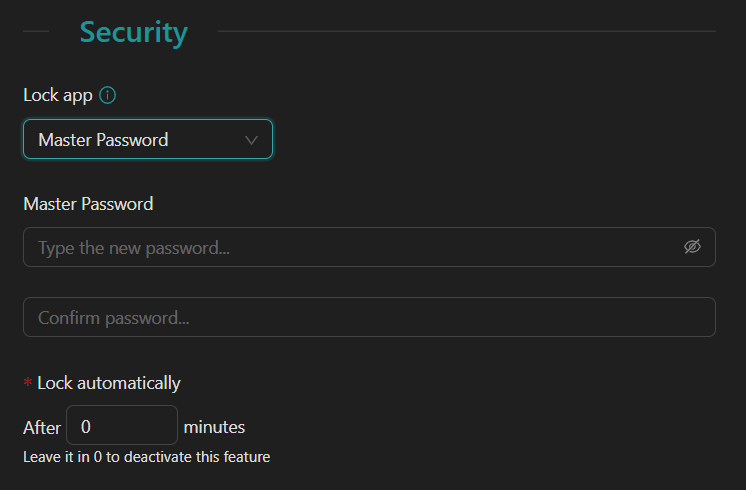
Setting your Master Password
Look for the "Master Password" field, with the legend "Type the new password...".
In this field, type the password you want to use.
Confirm your password in the second field.
Save the changes.
Done!
How to remove it?
Look for the "Lock app" option.
Select "Disabled" from the dropdown menu.
Save the changes.
Done!
Lock automatically
In this timer, you can set a number of minutes for Rambox to automatically lock. Remember that you can always lock it manually with our Alt + Shift + L (Windows/Linux) or Cmd + Alt + L (macOS) shortcuts.
Keep in mind that this Master Password is set only for the current device you are using. If you want to set a Master Password for each device, you have to do so manually.